Request Type Setup
This screen is used to add the list of Request Type for the credit application. There can be different activities for a bank, like creation of credit application, amendments, renewing a credit application etc,such configuration of activity are done here.
View
After selecting Request Type setup from the Workflow module, the User lands on the screen where the user can view the already existing workflow activity with the add package status button.

User can view the below details of already added workflow activities.
- Request Type Key
- Request Type
- Activity Type
- Action (Edit,Delete)
Add
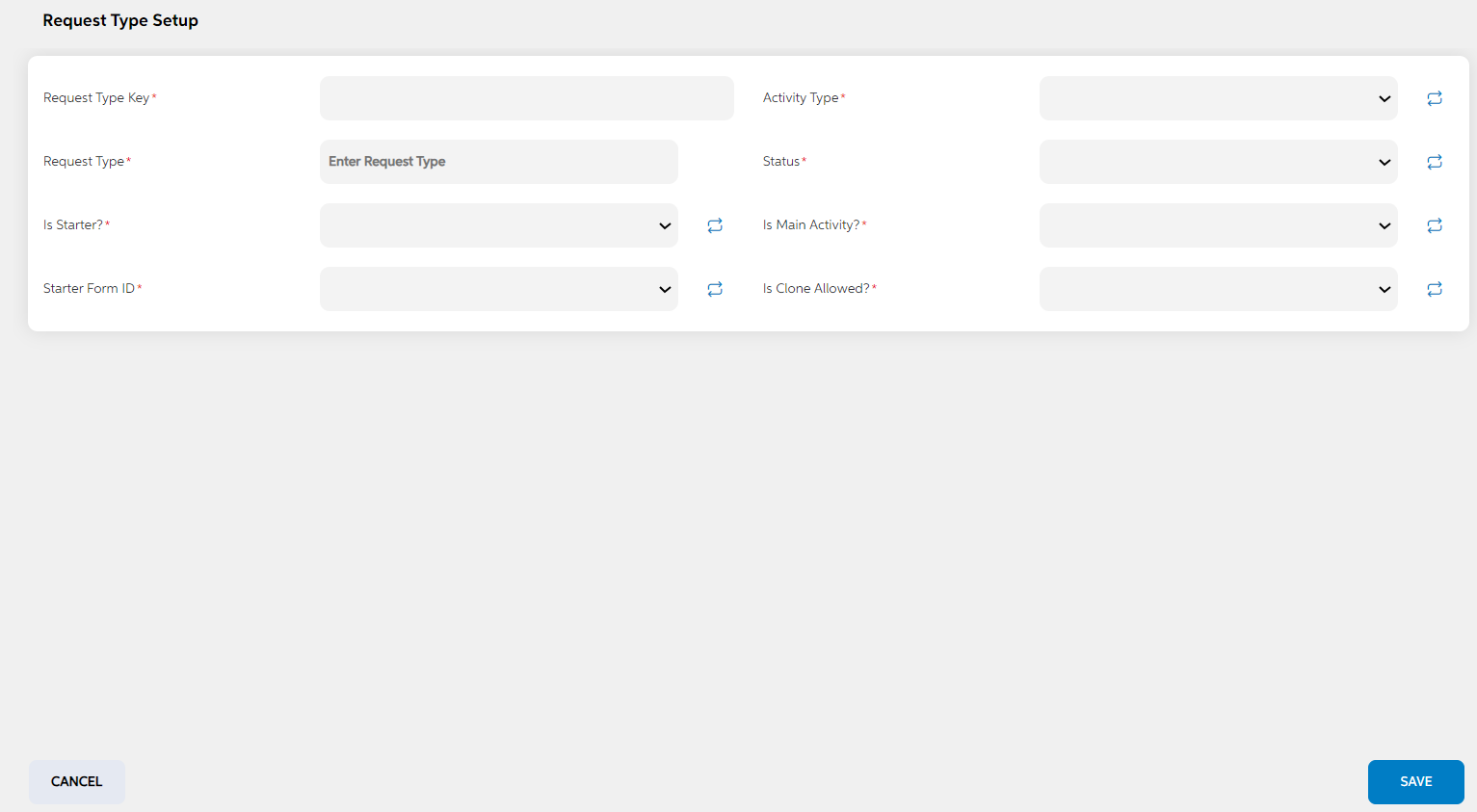
The user can click on the add package status button enter the details for the below fields and click on the save button. Once the details are saved, they appear on the view page. If the user wants to cancel adding a package status in between, the user can click on cancel. The user views a pop-up saying “Are you sure you want to cancel. All unsaved data gets discarded” with a yes/no option.
System has the validation to Check while adding a request type that there is not be a duplicate request type.
| Screen name | Field names | Description | Mandatory/Non mandatory | Field type |
|---|---|---|---|---|
| Request Type Setup | Request Type Key | key is auto generated by system. This key is used to link this record to another record in other admin screens. | Mandatory | Alphanumeric |
| Activity Type |
The dropdown values are Package/transaction
If the activity is configured for a post approval activity, Then transaction has to be selected. |
Mandatory | Dropdown | |
| Request Type | Name of the request type | Mandatory | Alphanumeric | |
| Is Starter | It denotes that a particular activity is the starter of the credit application Only one Activity can be as Is starter “Yes” | Mandatory | Dropdown | |
| Is Main Activity | If this is marked yes, then it shows in the select activity button in business information to initiate an activity. If it is marked as no, then user will not be able to initiate this activity anywhere. | Mandatory | Dropdown | |
| Starter Form ID |
It lists all the forms of the credit application. It is used to mention in which form the user lands when the activity is triggered for that credit application. For all activities, in the workflow activity setup screen, the Starter form ID should be configured as Recommendation / Approval |
Mandatory | Dropdown | |
| Is Clone Allowed | It is used to mention if the data from previous application can be cloned by the user or not. If this is marked as no, then when the activity is initiated, then the data from previous application will not be cloned. | Mandatory | Dropdown | |
| Status | Status is to mention if this is active or inactive. If this is marked as inactive, then it will not appear in the respective screens. | Mandatory | Dropdown |
Edit
The user can edit the details of the already added workflow activity by clicking on the edit icon under the actions tab on the view page. It lands in the same add workflow activity page with prefilled details. Users can choose to make the changes and click on save.
Delete
If the user wants to delete any workflow activity, then the user can click on the delete icon under the actions tab. User views a pop up for confirmation “Are you sure you want to delete the workflow activity” User can click on yes or no.
Prerequisites Configuration
| Screens to Configure (as Pre-requisite) | Screen name | Reflection in the user panel | Reflection in the admin panel |
|---|---|---|---|
|
No prerequisite screen to be created. |
Workflow activity | Used only in admin panel |
This screen acts as prerequisite screen for the below screens.
|
In this topic