Customer Listing Dashboard
For users having access to large number of accounts and contracts, to ensure seamless log in to dashboard with less wait time, we have introduced a new dashboard to list customer ids to the user. The banks can configure the dashboard based on the total number of accounts that user has access.
After a successful sign in, the user is presented with the Customer ID list in the dashboard screen if the user access to total number of accounts exceeds the value defined in the configuration. Access to other features and actions remains the same, based on the user permissions.
In Spotlight, using system configuration (Bundle-: DBP), the count can be changed.
Based on the contract architecture, a user can belong to the following categories:
- User having access to own personal accounts and multiple Customer ID, can see own personal, business, and retail accounts distinctly on the dashboard.
UX Overview
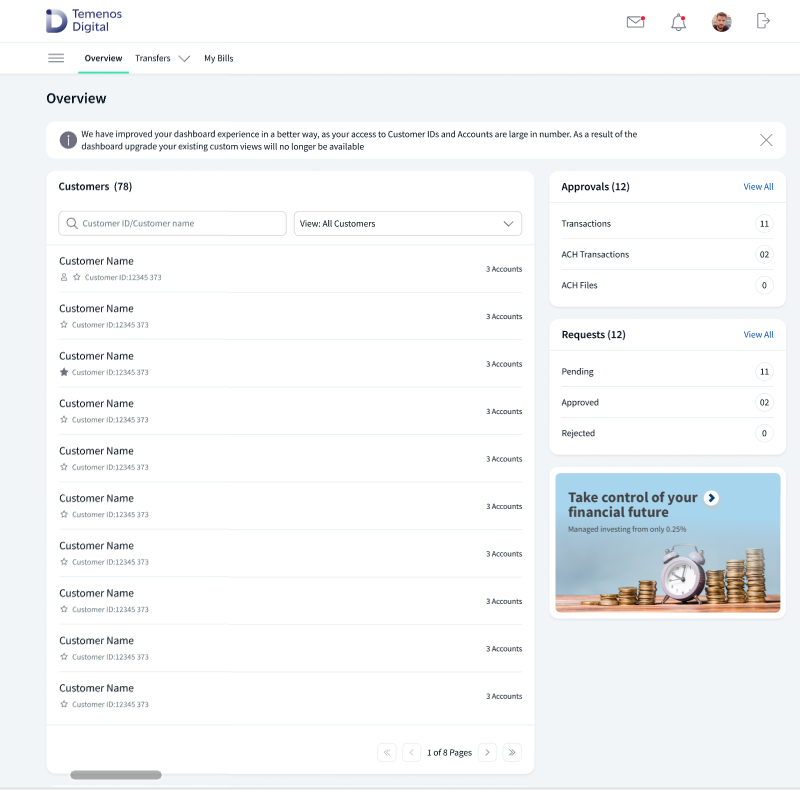
If the user exceeds the number of accounts configured by the bank, user lands on the Customer ID dashboard. The dashboard displays a Customer ID Names and Numbers. For mobile banking experience, see the mobile banking dashboard.
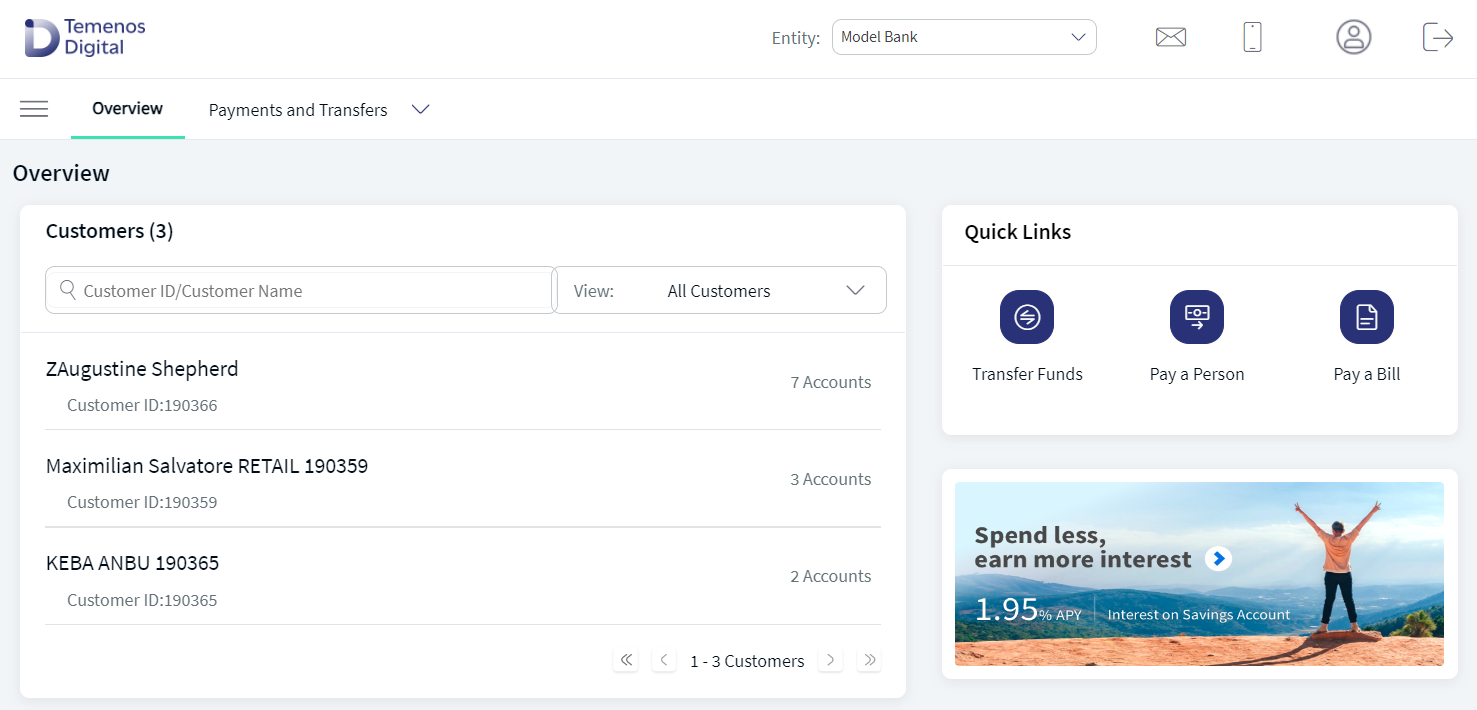
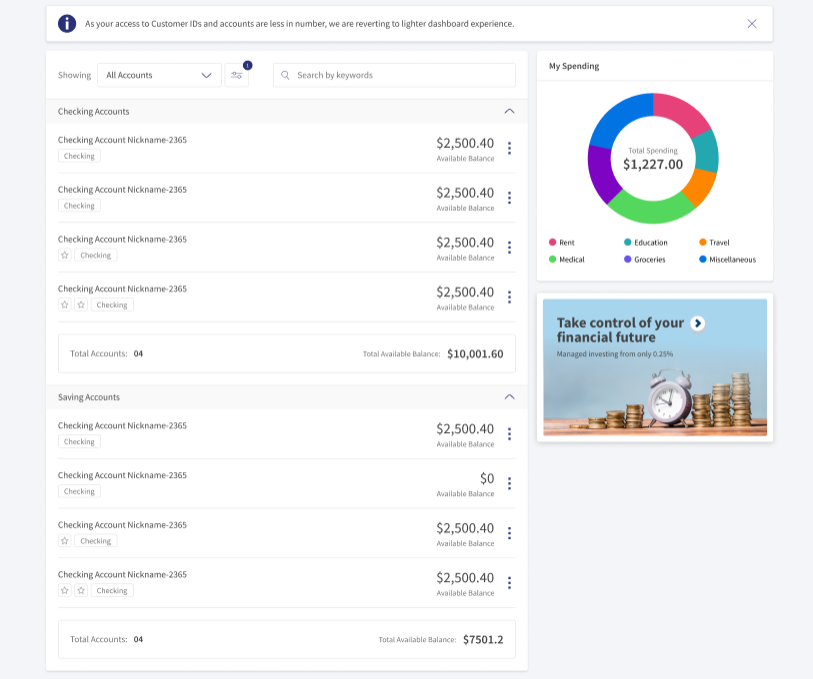
If the user has access to less number of accounts below the configured value, the user is displayed with the regular account dashboard in paginated view.
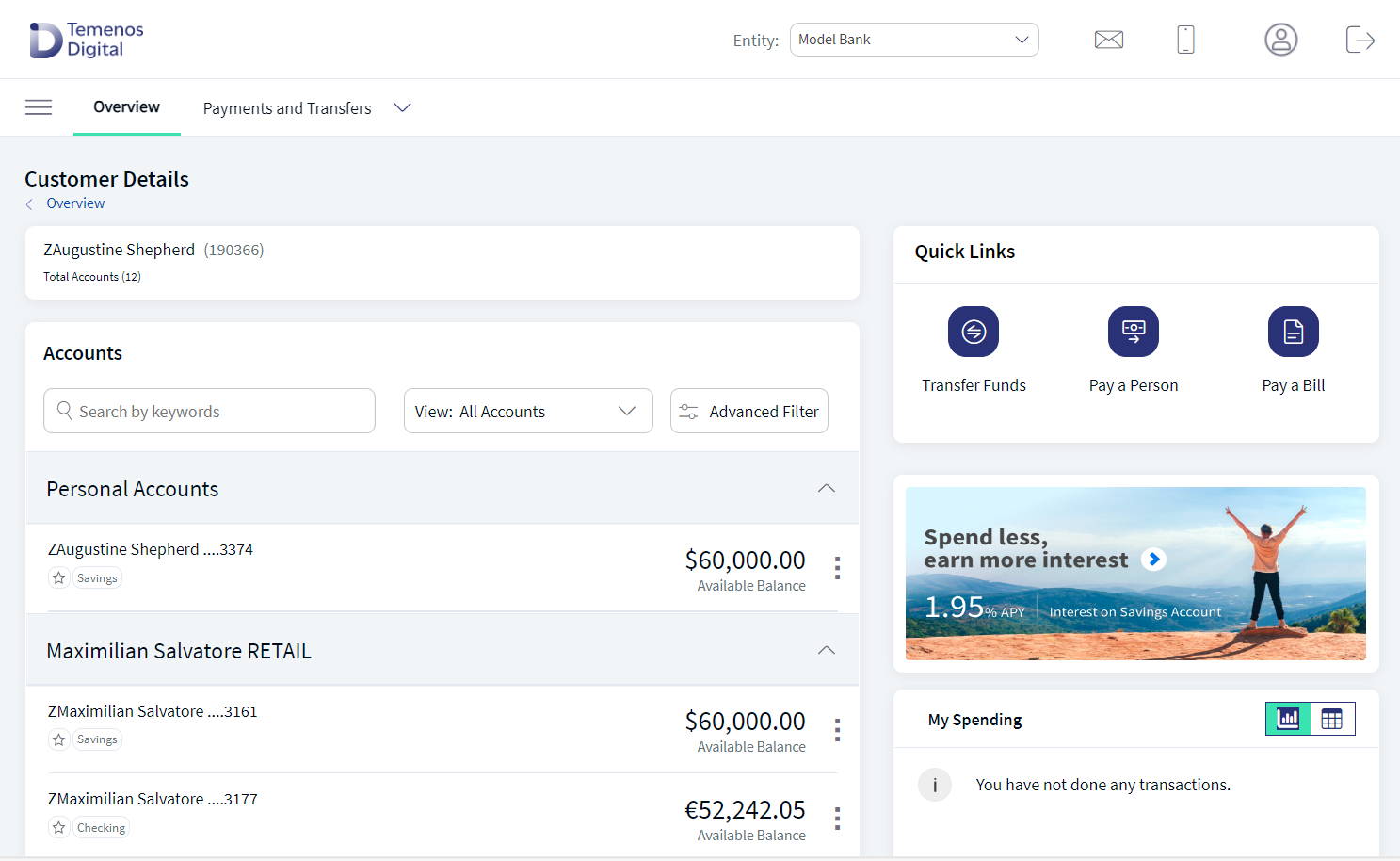
Additional filtering capabilities are provided to the user to create a tailored view of Customer ID on the dashboard. The Keyword search, Favorite icon setting and Filter drop down options are available in the Customer ID dashboard.
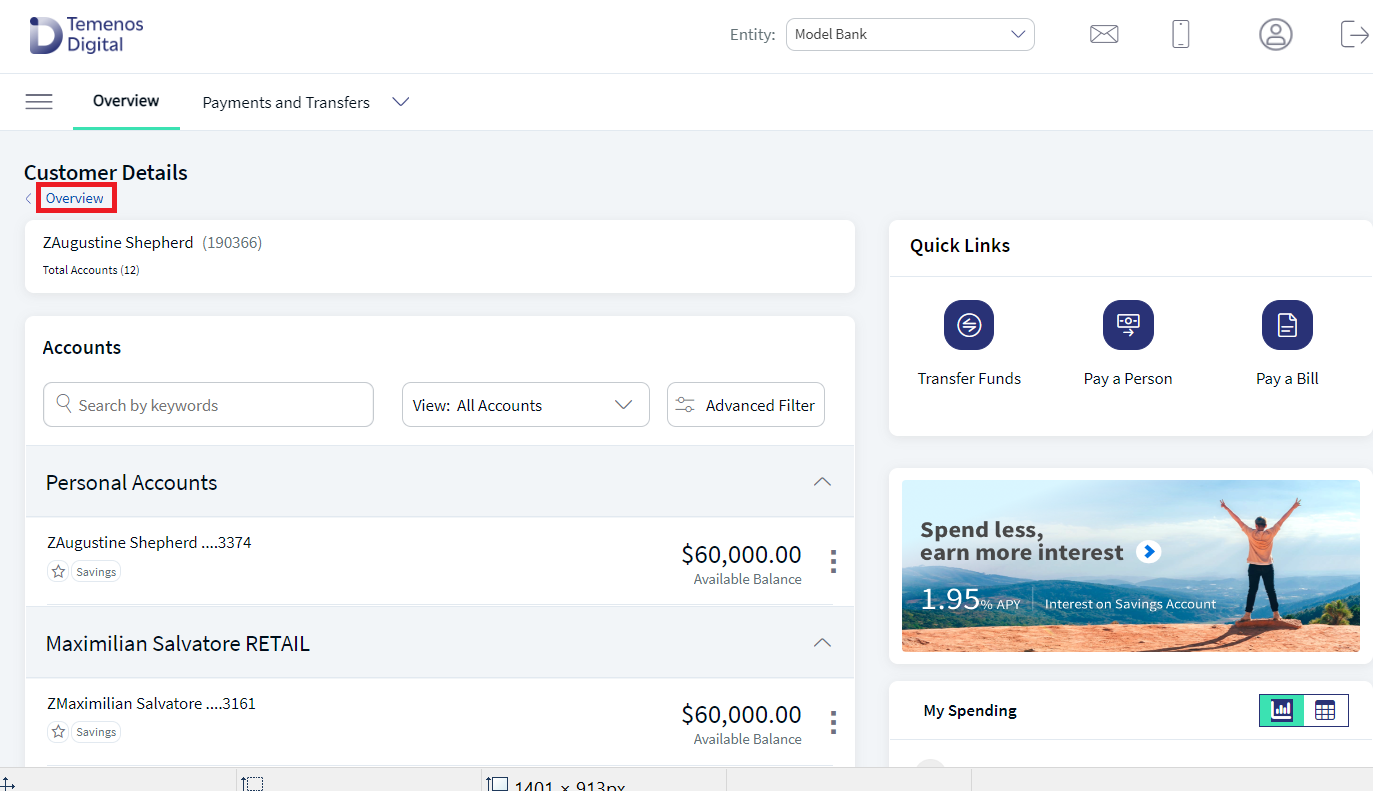
If the user select and click on any of the Customer ID, user lands on account dashboard page with all the options such as Keyword search, Favorite icon setting, Filter drop down, and Advanced filter option. If the user click on the back option at the overview, the user can navigate from accounts dashboard to Customer ID dashboard.
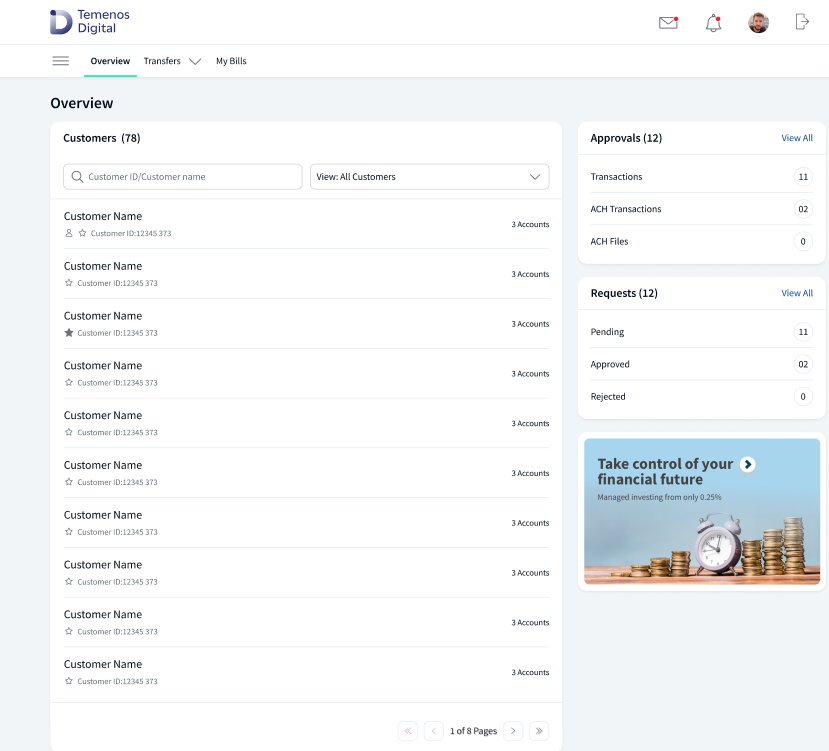
The following elements are available on the online banking Customer ID dashboard based on the permissions or privileges conferred to the user by the contracts to which the user has access:
- Menus
- Customer list and filter
- Search bar
- Marketing placeholder
- Widgets on dashboard - Approvals and requests
- Other actions
For mobile banking experience, see the mobile banking dashboard.
Menus
The menu items are displayed depending on the user type and permissions.

Top menu or top bar
Do any of the following:
- Navigate to modules (Overview, Transfers, and My Bills). The application displays the Accounts module by default.
- Open the
 hamburger or side menu.
 - Manage profile - profile settings, account settings, alert settings, approval matrix, and security settings.
- Manage alerts and messages.
- Sign out of the application.
Hamburger or side menu
Navigate to modules .
- Overview
- Accounts
- Transfers
- My Bills
- ACH
- Bulk Payments
- Exchange Rates
- Approvals & Requests
- Wire Transfer
- User Management
- Messages
- Settings
- About Us.
See Menus for more information.
Marketing Placeholder
Displays promotional and informational content to educate or inform about new deals and offers. This content is in the form of multiple images and user can navigate between the images.
The images may or may not be linked to a page on the bank's website. If required, you can open the images in another tab; the functional flow in the application will not be interrupted.
Widgets on Dashboard
The following widgets are available on the dashboard and depends on the user type and user permissions (access to features and actions).
The widgets show static data.
Approvals and Requests
The Approvals widget shows the approval items (single transaction, bulk transactions, and other requests) along with the total number of requests that are due for approval of the signed-in user. The Requests widget shows the requests (single transaction, bulk transactions, and other requests) raised by the signed-in user along with the total number of requests that are submitted for approval.
Using these widgets, a user can navigate to the My Approvals and My Requests modules by clicking the View All link. The visibility of the widgets is controlled by the permissions assigned to the user. Users who do not have approval permission do not see the Approvals widget. If there are no requests or approval records pending, then the application displays zero records.
Notifications
If the user has more Customer IDs and Accounts and if user clicks on any modules like Payments/ Cheque management/ User management which requires the entire account lists to be retrieved, a disclaimer message appears to the user that it will take longer time to access the module.
This is applicable to web channel and mobile native. The user can then choose to either sign out or extend the session.
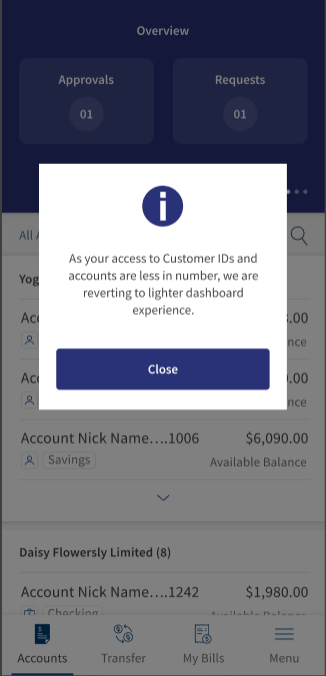
If the accounts are less or below the configured value (account is removed or account is closed) in a customer ID, then Customer ID dashboard will revert back to the normal accounts dashboard with the disclaimer with an option to close.
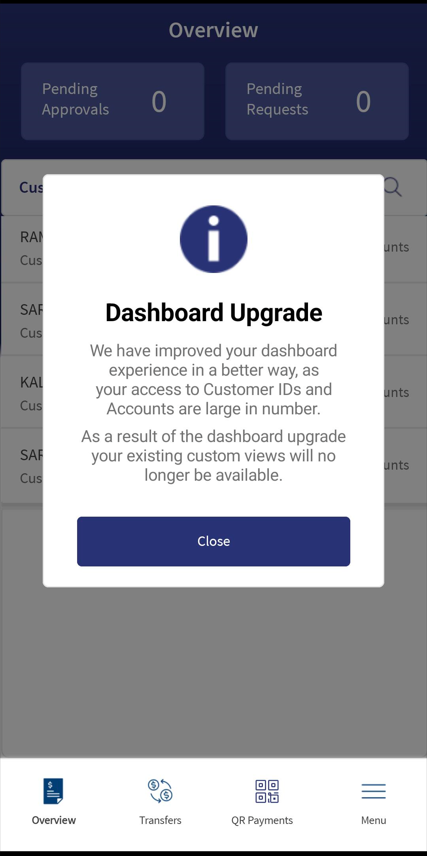
If the user has access to accounts more than the configured value and also has access to more than one customer ID then the customer ID dashboard is displayed to the user with a disclaimer message.
Other Actions
You can do the following actions:
- Locate the nearest ATM or branch based on your current location or call your banking service for any queries.
- View the privacy policy of the bank.
- View the terms and conditions to use the banking application.
- Access FAQ pages to use the application features.
Dashboard - Mobile Banking
After a successful sign in, the application displays the Customer ID list in the dashboard screen. Based on the permissions user can access the relevant features and corresponding actions.
Based on the contract architecture, a user can fall into the following categories.
- User having access to own personal accounts and multiple Customer ID, can see own personal, business, and retail accounts distinctly on the dashboard.
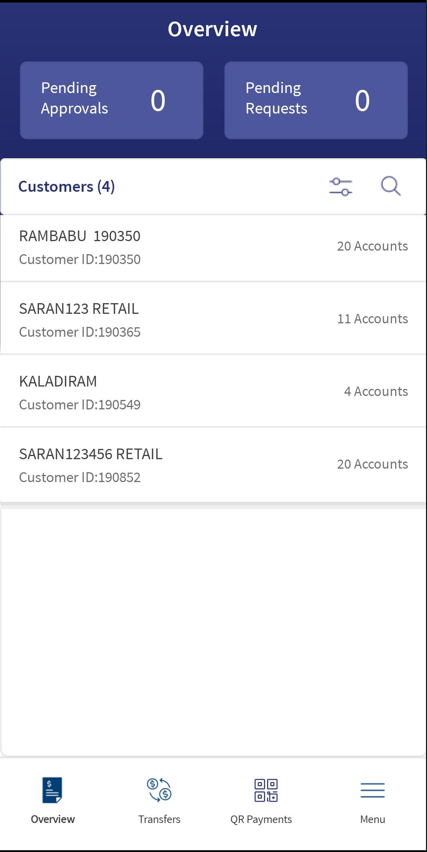
The following sections are available on the dashboard depending on the permissions available to the user:
- Menus
- Approvals and requests
- Search
- Customer ID list
- Customer ID list filter
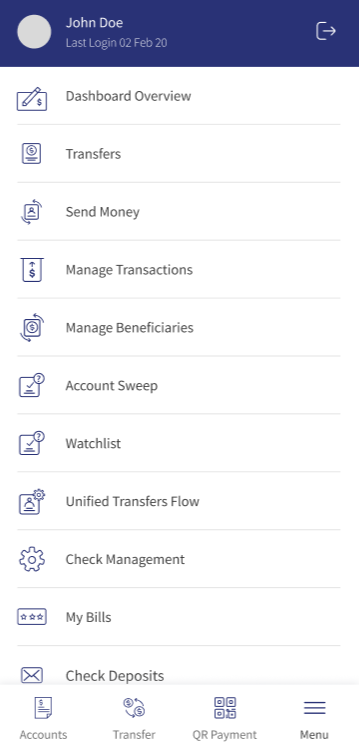
Hamburger or Side Menu
Tap the hamburger menu icon to view the menu. Tap to navigate to the required feature. See Menus for more information.
Approvals and Requests
For an authorized business with the necessary permissions, the application displays the Approvals and Requests section on top section of the dashboard screen. This chart summarizes the number of requests and approvals pending by limit groups – Single Transaction, Bulk Transactions, and Other Requests. All non-monetary requests are grouped as Other Requests. If the user has permission to approve transactions, then this section is displayed with the count in parenthesis. If there are no approval records pending, then the application displays zero records.
On tapping Approvals, the application displays the page with details of the approvals and the user can complete the action. If the user does not have access to approve requests, then the section is not displayed.
If the user has raised few requests, then this section is displayed with the count in parenthesis. If there are no requests raised, then the application displays zero records. On tapping Requests, the application displays the page with details of the requests. If the user does not have access to raise requests, then the section is not displayed.
The individual line items cannot be clicked and are for visual representation only.
Tap the down arrow to view the breakdown of the pending approvals or requests. Tap View All navigate to the Approvals and requests dashboard.
The chart can be expanded or opened by tapping the down chevron to view more details. Details of the recent transactions are present in the drop-down. Tap View All Transactions to navigate to the transactions list.
Search
Use the search option to find the specific accounts matching the search criteria. The following input parameter can be entered for search:
- Customer name
- Customer ID
The application displays the matching results.
Customer ID List
The application displays a list of Customer IDs (represented as a row) that the user has been given access with the count of accounts. The Customer ID list is integrated with Transact to pull the list of Customer IDs the authorized user has access. See integration for more information.
Do any of the following:
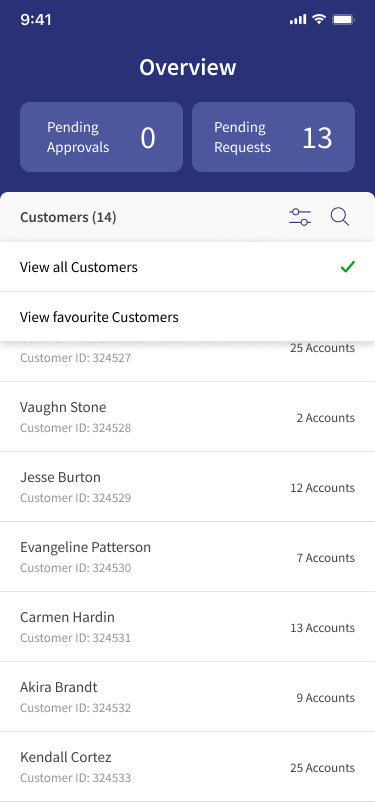
- Select all Customers/favourite customers from the filter list.
- Use the search option to look for a specific Customer ID/name within the dashboard.
- The preferred accounts are represented by a blue star.
Tap any Customer ID row (for example, Checking account) to view the accounting listing dashboard.
Customer ID List Filter
The options are all customers, favorite customers.

Configuration
Configuration for visibility of one and more Customer ID
System configuration (Bundle-: DBP) is available in the Spotlight application to drive the visibility of Customer IDs on the dashboard and Account Settings screen. This configuration is the number of Customer IDs displayed on the dashboard.
Foe example, the configuration is set as 20.
- When this configuration is enabled,
- The Customer ID dashboard is visible only when 20 or more customer ids are enrolled for the user.
- The number of customer ids to make the overview dashboard visible is editable in the Spotlight application. The count also includes the external accounts.
- If the configuration is disabled, the overview dashboard is displayed at all times, irrespective of the number of accounts on the dashboard.
For example, for user with single and multiple customer ID:
| For example, configuration is set as 20. | ||
| Scenario 1 | User with one Customer IDs with 20 accounts |
If the user has one Customer ID with 20 accounts, user can see Customer ID dashboard.
|
| Scenario 2 | User with more Customer IDs with 20 accounts | If the user has more than one Customer ID with 20 accounts, user can see overview dashboard. |
| Scenario 3 | User with single Customer IDs with 10 accounts | If the user has only one Customer ID, user can't see the overview dashboard and lands on the normal dashboard. |
| Scenario 4 | User with 15 Customer IDs with 20 accounts | If the user has 15 Customer IDs with 20 accounts, user can see the overview dashboard and lands on the overview dashboard. |
| Scenario 5 | User with 19 Customer IDs with 19 accounts | If the user has 19 Customer ID with 19 accounts, user can't see the overview dashboard and lands on the normal dashboard. |
Configuration for visibility of search bar on Customer ID dashboard
System configuration (Bundle-: DBP) is available in the Spotlight application to drive visibility of search bar on the Customer ID dashboard. This configuration is the number of Customer ID displayed on the dashboard.
For exmaple, the configuration is set as 5.
- When this configuration is enabled,
- The search bar is visible only when a minimum of 5 Customer ID are displayed on the dashboard for the user.
- The number of Customer IDs to make the search bar visible is editable in the Spotlight application.
- Only one dashboard search bar configuration is maintained across all breakpoints and mobile app.
Configuration for visibility filter on Customer ID dashboard
For users, a bundle configuration in spotlight similar to the one in accounts dashboard which renders the filter (All customers, Favorite customer) in the Customer ID dashboard.
For example, the configuration is set as 4.
- When this configuration is enabled,
- The view drop-down is visible only when a minimum of 4 Customer IDs are displayed on the dashboard for the user.
- Only one configuration for view drop-down and advanced filter is maintained across all breakpoints and mobile app.
| For example, configuration is set as 4. | ||
| Scenario 1 | User with less than 4 customer IDs | If the user has has less than 4 customers then view filter dropdown should NOT be visible |
| Scenario 2 | User with greater than or equal to 4 customer IDs | If the user has only 4 or more customers then view filter dropdown should be visible |
Configuration for visibility of favorite icon/flag on Customer ID dashboard
System configuration (Bundle-: DBP) is available in the Spotlight application to drive the visibility of favorite icon for Customer IDs on the dashboard. This configuration is based on number of Customer IDs displayed on the dashboard.
For example, the configuration is set as 4.
- When this configuration is enabled,
- The favorite icon is visible only when a minimum of 4 Customers IDs are displayed on the dashboard for the user.
| For example, configuration is set as 10. | ||
| Scenario 1 | User with nine Customer ID with multiple accounts types | If the user has only nine Customer IDs, then the favorite icon will not visible. |
| Scenario 2 | User with ten or more Customer ID with multiple accounts types | If the user has ten or more Customer IDs, then the favorite icon will be visible. |
Pagination configuration for Customer ID dashboard
System configuration (Bundle-: DBP) is available in the Spotlight application to drive visibility of customer ID per page in overview dashboard. This configuration is the number of Customer IDs displayed per page on the dashboard.
For example, the configuration is set as 10.
- When this configuration is enabled,
- The pagination option (Next Page, Previous Page) visible only when a minimum of 10 Customer IDs are displayed per page on the dashboard for the user.
- If the user is in the second page, user can navigate to previous page.
- Only lazy loading configuration is maintained for mobile native app.
| For example, configuration is set as 10. | ||
| Scenario 1 | User with ten or more customer ID and multiple account type | If the user has ten or more Customer IDs, then the user can move to next and previous page. |
Pagination Configuration for account listing dashboard
System configuration (Bundle-: DBP) is available in the Spotlight application to drive visibility of accounts per page in overview dashboard. This configuration is the number of accounts displayed per page on the dashboard.
For example, the configuration is set as 10.
- When this configuration is enabled,
- The pagination option (Next Page, Previous Page) visible only when a minimum of 10 accounts are displayed per page on the dashboard for the user.
- If the user is in the second page, user can navigate to previous page.
- Only lazy loading configuration is maintained for mobile native app.
| For example, configuration is set as 10. | ||
| Scenario 1 | User with ten or more accounts for each customer ID | If the user has ten or more accounts for each customer ID, then the user can move to next and previous page. |
APIs
For the complete list of APIs shipped as part of this feature, see Experience APIs documentation.
In this topic