Locale
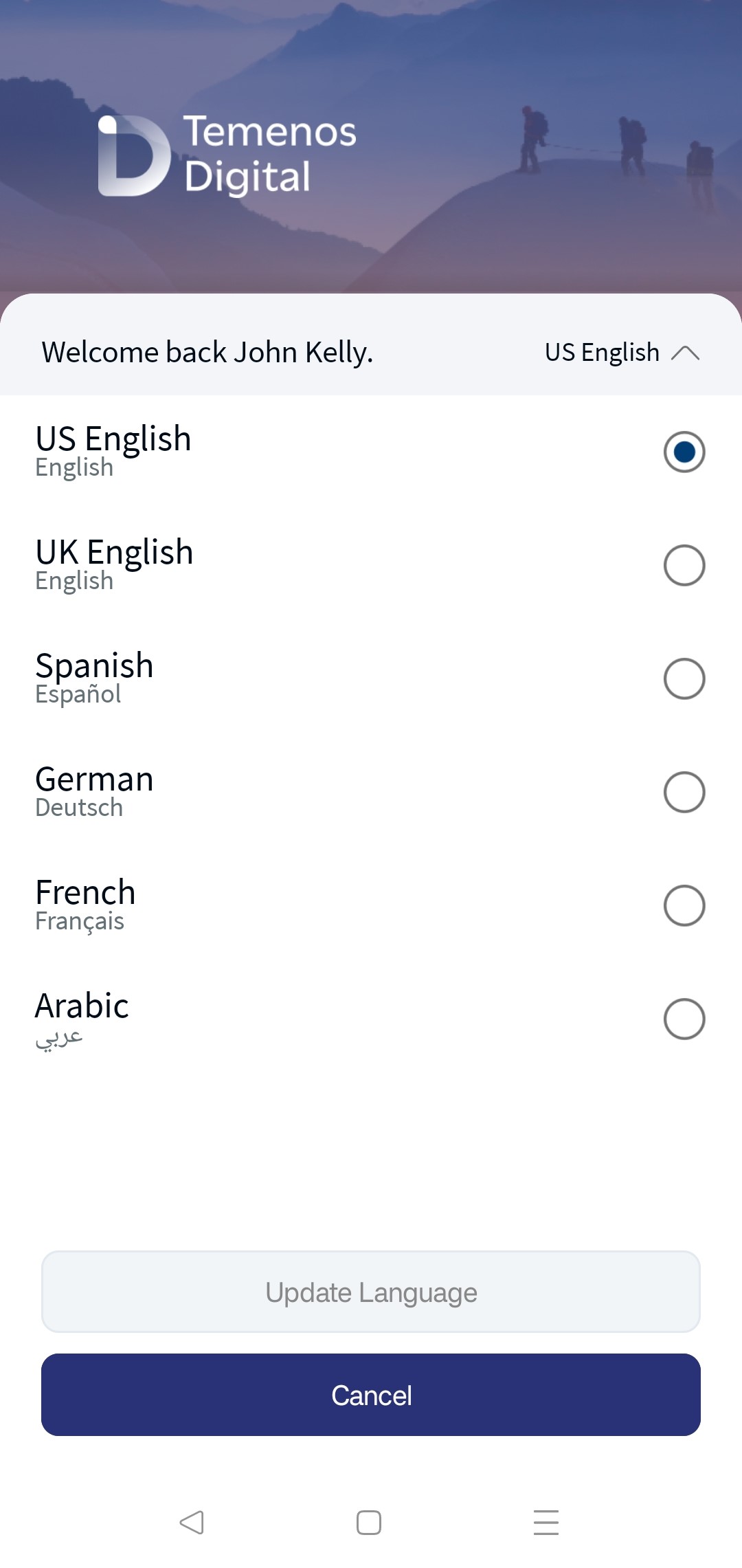
Use this feature to select the required language according to your geographical location. The default selected language is US English. The application supports Arabic and four European languages (UK English, German, Spanish, and French).
You can change the language on the sign in screen and also on the Profile Settings screen after you are signed in. Do the following:
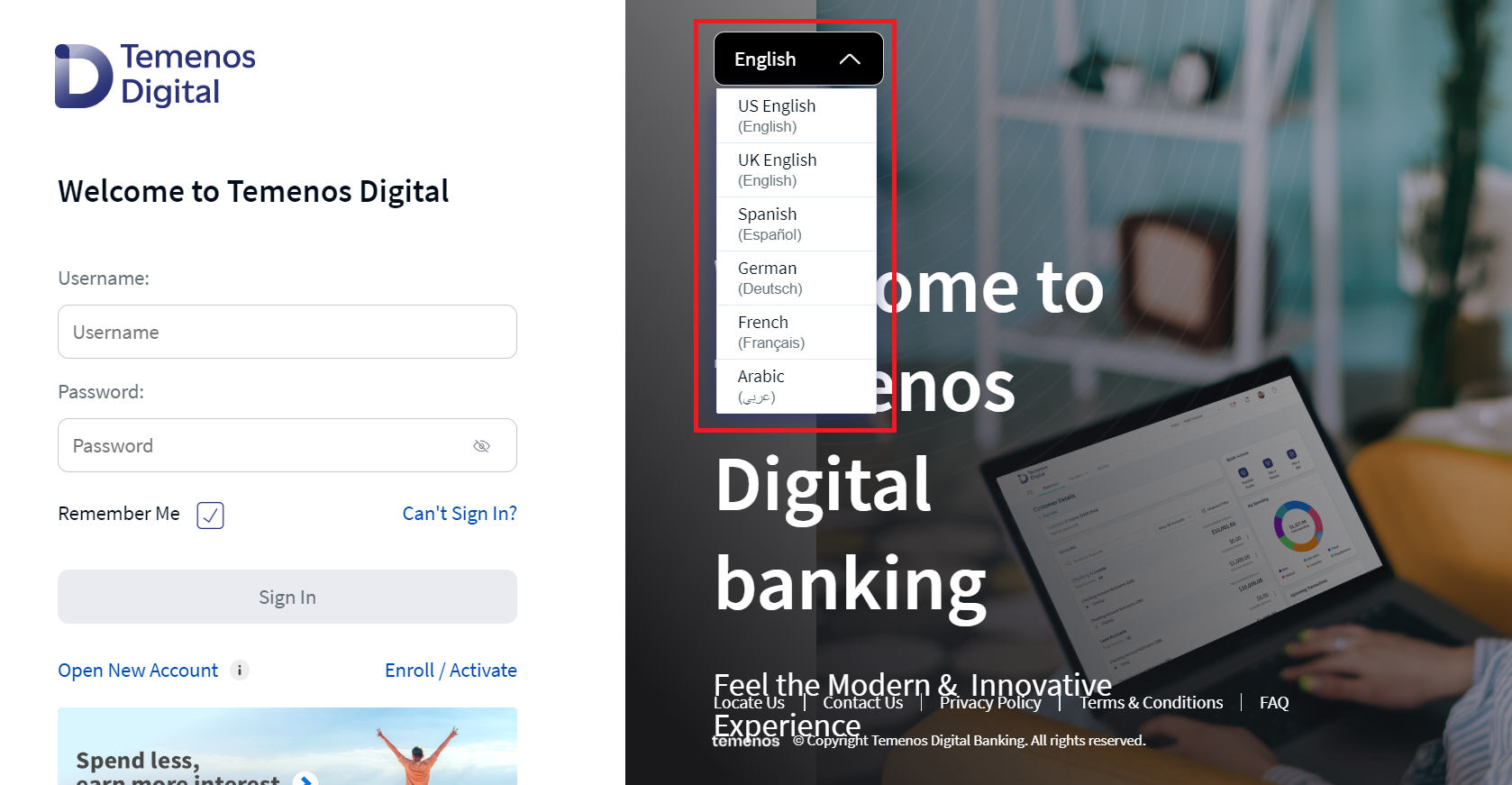
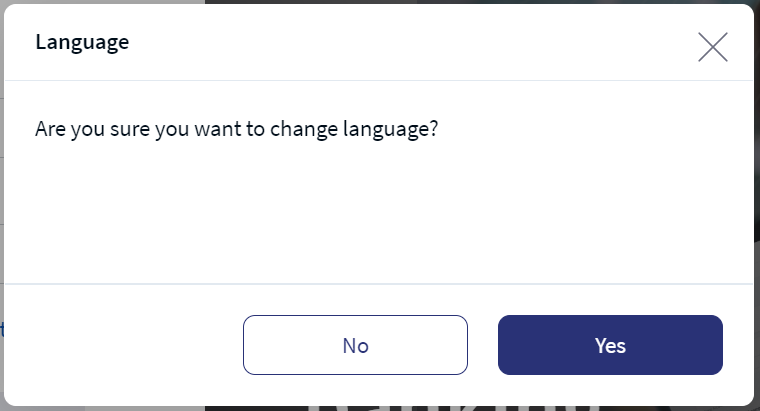
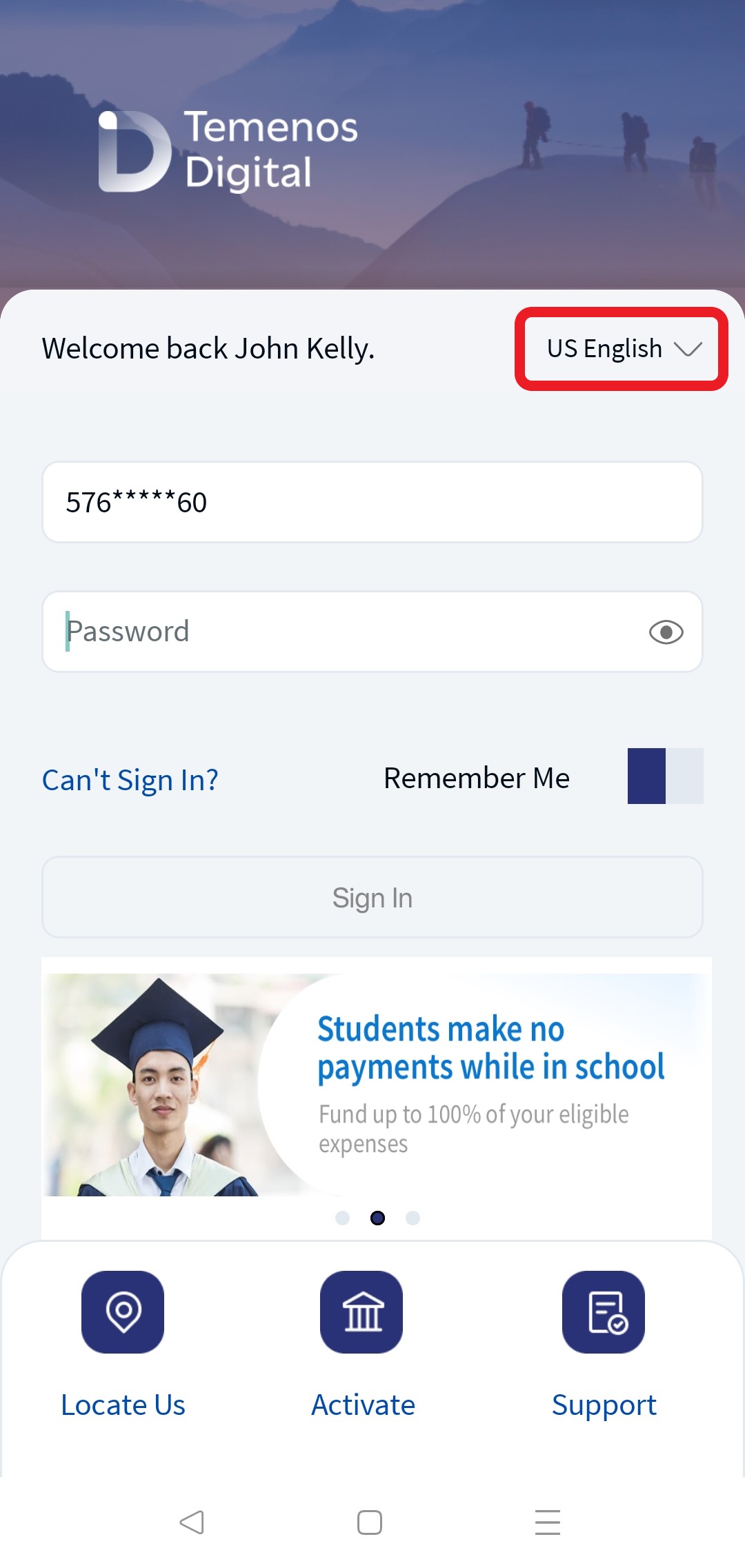
- On the sign in screen, select the language from the list available on the top-right corner of the screen. By default, US English is selected.
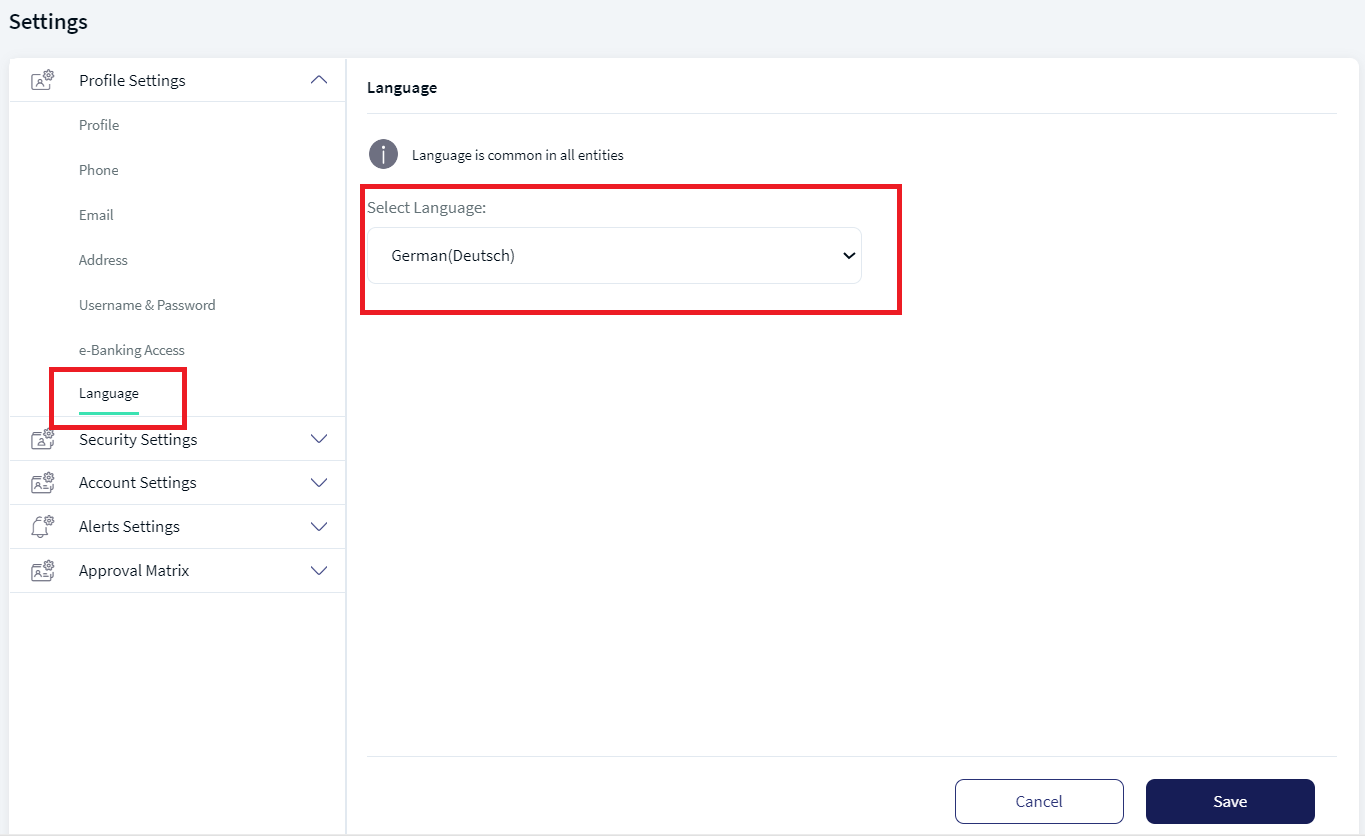
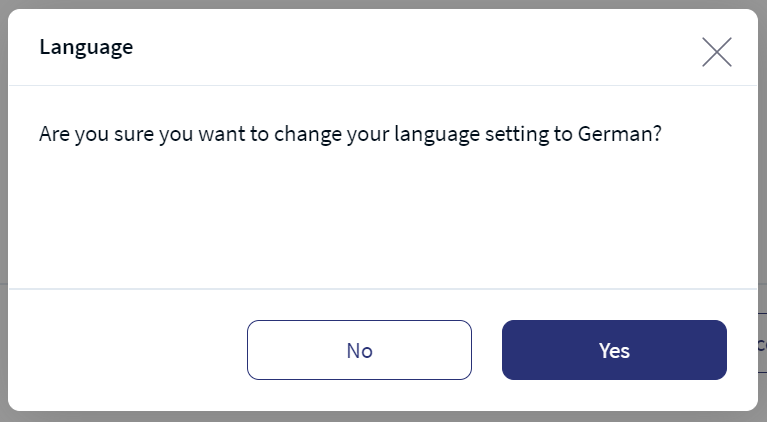
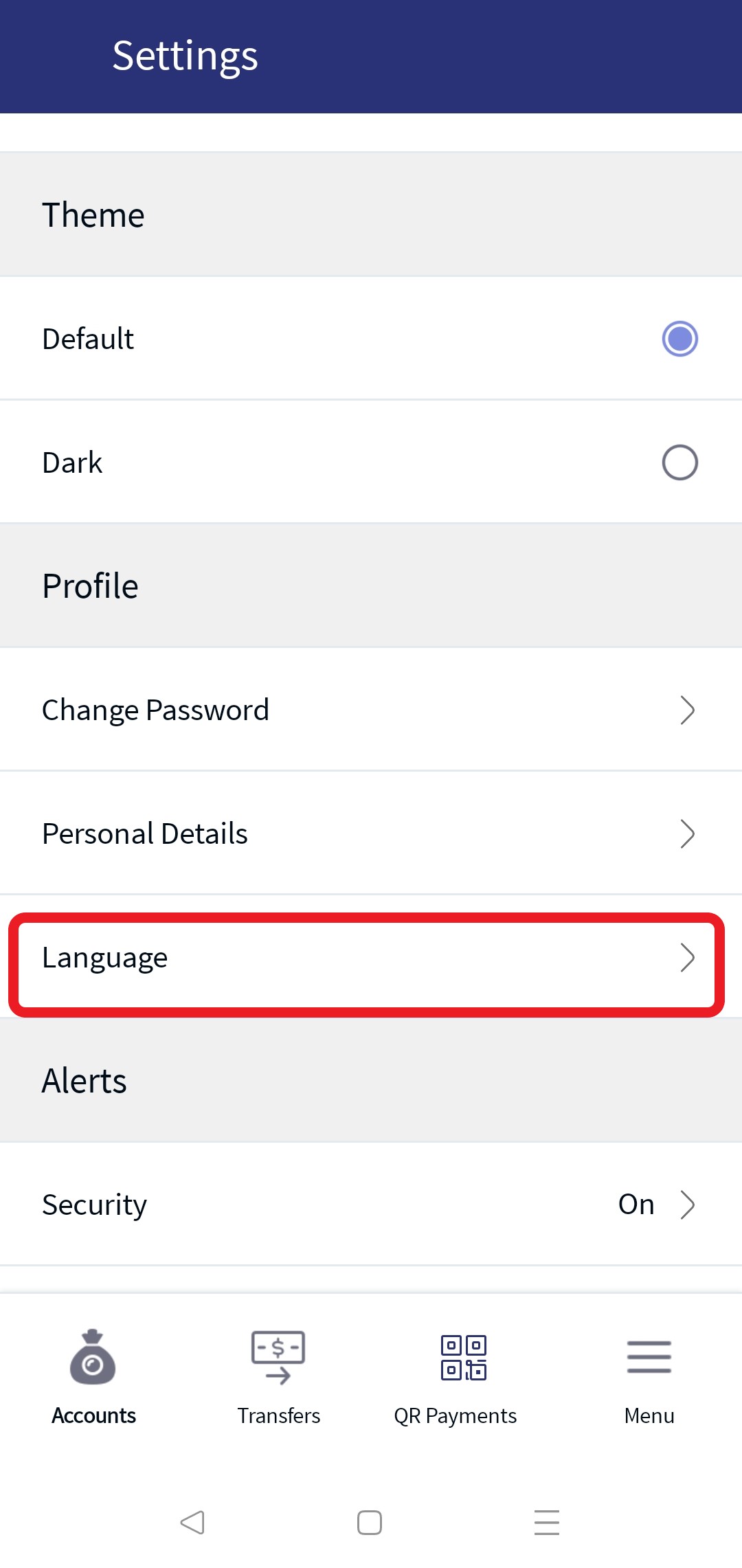
- Post sign in, on the Settings > Profile settings screen, select the language from the list. By default, US English is selected.
The application automatically changes the language, currency format, date format and number format to match with the geographical location of the selected language.
The application displays the dynamic text like terms and conditions, privacy policy, master data in drop downs in default US English language and will not change based on the locale selection.
Web Channel - Sign In
Web Channel - Profile Settings
Navigate Side Menu > Settings > Profile Settings.
Mobile Native - Sign In
Slide 1
Slide 2
Mobile Native - Profile Settings
Navigate Side Menu > Settings > Profile Settings.
Slide 1
Slide 2
Supported languages
| Language | Currency Format | Number Format |
|---|---|---|
| US English | USD | 4,294,967,295.00 |
| UK English | GBP | 4,294,967,295.00 |
| German | EURO | 4.294.967.295,00 |
| Spanish | EURO | 4.294.967.295,00 |
| French | EURO | 4 294 967 295,00 |
| Arabic | BHD, KWD, OMR, QAR and more | 4,294,967,295.00 |
- To enter an international phone number in the phone number field, enter a plus sign (+), followed by the country code. For example, enter +44. If the country code is not entered, the default country code is assumed.
- The alerts and the error messages fetched from the database are displayed in US English only, irrespective of the selected language. We currently don't have out of the box support for translating error messages, master data, and user specific data that is coming from the back-end system (either from database or service response). This needs to be taken up as a customization by individual customers.
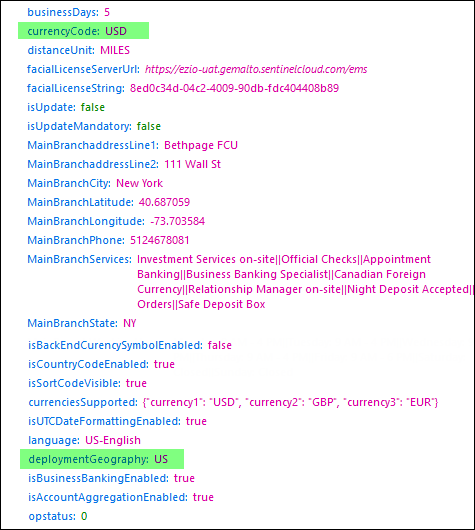
- Except for USD, the other currency formats will be applicable only if the application is launched in Europe - the
deploymentGeographykey is set to Europe in theApplicationcall during app launch. In real-time, if the user is in USA and changes the locale to German, the currency will however be displayed in USD only.
Date Format
In the Fabric Client App Properties, a standard date and date time configuration is maintained for each locale. This bank staff will manage the configurations to ensure that invalid data cannot be entered into the system. The date and date time formats must adhere to those specified in the supported date and datetime format list.
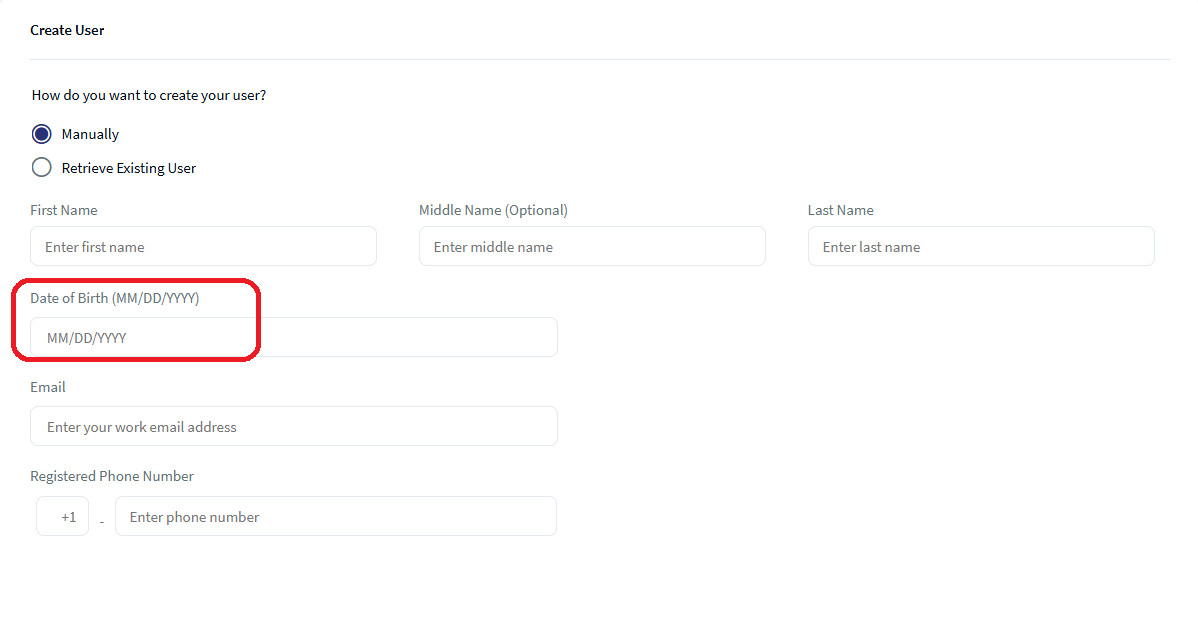
The date format for each locale is displayed beside the label. For example, see the following:
- For all input date fields, the date format for each locale will be displayed beside the label.
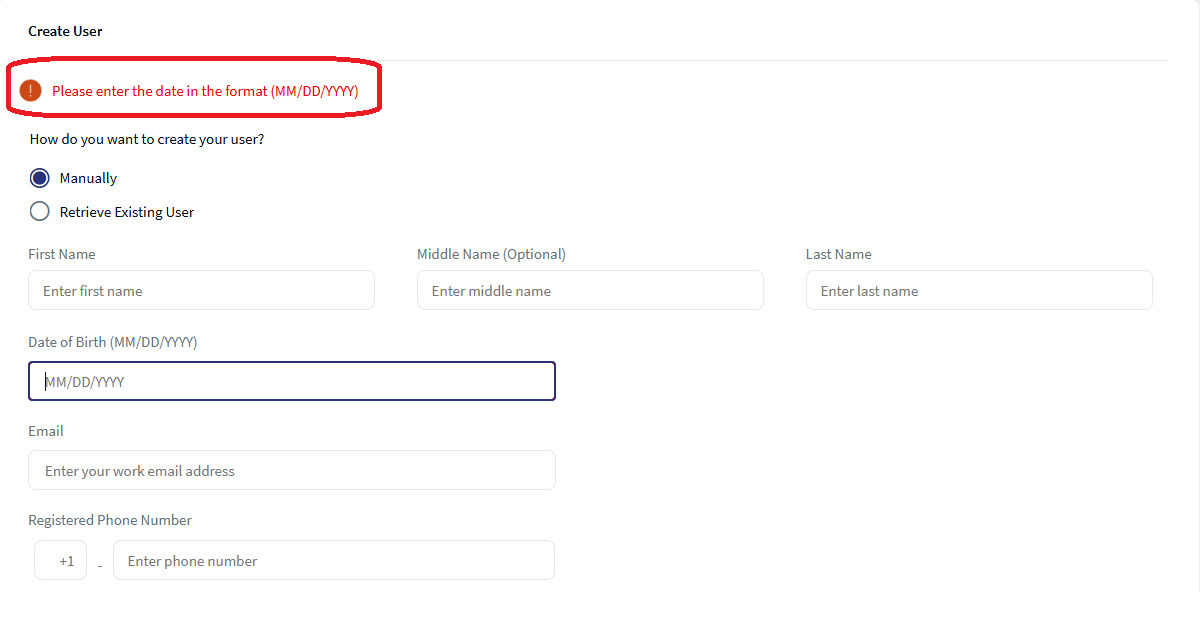
- If the user enters an invalid date in an input field, an error message will be shown, specifying the expected date format.
- On the confirmation screen, the month will be displayed in the "MMM" format.
For example, if the locale-based date format is MM/dd/yyyy, the expected date format on the confirmation screen will be MMM/dd/yyyy.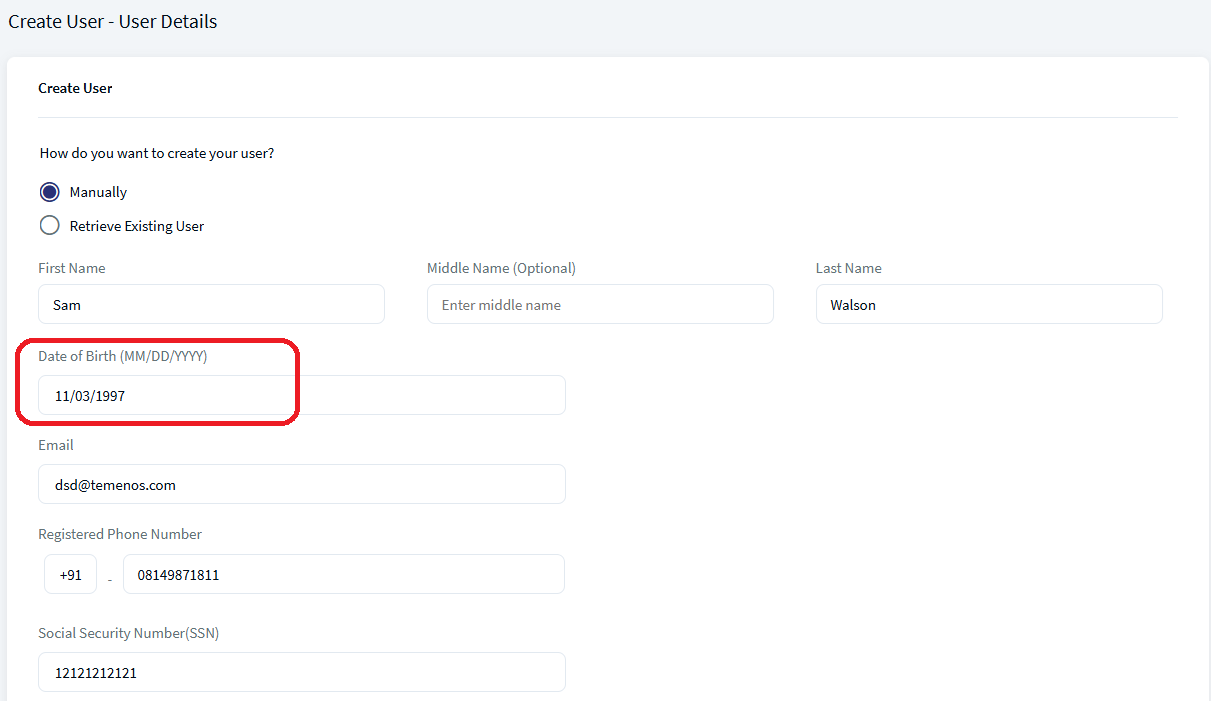
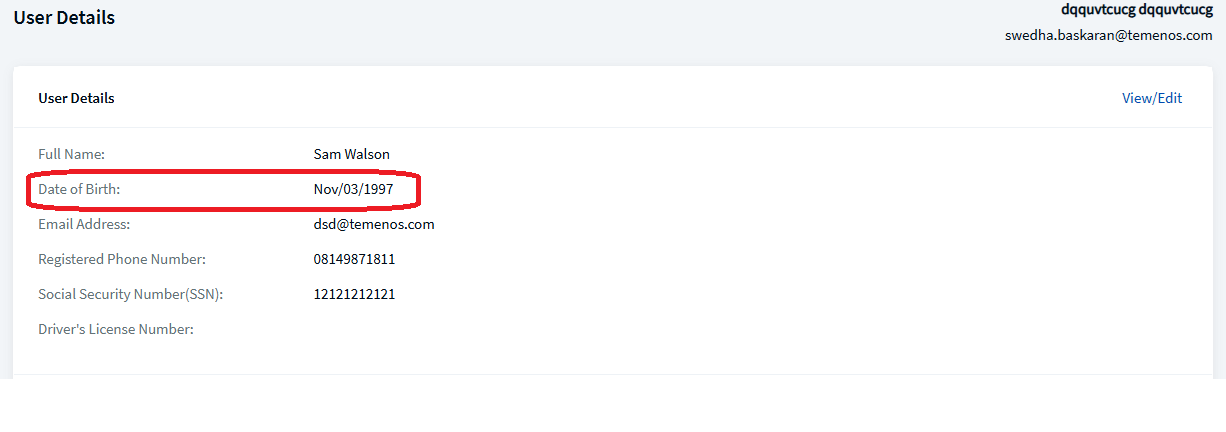
- The MMM format has been set as the default on the confirmation screen to reduce errors while selecting the format. The user can go back and modify the date if required.
Help text-related changes are implemented in all modules of Retail and SME Banking except in the following modules:
- Accounts - All Features
- Unified Transfers Flow
- Same Bank Transfer
- Domestic Bank Transfer
Supported Date Format
The following are the different types of Date Formats the application supports. Here d indicates the day of the month, M indicates the month, and y indicates the year.
Based on the locale, the Date configurations will be maintained in the Client App Properties in Fabric.
- dd/MM/yyyy (04/03/2024)
- dd/MMM/yyyy (04/Mar/2024)
- dd-MM-yyyy
- dd.MM.yyyy
- dd MM yyyy
- MM/dd/yyyy (with all the date separators)
- yyyy/MM/dd (with all the date separators)
Supported Time Format
The following are the different types of DateTime formats the application supports. Here h indicates the 12-hour time format, H indicates the 24-hour time format, m indicates the minutes, and s indicates the seconds.
Based on the locale, the DateTime configurations will be maintained in the Client App Properties in Fabric.
- hh:mm:ss
- HH:mm:ss
- hh:mm
- HH:mm
Date and DateTime for Retail and Business Banking Features
The Date and DateTime format is applicable to the following features under Retail and Business Banking in Web Channel and Mobile Native.
- Accounts
- Unified Transfer Flow(UTF) - Same bank and Domestic Transfers.
- Payments and Transfers
- Settings
- My Bills
- Pre-login
- Bulk Payment
- Approval And Requests
- Alerts and Messages (Alert messages are exempted)
- ACH
- Wire Transfers
- User Management
- Cardless Cash - MB
The Date and DateTime format is not applicable to the following features under Retail and Business Banking in Web Channel and Mobile Native.
- Alerts with date fields, received through communication templates in different channels, such as:
- Push Notifications
- SMS
- Notification Center
- Savings Pot (Since this is a mock feature)
Supported Separators
Date and Time Format are case sensitive, different separators can be used along with the day, month, year, hour, minutes and seconds characters. Following are list of supported separators:
- . (dot)
- , (comma)
- - (hyphen)
- / (forward slash)
- (Blank Space)
- : (colon)
Details about the Format
The following are the details about the format. The format is case sensitive and use any separator along with the following mentioned characters for day, month, year, hour, minutes and seconds.
- dd – For 2 digit Date. (01 to 31)
- MM – For 2 digit Month (01 to 12)
- MMM – Abbreviated name of the month (For example: Jan, Feb) (Abbreviated form of January month in German language is "Jan.", hence the date displayed will be 04/Jan./2024).
- yyyy – Year in 4 digits
- HH – Hours in 24 hour format (with 0 as prefix for single digit)
- hh – Hours in 12 hour format (with 0 as prefix for single digit)
The system should append the "AM" or "PM" suffix to times displayed in the 12-hour format (hh:mm) based on the time value.
For example, if the time is 2:30, it should be displayed as "2:30 PM. - mm – minutes
- ss - seconds
Configurations
A global configuration will be maintained in the Client App Properties within Fabric for each locale as following. This configuration can be modified by bank staff.
{"en-GB":{"DATE":"dd/MM/yyyy", "DATETIME":"dd/MM/yyyy HH:mm"},

"en-US":{"DATE":"MM/dd/yyyy", "DATETIME":"MM/dd/yyyy hh:mm"},

"de-DE":{"DATE":"dd.MM.yyyy", "DATETIME":"dd.MM.yyyy HH:mm"},

"es-ES":{"DATE":"dd/MM/yyyy", "DATETIME":"dd/MM/yyyy HH:mm"},

"fr-FR":{"DATE":"dd/MM/yyyy", "DATETIME":"dd/MM/yyyy HH:mm"},

"ar-AE":{"DATE":"dd/MM/yyyy", "DATETIME":"dd/MM/yyyy hh:mm"},

"default":{"DATE":"dd/MM/yyyy", "DATETIME":"dd/MM/yyyy HH.mm"}}
In the above configuration, date and datetime formats are configured for locale. The locale language naming is listed as following:
- en-GB : UK-English
- en-US : US-English
- de-DE : German
- es-ES : Spanish
- fr-FR : French
- ar-AE : Arabic
The configuration needs to be done as per the supported format. If the configuration is missing for any locale, the system should consider to the default date and datetime format. Any other unsupported formats may lead to inconsistencies.
In this topic