Review New Proposal
The New Investment Proposal displays the suggested orders, Risk Analysis of the portfolio, Investment Constraints, Recommended Instruments, and the Segment-Wise data of the assets (if the suggested orders are accepted). Based on your investment objective, the advisor proposes a list of investment proposals that suits your profile.
Below is a detailed description of the user interface of the Review New Proposal screen for the Online Banking and Mobile Native App.
Online Banking: To view detailed information on your new investment proposal, follow these steps:
- On the Investment Proposal section, click Review New Proposal. The Confirm Investment Proposal screen appears.
- Investment Portfolio Details - Specifies the order proposed details such as Total Order Amount, Order Type, Instrument Name, Current Weight, Target Weight, Order Quantity, Order Amount, and the Investor Documents, if any.
- Asset Details - Displays the segments list along with current weight and strategy weight (if the suggested orders are accepted). In addition, the data is displayed in the form of a horizontal graph.
- Risk Analysis - Specifies the portfolio's risk information against the investment profile in the form of a graph.
- Investment Constraints - Displays the investment constraints list for the investment proposal.
- Recommended Instruments - Displays the recommended instrument list for the investment proposal.
- Review your new investment proposal and then enable the confirmation check-box.
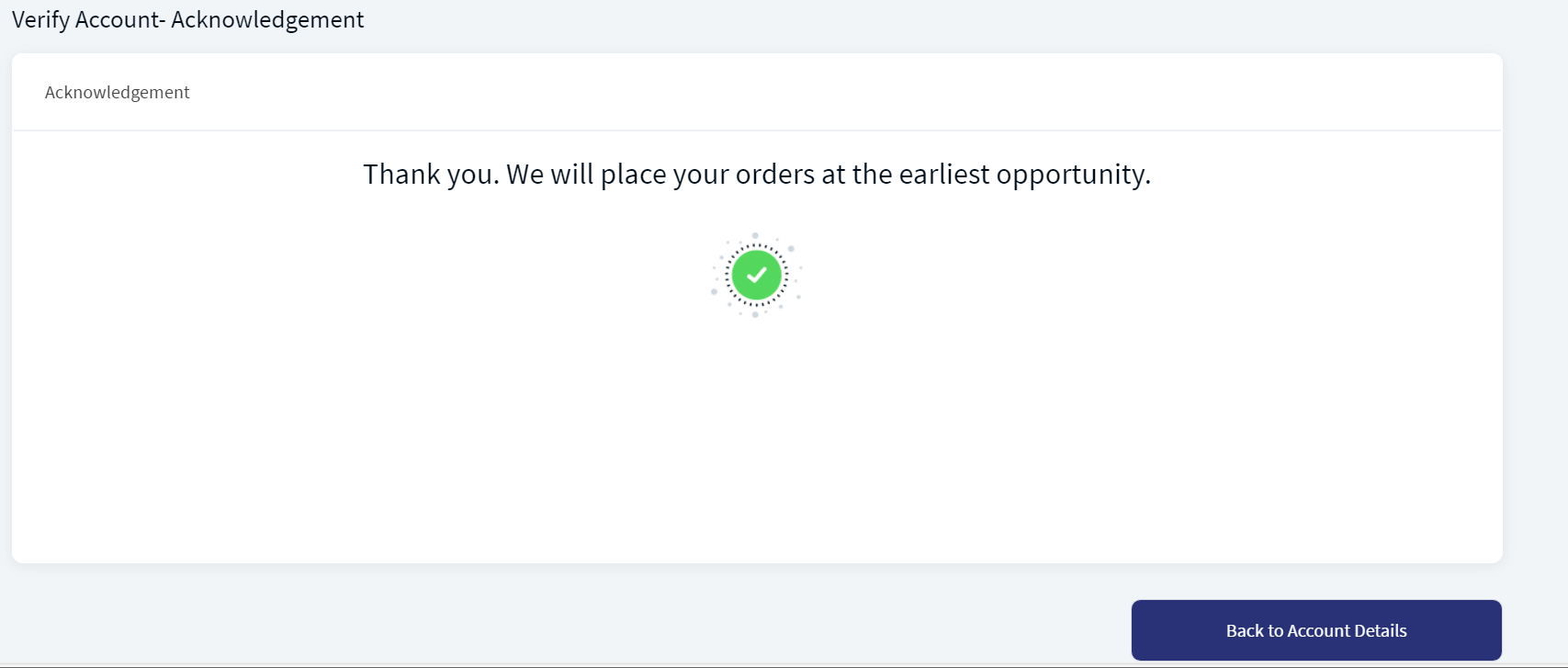
- Click Accept to accept the new investment proposal; else, click Reject. An acknowledgment screen appears. The suggested order is sent to the Wealth FO.
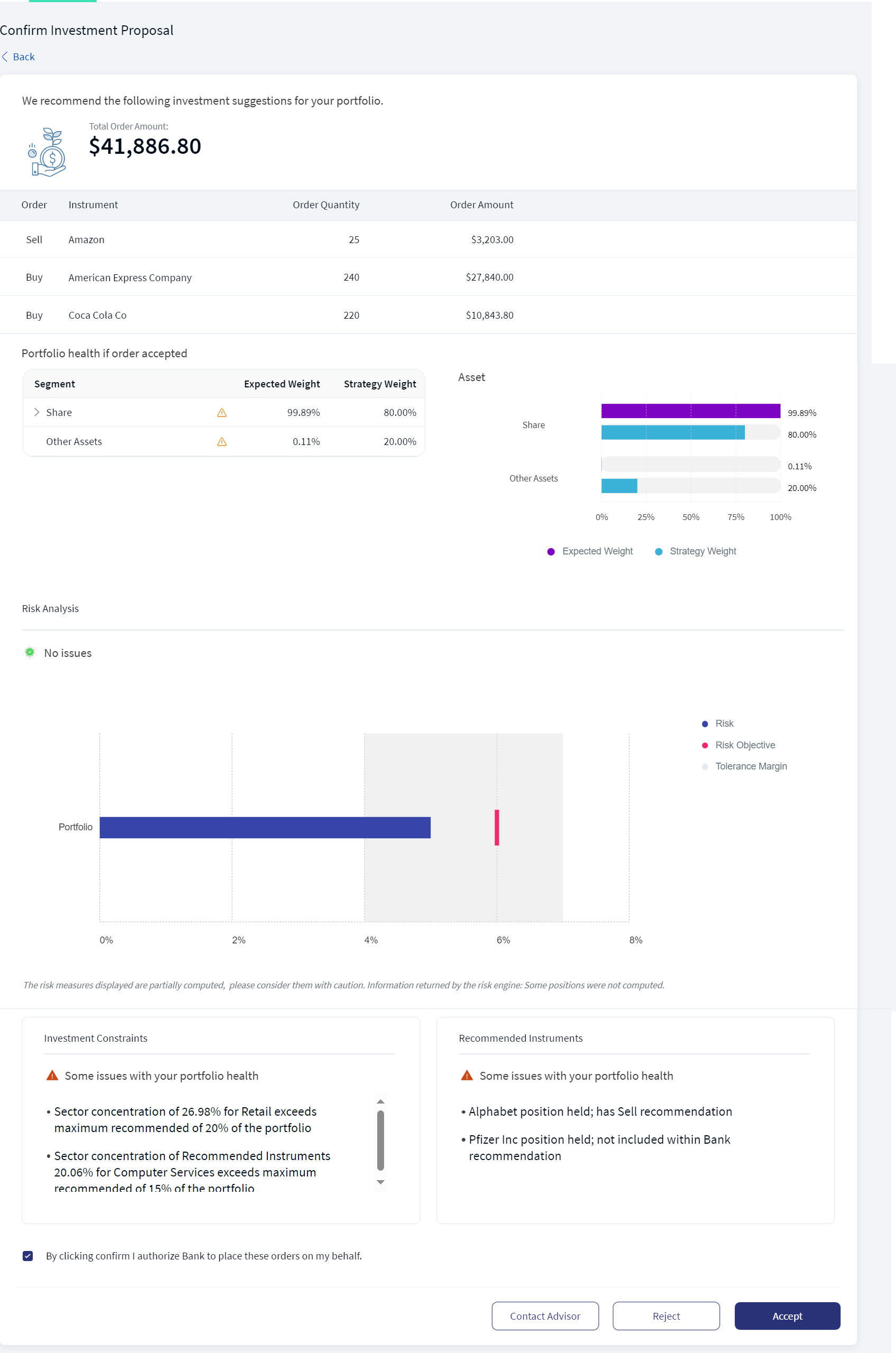
It displays the following details:
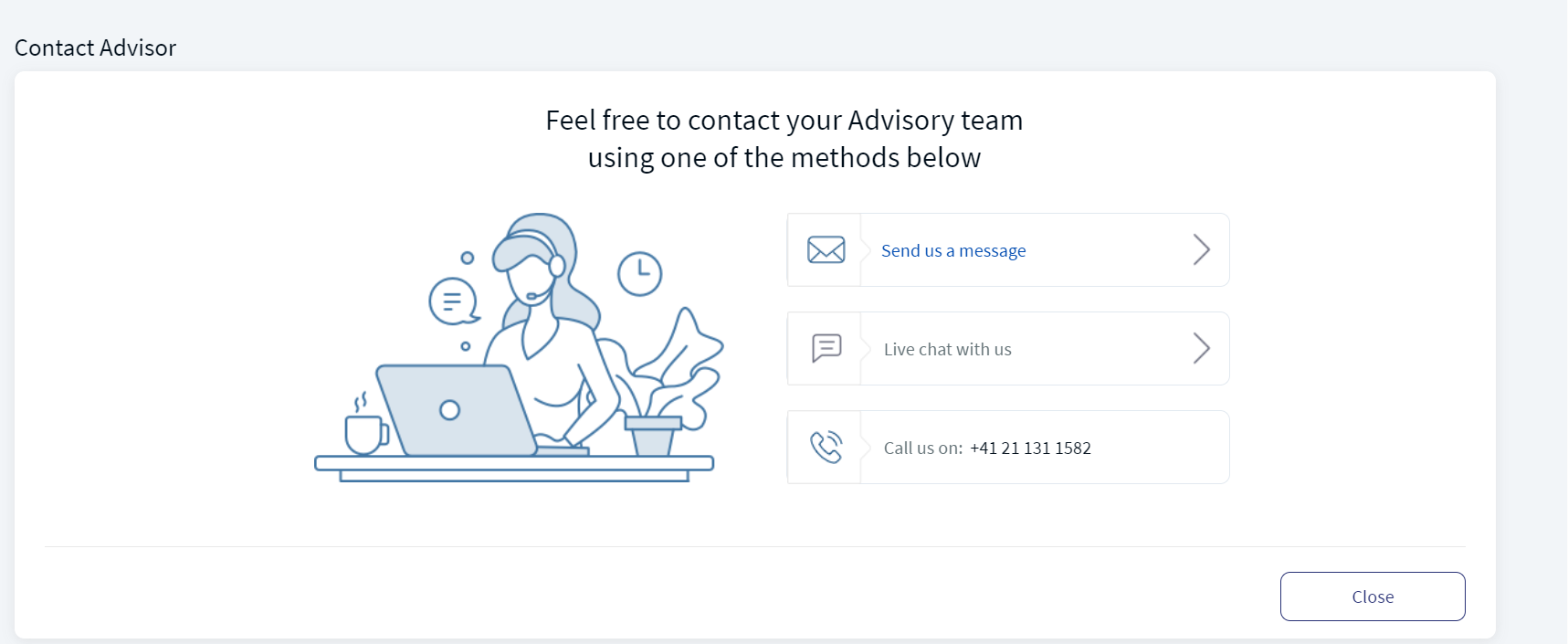
Contact an Advisor
You can view your new investment proposal and contact an Advisor for more information on any particular investment proposal. To contact an advisor, follow the below steps:
- On the Confirm Investment Proposal screen, click Contact Advisor to contact an advisor.
- You can send a message, chat or directly call the advisory team.
- After taking the necessary action, click Close to close the advisory screen.
The Contact Advisor screen appears.
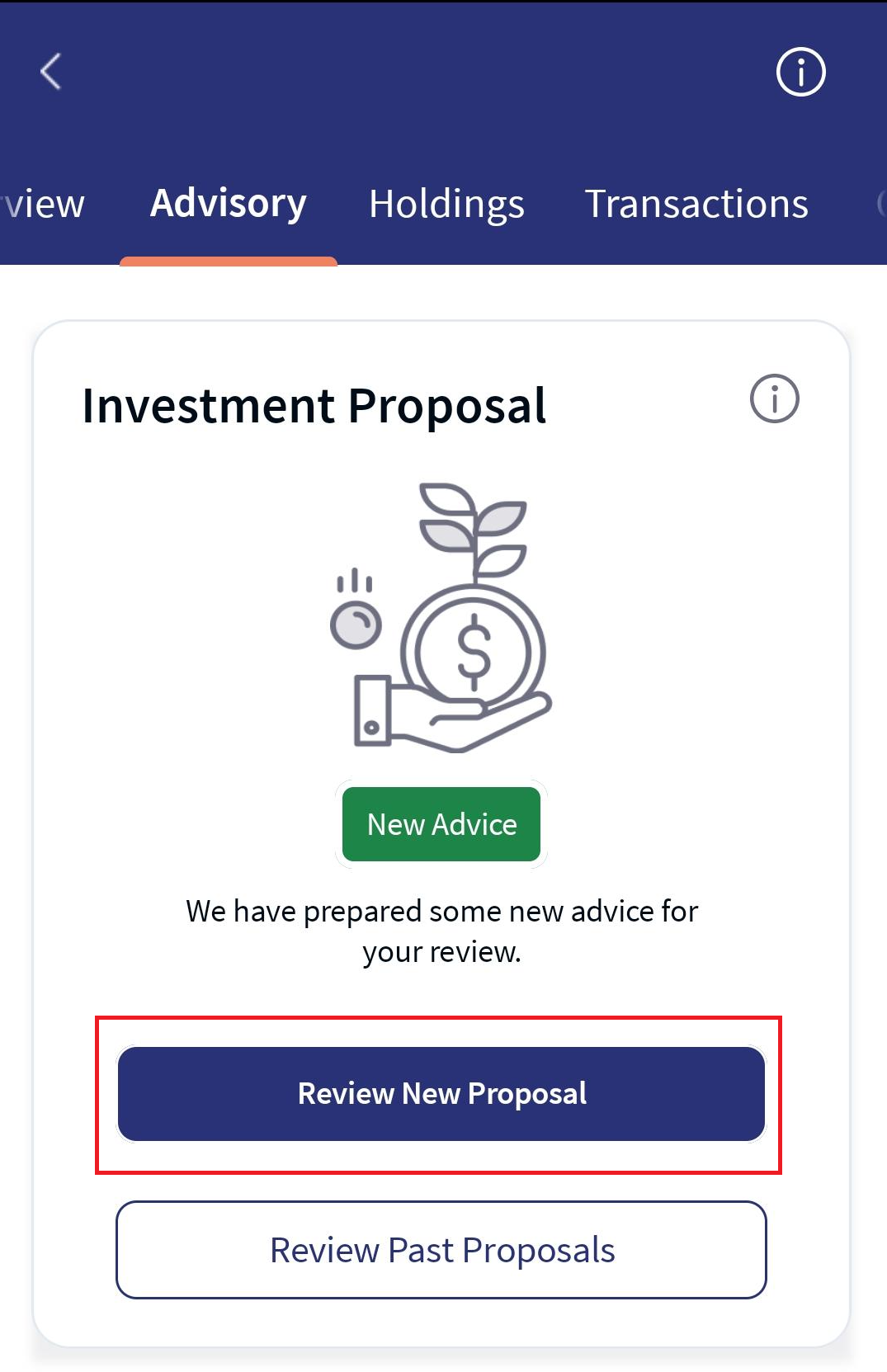
Mobile Native App: To view detailed information on your new investment proposal, follow these steps:
- Under the Advisory tab, go to the Investment Proposal section and click Review New Proposal. The Review Proposal screen appears, displaying the instruments, investment portfolio health details, asset details, risk analysis, investment constraints, and recommended instruments details. (Read the Online Banking description for more information on each parameter).
- Review your new investment proposal, enable the confirmation checkbox, and then click Accept.


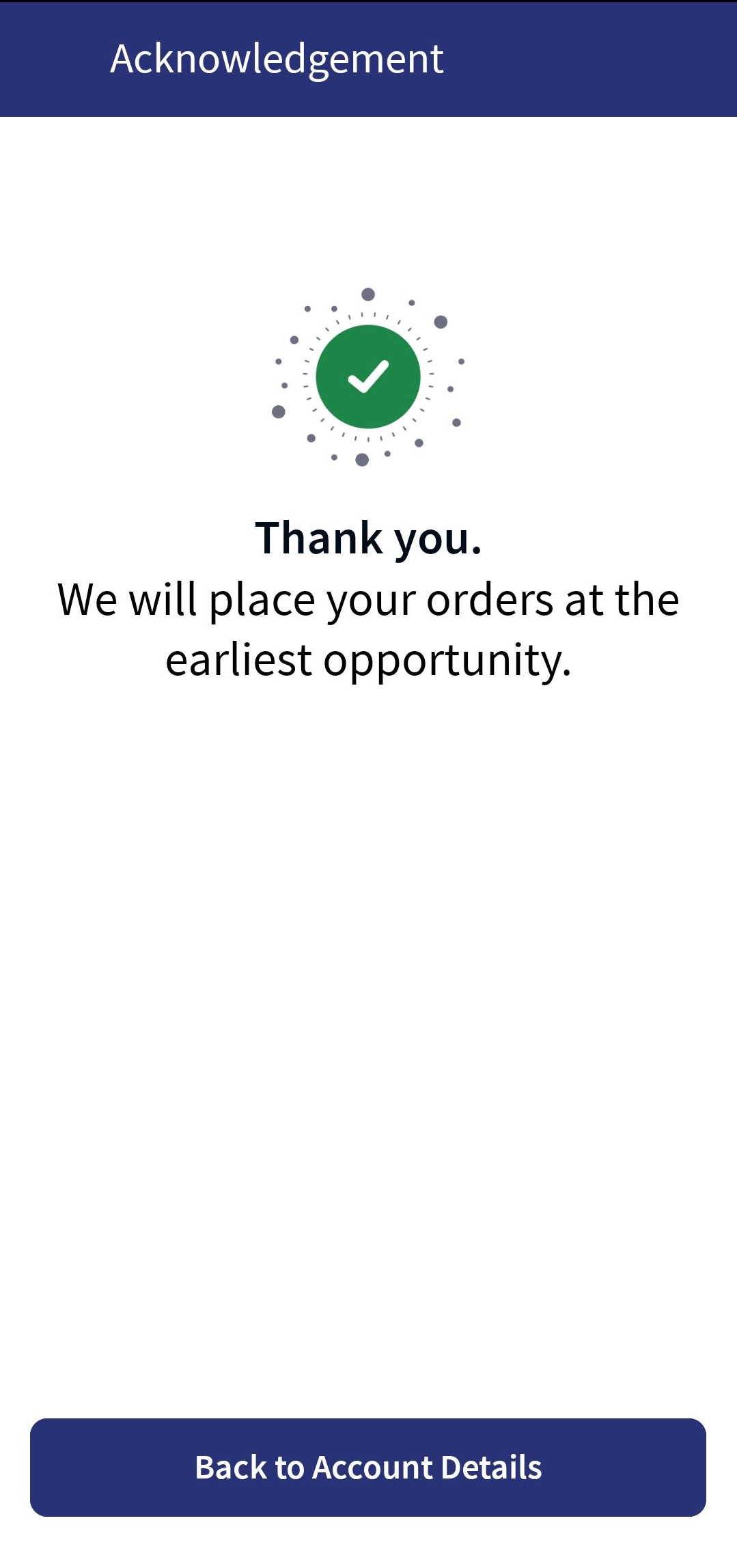
For a detailed description of the 'Contact Advisor' functionality, refer to the above Online Banking section.
In addition, you can view a Detailed Table View of your Portfolio Health. To do so:
- On the Portfolio Health section, click Detailed Table View to view your portfolio health in a table or graph view.
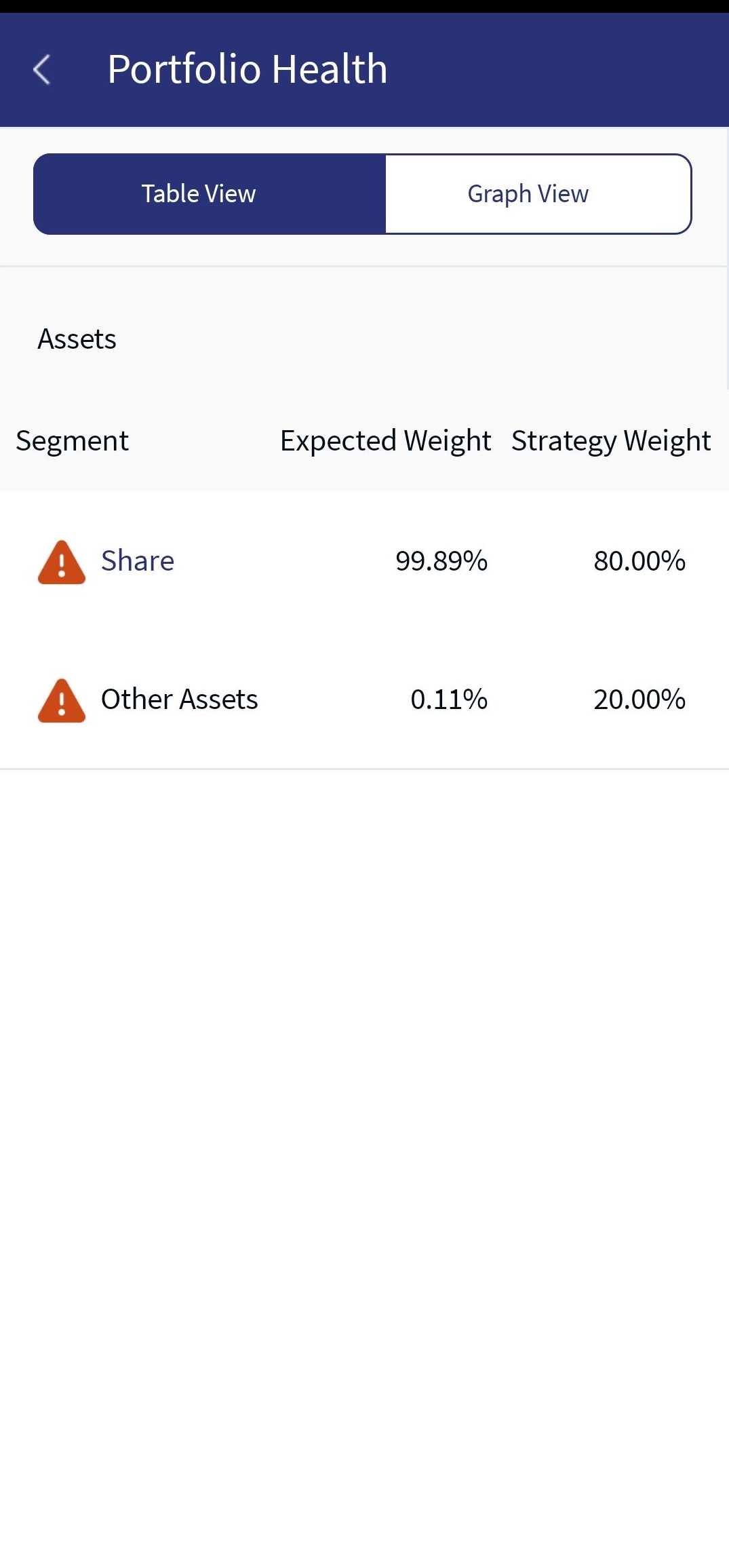
Table View Asset Allocation
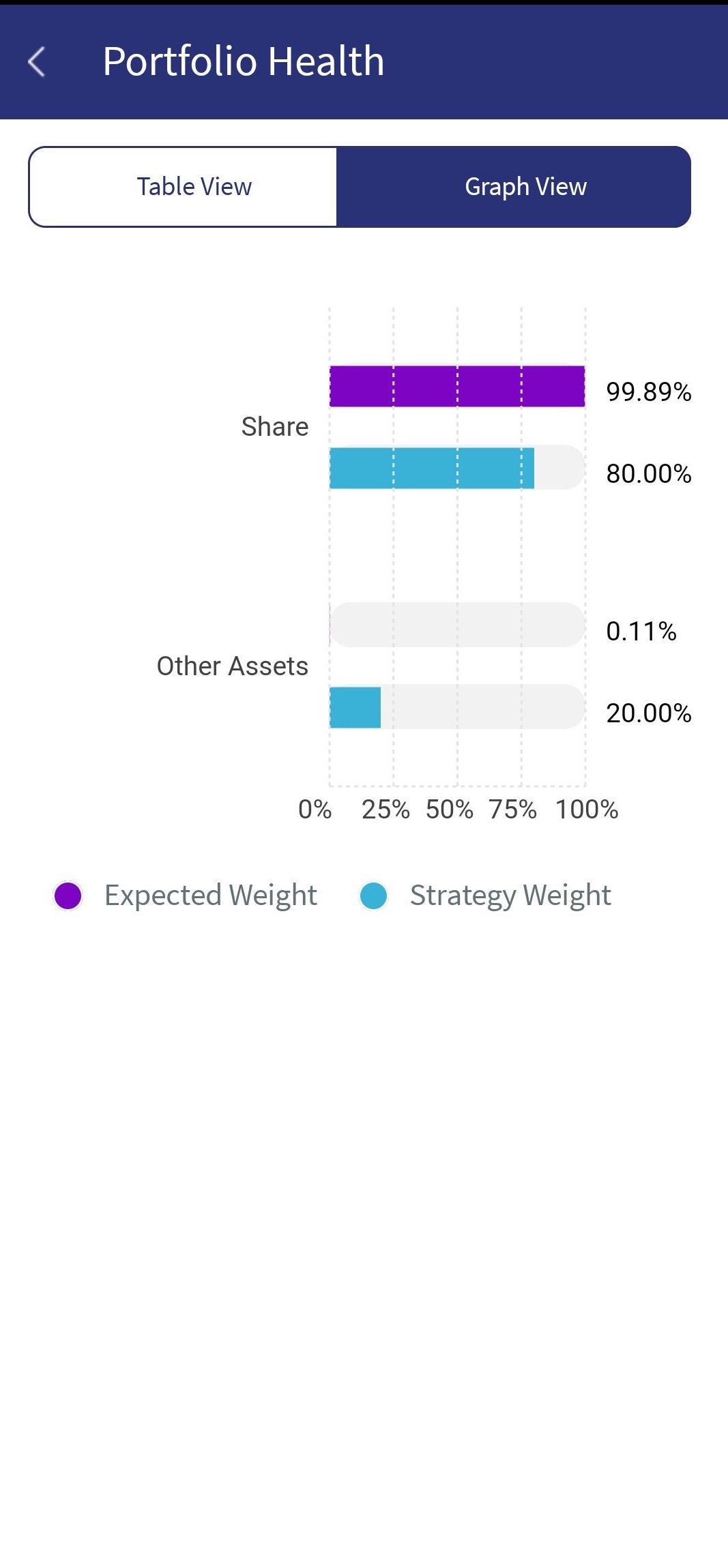
Graph View Asset Allocation
- After you view your portfolio health updates, click Contact Advisor if required.
In this topic