Strategy Allocation
Strategy Allocation involves choosing and balancing the asset class allocations periodically by matching the requirement based on investment goals and risk tolerance. Strategy Allocation includes Equities, Commodities, Cash, funds, bonds, and other asset classes.
This feature briefs about the asset class allocations and their weightage in each segment. The default values in the table consist of segments and their weight based on the 'My Strategy' flow.
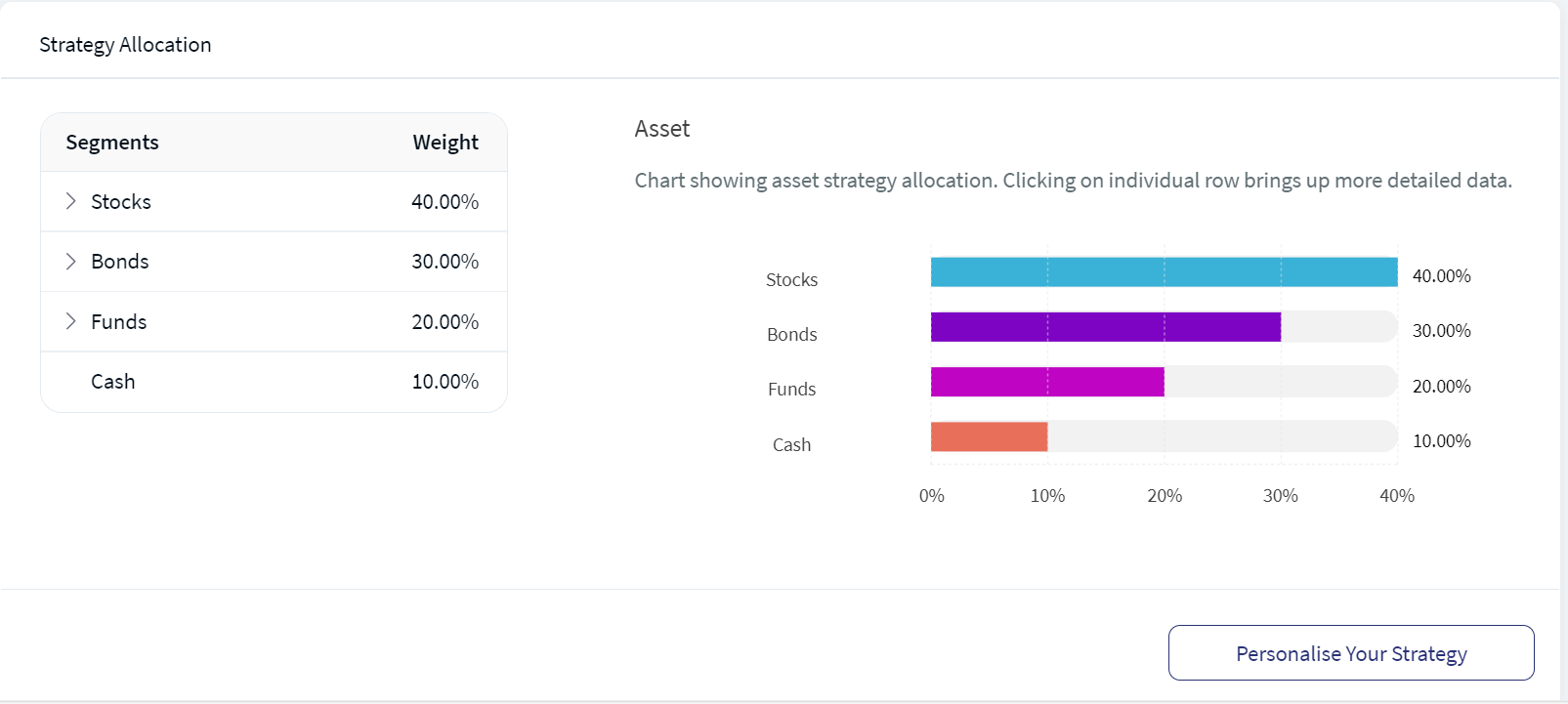
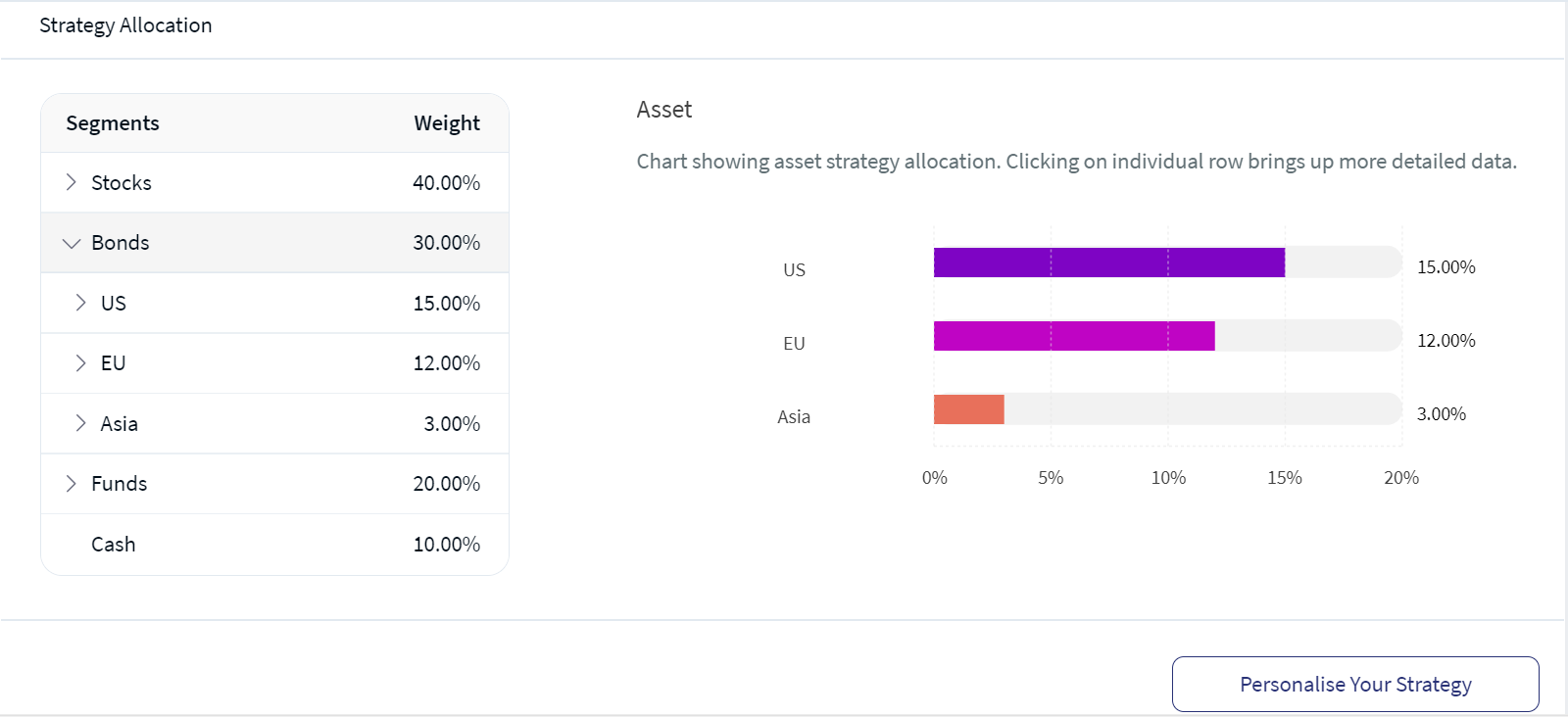
Below is a detailed description of the user interface of the Strategy Allocation screen for the Online Banking and Mobile Native App.
Feature Description
When a client selects the "Review Strategy" option, the system navigates you to the Strategy Allocation section, where you can view the weightage distribution across various asset segments such as Equities, Commodities, and Cash.
The "Personalize Strategy" feature within this section enables you to customize the allocation of each segment according to your preferences. After adjusting the allocations, you can either compute the impact of their changes or revert to the previous allocation if required.
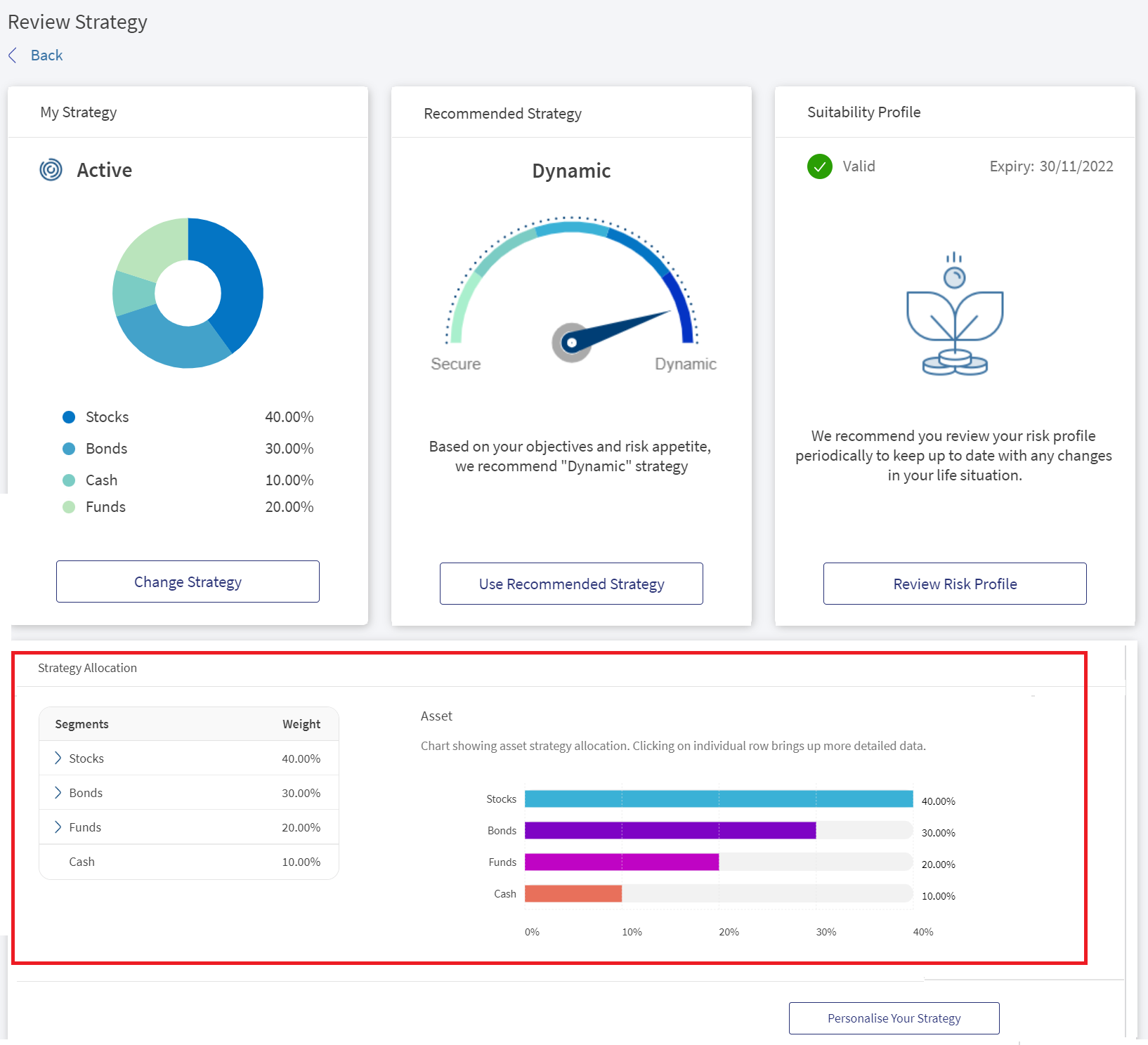
The values are changed if there are any changes in the " Personalize Your Strategy " section.
Online Banking: To personalize the strategy for the asset class allocation, follow these steps:
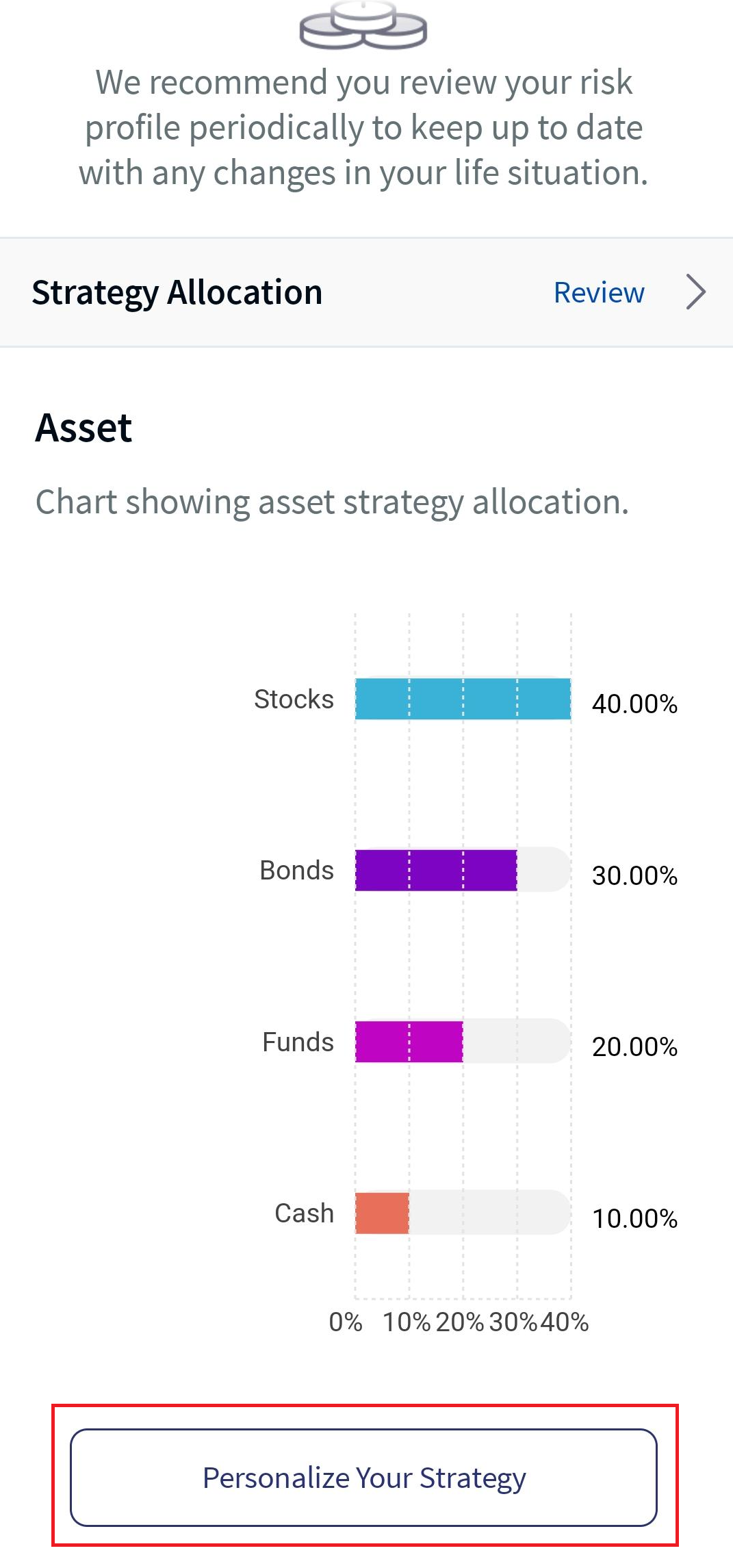
- On the Review Strategy screen, in the Strategy Allocation section, click Personalise Your Strategy.
- Select any segment in the asset list and drag it left or right to increase or decrease the target percentage. The system auto-enables Compute and Reset buttons only on changing the target percentage. In addition, you can change the target percentage only for one segment at a time.
- Click on Compute to finalize the target percentage or on Reset to revert back to the recommended target percentage.
- When you compute for any segment and try to modify the target percentage for the other, the system pro-rates the subsequent asset classes accordingly.
- End users can make changes to multiple assets without computation, but only the last modified asset is considered for calculation.
- Customizing the child node does not change the values of the parent node until the computation is complete.
- The total target weight is displayed above or below 100% before the computation, but it is set to 100% again after the computation.
- An error message is displayed on the UI when the customization does not compute to 100%.
- Model portfolios or instrument assignments cannot be customized.
- Review your strategy and then enable the confirmation checkbox.
- Click Done. An acknowledgment screen appears.
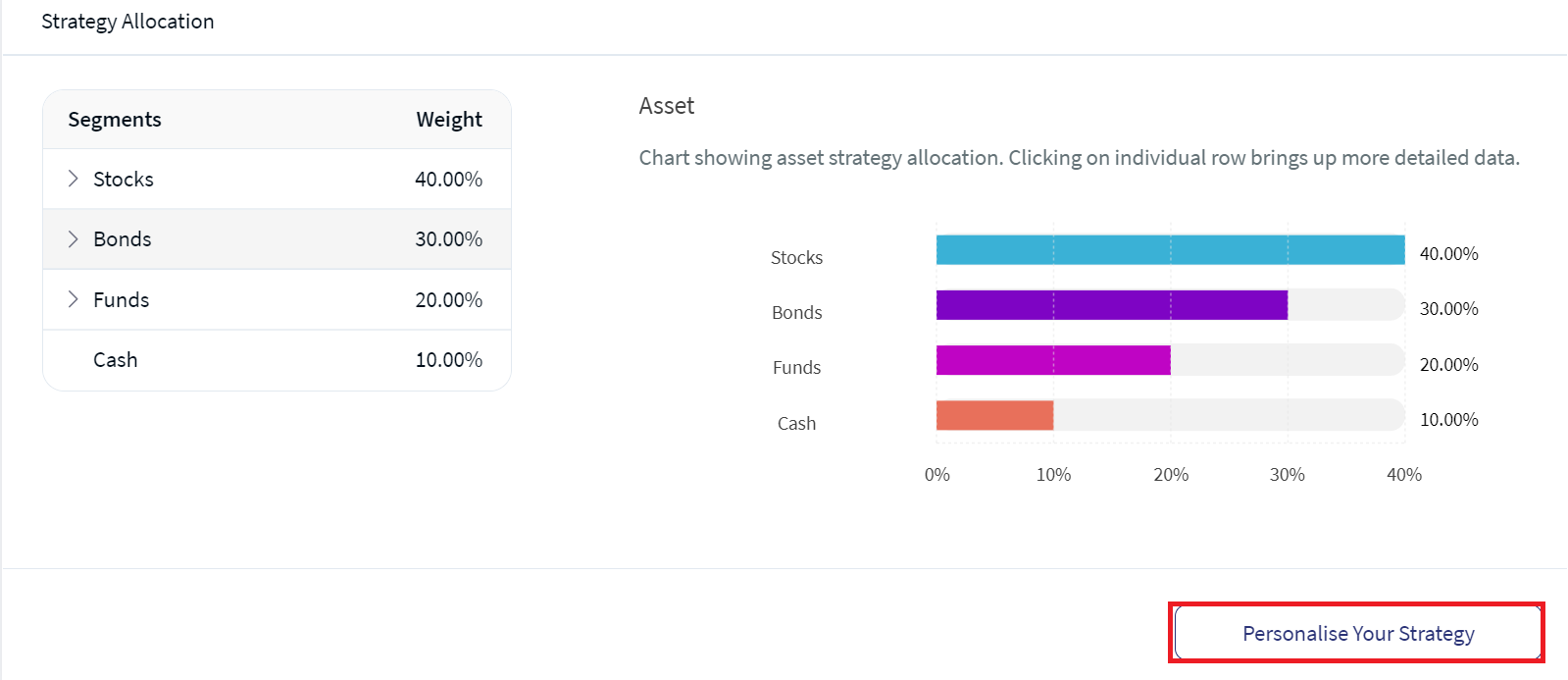
Personalise Your Strategy screen appears, where you can modify the strategy for any segment.
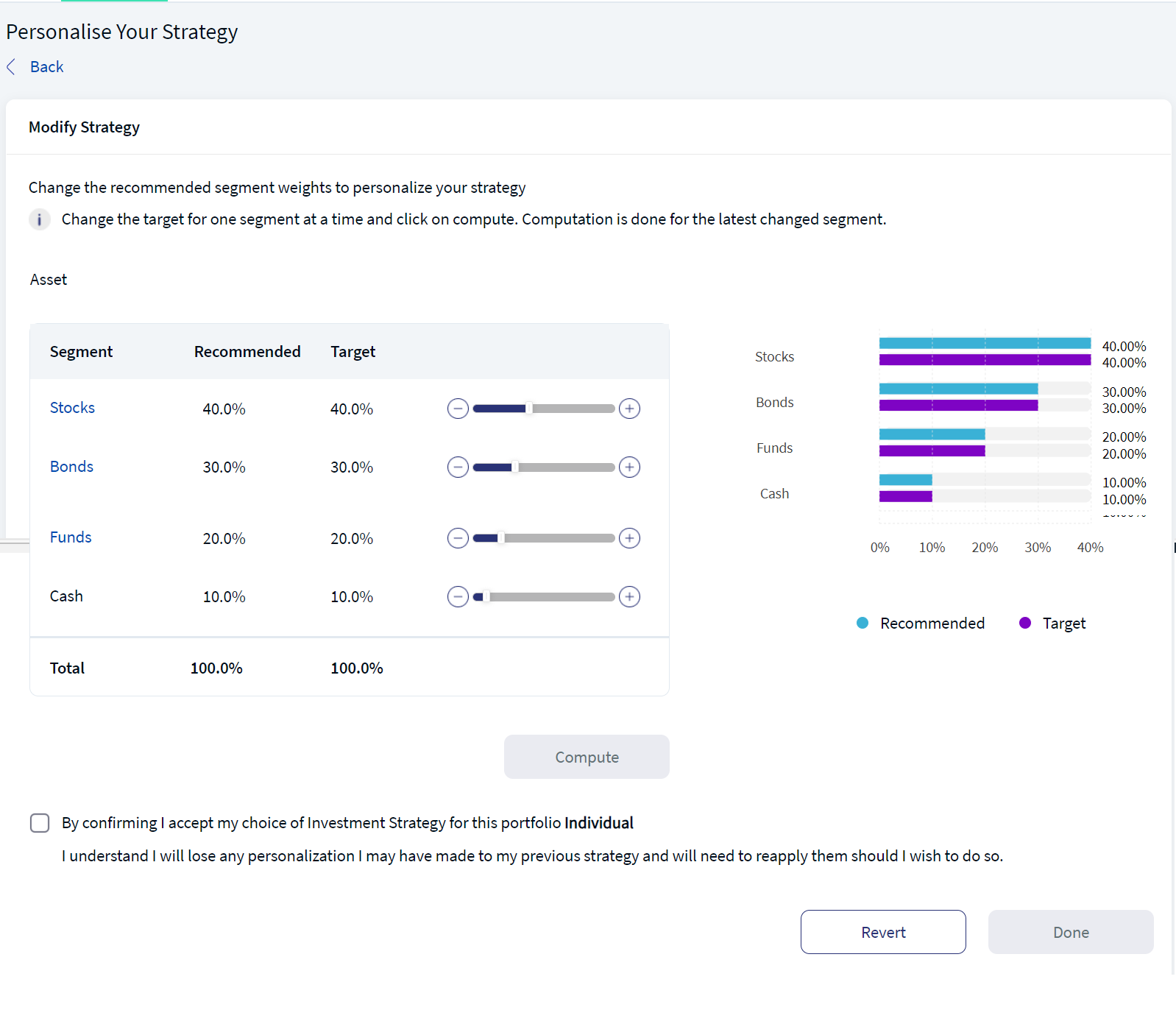
You can Personalise Your Strategy by changing the weight of the recommended segment as per your investment goals. Use the slider to change the target percentage for any segment, if required. To do so, follow the below steps:
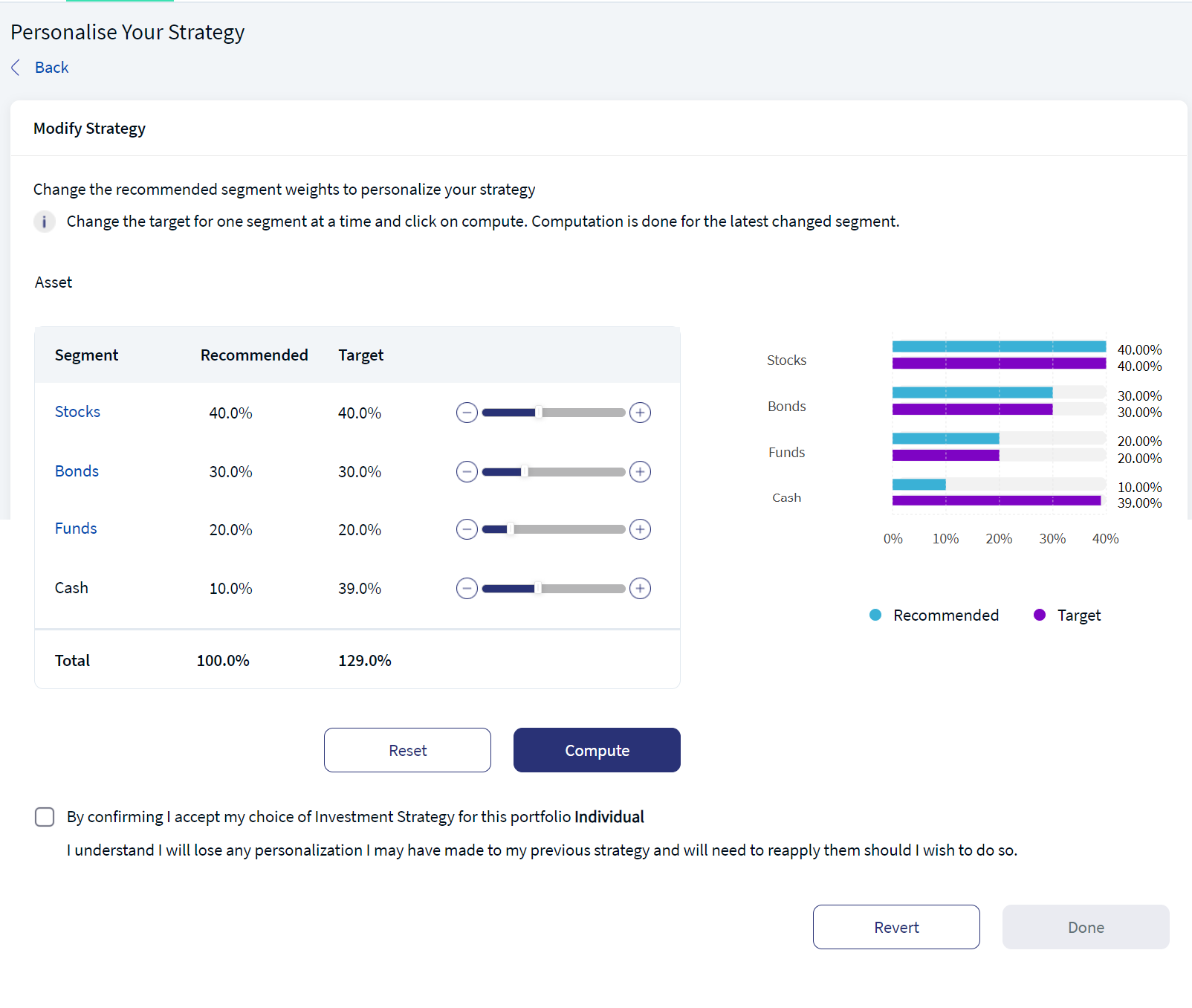
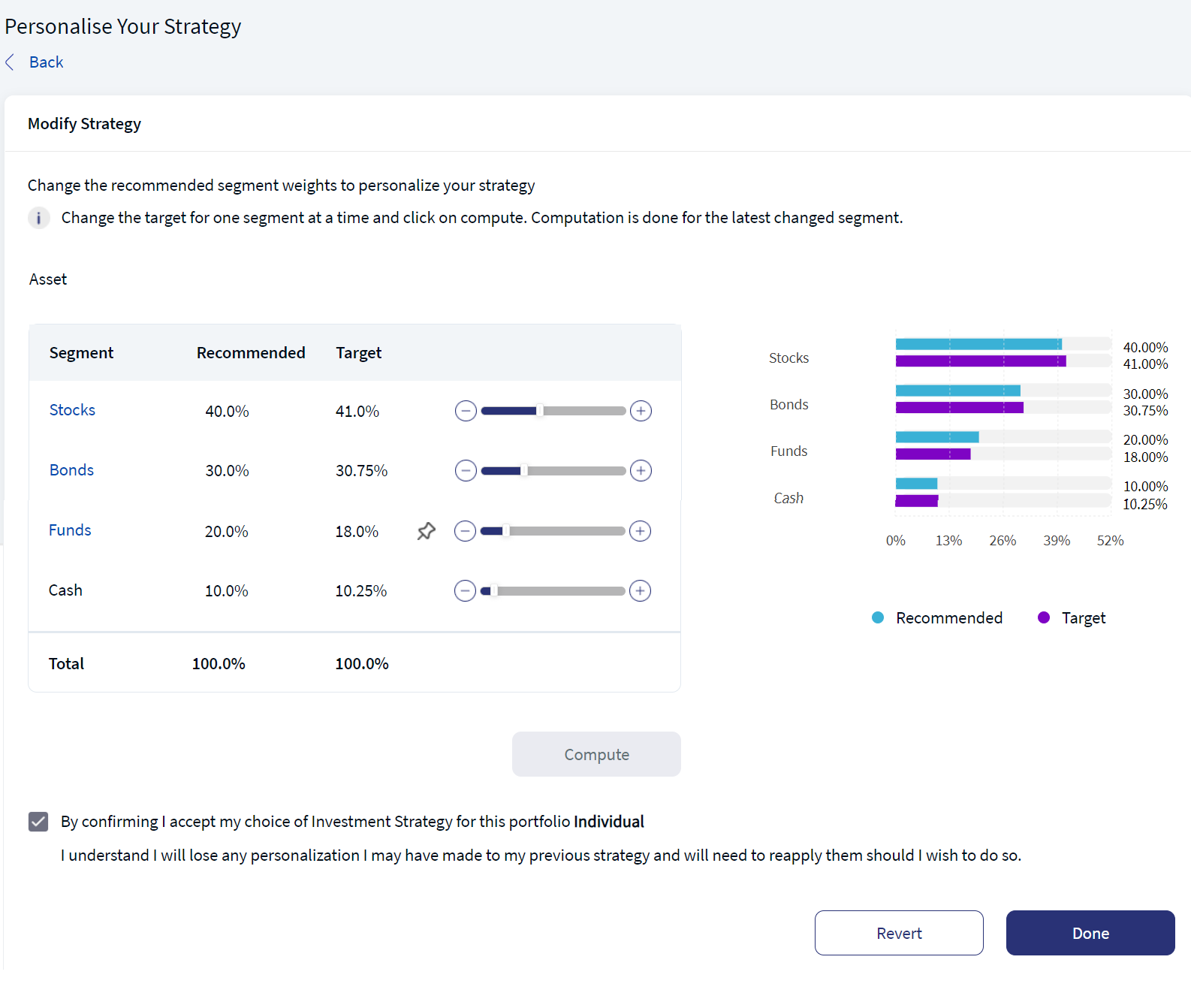
You can either confirm the target percentage or revert to the initial (recommended/ target) values by clicking on the Revert button. On clicking the revert button, the target percentage values will be reverted to the initial values i.e, both recommended, and target values remain the same.
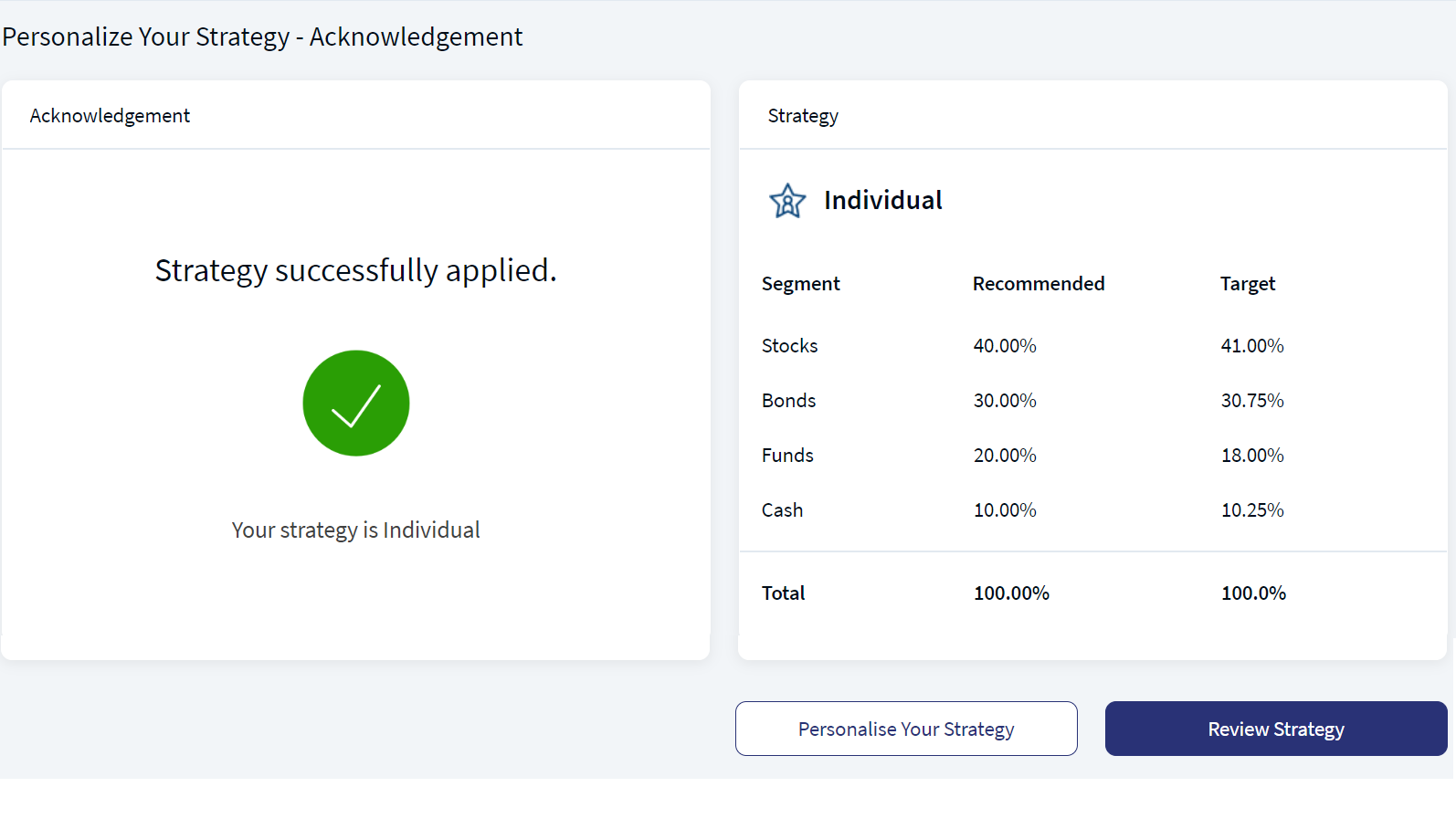
You can either review your strategy or personalise your strategy by clicking on the respective buttons.
Mobile Native App:To personalize the strategy for the asset class allocation, follow these steps:
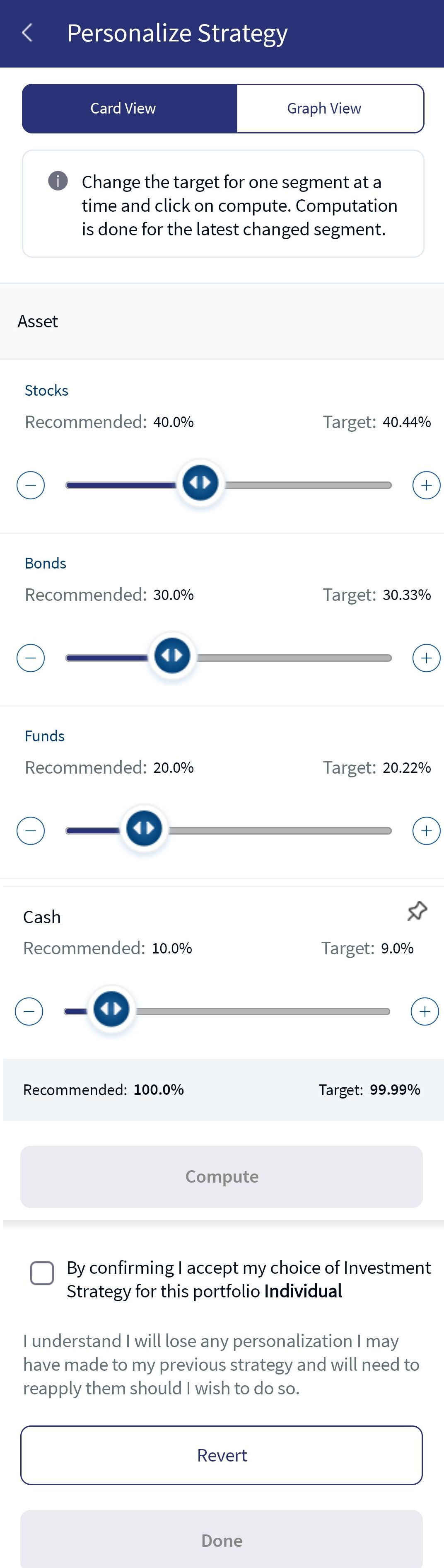
- On the Review Strategy screen, in the Strategy Allocation section, click Personalize Your Strategy.The Personalize Strategy screen appears, where you can modify the strategy for any segment.
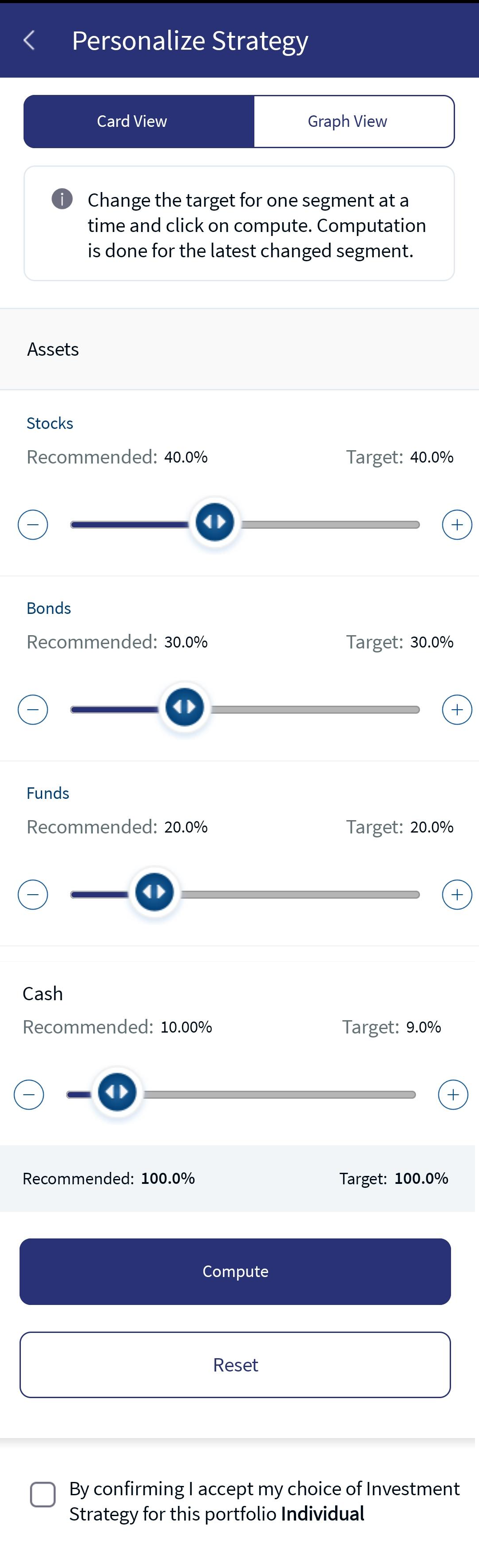
- Use the slider to change the target percentage for any segment.
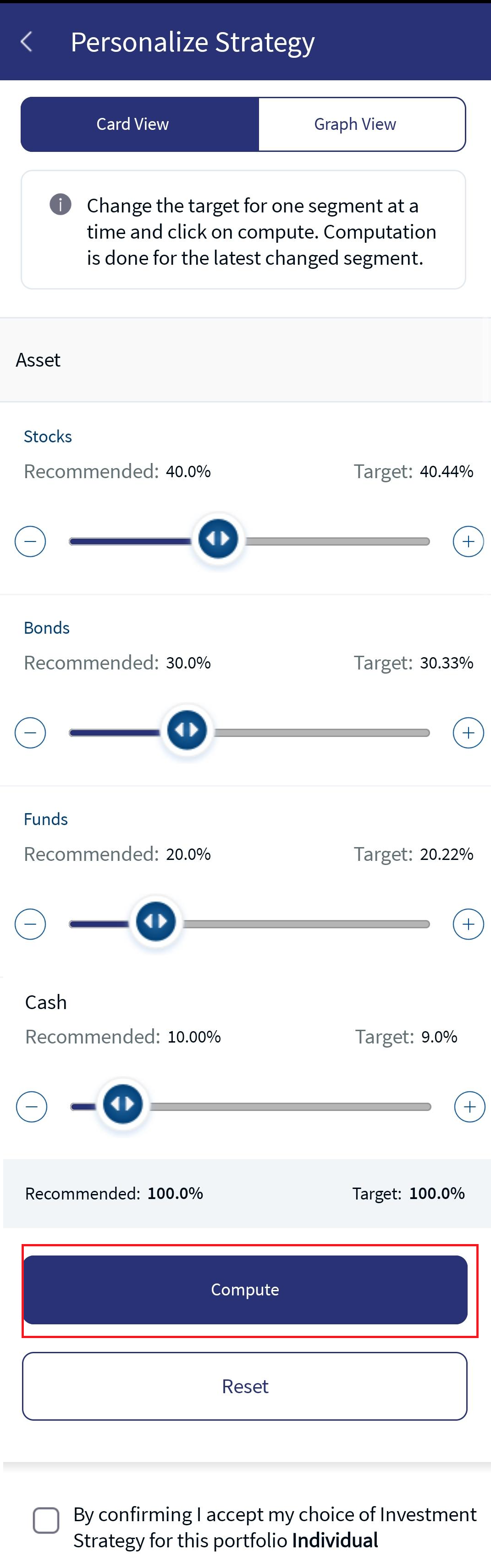
- Click on Compute to finalize the target percentage or on Reset to revert back to the recommended target percentage.
- Once the required changes are done, enable the confirmation checkbox and click Done. An acknowledgment screen appears.
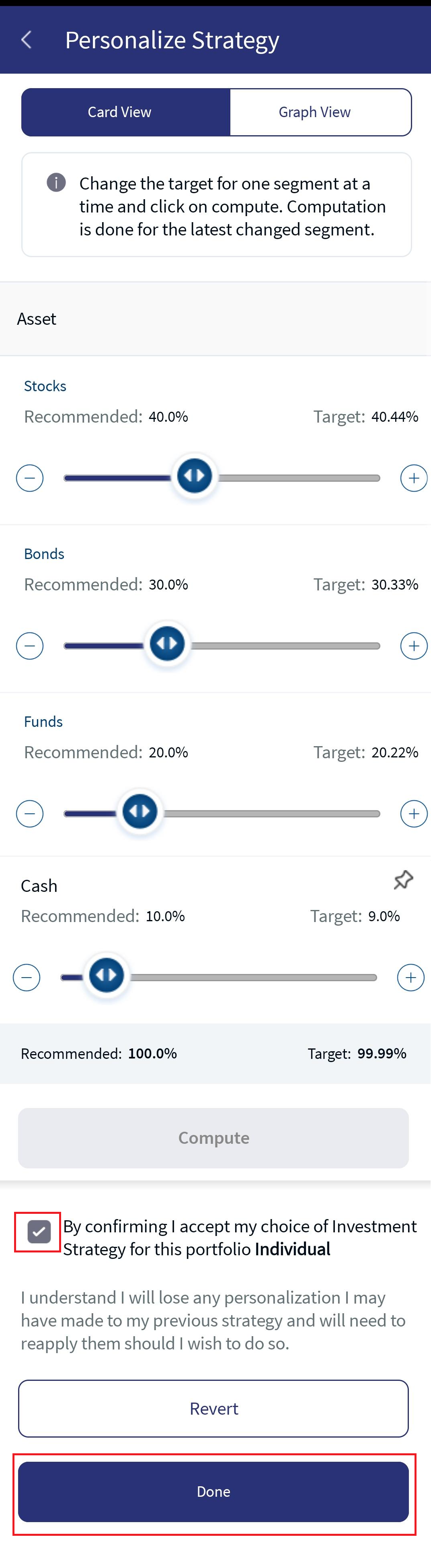
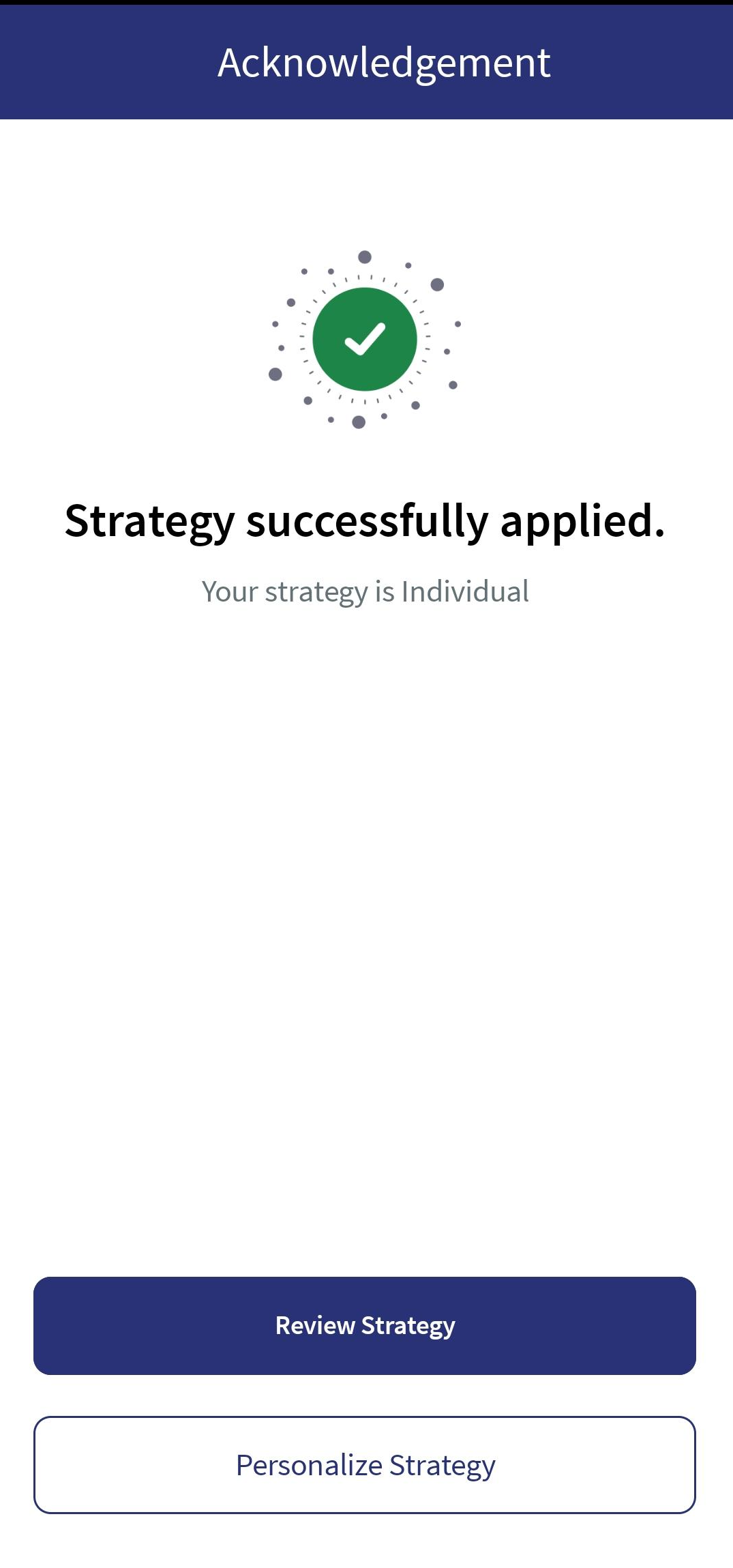
For more information on the Personalized Strategy process and its validations, refer to the above description in the online banking section.
In addition, you can review the asset allocation in Table View and in Graph View by clicking on the respective tabs. To do so, follow the below steps:
- On the Review Strategy screen, in the Strategy Allocation section, click Review.
- The Strategy Allocation screen appears in a Table View and Graph View.
- Click the left arrow to navigate back to the Review Strategy screen.
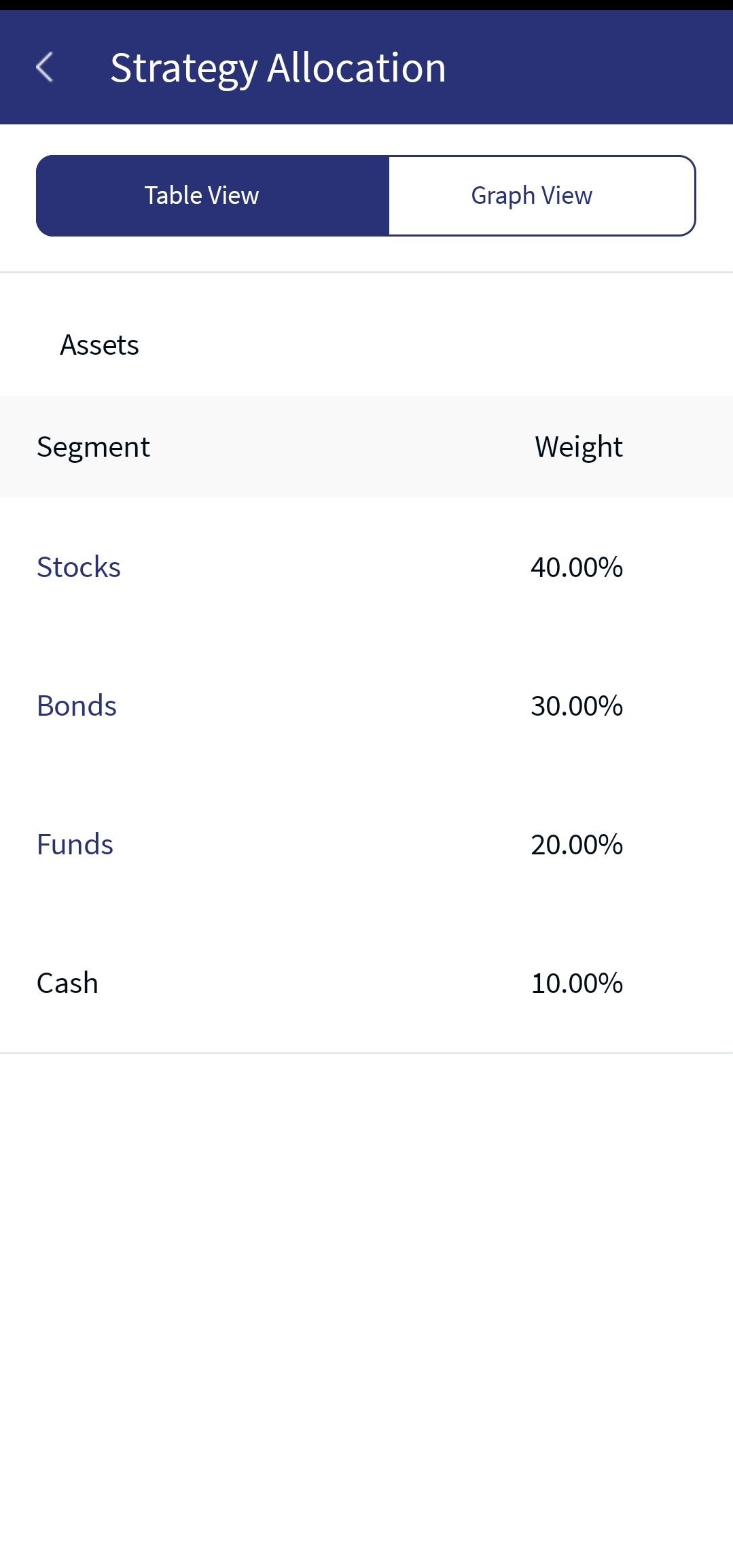
Table View Strategy Allocation
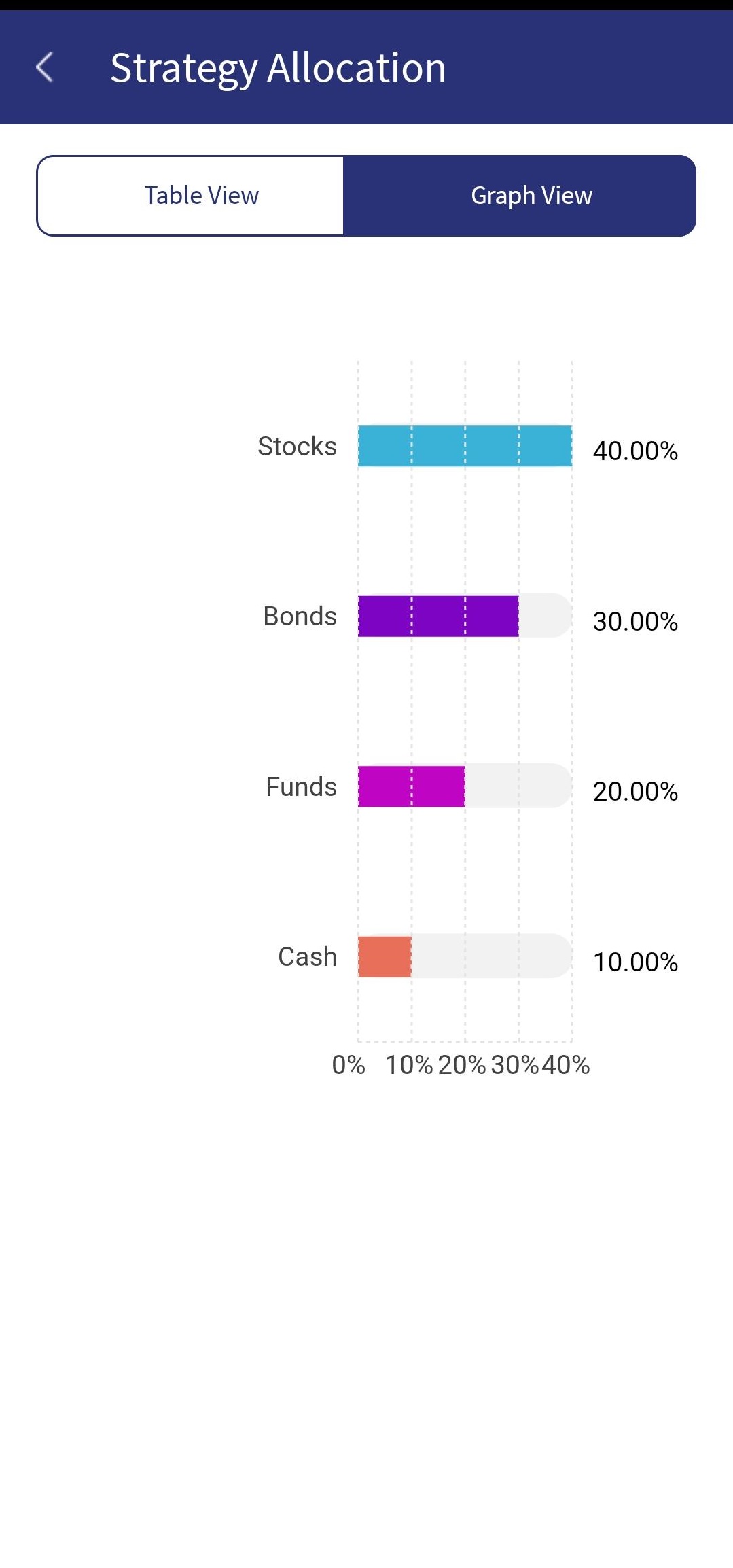
Graph View Strategy Allocation
In this topic