Place a New Order
The place an order feature facilitates buying or selling investment products such as stocks, bonds, mutual funds, or other securities. It involves specifying the order type and the order details such as quantity and price. Once standard securities orders are placed using your portfolio; the information is sent to Transact for execution. In addition, you can place an order through the channel, which helps you realign your asset class composition in the portfolio. Thus, this feature ensures transparency and alignment with your investment goals.
Below is a detailed description of the user interface of the Place an Order screen for the Online Banking and Mobile Native App.
Sequence Diagram - Place a New Order
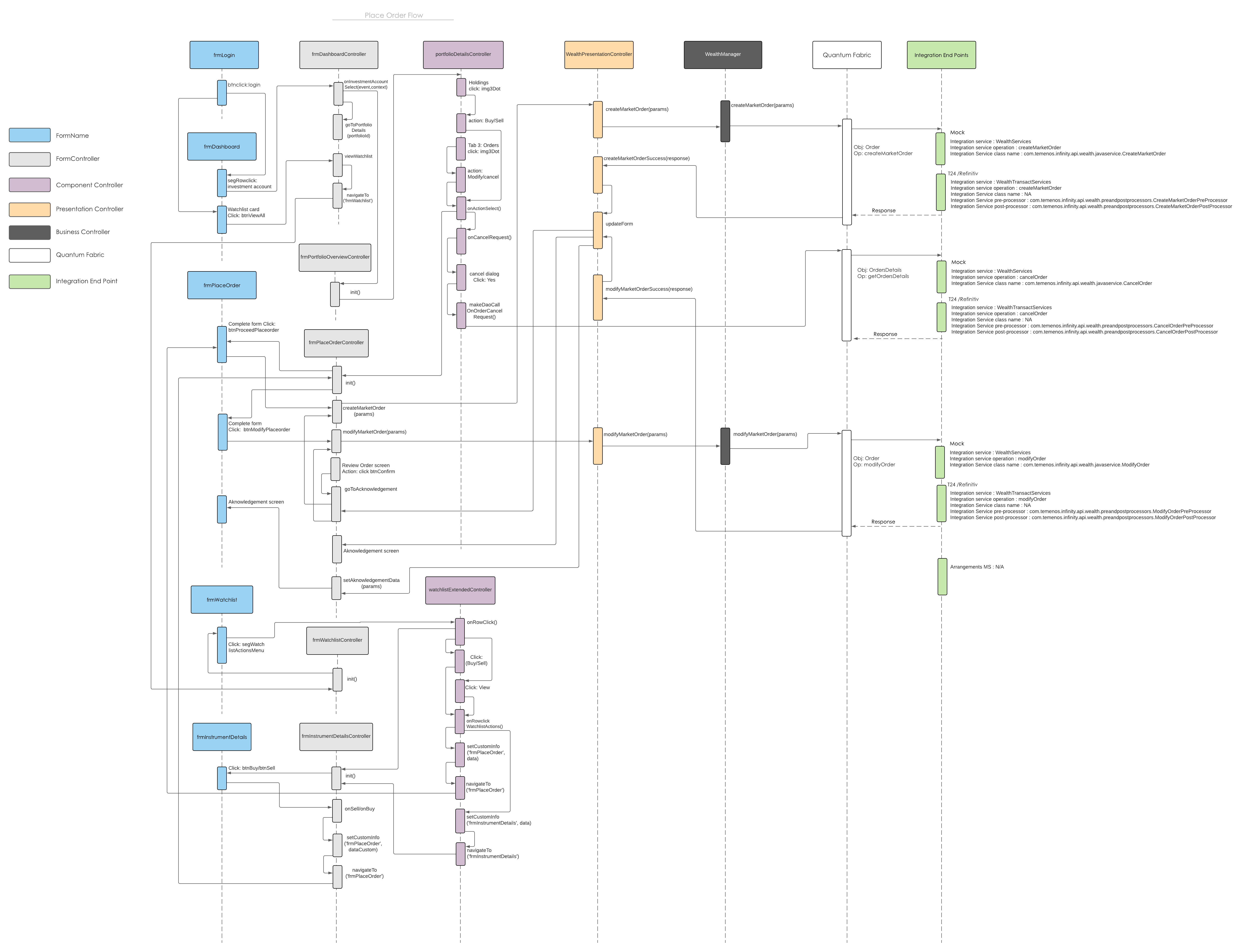
Feature Description
Online Banking: To place an order, do the following:
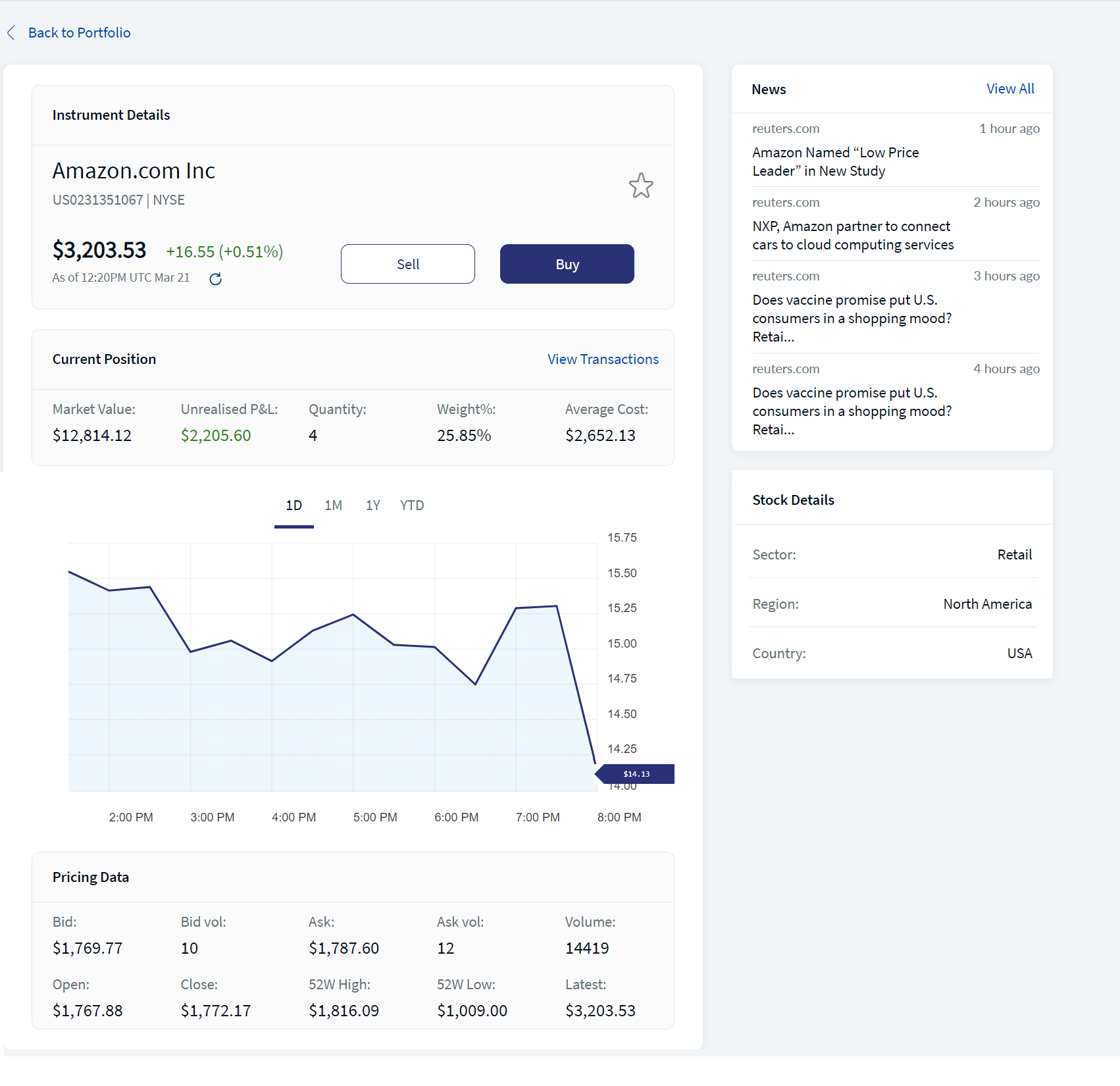
- From the Portfolio screen, search for the desired instrument in the Instrument search box. You can search by using the Instrument Name. After you select the desired product, the Product Details screen appears.
- Select either Buy or Sell. The Place a New Order screen appears.
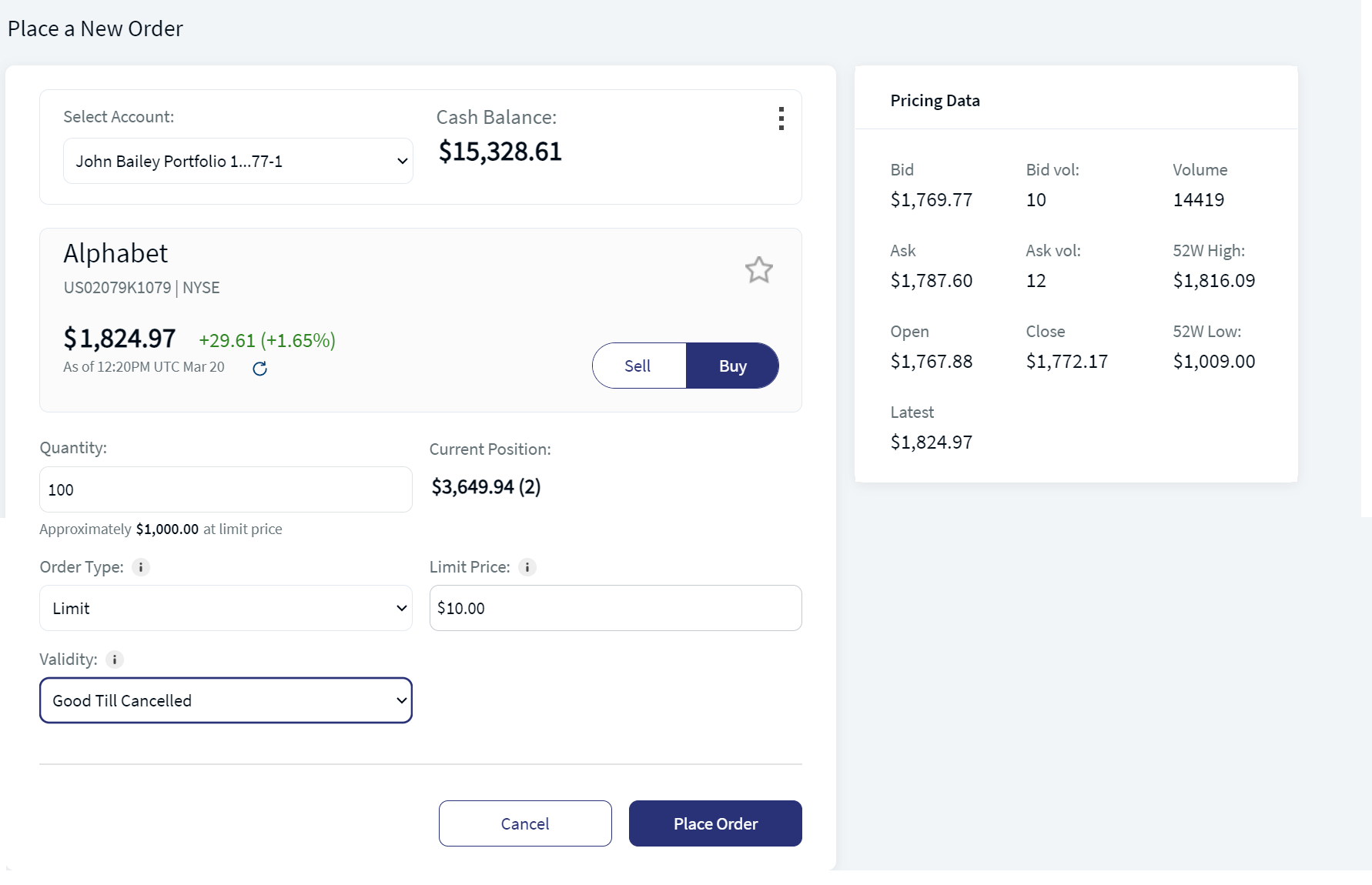
- Provide the following details:
- Select Account: From the drop-down list, select an account (Portfolio) from which you want to place an order.
- Quantity: Type the number of shares for which you want to place the order.
In the case of selling a share, the Sell All check box appears. If you want to sell all the shares of the instrument, select the Sell All check box.
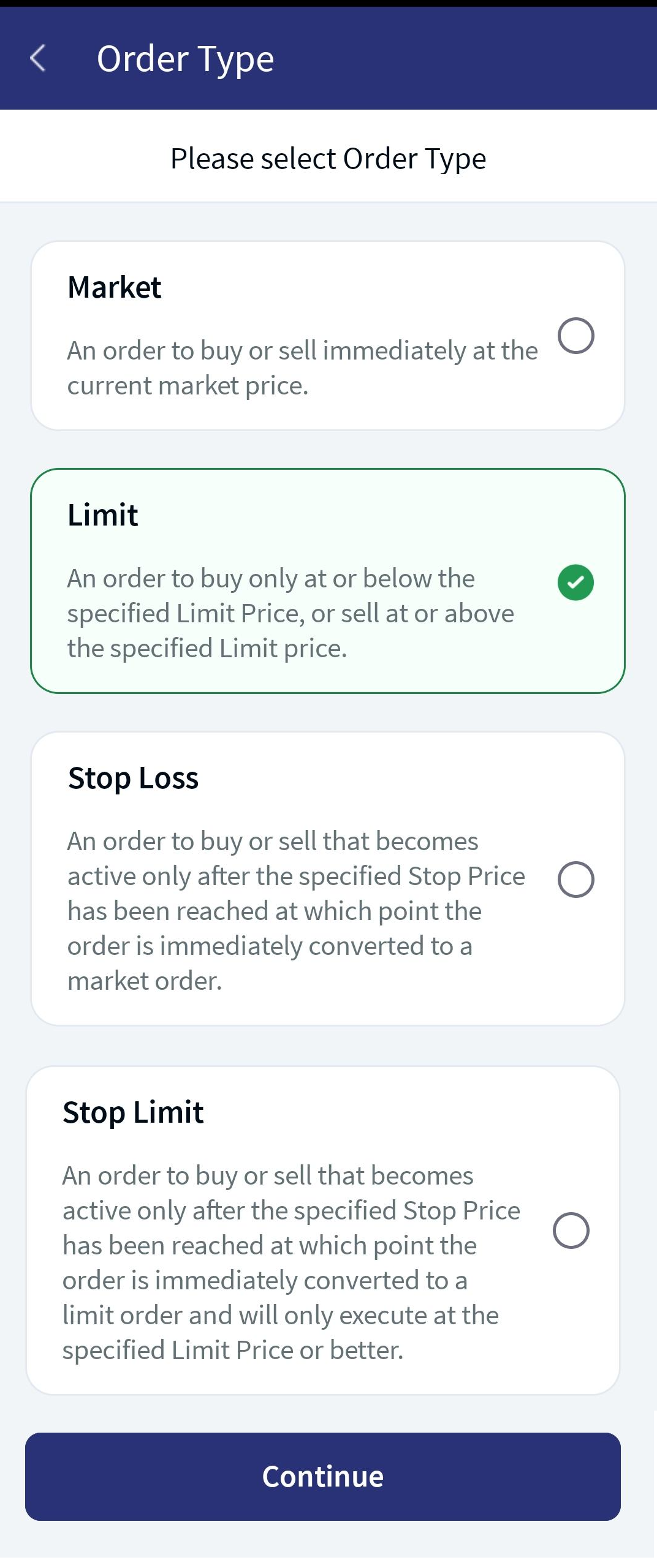
- Order Type: Select the desired order type from the list. There are four order types as follows:
- Market: An order to buy or sell immediately at the current market price.
- Limit: An order to buy only at or below the specified Limit Price, or sell at or above the specified Limit Price.
- Stop Loss: An order to buy or sell that becomes active only after the specified Stop Price has been reached at which point the order is immediately converted to a market order.
- Stop Limit: An order to buy or sell that becomes active only after the specified Stop Price has been reached at which point the order is immediately converted to limit order and will only execute at the specified Limit Price or better.
For information about an order type, click the Info icon
 .
.Based on the selected order type, the details that must be provided change accordingly.
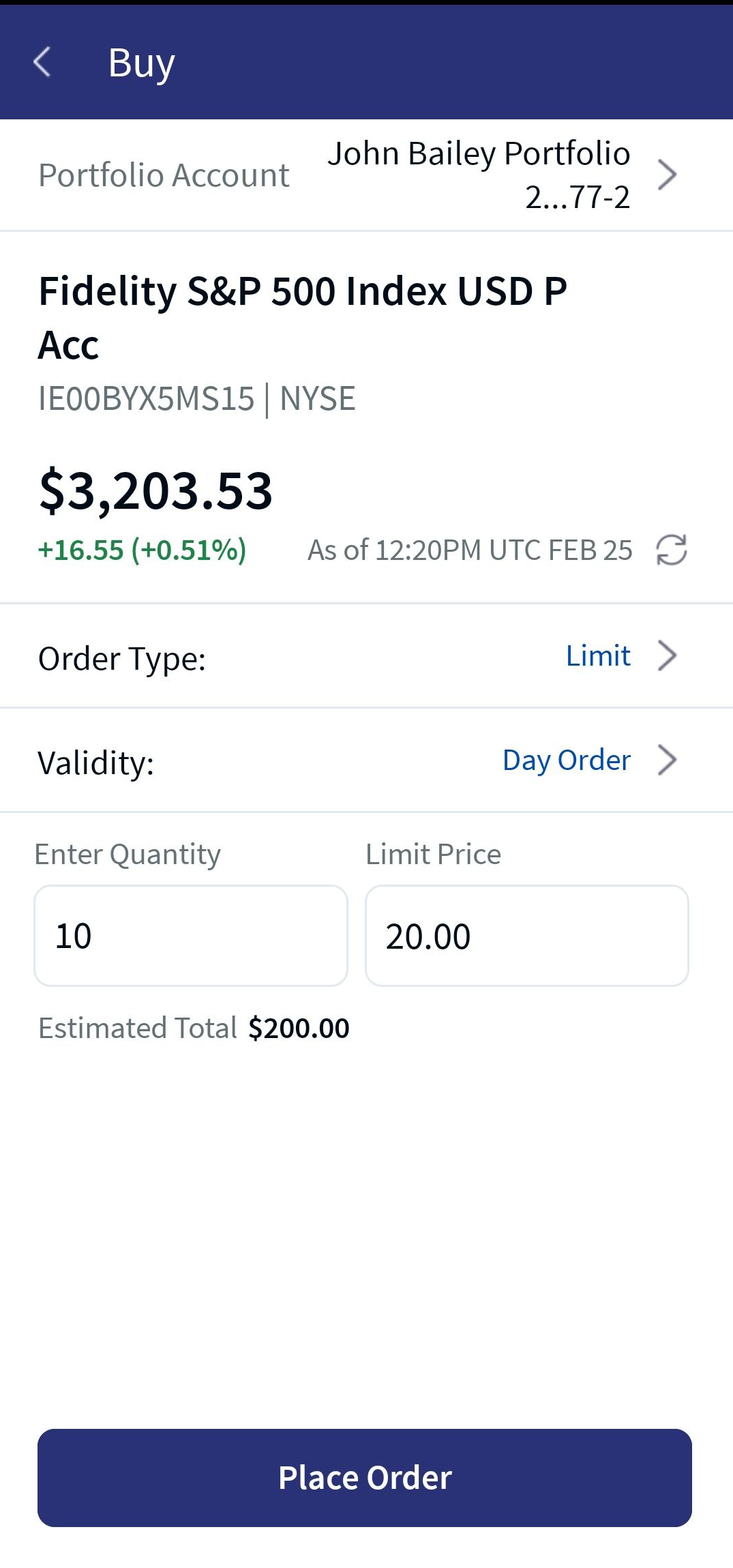
- For the Limit order, type the limit price in the Limit Price text box.
- For the Stop Loss order, type the stop-loss price in the Stop Loss text box.
- For the Stop Limit order, type the limit price in the Limit Price text box, and the stop limit price in the Stop Limit text box.
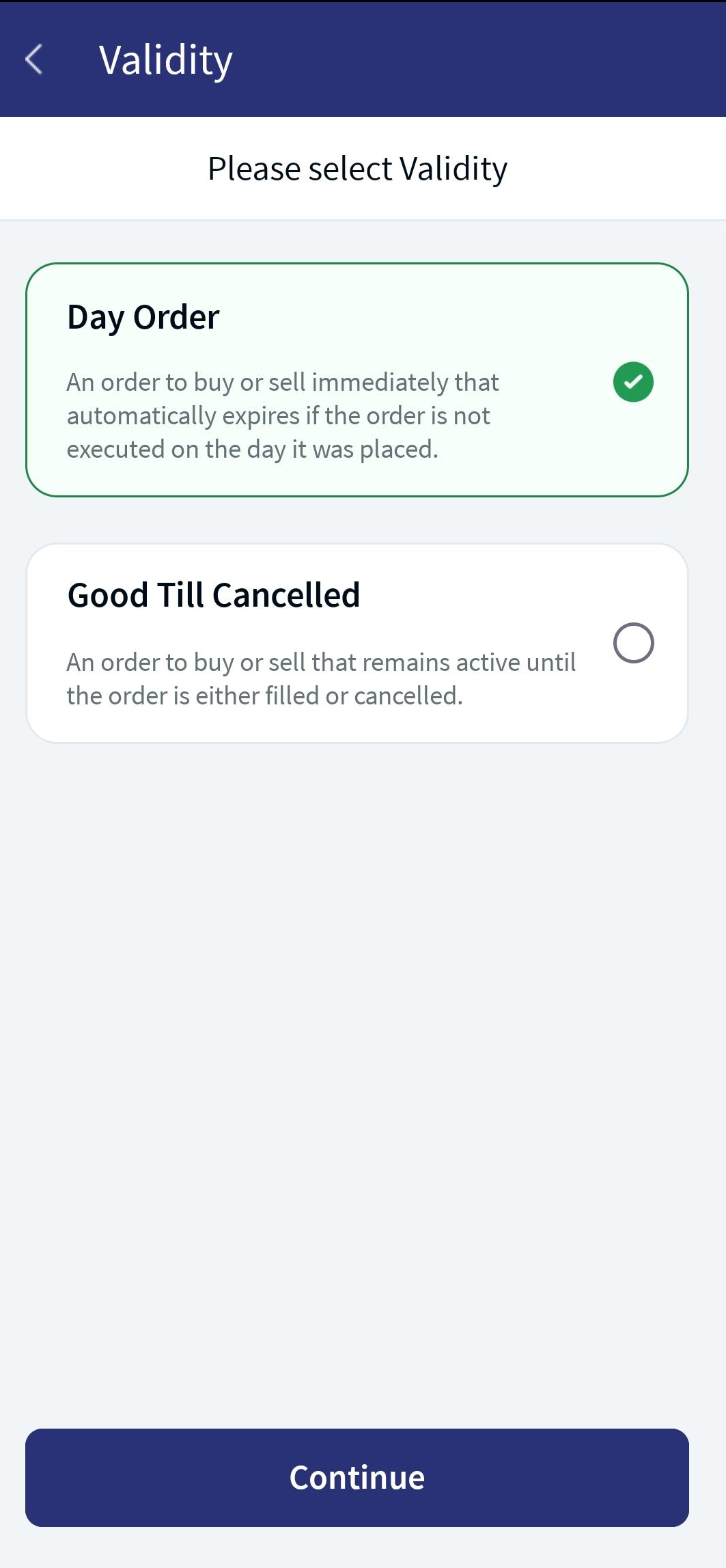
- Validity: Select the validity for placing the order. There are two validity types as follows:
- Day Order: An order to buy or sell that automatically expires if the order is not executed on the day it is placed.
- Good Till Canceled: An order to buy or sell that remains active until the order is either filled or canceled.
- After providing the mentioned details, click Place Order. The Your Order Details screen appears.
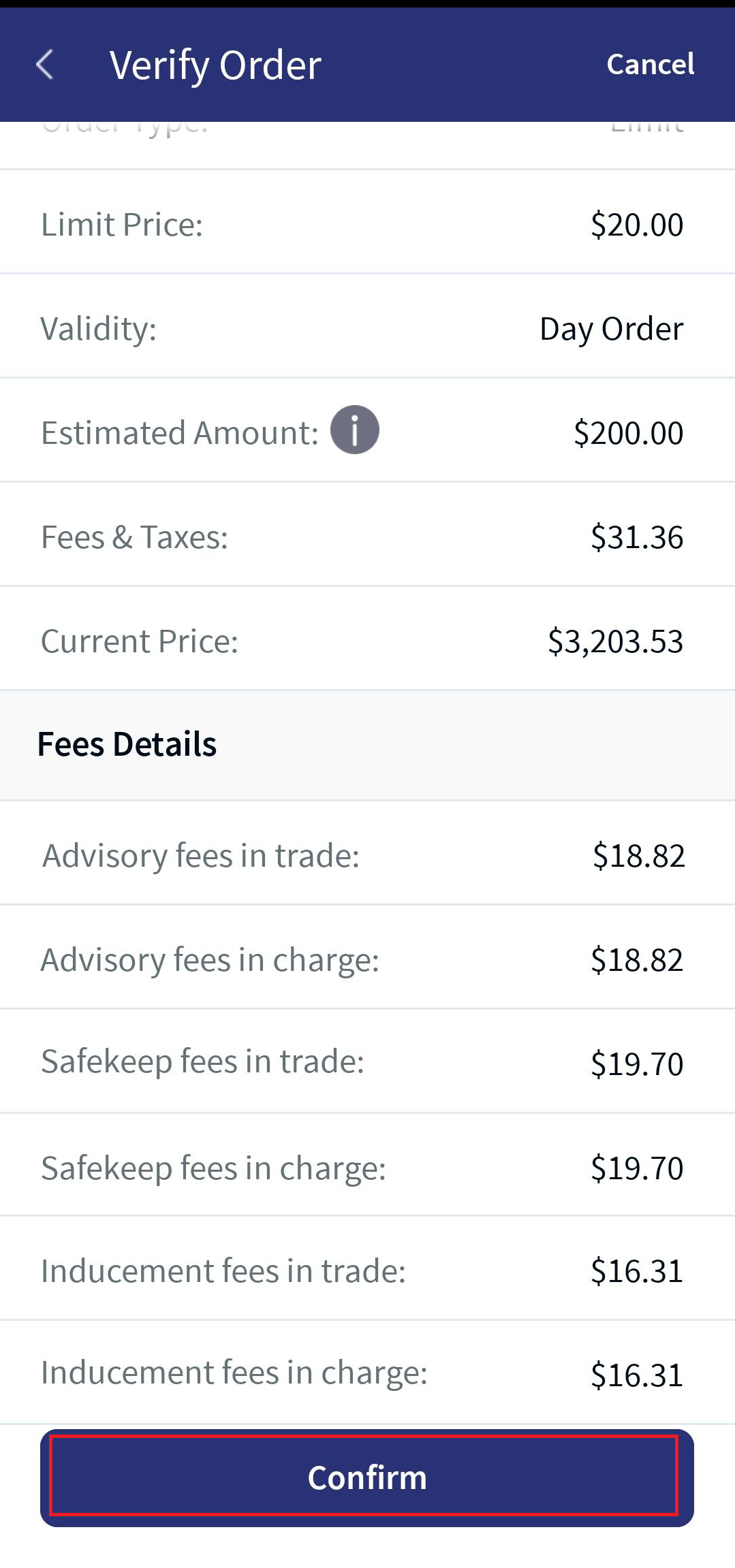
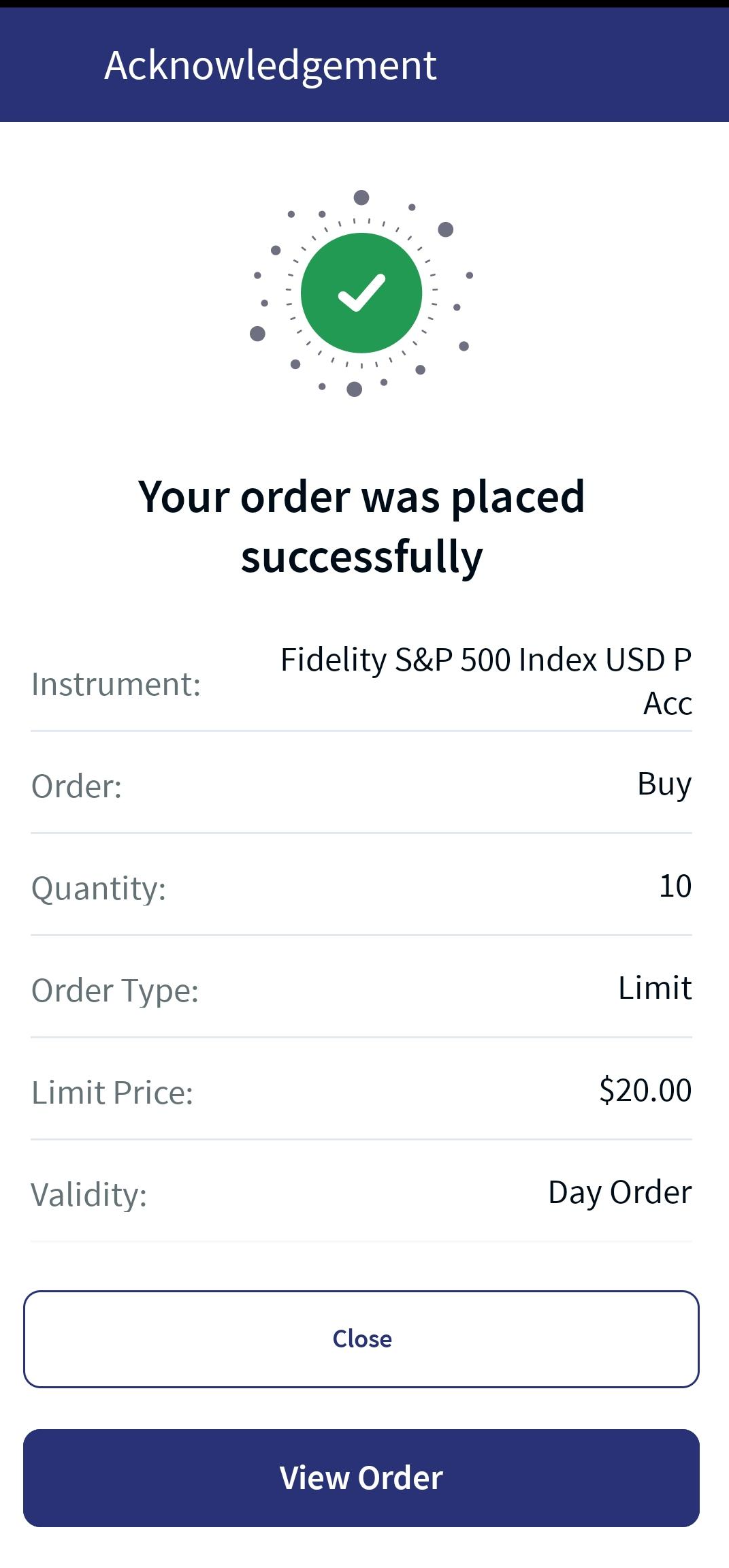
- Verify the details and click Confirm. The Order Acknowledgment screen appears.
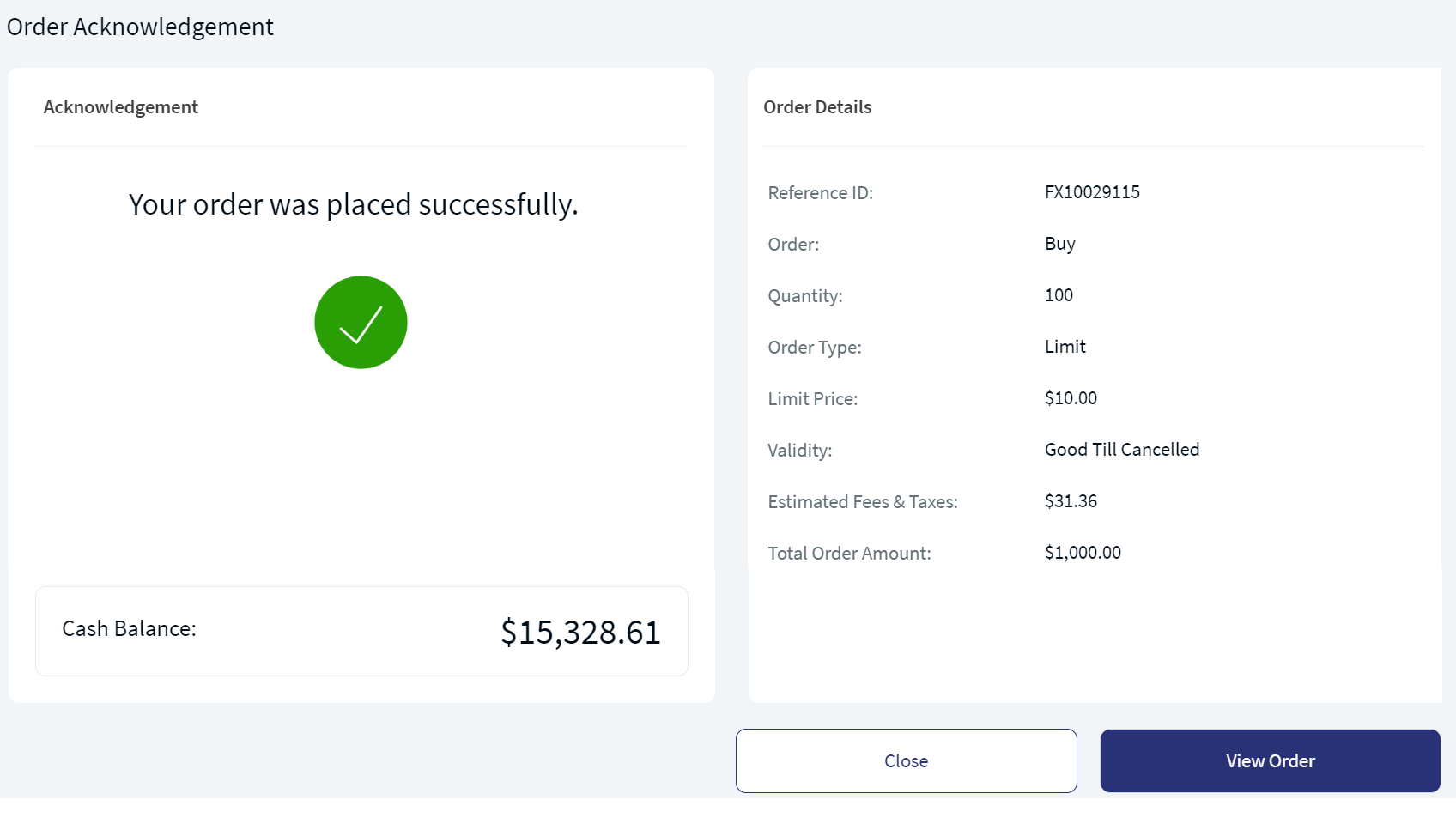
- Click Close to dismiss the Acknowledgment screen. Click View Order to view the order details.
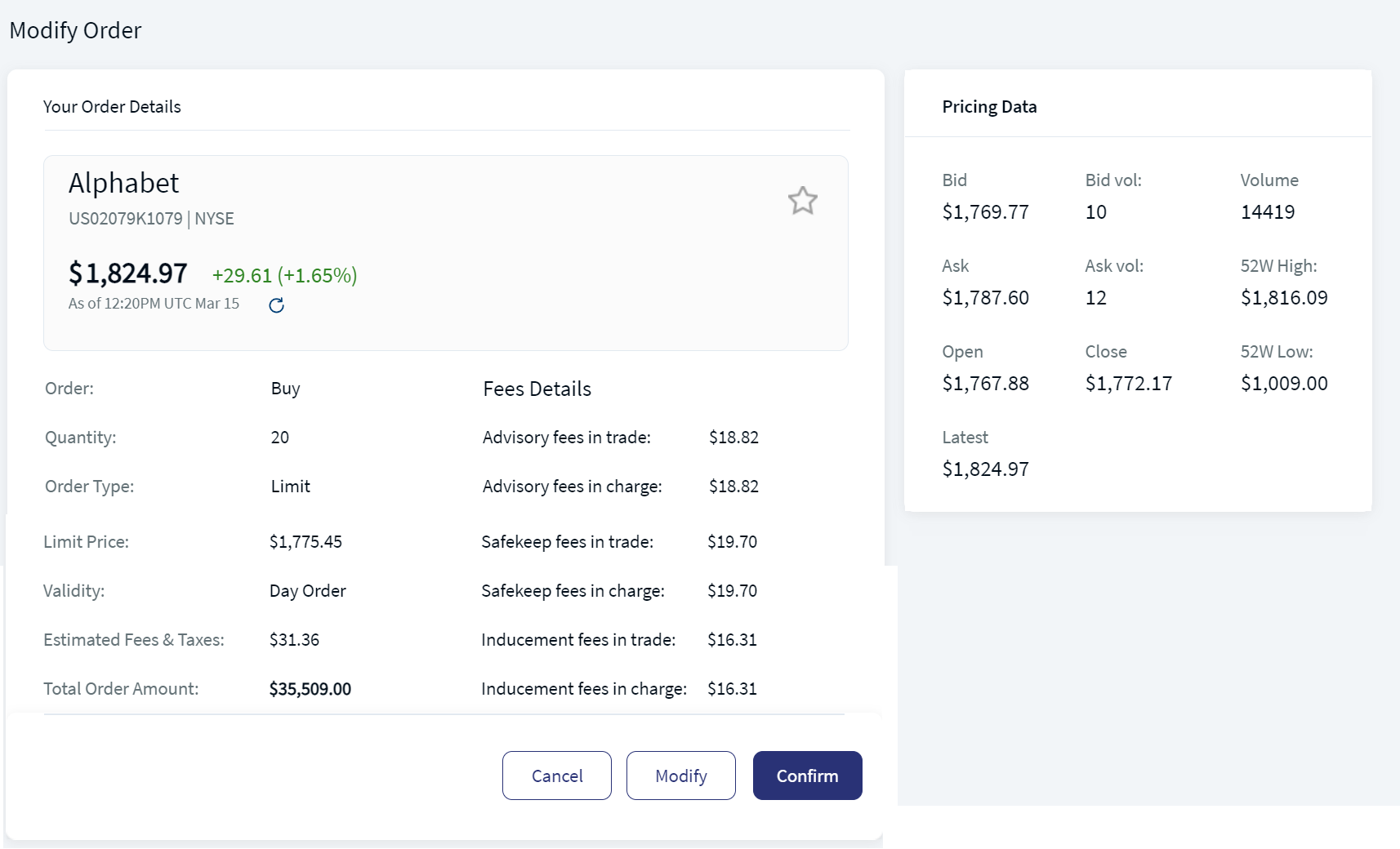
The MiFID Ex - Ante Fees include Safekeep, Advisory, and Inducement fees. You can view these fee details during the order verification stage.
Here is the video that provides insight on placing orders in Wealth Order Management.
Mobile Native App:Place an order feature allows you to buy or sell assets in the portfolio. You can access this feature through the Instrument Search on the Home and Watchlist screens. In addition, this feature is also available in the Overview tab and the Holdings tab at the Portfolio Details level.
Below is a brief description of the areas where the system allows you to "Place an Order"
- Instrument Search - On the Home screen, the Search Instrument field is displayed at the top of the screen. Enter the instrument name to display the instrument list. Select and click on any instrument. You are navigated to the Instrument Details screen, where you can buy or sell.
- Holdings: Click Accounts on the footer menu. My Accounts screen is displayed, where you can find a list of portfolios along with the portfolio name and type. Select and click on any portfolio, where the Holdings is displayed on the header tab. Click on holdings to view the instrument list. Select any instrument, and click the contextual menu to perform actions like buy or sell.
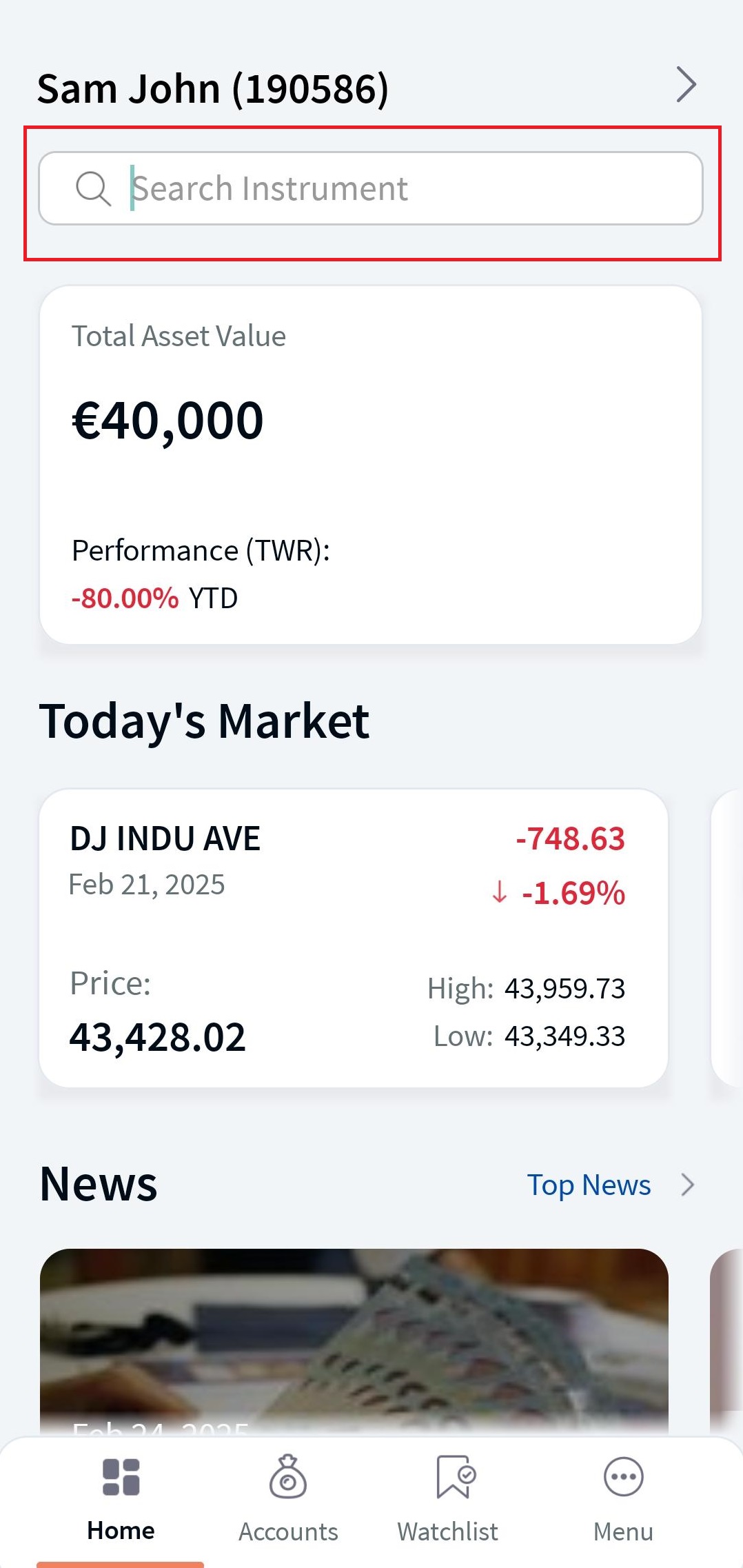
Home- Search Instrument
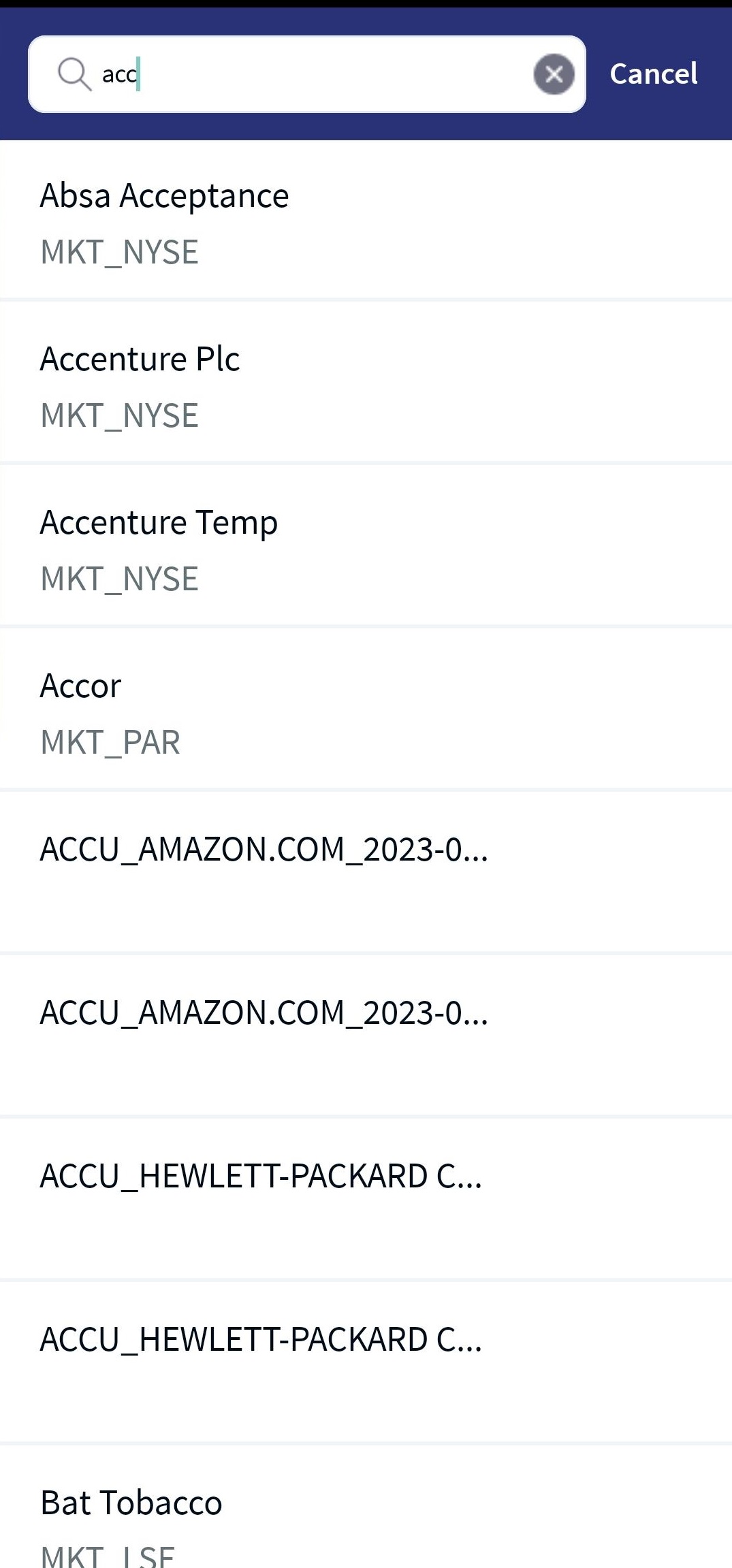
Search Instrument
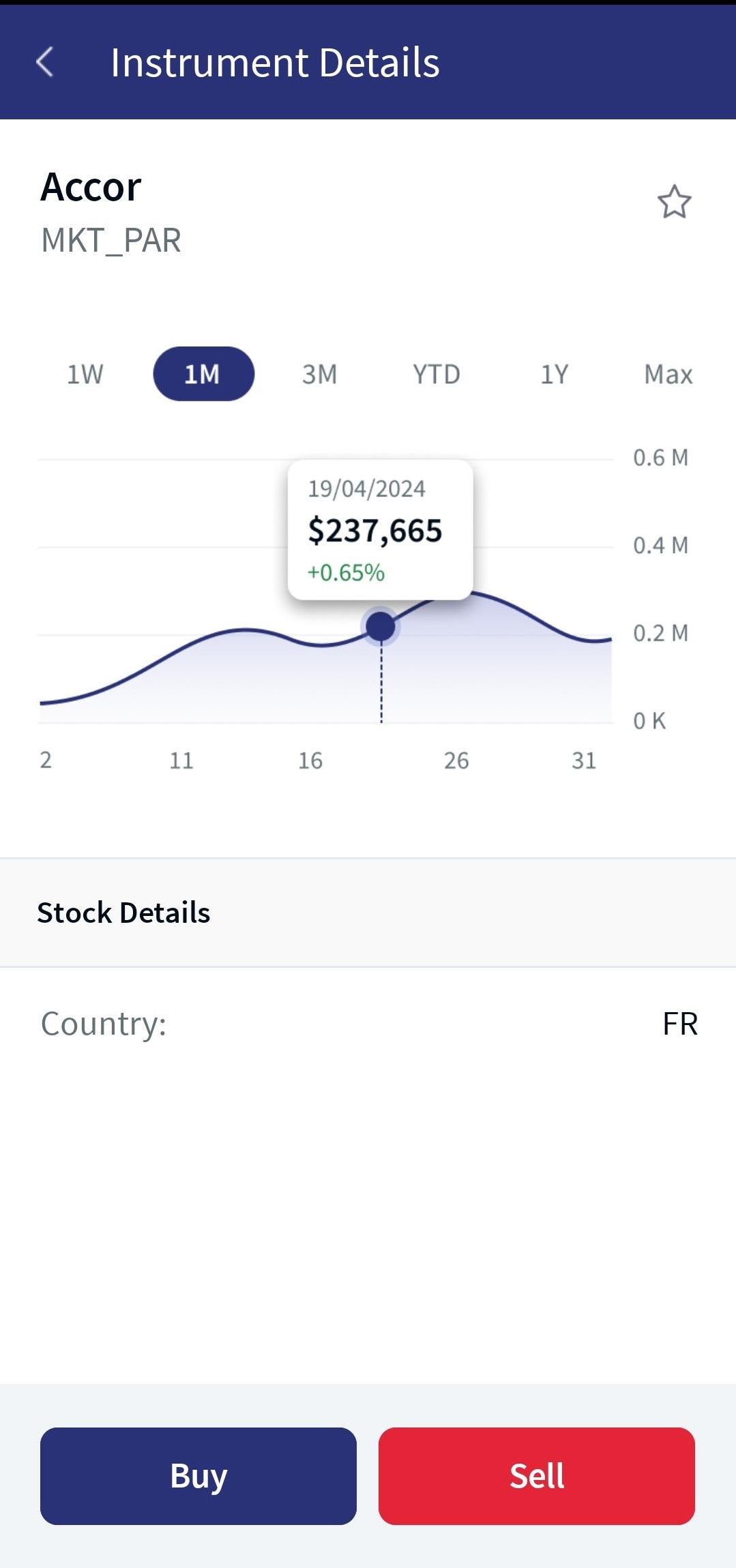
Instrument - Buy/Sell
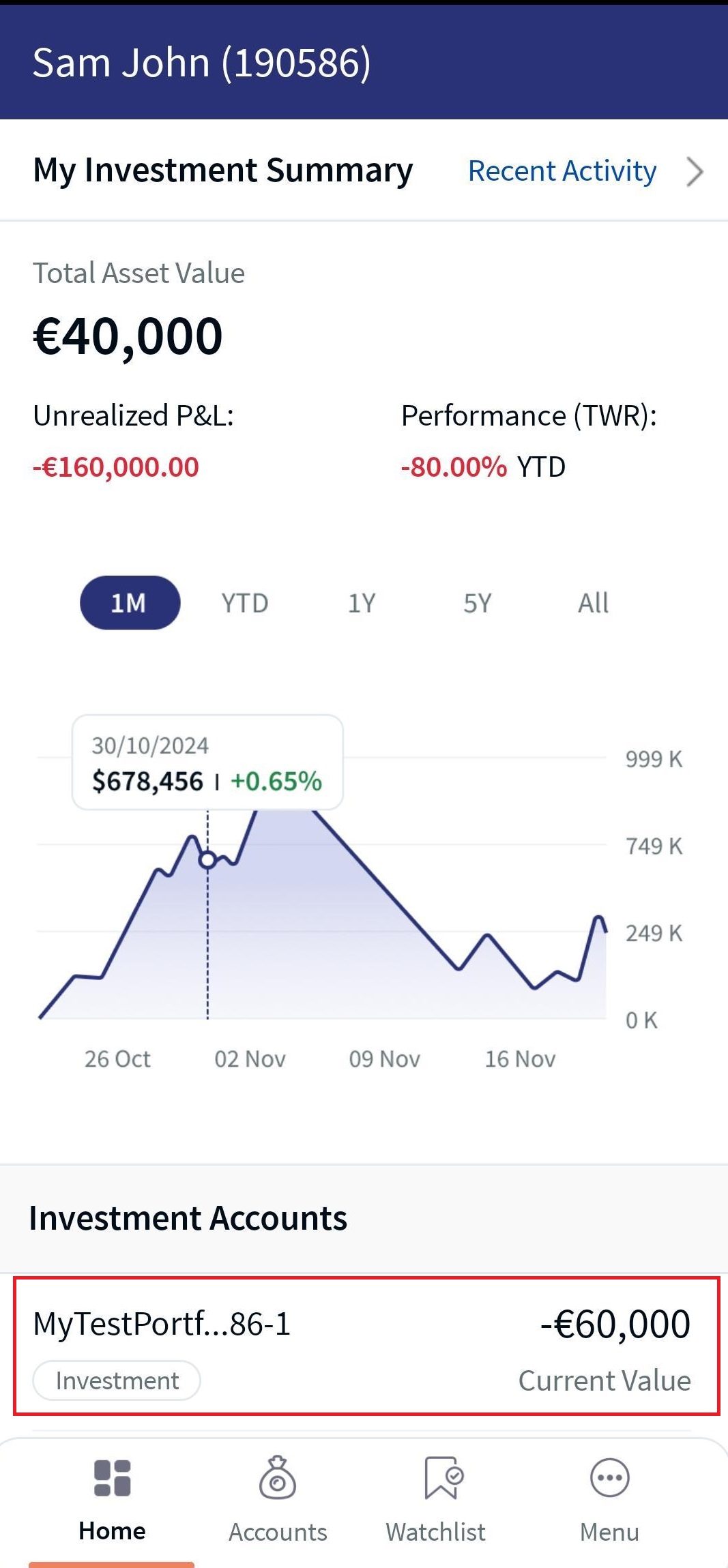
Accounts- Portfolio
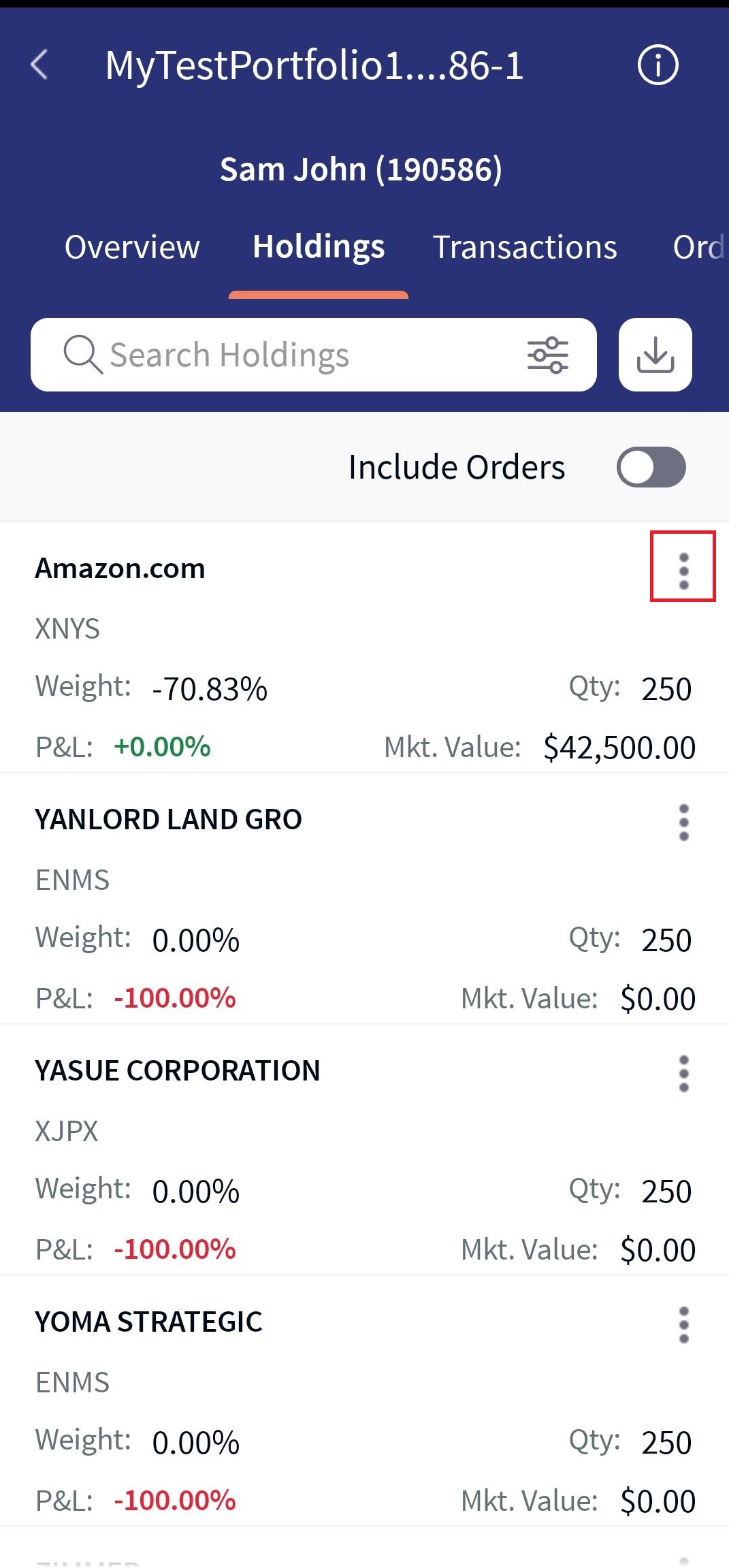
Holdings -Contextual Menu
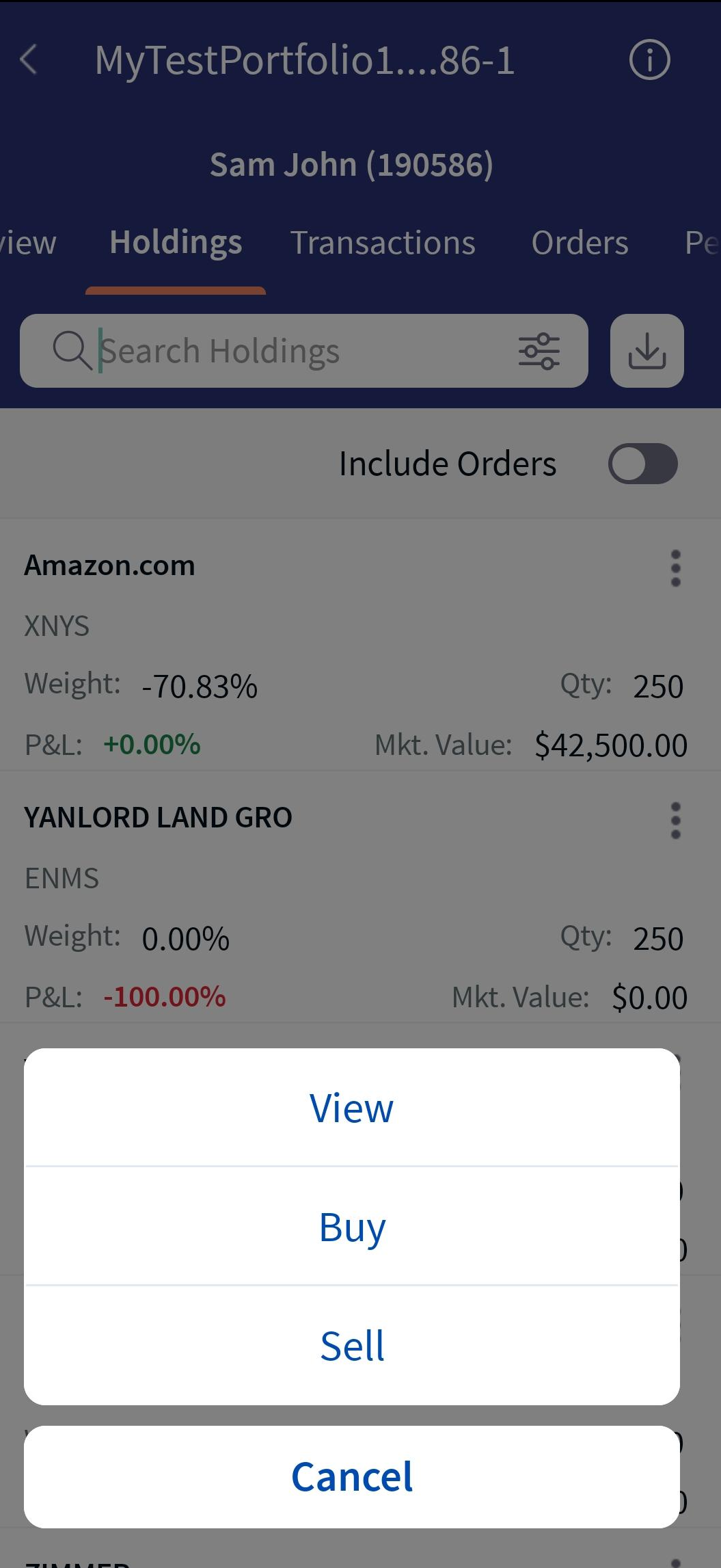
Instrument - Buy/Sell
- Watchlist: Click on Watchlist to view your favorite instruments list if it was added earlier. Search for an instrument in the Add/Remove Instruments field. You can view the list of instruments. Click Add to add the instrument to the watchlist. Select any instrument, and click the contextual menu to perform actions like buy or sell.
- Portfolio: Click Accounts on the footer menu. My Accounts screen is displayed, where you can find a list of portfolios with the portfolio name and type. Select and click on any portfolio to search for instruments on the Overview header tab. Search for an instrument in the 'Search By Instruments' field. The system displays the list of instruments. Click on the instrument where you are allowed to buy or sell.
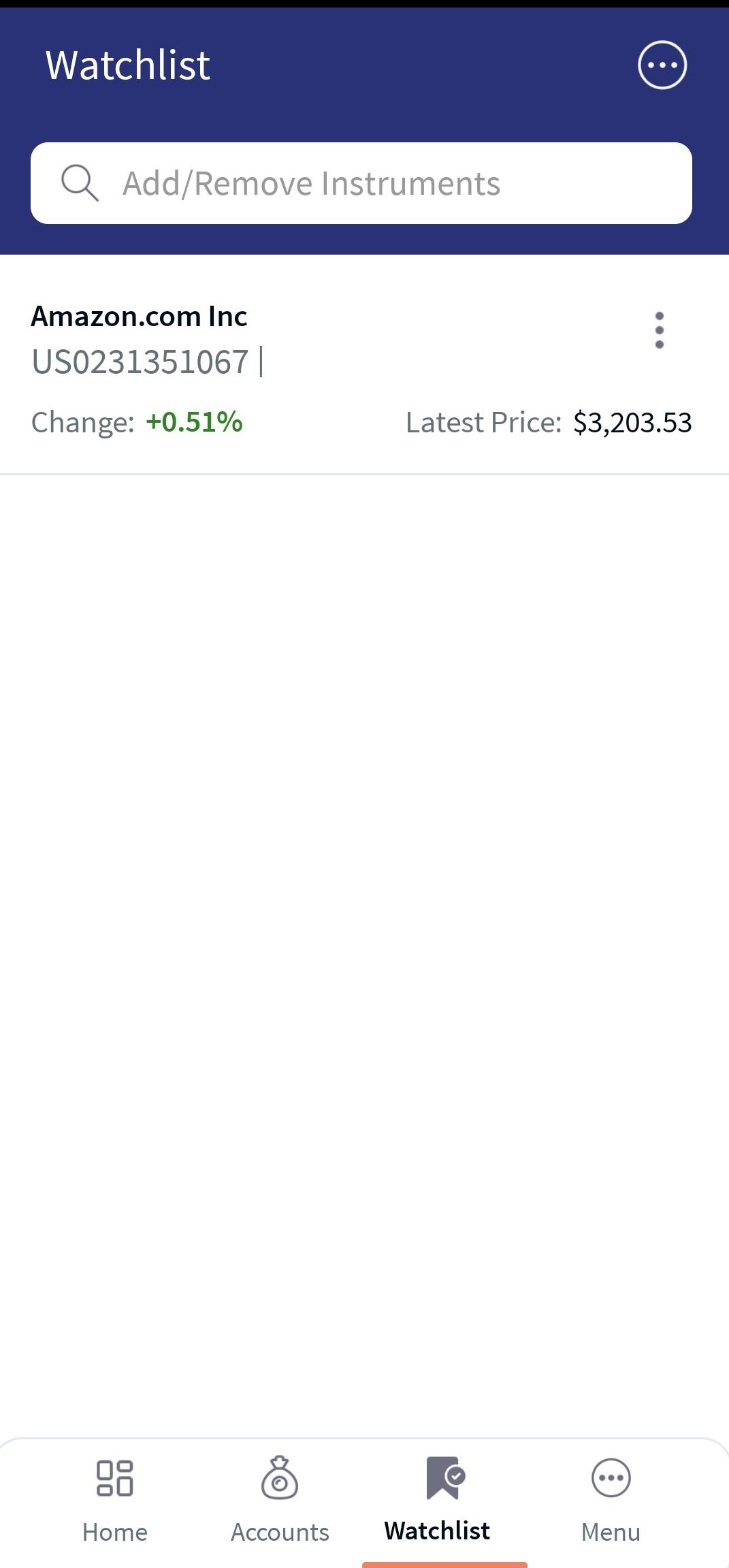
Watchlist

Watchlist -Search Instruments
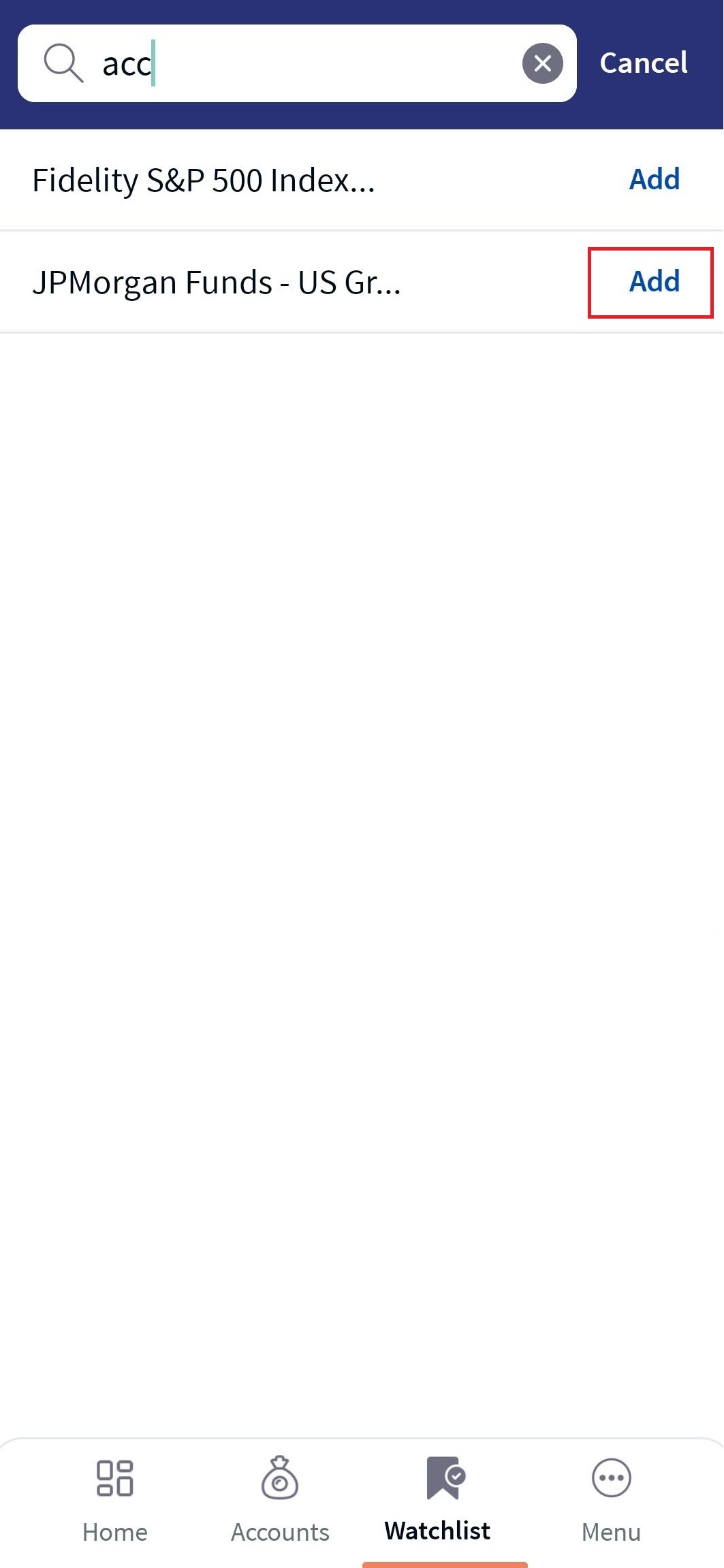
Watchlist - Add

Watchlist - Added Instrument
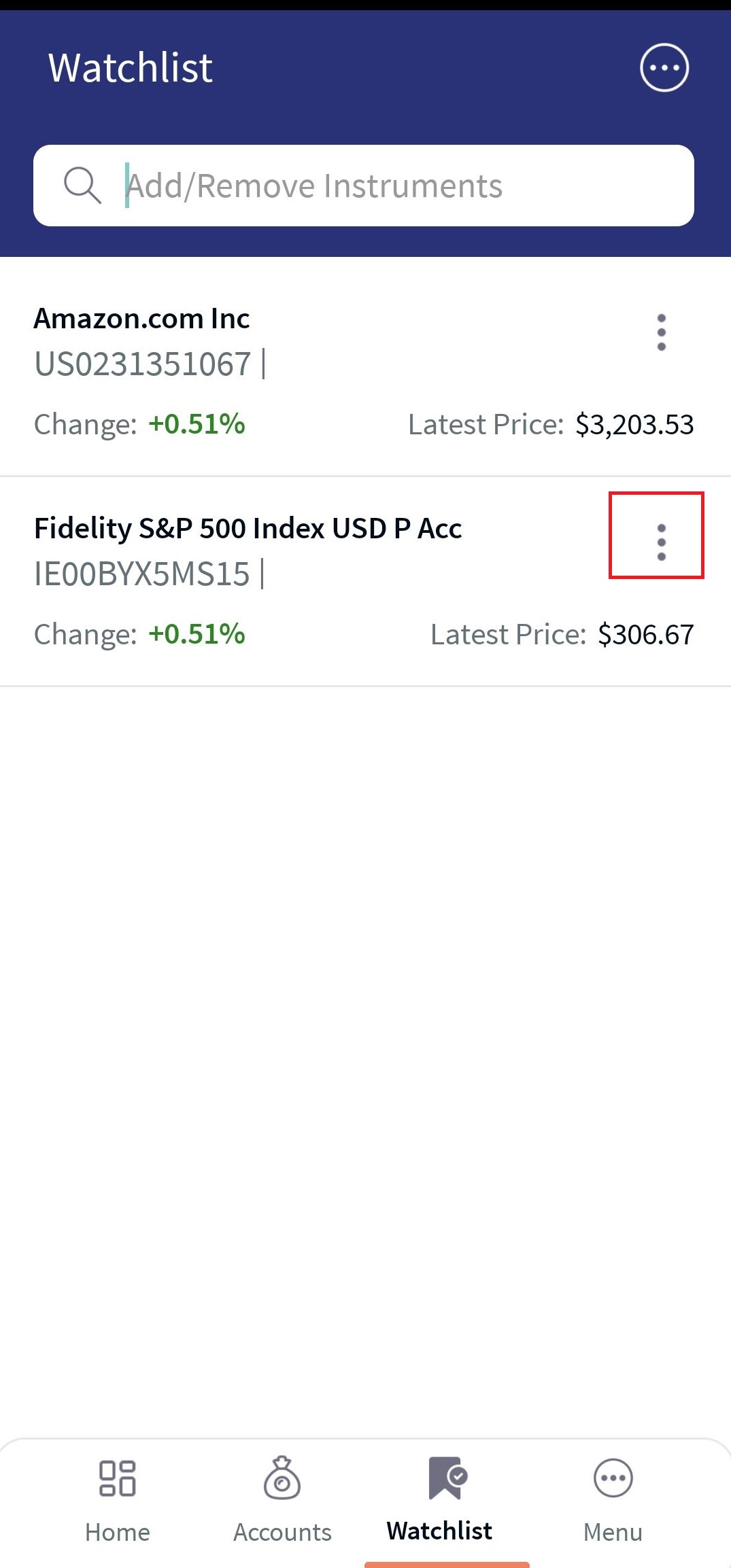
Watchlist - Contextual Menu

Watchlist - Contextual Menu
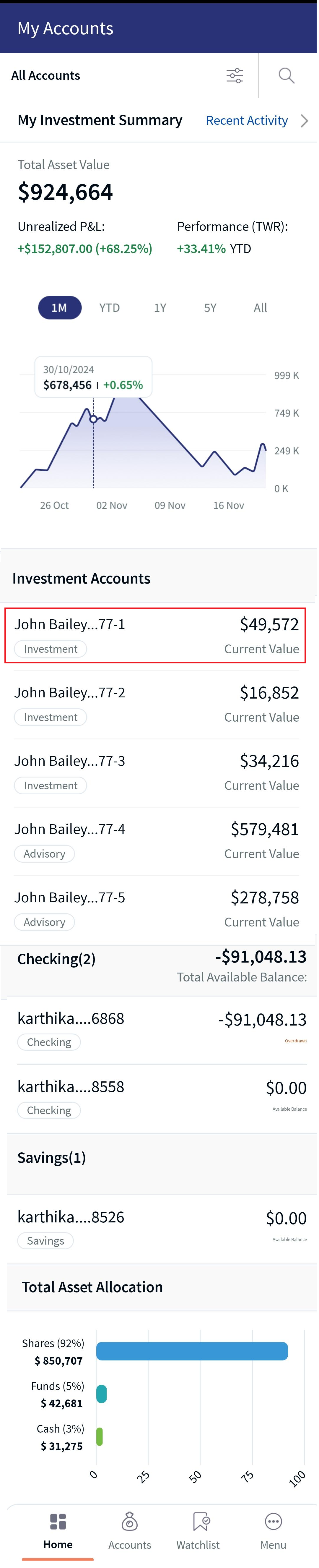
Accounts- Portfolio
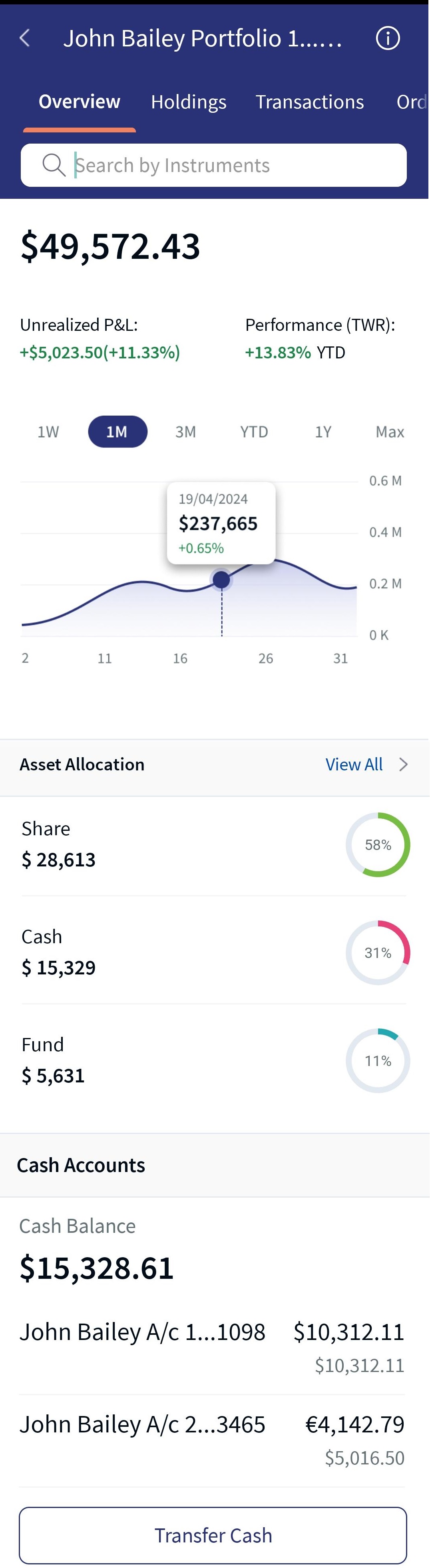
Portfolio-Overview
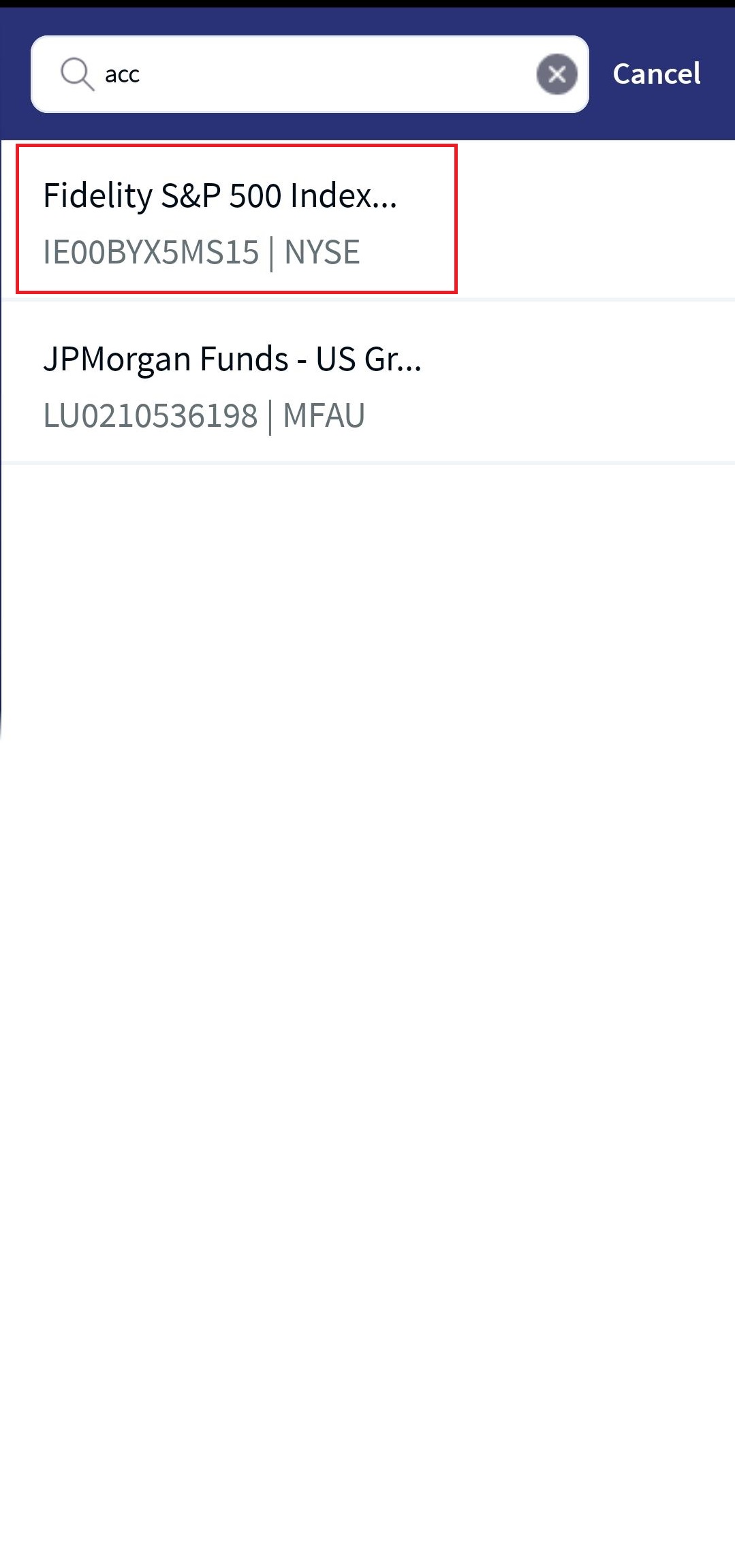
Search Instrument
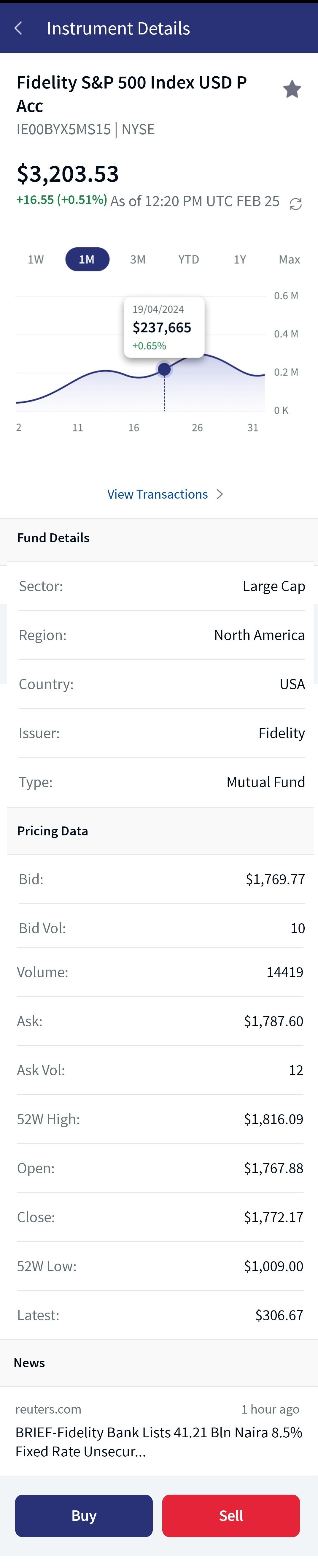
Search Instrument - Buy/Sell
No portfolio is selected by default when placing an order through the instrument search in the Home or Watchlist screens. You must select the portfolio manually via a drop-down, which lists all the available portfolios. You can either buy or sell only after a portfolio selection. In contrast, the system automatically selects the portfolio, allowing you to perform buy or sell action when navigating from the Portfolio Details screen in the holdings tab or the Instrument Search field in the Overview tab.
Place an Order: After you select an instrument to buy or sell, the system displays the Instrument Details screen, as shown below.
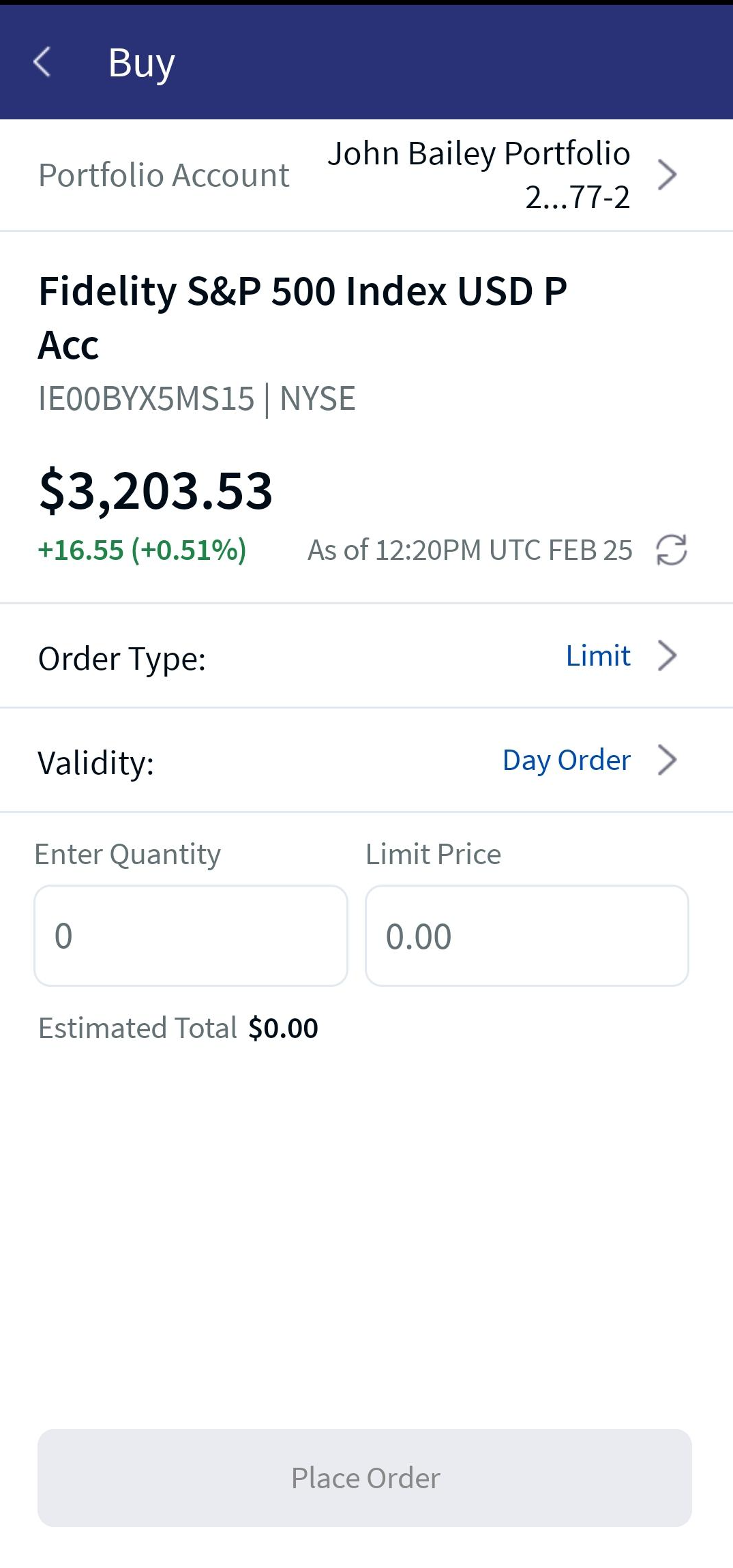
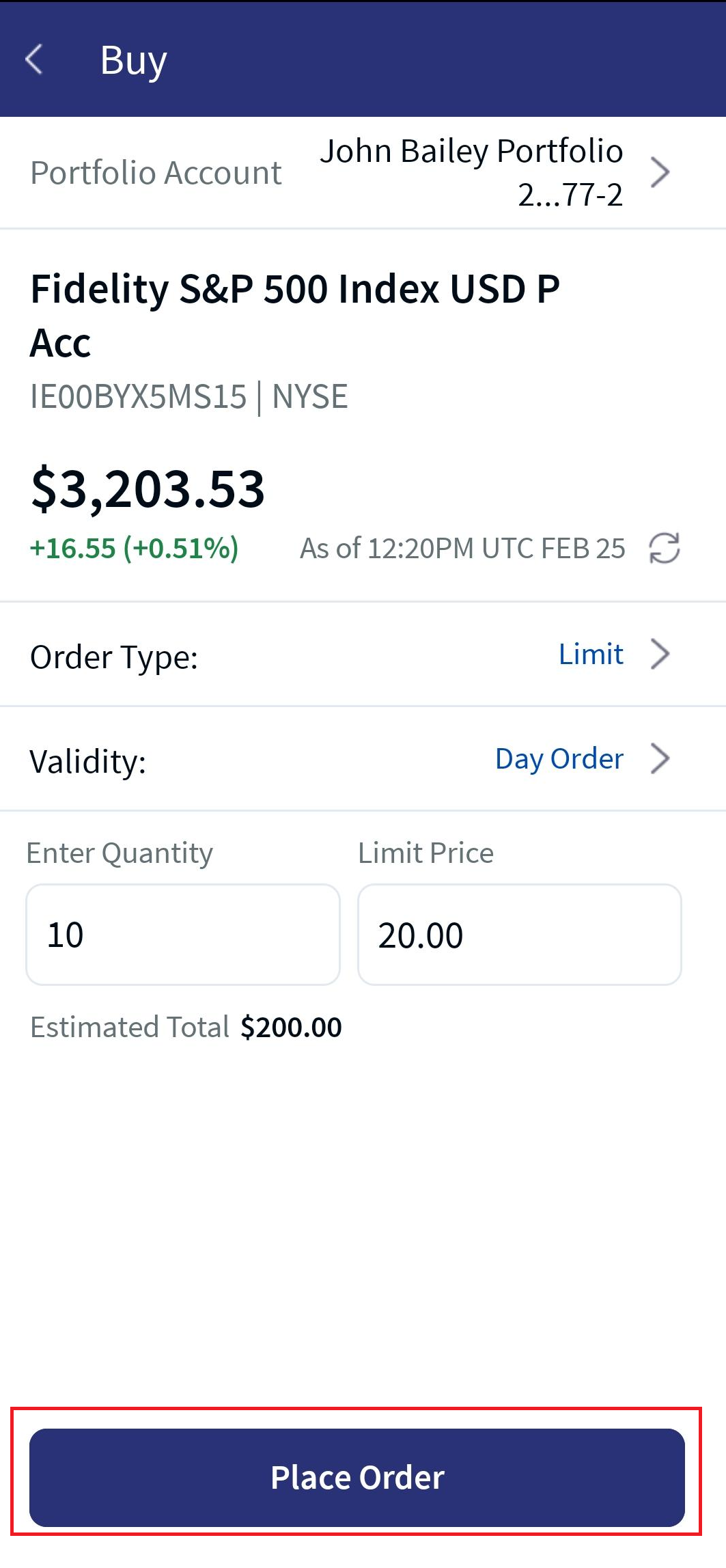
When you click on the Buy or Sell buttons, the system navigates you to the order screen, where you need to enter or select the following details:
- Portfolio Account : Click on the right arrow, present at the top-right corner of the screen, and select an account; Click on the left arrow to navigate back to the order screen.
- Order Type: Click on the right arrow at the right corner of the field to select an order type. To know the order types, click here.
- Validity: Click on the right arrow at the right corner of the field to select a validity.To know the validity types, click here.
Once the required details are selected, enter the Quantity and the Price details depending on the order type for the instrument and click on Place Order.
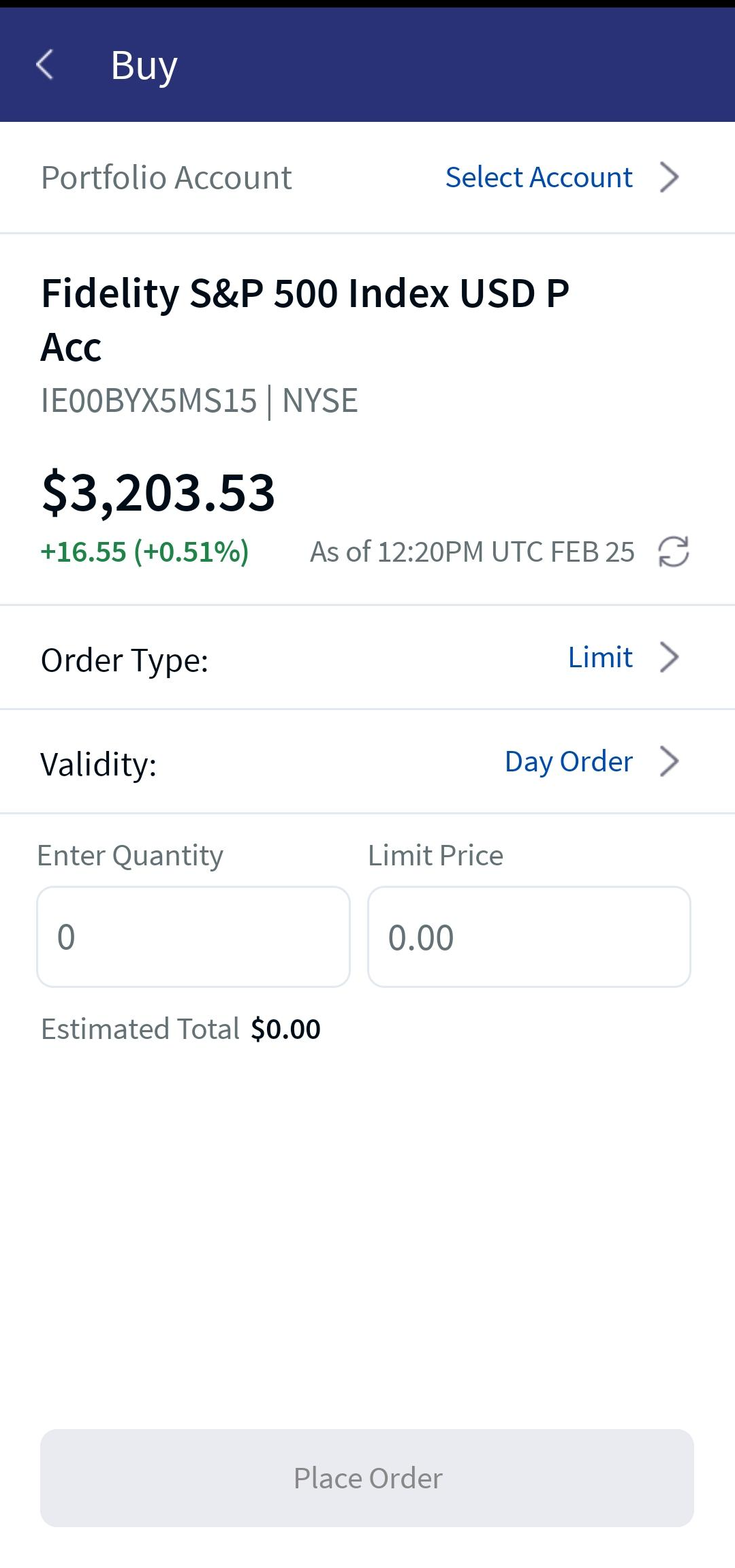
Order Screen
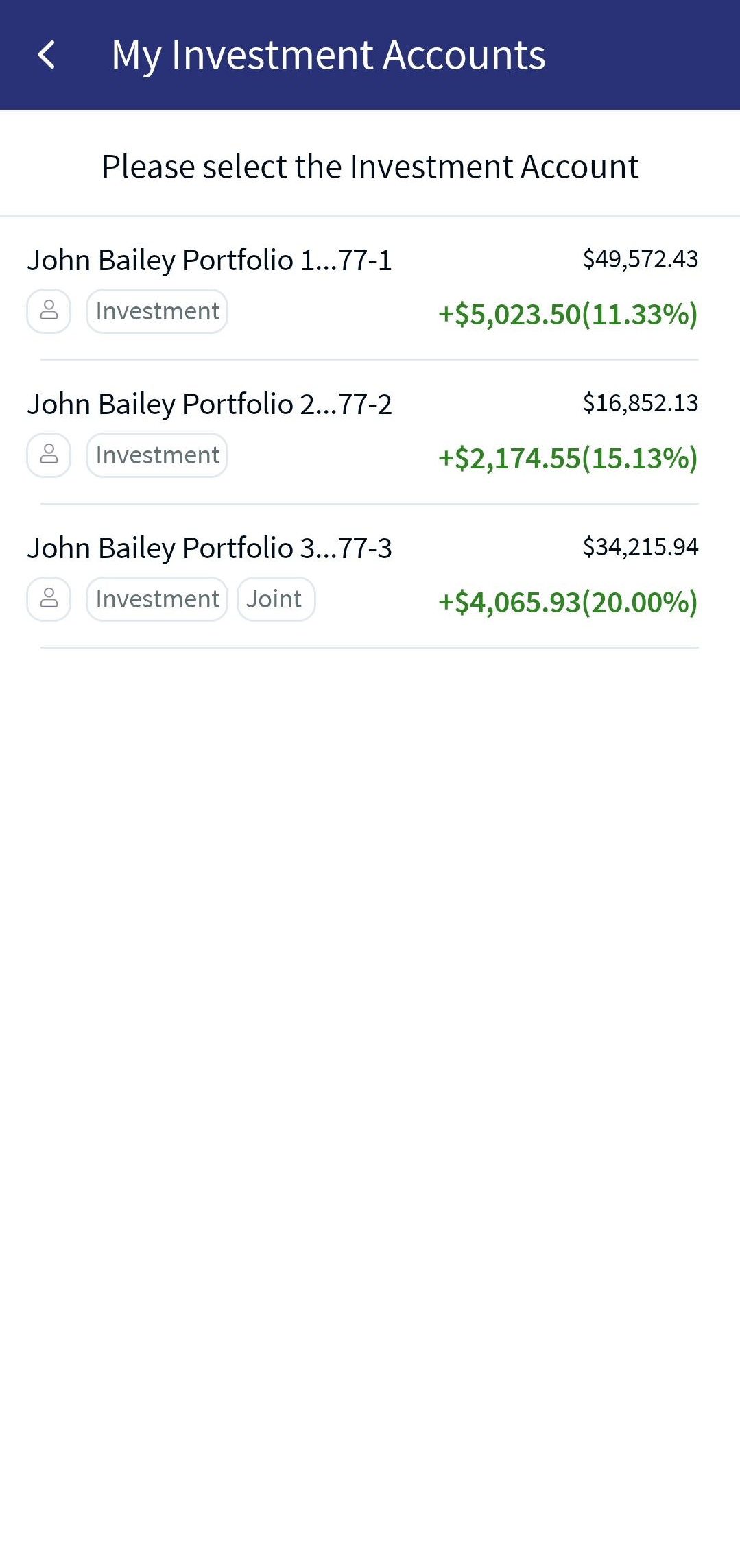
Investment Accounts -Select
Investment Accounts -Selected
Order Types
Validity
Enter Quantity and Limit Price
Place Order
Verify Order - Confirm
Acknowledgement
For more information on each parameter/field, refer to the above description in the online banking section.
In this topic