Reports
With the Reports module, you can generate the reports and download the pre-generated statements related to your account.
To retrieve the data for reports and statements, integration with the bank's documentation repository/bank management system is required.
UX Overview - Online Banking & Mobile Native App
The UX Overview section provides information about the UX of the Reports module for the Online Banking and the Mobile Native App.
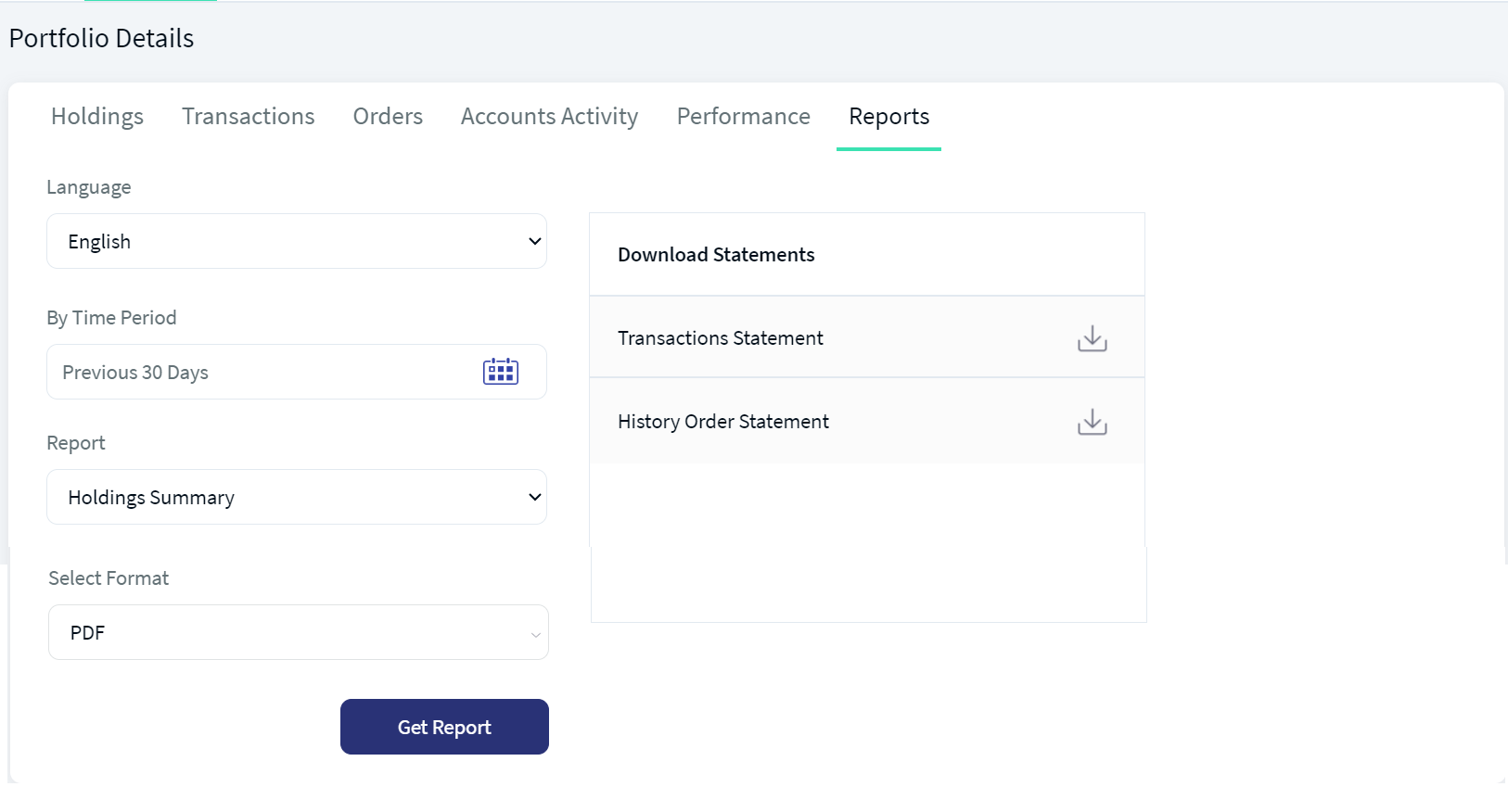
The table below provides an overview of the features, the component information, and the configurable elements.
| Section | Component | Configurable Elements |
|---|---|---|
|
The Reports screen contains two sections.
You can generate a report of your account by using the first section.
The second section, named Download Statements is used to download the documents that are related to your account. |
NA | NA |
Sequence Diagram - Reports
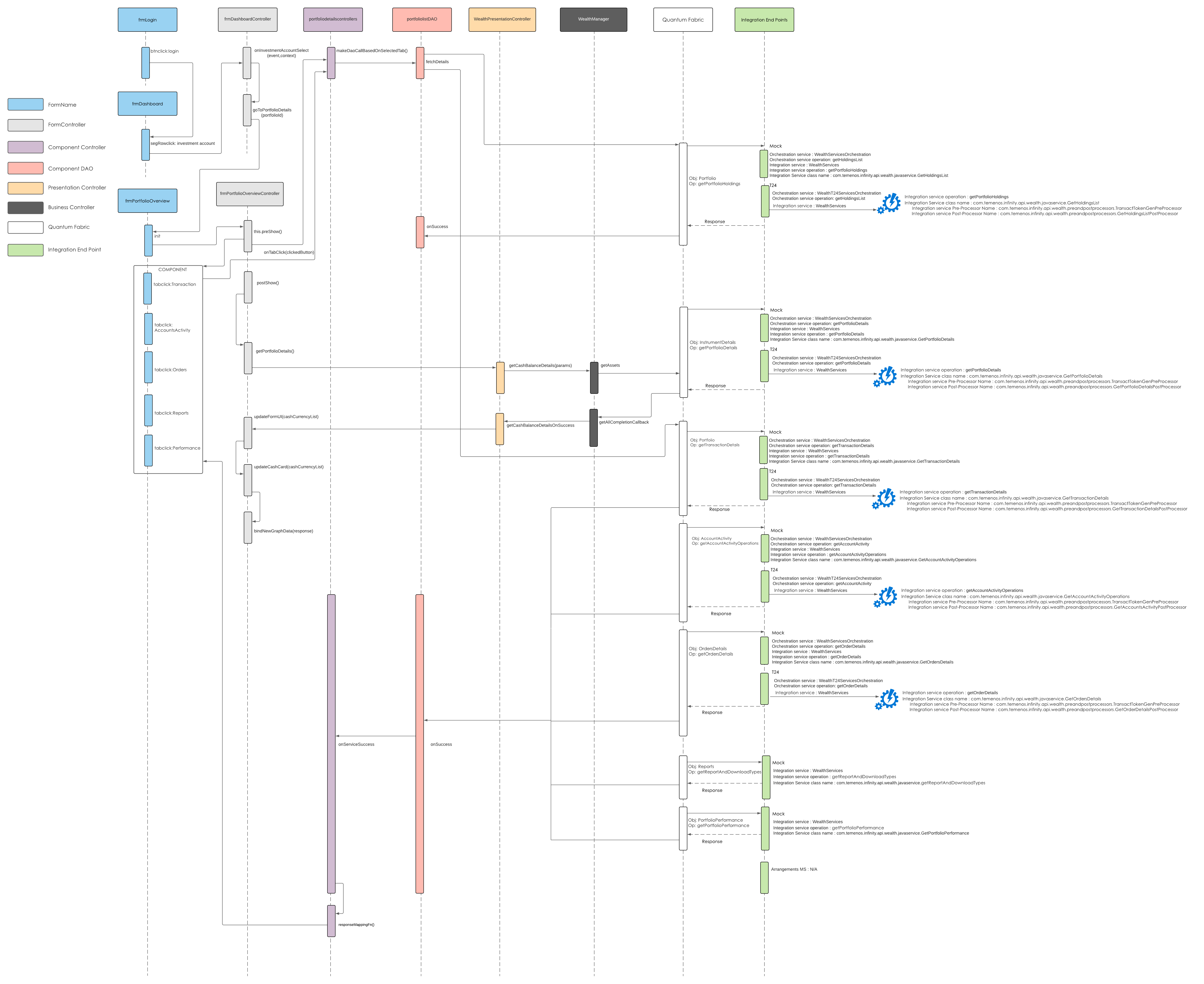
The sequence diagram for Reports is same as that of the Portfolio Details.
Below is a detailed description of the user interface of the Reports screen for the Online Banking and Mobile Native App.
Feature Description
Online Banking: The Reports module contains two sections as follows:
Generate Report
From the Generate Report section, you can download the reports that are configured in the system. To generate reports, follow these steps.
- Select the Language in which you want to generate the reports.
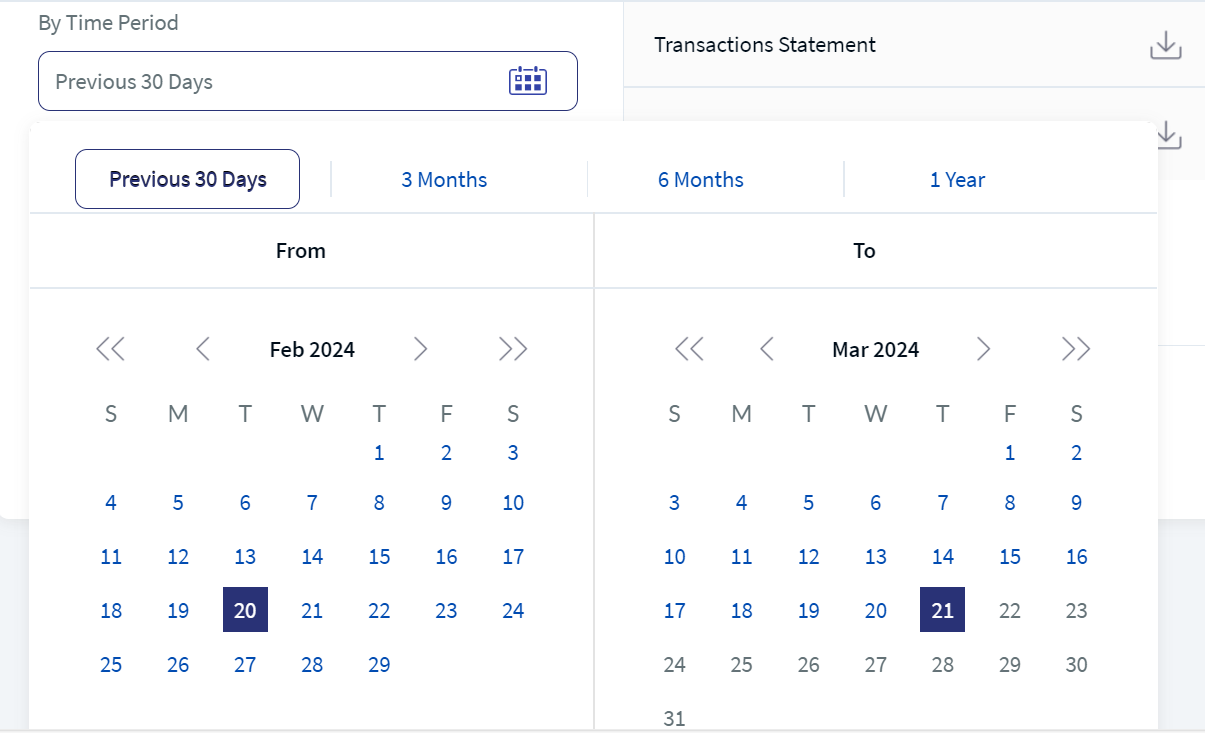
- Select the time period for which you want to generate the report by using the By Time Period option. The Previous 30 Days option is selected, by default.
After you click the By Time Period option, a calendar appears where you can select the time period.
Previous 30 Days, 3 Months, 6 Months, and 1 Year are the predefined time periods. You can also select the dates as desired.
- After you select the time period, select the report you want to generate by using the Report option.
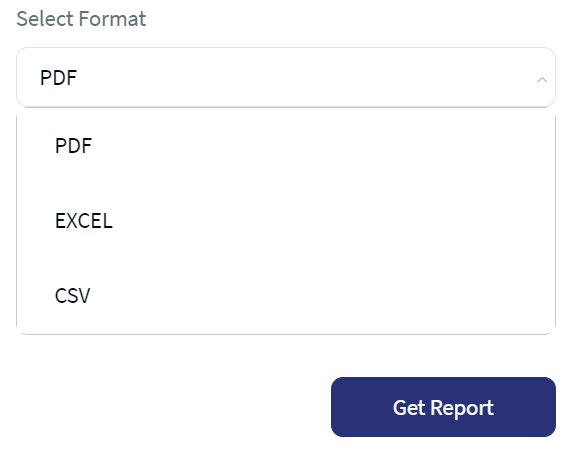
- Select the Format either as PDF, Excel, or CSV from the drop-down list.
- Verify the selected details, and then click Get Report. The report in the selected format is then downloaded to your local system. The downloaded file is password protected. For more information, click here
Download Statement
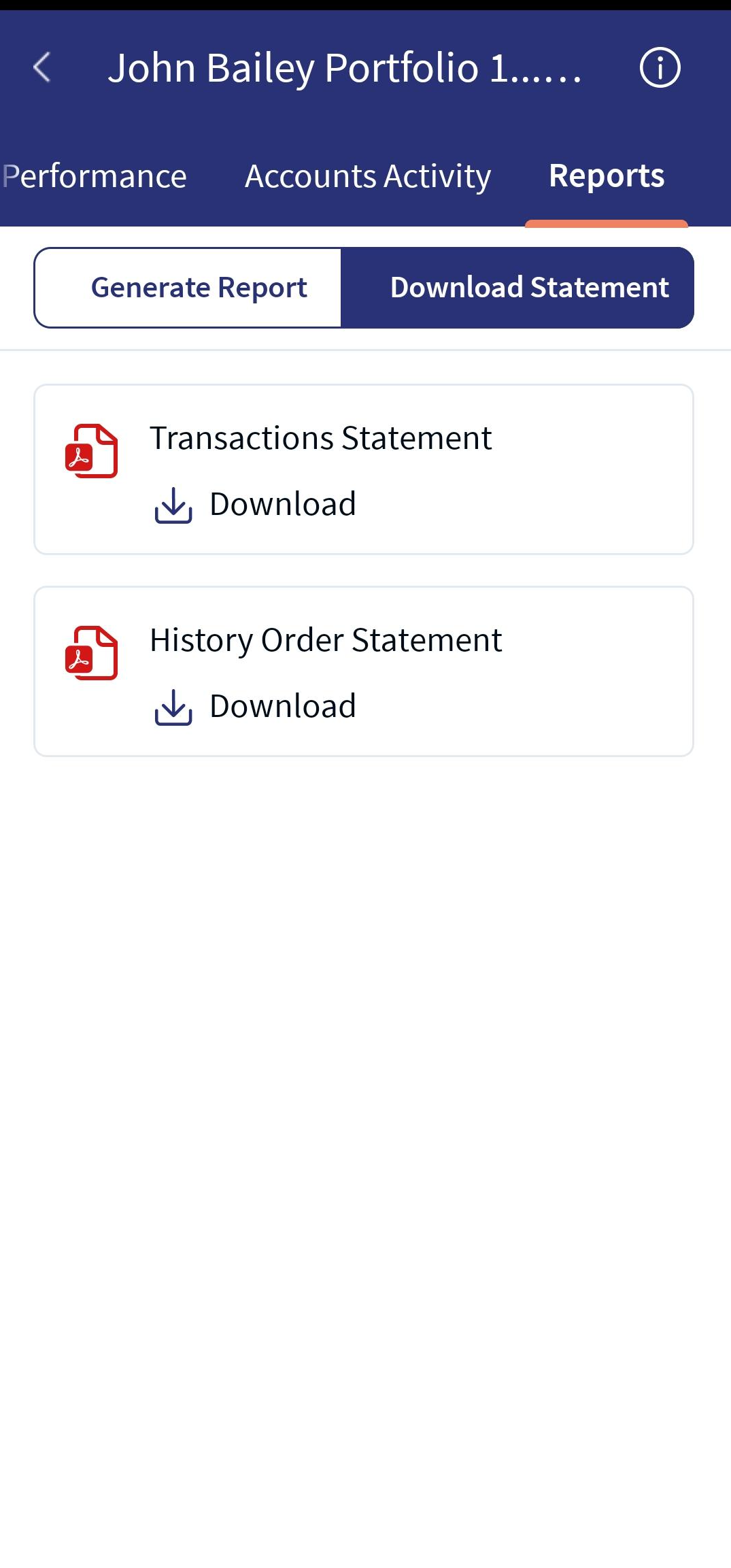
From the Download Statement section, you can download the pre-generated statements that are related to your account. To download the statement, click the download icon  adjacent to the report that you want to download.
The selected report is downloaded to your local system. The downloaded file is password protected. For more information, click here
Mobile Native App:The reports feature is designed in the header tab for a portfolio. This feature allows you to customize the reports through ‘By Time period’, ‘Report type’, and ‘Select Format’ options. Based on the selection, a report is generated and can be downloaded.
Refer to the Online Banking section for a detailed description of the functionalities of the Generate Report and Download Statement.
Generate Report Screens:
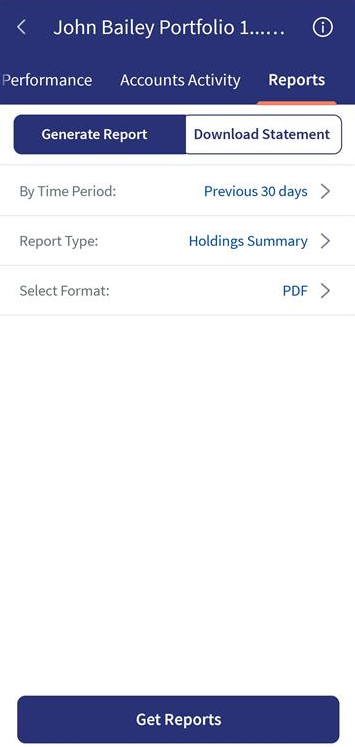
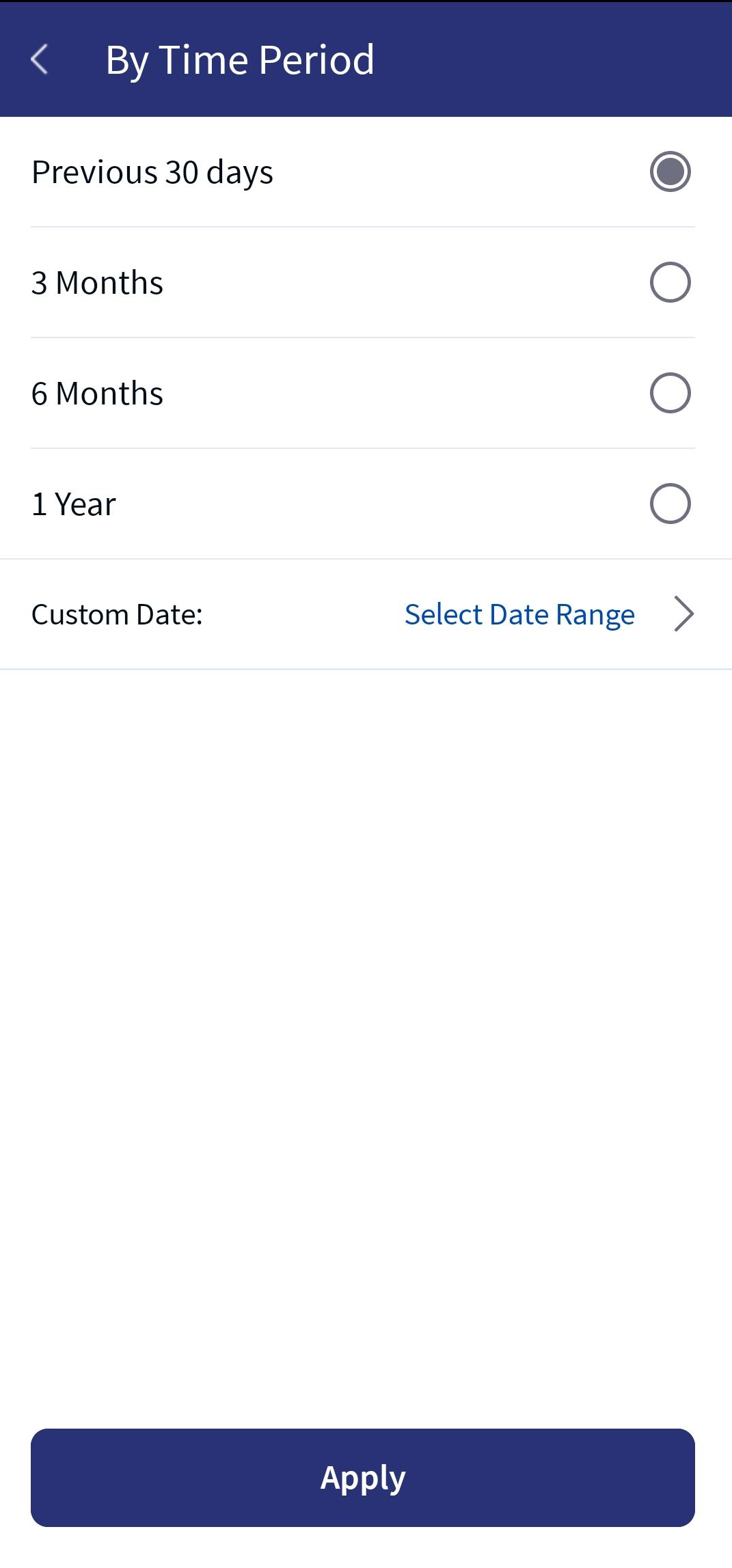
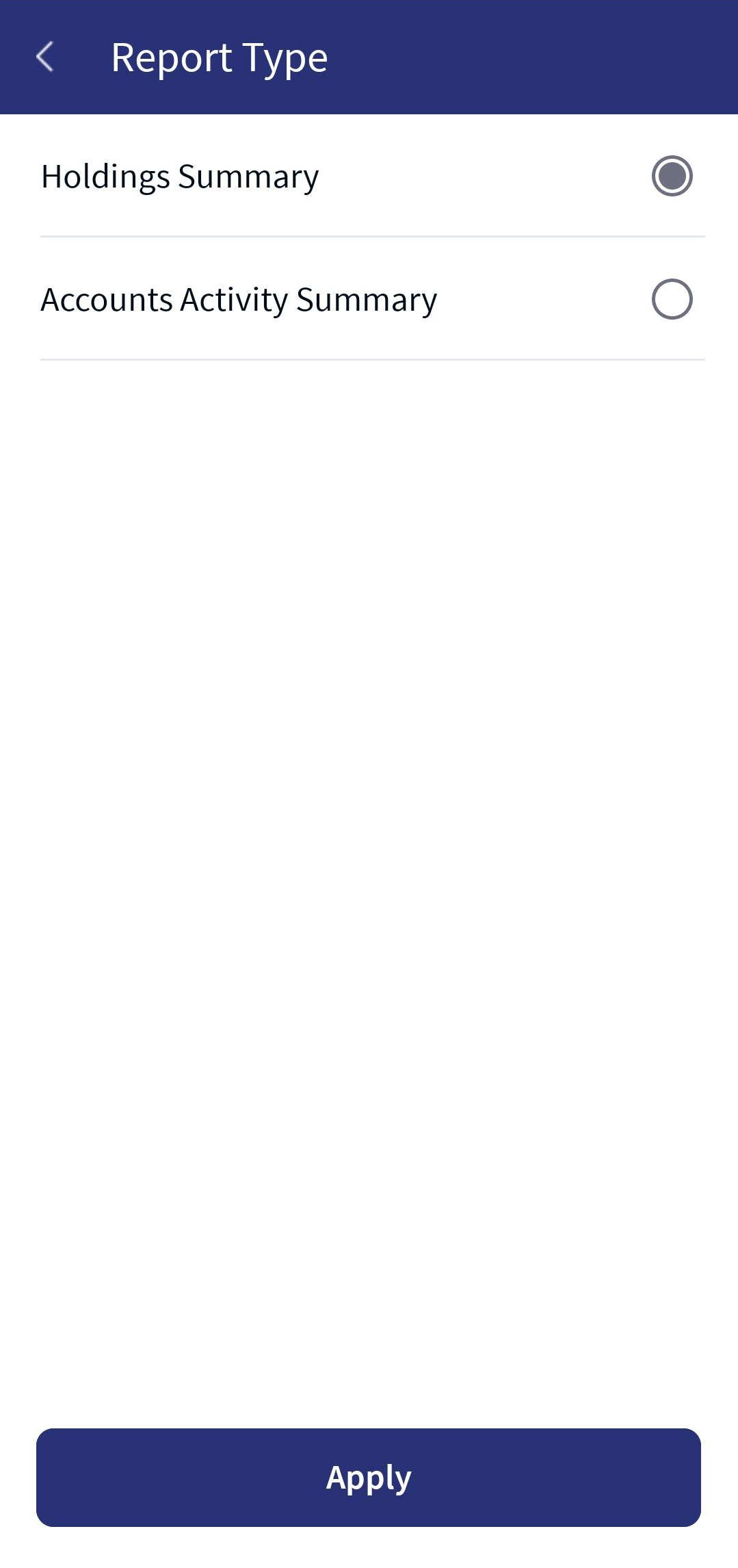
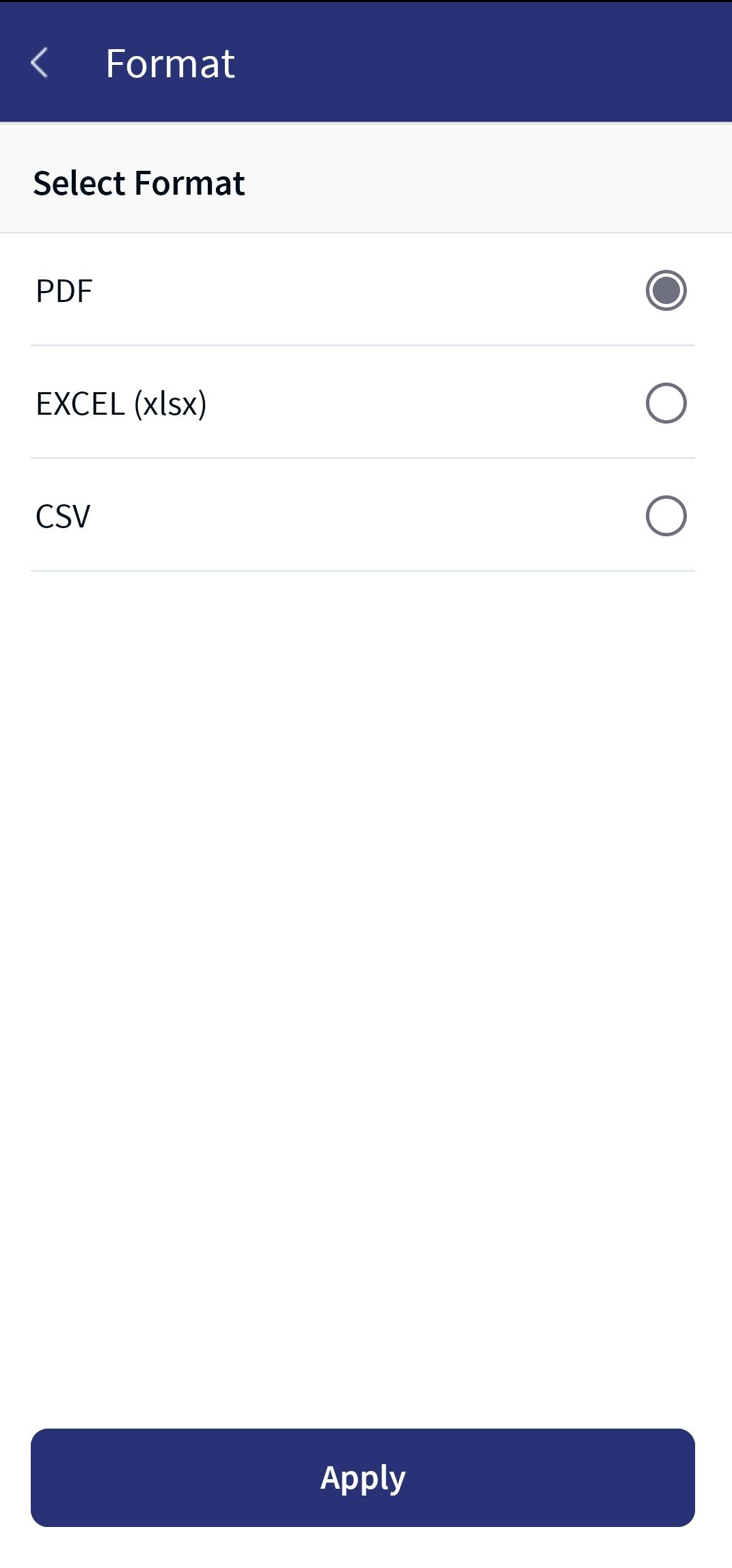
Download Statement Screen:
In this topic