Transactions
In the Digital Wealth App, the transactions feature facilitates you to view clear and detailed investment activity. This feature displays the transaction list performed in the portfolio. This also displays the Cost and the Market values associated with the transaction. You can review the individual transactions executed in the portfolio to make further decisions.
UX Overview - Online Banking & Mobile Native App
This section provides an overview of the Transactions module for the Online Banking and the Mobile Native App.
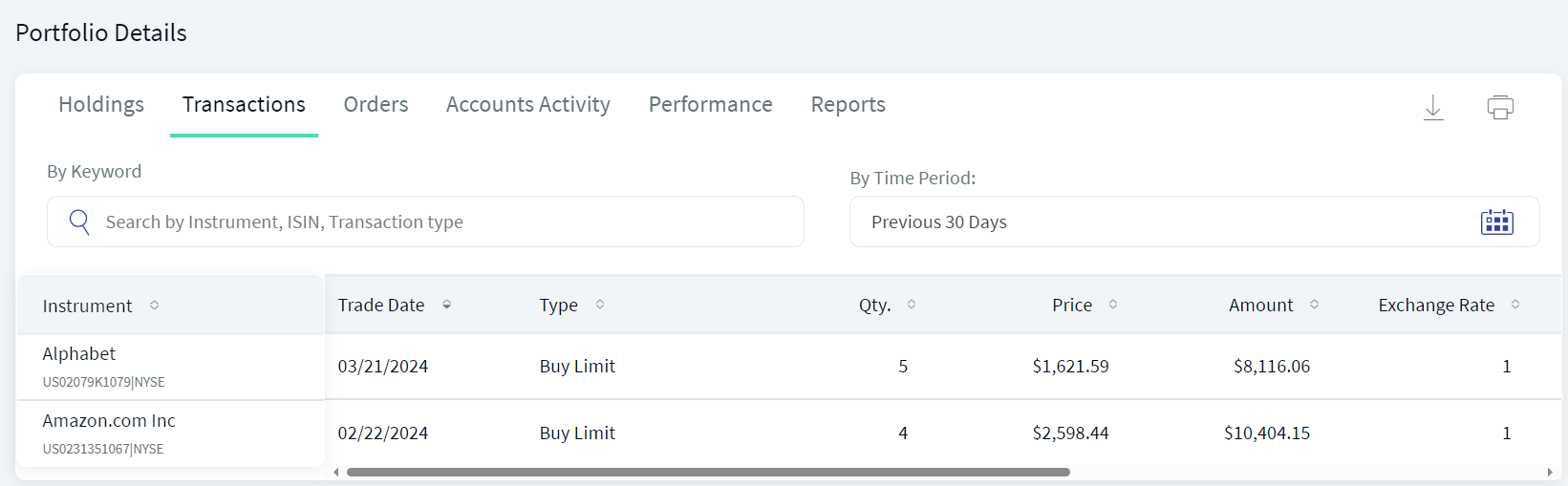
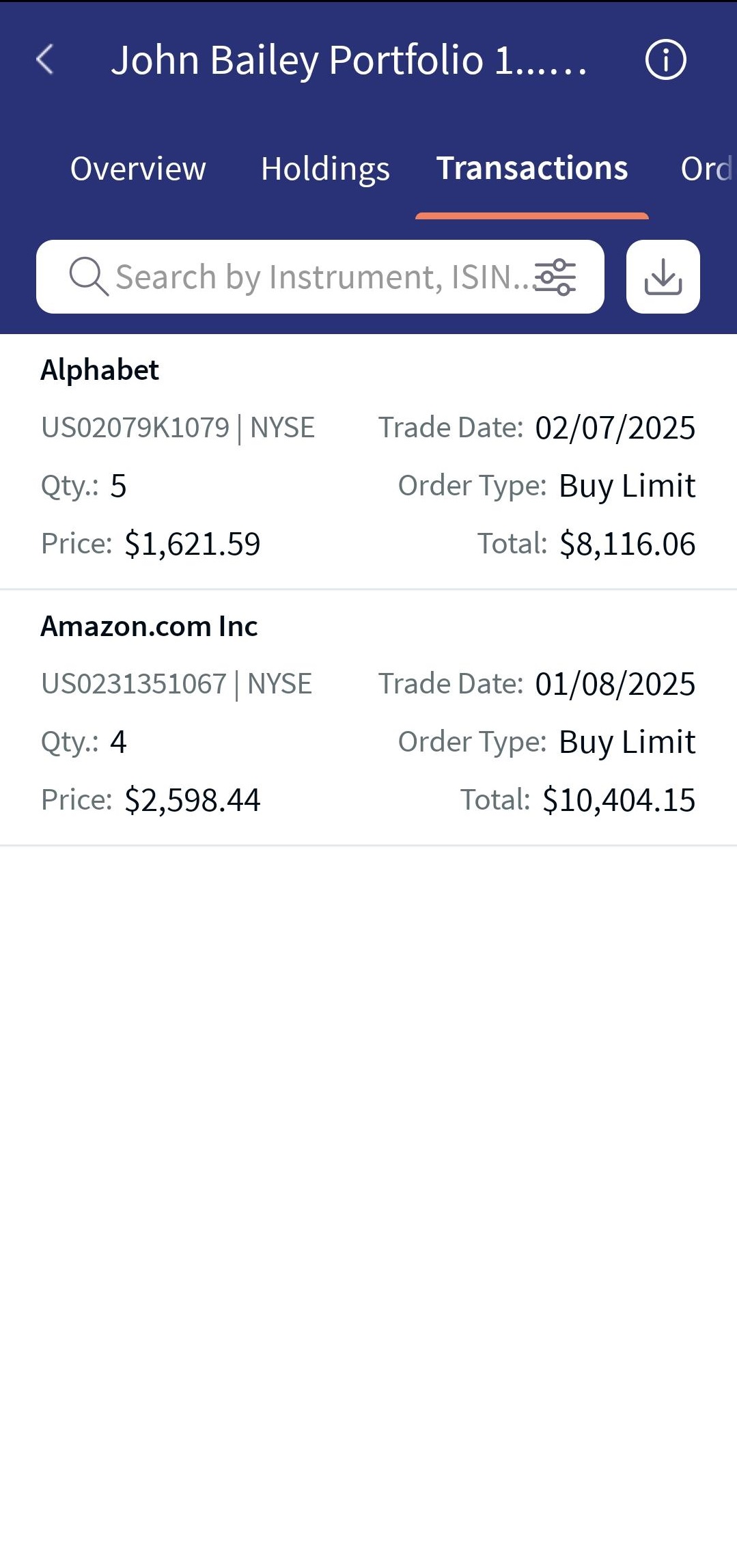
The table below provides an overview of the features, the component information, and the configurable elements.
| Section | Component | Configurable Elements |
|---|---|---|
| The Transaction tab displays the list of transactions of a portfolio in the form of rows. It displays details such as Instrument Name, Trade Date, Type, Quantity, Price, Amount, Exchange Rate, Amount, Value Date, Fees, and Total. | com.temenos.infinityComponent.portfolioDetails | You can configure whether the Instrument Name column should be docked or scrollable. |
| Search: You can search for a specific instrument by using the Search option. | com.temenos.infinityComponent.instrumentSearch | You can configure the parameters by which you can search for an instrument. |
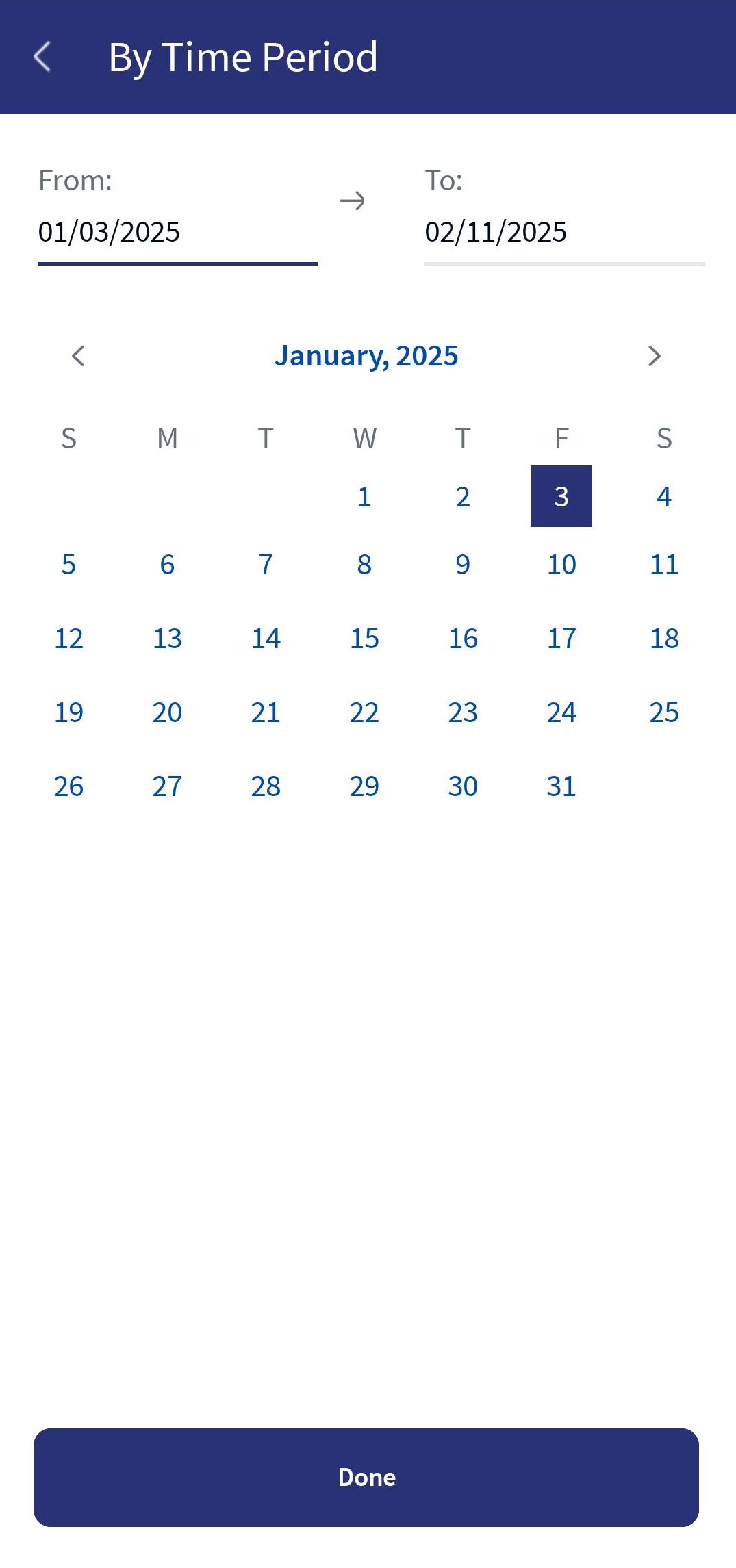
| By Time Period: You can filter the time period for which you want to view the transactions. | com.temenos.infinityComponent.datePicker | You can configure the predefined time periods and also choose whether a user can pick a custom date range. |
Sequence Diagram - Transactions
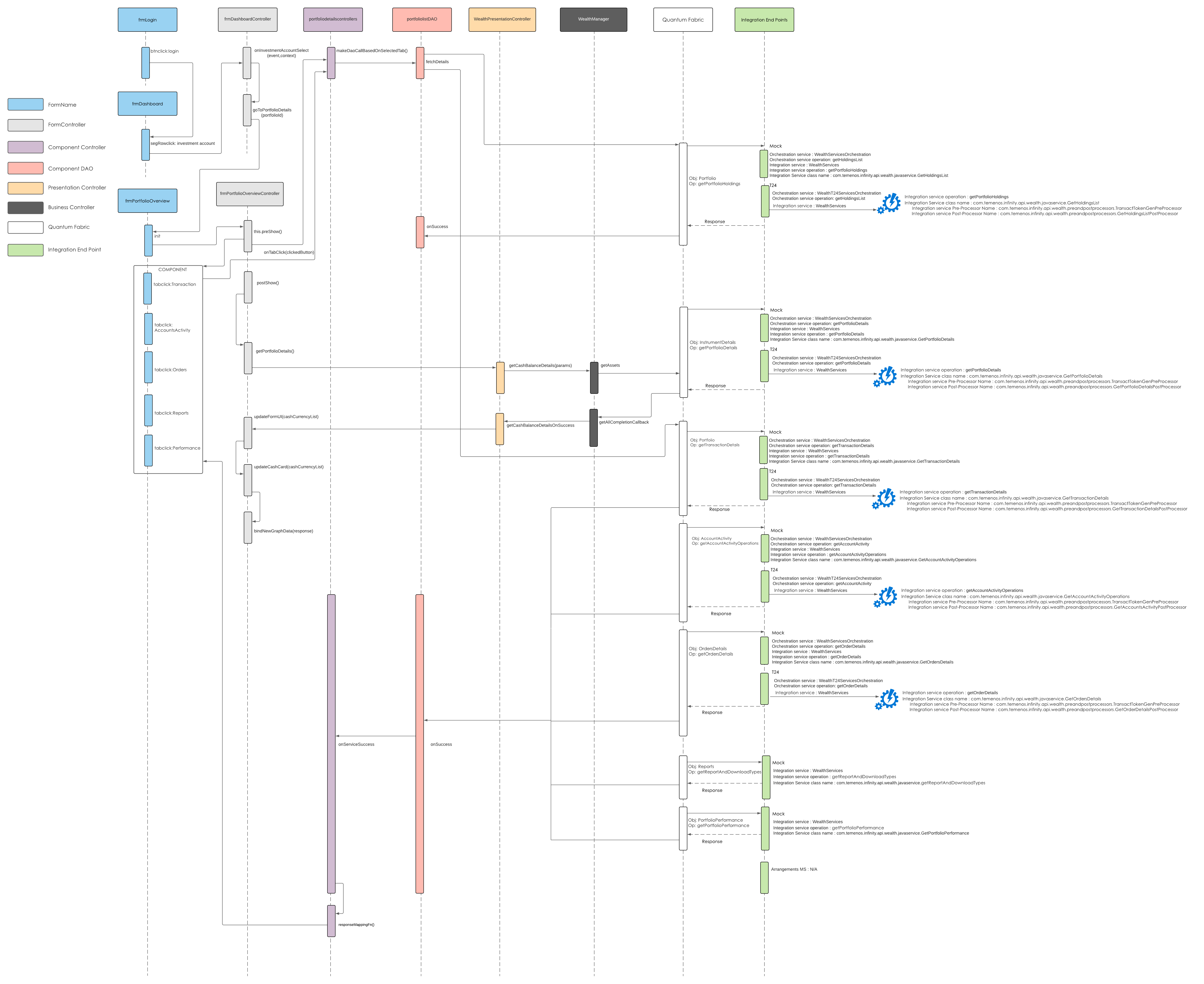
The sequence diagram for Transactions is same as that of the Portfolio Details.
Below is a detailed description of the user interface of the Transactions screen for the Online Banking and Mobile Native App.
Feature Description
Online Banking: The Transactions section displays the transactions that occurred in the portfolio.
It displays the following details:
- Instrument Name: Specifies the name of the instrument.
- Trade Date: Specifies the date on which the transaction occurred.
- Type: Specifies the type of the order, which can be a Buy or Sell.
- Qty: Specifies the quantity that is purchased or sold.
- Price: Specifies the latest price of the instrument.
- Amount: Specifies the total value of the transaction.
- Exchange Rate: Specifies the exchange rate if it is a cross-currency transaction.
- Amount (Instr): Specifies the amount in the instrument currency.
- Value Date: Specifies the value date of the transaction.
- Fees: Specifies the total fees that is involved in the transaction.
- Total: Specifies the total amount including the fees.
You can define the time period over which the transactions must be displayed. The predefined time periods are Previous 30 Days, Last 3 Months, and Last 6 Months. You can also select a custom date range. The time period is set to Previous 30 Days, by default.
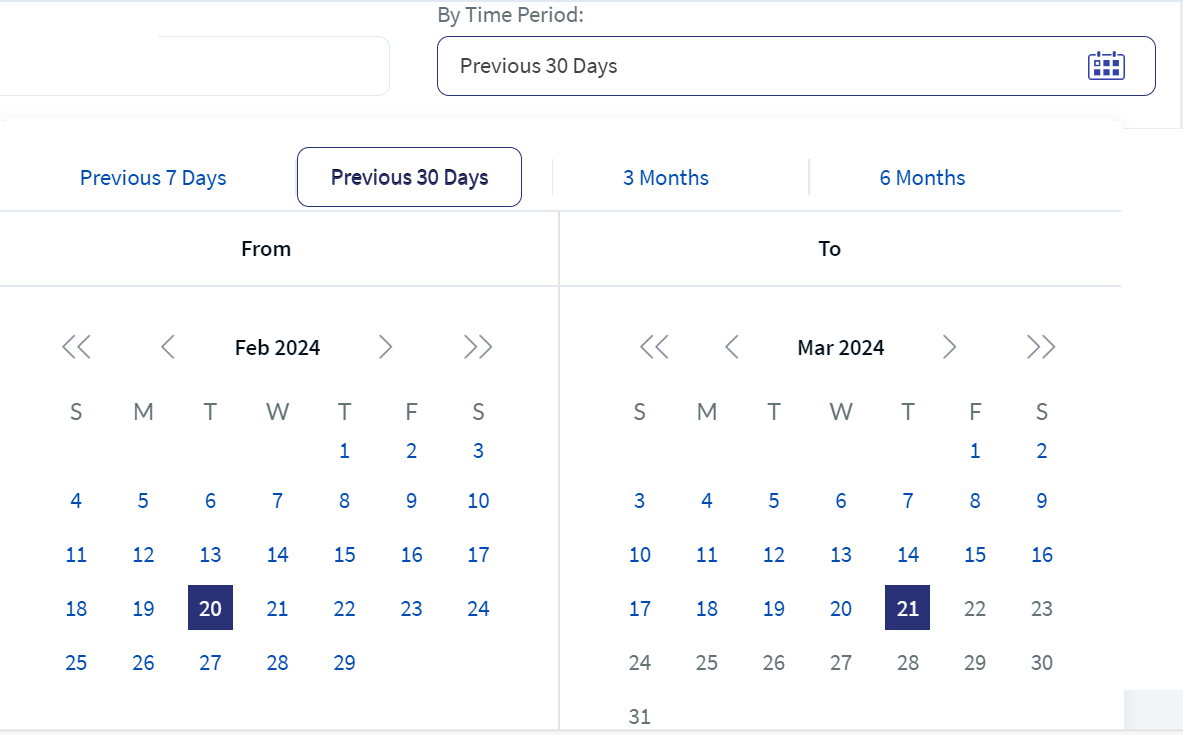
You can perform the following actions on the Transactions section:
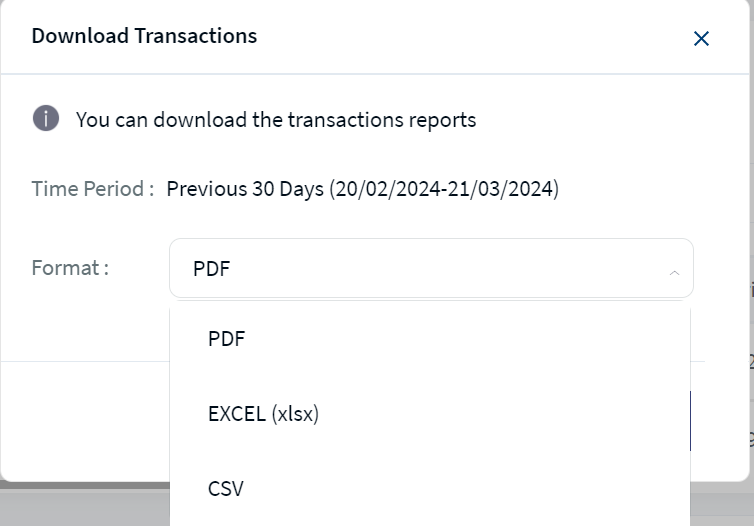
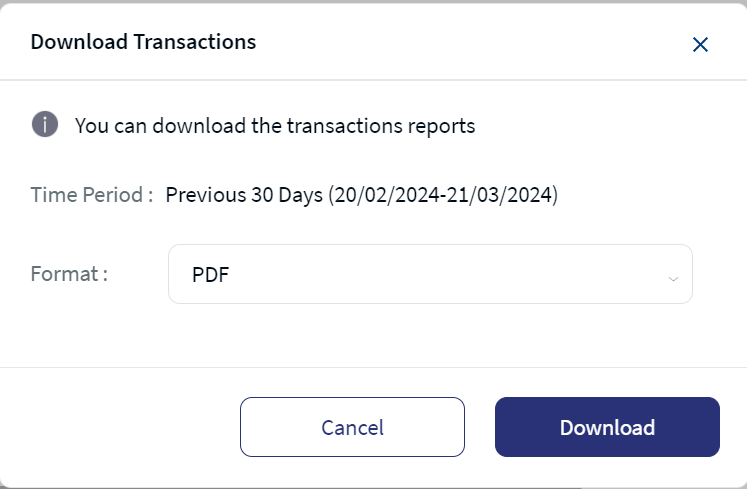
- Download: This option lets you download the transactions list by using the download icon. Click the download icon, select Format from the drop-down list, and then click on Download. Based on the defined time period, the system auto-downloads all the details in the selected format to your local system. The downloaded file is password protected. For more information, click here.
- Print: This option lets you print the transactions list by using the Print icon. Click the Print icon, and the Print window appears.
- Sort: This option lets you sort the transactions' list by a parameter. To do so, click the sort icon adjacent to the desired parameter.
The transactions are sorted by Instrument Name, by default.
- You can choose the number of transactions that you want to view per page. To do so, select the desired option from the drop-down list. The available options are 10 Per Page, 20 Per Page, 50 Per Page, and 100 Per Page.
- Pagination: This option lets you go to the next page of the transactions list if any.
- Search: You can search for a specific transaction by using the Search field. You can search for the transactions by using the Instrument Name, ISIN, and Transaction Type.
The download feature supports PDF, Excel, and CSV formats.
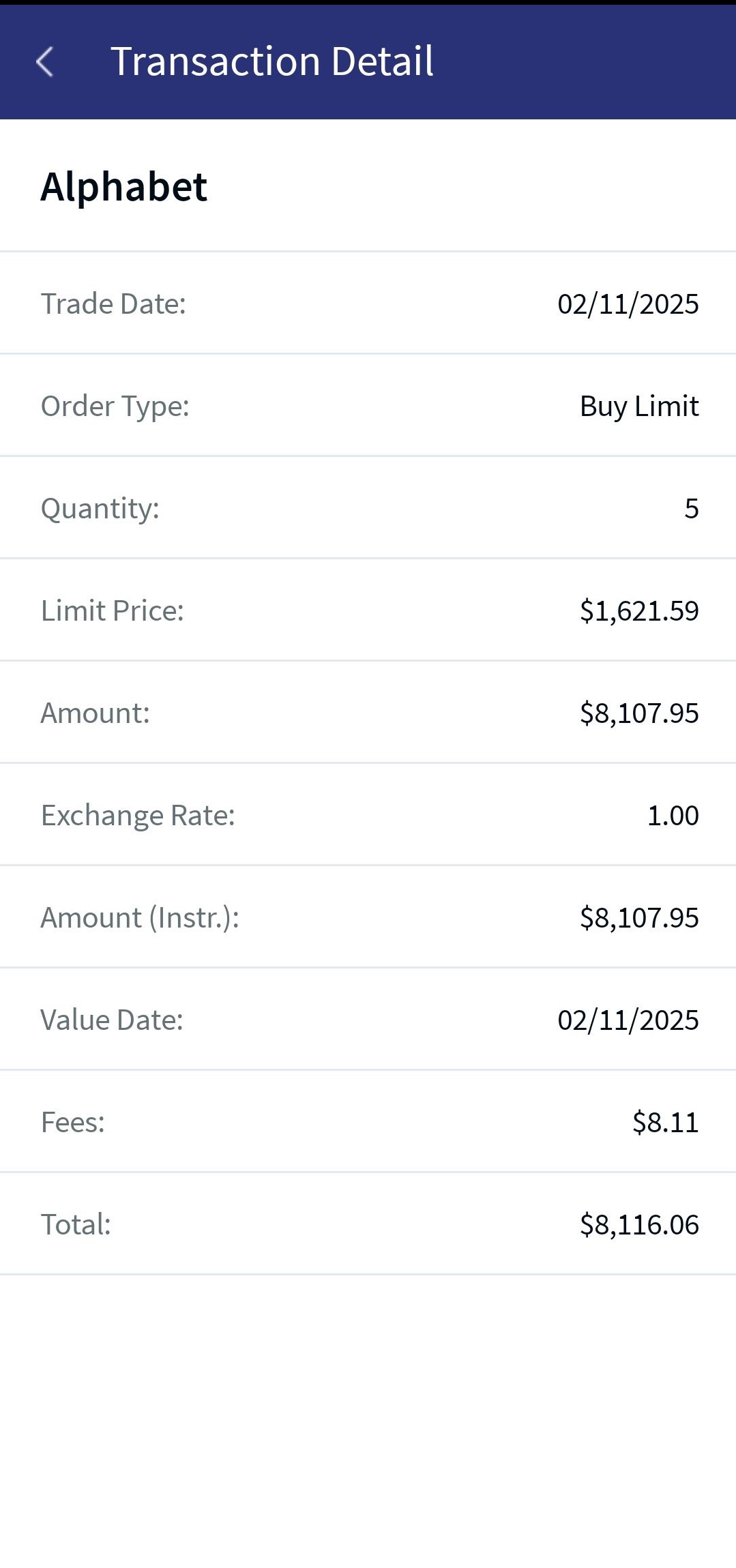
Mobile Native App:This feature allows you to view the transactions list from a selected portfolio sorted chronologically (latest value date at the top) by default. In each transaction, you can view the instrument name, trade date, value date, order type, quantity, price, amount in Instrument Currency, exchange rate, amount, fees, and total.
In addition, you can search for a specific instrument or ISIN or transaction type using the Advanced Search filter or download the transactions list using the download icon beside the Advanced Search filter.
Transactions
On clicking on any transaction, the Transaction Detail screen appears as shown below:
Transactions -Details
In addition, you can perform the following actions for Transactions:
- Click
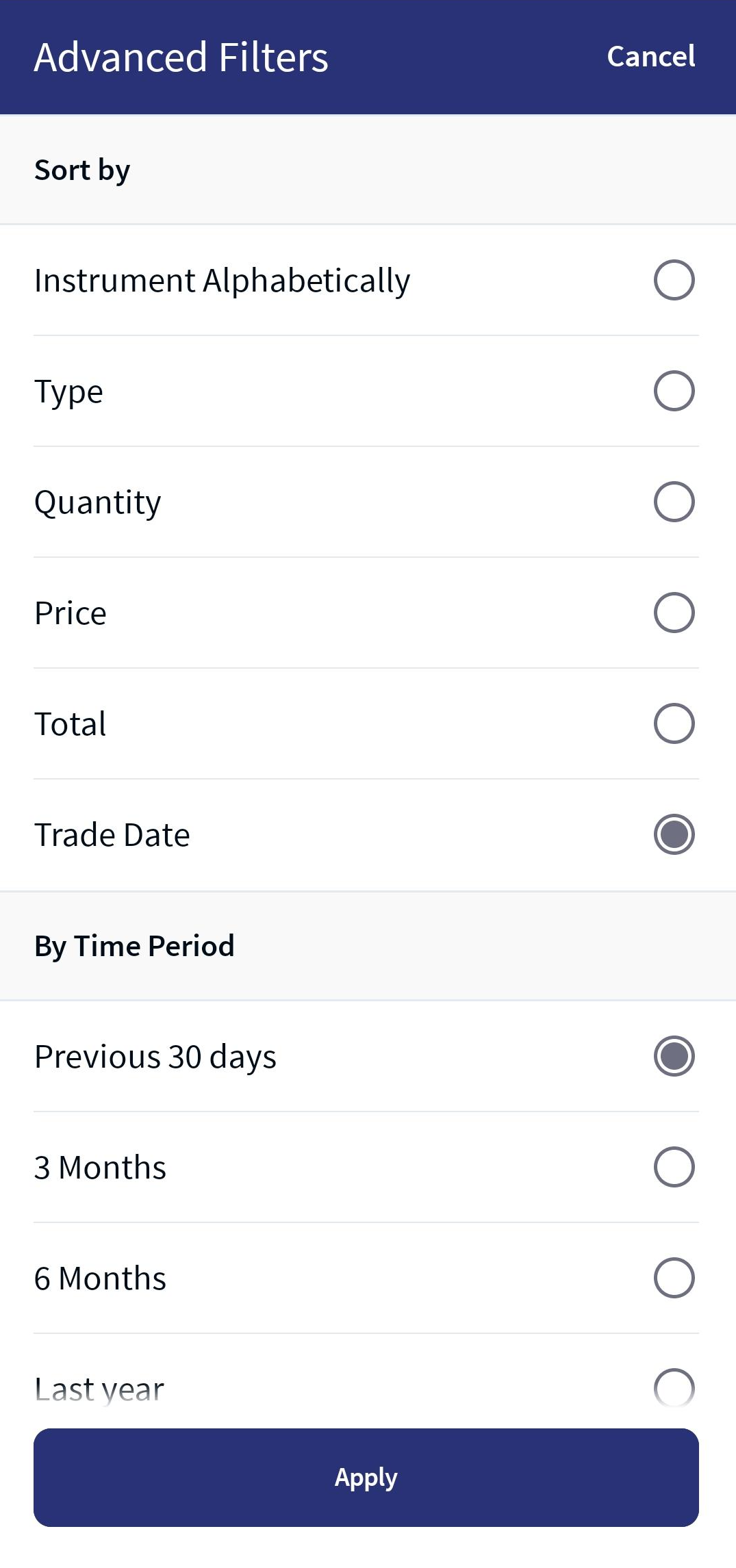
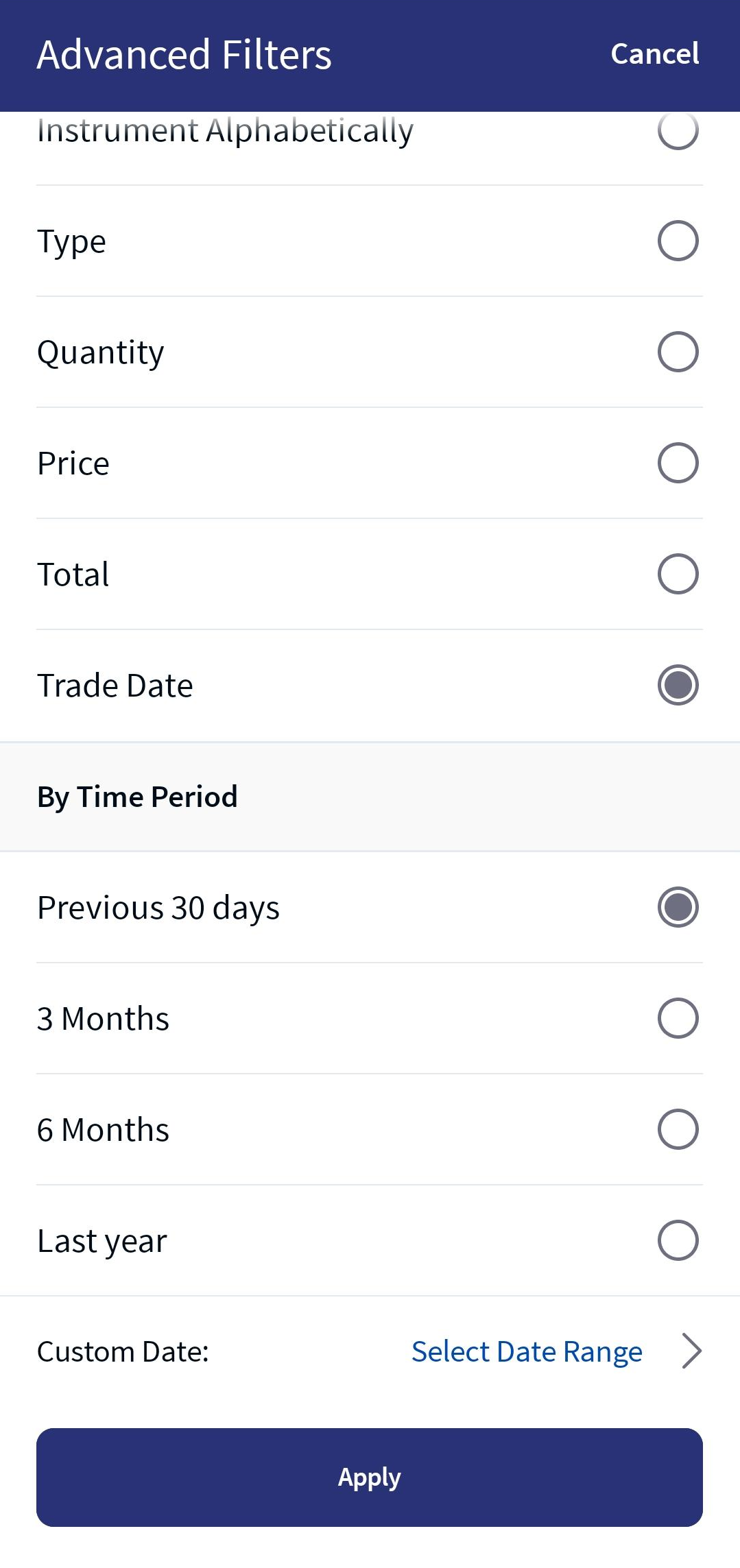
 to perform an advanced filter search. The below screen appears:
 - The system allows you to filter the criteria based on 'Sort By' and 'By Time Period'.
- The advanced filter search functions only when you mandatorily select any option under the ‘Sort By’ and ‘Time Period’.
- Trade Date gets selected by default under the Sort By, and the Previous 30 days option gets selected under the ‘By Time Period’.
- Click the download icon and select a Format from the drop-down list as shown below.
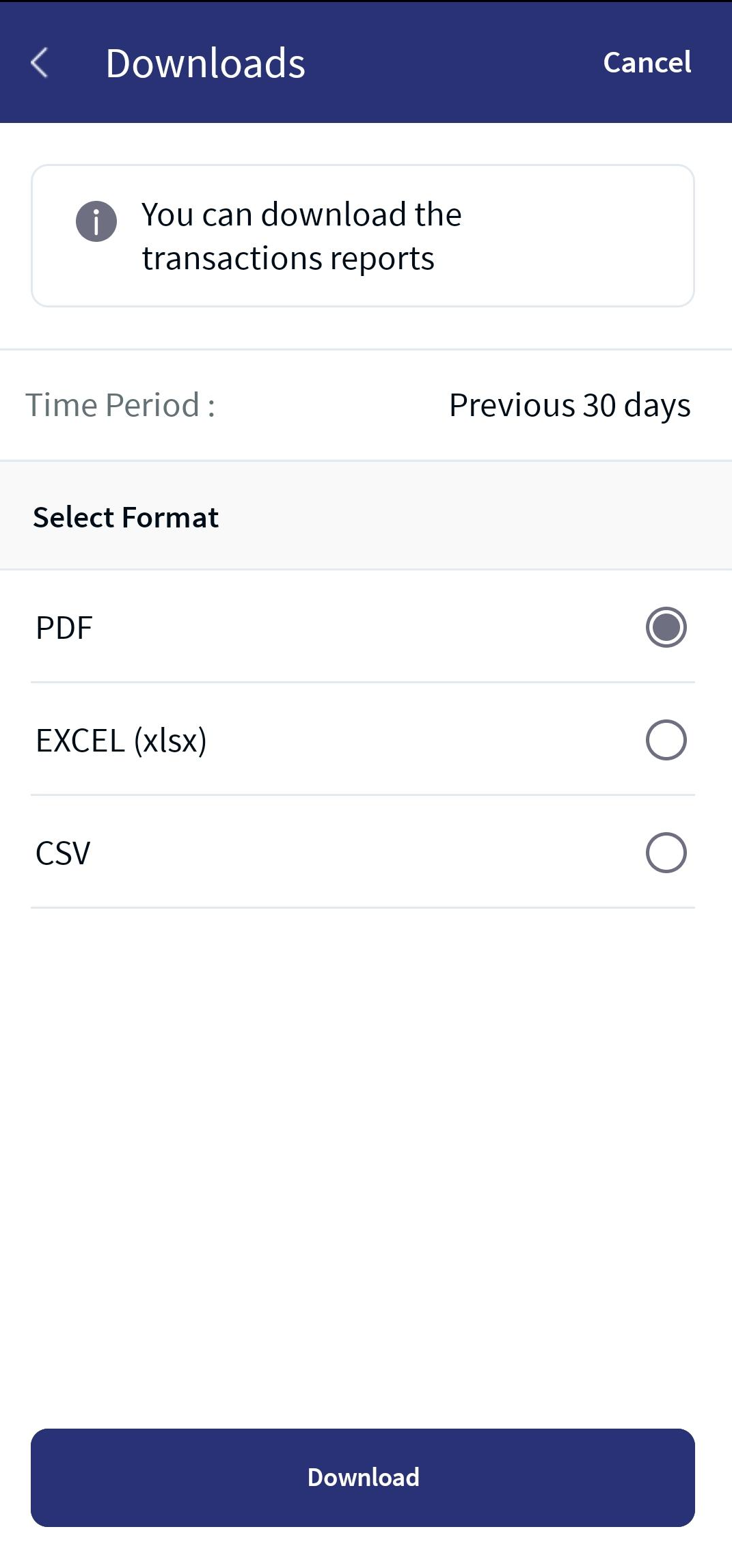
For a detailed description of the 'Sort By' or 'By Time Period' filter criteria and Download functionalities, refer to the above Online Banking section.
In this topic