Enroll - Personal Banking
You can Self Enroll your digital banking profile to use the retail banking application (Desktop, Mobile, and Tablet).
Menu path: Web Channel
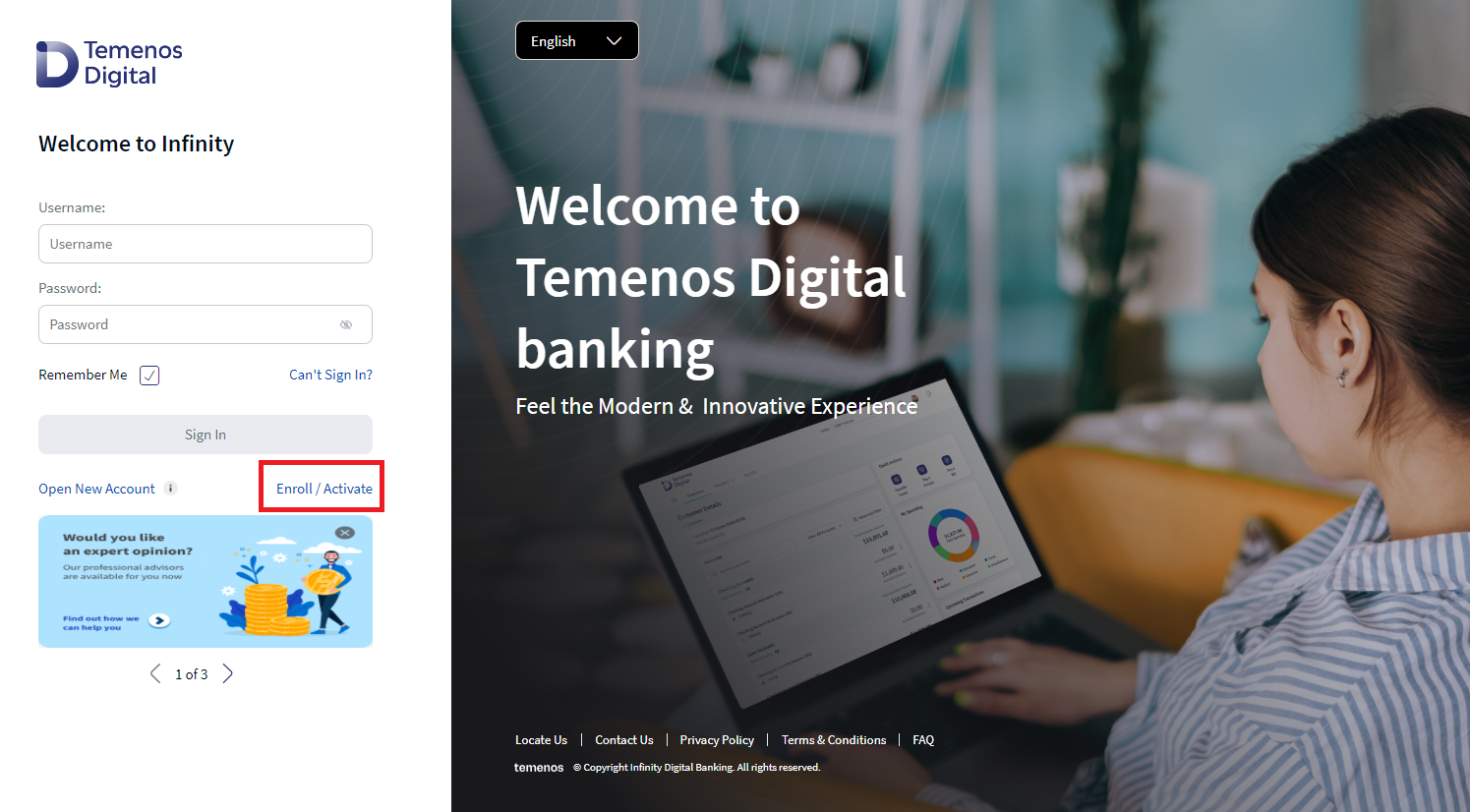
On the sign in screen, click Enroll/Activate
Menu path: Mobile Native
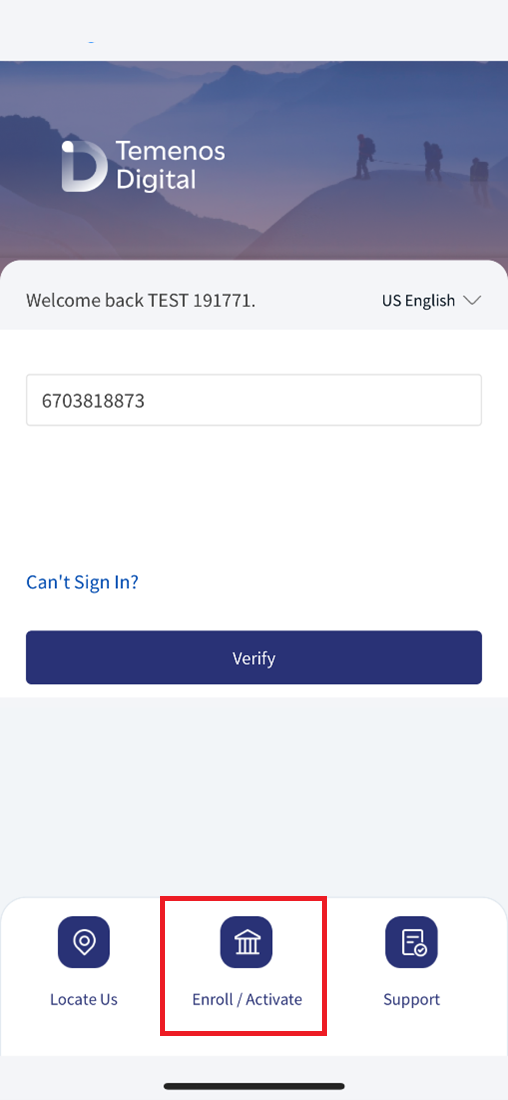
On the sign-in screen, tap Enroll/Activate.
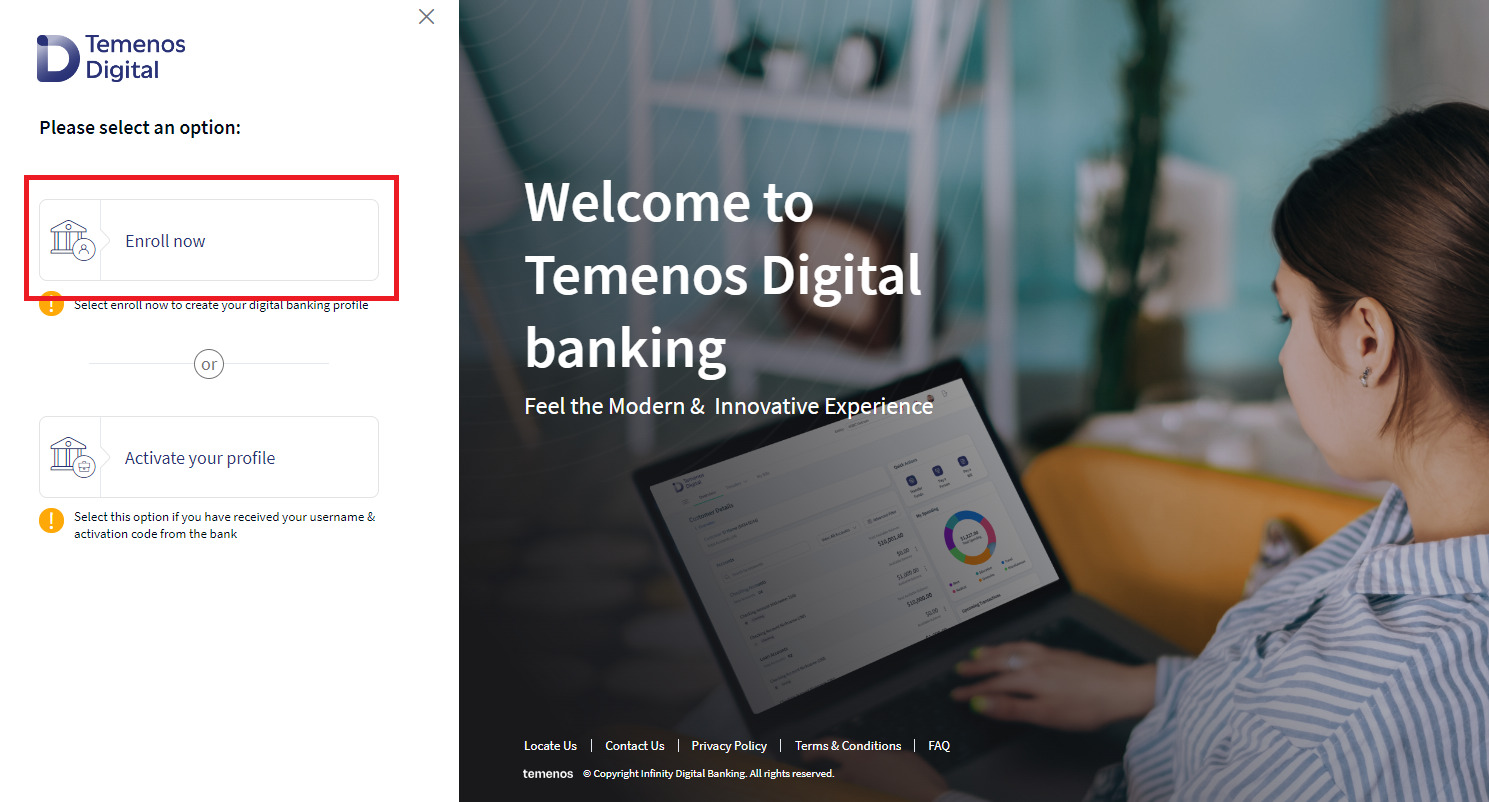
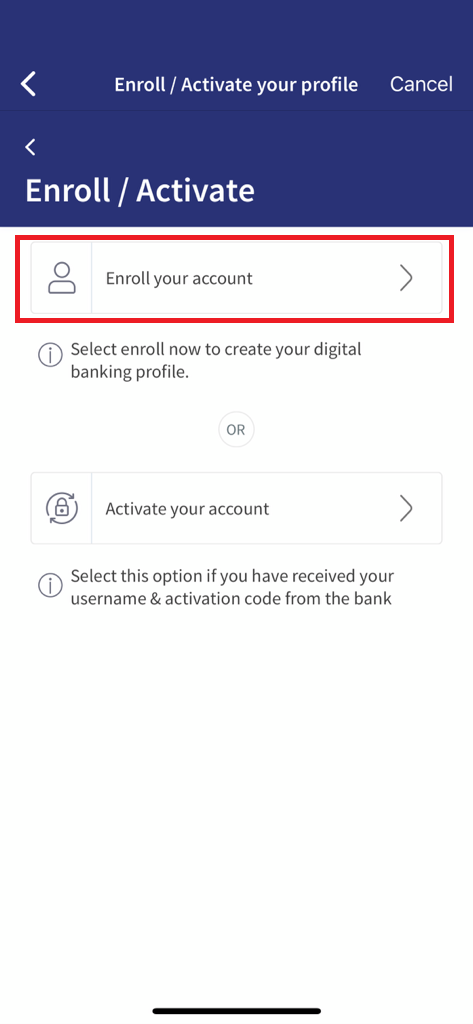
- Select Enroll to enroll an existing customer to online/ mobile banking.
- Select Activate to activate the online or mobile banking credentials to an enrolled customer.
On the sign-in screen, tap Enroll.
In the online banking application, if the bank wants to provide the business banking capability to its customers, then the app displays a selection screen where you can select between Retail Banking and Business Banking options depending on the customer type and enroll. If the bank does not want to provide business banking capability, the online banking application will have only personal banking capability. This configuration can be done within the Spotlight application. Online banking application with business banking capabilities allows business customers to perform business transactions, add other business users to transact on their behalf, and manage the business users.
Enroll
Self Enrollment allows you to view and manage your accounts digitally, anywhere or anytime you have internet access by using digital banking. The enrollment feature is for the existing customers of the bank, but do not have any mobile or online banking credentials. Use the Enroll feature to enroll and use the digital banking application (Desktop, Mobile, and Tablet).
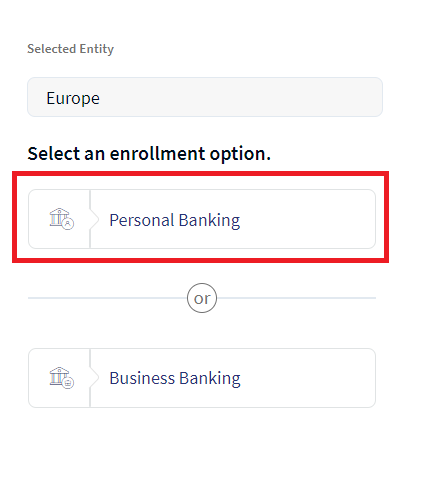
- Select Personal Banking if you want to enroll in the online banking application which suits a retail user for personal banking.
- Select Business Banking if you want to enroll in the online banking application which suits a business customer. For information on Business Banking enrollment, refer Business Banking User Guide.
Personal Banking
The personal Banking enrollment process is common in online and mobile banking applications.
Do the following:
- On the sign in screen, click Enroll/Activate. This navigates to legal entity screen.
- Click Enroll Now.
- Select the legal entity from the drop-down list. The application displays the screen to select the enrollment option.
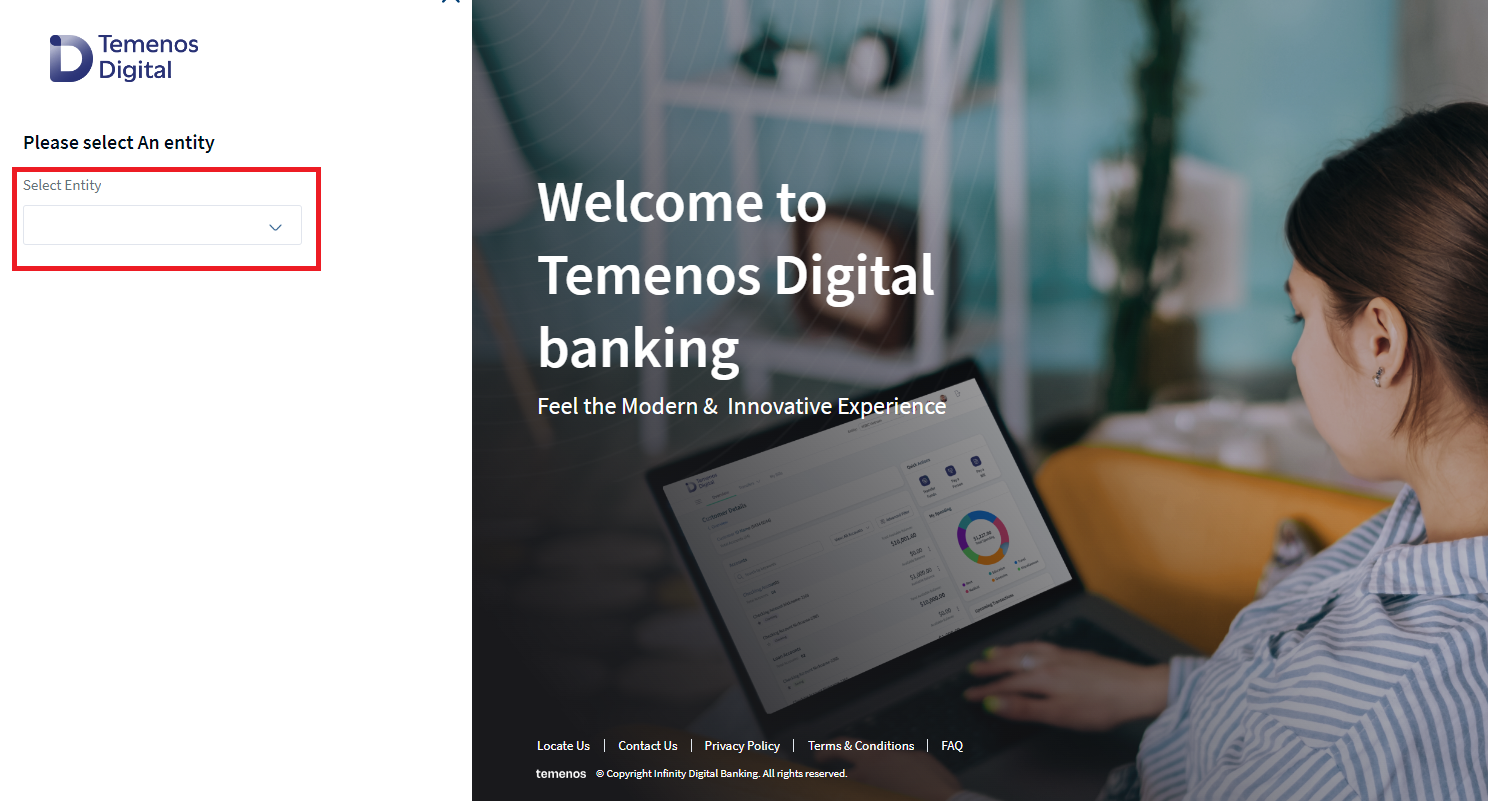
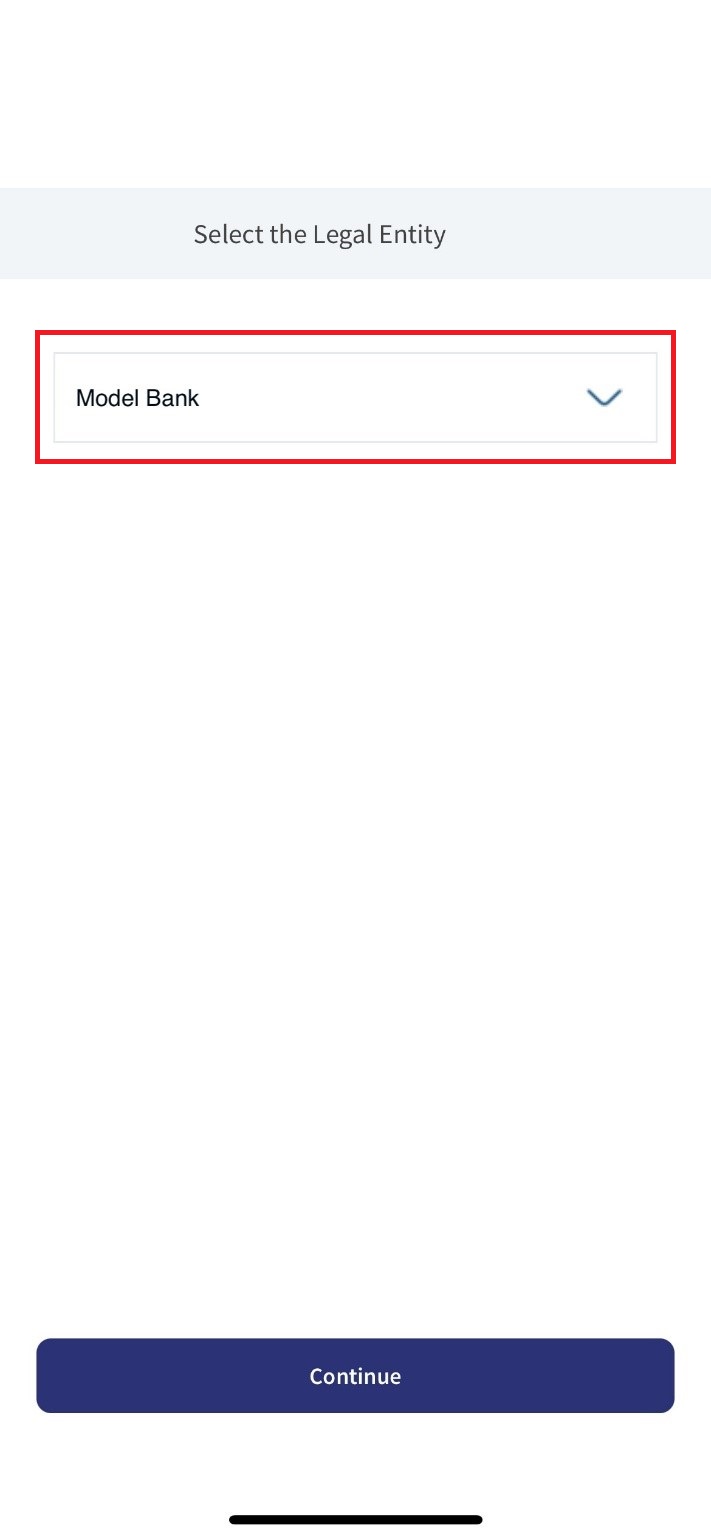
- On the Select an enrollment option screen, click Personal Banking.
- Enter the following details on the verification screen, in which all fields are mandatory. Enter the following details as this information is required for proof of identification:
- Type your last name in the Last Name field.
- Type your nine-digit Social Security Number (SSN).
- Select your Date of Birth from the calendar or enter if you are using mobile banking.
- Enter the captcha code.
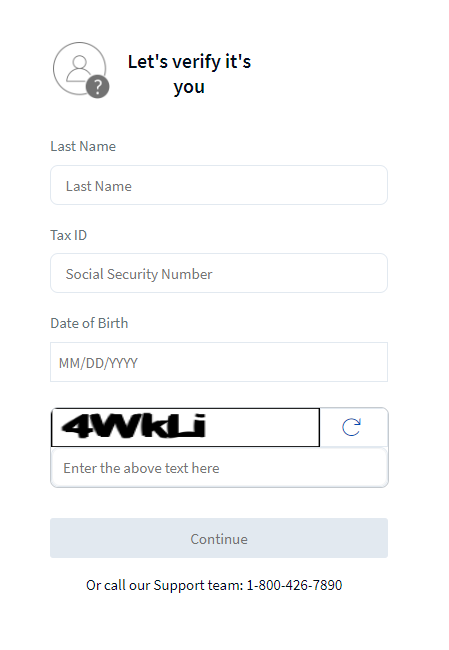


- Click Continue. If you are using mobile banking, tap Verify.
- Search is restricted to individual users only.
- If the entered details are related to the customer of type - Individual, then enrollment will be successful.
- If the entered details are related to the customer of type - Business, the application displays an error message.
- For security reasons, you must complete the second factor of authentication.
- Click Activate your Profile to activate you digital banking profile.

- The application performs customer filtration based on the Spotlight Configuration Bundle, specifically for the Individual/ Organization parameters.
- The parameter as INDIVIDUAL_TYPE_ID and BUSINESS_TYPE_ID can be a single value, a comma-separated list of multiple values, or a range (For example, 1000-2000).
- Integration is implemented using the Sector ID from Transact.
Error Scenarios
- The activation code sent to your registered email or phone is valid only for one month by default. If you enter the expired activation code, the application displays an error message as "Your activation code has expired. Please select “Can’t Sign In” to regenerate a new activation code".
- Maximum invalid attempts to activate the digital banking profile is five. This configuration is maintained in Spotlight under System Configurations. If the invalid attempts exceeds than the allowed value an error message is displayed as "Your activation code is blocked. Please select “Can’t Sign In” to regenerate a new activation code
Integration with Spotlight
A user's enrollment status is visible in Spotlight. In case the user has not enrolled yet, the administrator has an option to send an enrollment link to the user. A bank employee using Spotlight cannot enroll a customer on their behalf.
APIs
The following APIs are shipped as part of this feature. For the complete list of APIs with more information.
| API | Description |
|---|---|
| enrollRetailUser | This API enrolls the retail user. |
In this topic