Configuring Verification Of Payee
Verification of payee can be setup as mandatory or optional for a country or a region ( Example - European region). The user is forced to perform VOP check, if the VOP is configured as mandatory. The user is allowed to skip VOP check, if the VOP is configured as optional.
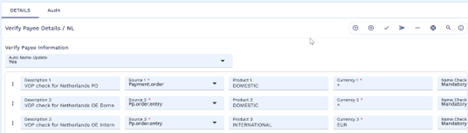
If the user configure verification of payee for all the SEPA payments that are initiated from Payment Order and Order Entry for Netherlands, follow the below steps:
- Go to Admin Menu > Payments > Payee Verification > Verify Payee Check.
- Click Create New Record in the More items option on the screen to create a new configuration.
- Input NL and click
 .
.
The user must enter the following values.
|
Field |
Description |
|---|---|
| Auto Name Update | Select ‘Yes’ from the dropdown option. Enables the system to automatically update the beneficiary name with the name received in the response for a close match (partial match) scenario upon acceptance by the user. |
| Description 1 |
Enter the description of the configuration as Payment Order rule for Netherlands. |
| Source 1 |
Select Payment.order from the dropdown option. |
| Product 1 |
Input DOMESTIC in the text box, the same value as the payment order product that the user use to initiate a SEPA payment. |
| Currency 1 |
Use wild card ‘*’ or provide EUR as the value. |
| Name Check |
Select Mandatory from the dropdown option. |
- Create another set of configuration by expanding the multi-value option in Description.
- Input the second set for Order Entry with the Domestic flag in Product.
|
Field |
Description |
|---|---|
| Description 2 |
Key in the description of the configuration as Order Entry Domestic rule for Netherlands. |
| Source 2 |
Select Pp.order.entry from the dropdown option. |
| Product 2 |
Input DOMESTIC in the text box, the same value as DomesticInternational flag that the user use to initiate a SEPA payment in Order Entry. |
| Currency 2 |
Use wild card ‘*’ or provide EUR as the value. |
| Name Check |
Select Mandatory from the dropdown option. |
- Expand the multi-value option, to create third set of configuration in Description
- Input the last set for Order Entry with the International flag in Product.
|
Field |
Description |
|---|---|
| Description 3 |
Key in the description of the configuration as Order Entry International rule for Netherlands. |
| Source 3 |
Select Pp.order.entry from the dropdown option. |
| Product 3 |
Input INTERNATIONAL in the text box, the same value as DomesticInternational flag that the user use to initiate a SEPA payment. |
| Currency 3 |
Use wild card ‘*’ or provide EUR as the value. |
| Name Check |
Select Mandatory from the dropdown option. |
- Commit the record.
Configuring Verification of Payee Response Code
Verification of payee response code can be configured in central component with the generic error or override. When the response code is received from the VOP service provider as a result of matching process, user can view the generic error or override that is configured here.
For example
The VOP service provider supports the below set of response codes for a region and banks can configure each of these response codes in the system.
|
S. No. |
Reason Code |
Purpose |
|---|---|---|
|
1 |
MTCH |
Verification of payee is full match and VOP result is success. |
|
2 |
NMTC |
Verification of payee is no match and VOP result is fail. |
|
3 |
CMTC |
Verification of payee is close match (partial match) and VOP result is close match. |
Follow the below steps to configure the response code with various results:
- Go to Admin Menu > Payments > Payee Verification > Verify Payee Response.
- Click Create New Record option in More items option on the screen to create a new configuration.
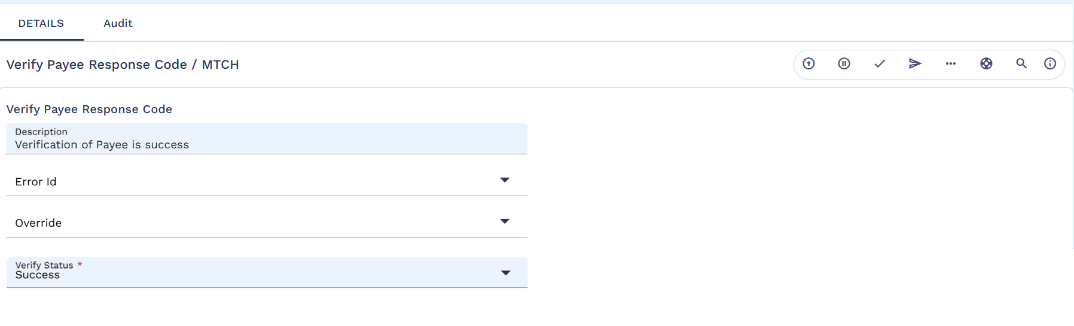
- Input MTCH and click
 .
.
The user must enter the following values.
|
Field |
Description |
|---|---|
| Description |
Verification of payee is success. |
| Error Id |
<blank> |
| Override |
<blank> |
| Verify Status |
Select Success from the dropdown as the result for the reason code. |
- Click Commit to store the first record.
- Click Create New Record option in the More Actions option on the screen to create another configuration for No Match.
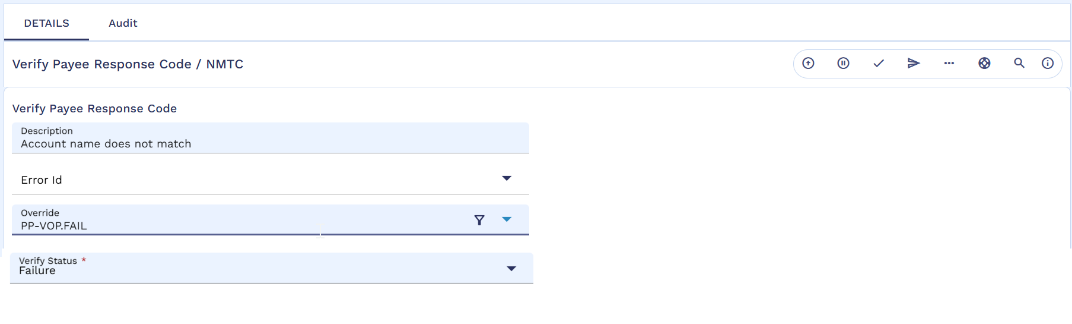
- Input NMTC and click .
The user must input the below values.
|
Field |
Description |
|---|---|
| Description |
Verification of payee failed as the name does not match. |
| Error Id |
<VOP-FAIL> - valid EB.ERROR record. In EB.ERROR table, create VOP-FAIL record with the description ‘Verification of payee is failed as the name does not match. Correct the name or abort the record’.
|
| Override |
<blank> |
| Verify Status |
Select Failure from the dropdown as the result for the reason code. |
- Click Commit to store the second record.
- Click Create New Record option in the More Actions option on the screen to create another configuration for Close Match.
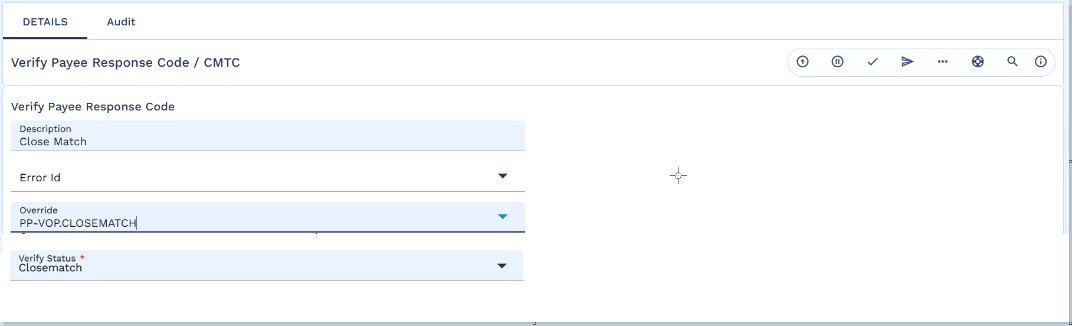
- Input CMTC and click .
The user must enter the below values.
|
Field |
Description |
|---|---|
| Description |
Verification of payee is close match. |
| Error Id |
<blank> |
| Override |
<VOP-CLOSEMATCH> - valid OVERRIDE record. In OVERRIDE table, create VOP-CLOSEMATCH record with the
description ‘Verification of payee is partial match. Correct the name or continue with the existing name’.
|
| Verify Status |
Select Close Match from the dropdown as the result for the reason code. |
- Click Commit to store the third record.
In this topic