Portfolio
A Portfolio is an essential component of an investment, offering a holistic and dynamic view of your investments through performance monitoring, rebalancing, and making strategic decisions. This critical component offers flexibility in holding cash, allocating investments across various sectors, and monitoring the portfolio performance. It also facilitates optimizing investments to achieve long-term goals while mitigating losses through potential risks.
This feature in the Digital Wealth App provides information about your investment account, such as asset allocation, cash balance, total value, and unrealized P&L. You can review the investment account valuation and perform activities such as cash transfer and currency conversion.
Below is a detailed description of the user interface of the Portfolio screen for the Online Banking and Mobile Native App.
UX Overview - Online Banking and Mobile Native App
Online Banking: This section provides an overview of the Portfolio, where you can find the following features:
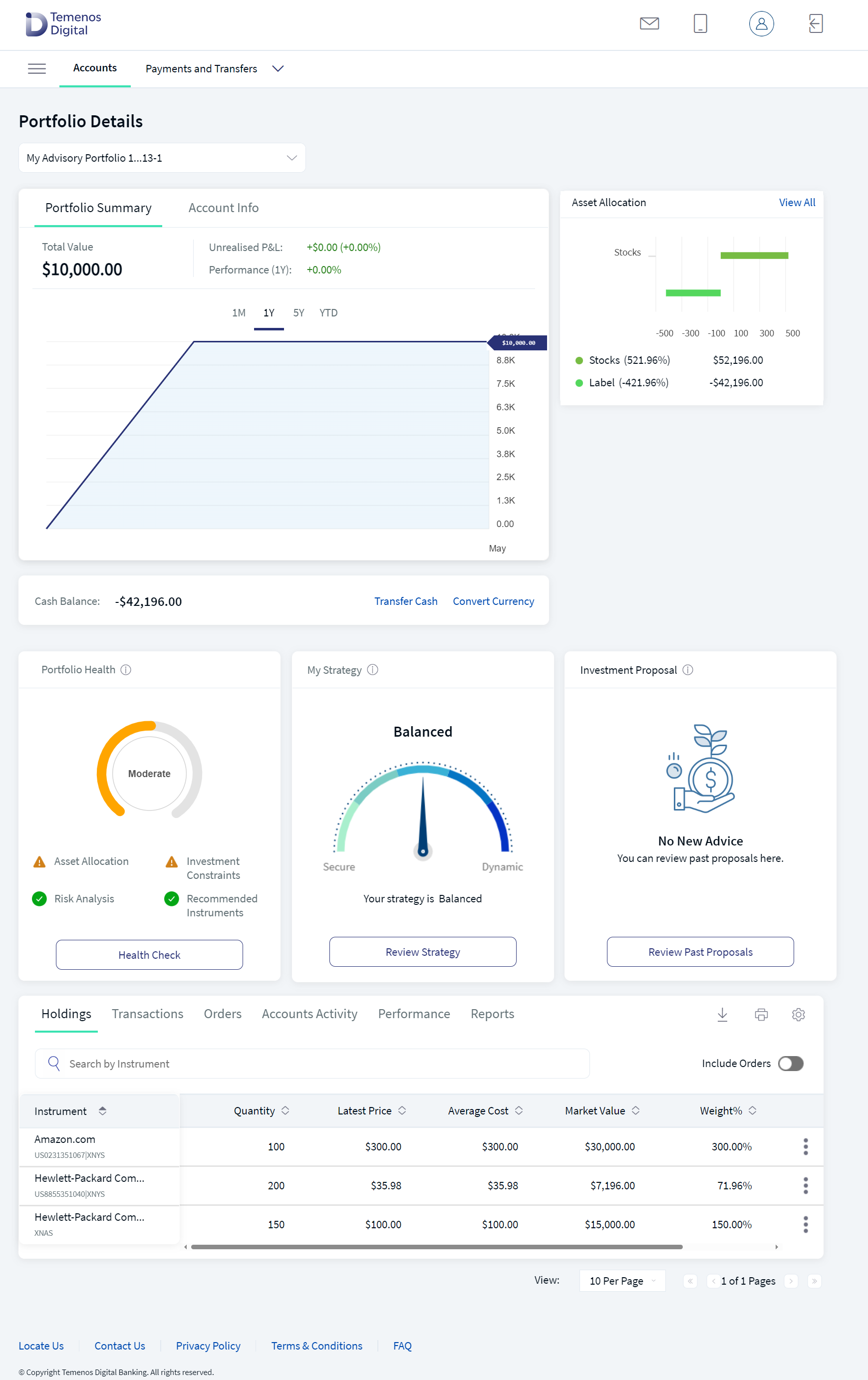
The Portfolio Health Check, My Strategy, and Investment Proposal features are available only for the Advisory Portfolios. Also, go to the respective feature under the Feature Description to gain a high-level understanding of each feature.
Mobile Native App:The Portfolio features in the mobile native app provide a seamless and intuitive way to easily manage, track, and analyze your investments. It is designed for efficiency and convenience, and it facilitates monitoring your assets, making real-time decisions, and reviewing a detailed performance report. It offers a personalized investment experience right at your fingertips.
When selecting a portfolio from the Accounts screen, the system navigates you to the Portfolio Overview screen, where the Overview, Holdings, Transactions, Orders, Account Activity, Performance, Reports, and Advisory(based on the portfolio type) are displayed in header tabs.
You can access the portfolio features by clicking on the respective header tab. For more information, click here.
In addition, you can perform the following actions for a Portfolio:
- Click on the back arrow to navigate back to the 'My Accounts' screen.
- Click on
 icon to view Account Info. For a detailed description, click here.
The above actions are available for the Overview, Advisory, Holdings, Transactions, Orders, Performance, Accounts Activity and Reports header tabs.
The table below provides an overview of the features, the component information, and the configurable elements.
| Section | Component | Configurable Elements |
|---|---|---|
| Portfolio Summary: This section provides information about the portfolio. | NA | You can configure the tab's position and the details that appear as you hover over the graph. |
| Account Info: This section provides information about your investment account. | NA | You can configure the position of the tab. |
| Asset Allocation: This section displays the allocation of the assets in every asset class as a graphical representation. | com.konyolb.wealth.totalAssets | You can configure the details that appear as you hover over the graph. |
| Cash Accounts: This section displays the details of the available cash accounts in the selected portfolio. | NA | NA |
| Portfolio Health: This section displays the health of an investment portfolio. | NA | |
| My Strategy: This section briefs about the available investment strategies for the selected portfolio. You can select any strategy based on investment goals and risk tolerance. | NA | NA |
| Investment Proposal: This section briefs about the Investment Proposals (New & Past Proposals) available for the Advisory Portfolio. | NA | NA |
| Portfolio Details: This section provides information about the portfolio attributes such as Holdings, Transactions, Orders, Performance, and Reports. | com.temenos.infinityComponent.portfolioDetails |
The entire Portfolio Details section is configurable except for the position of the Orders tab.
The Orders tab must remain in the third position because it contains two internal tabs named Open Orders and History. |
| Instrument Search: You can search for a specific instrument using this feature. | com.temenos.infinityComponent.instrumentSearch | NA |
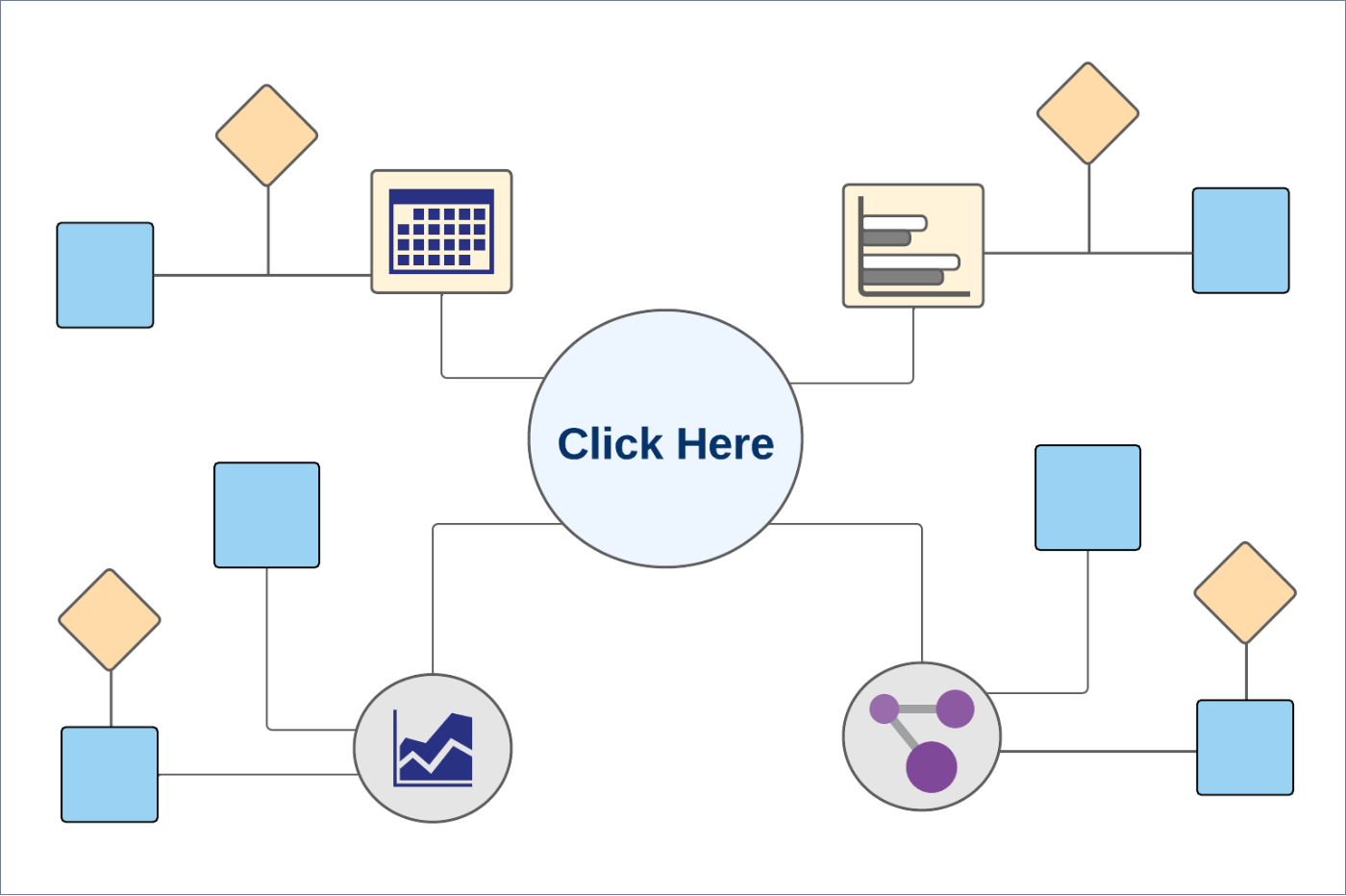
Business Process Diagram - Portfolio Details
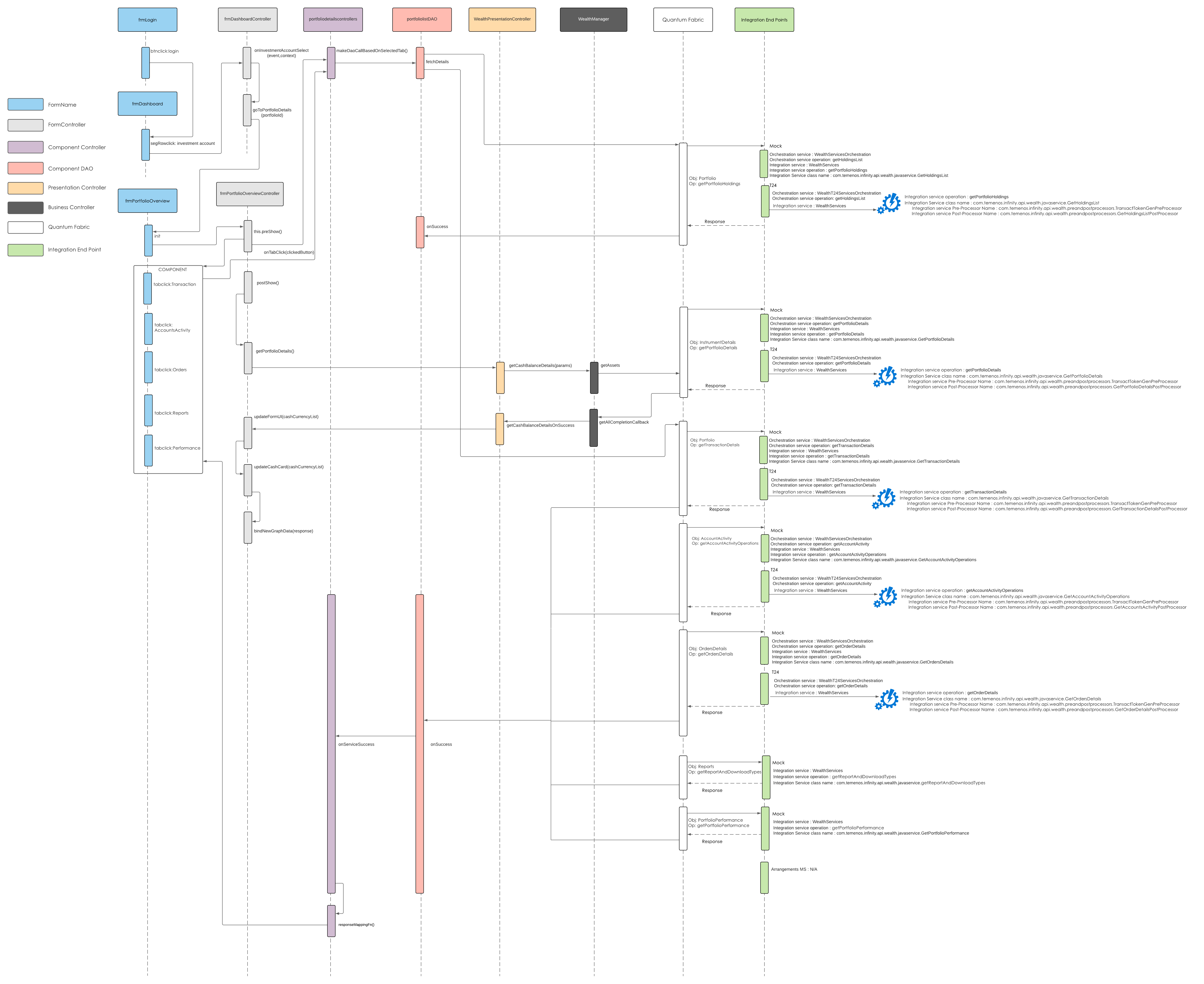
Sequence Diagram - Portfolio Details
Here is the video that provides insight on performing the various activities in the Portfolio.
Feature Description
Portfolio Summary
Online Banking: The Portfolio Summary module provides information about the selected portfolio.
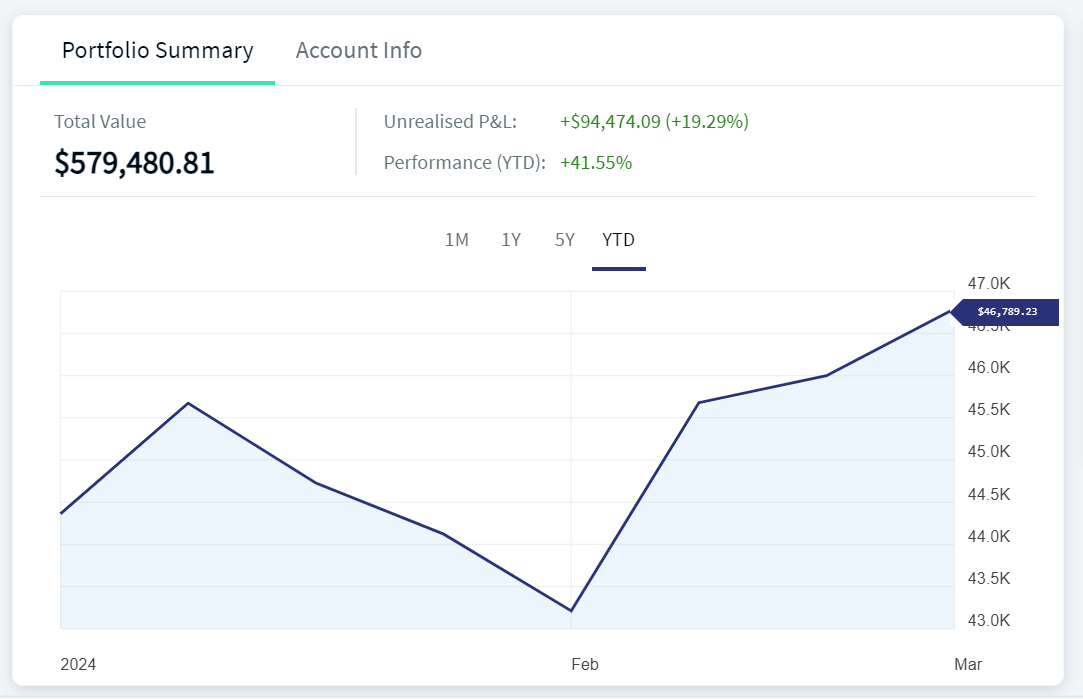
Portfolio Summary displays the following details:
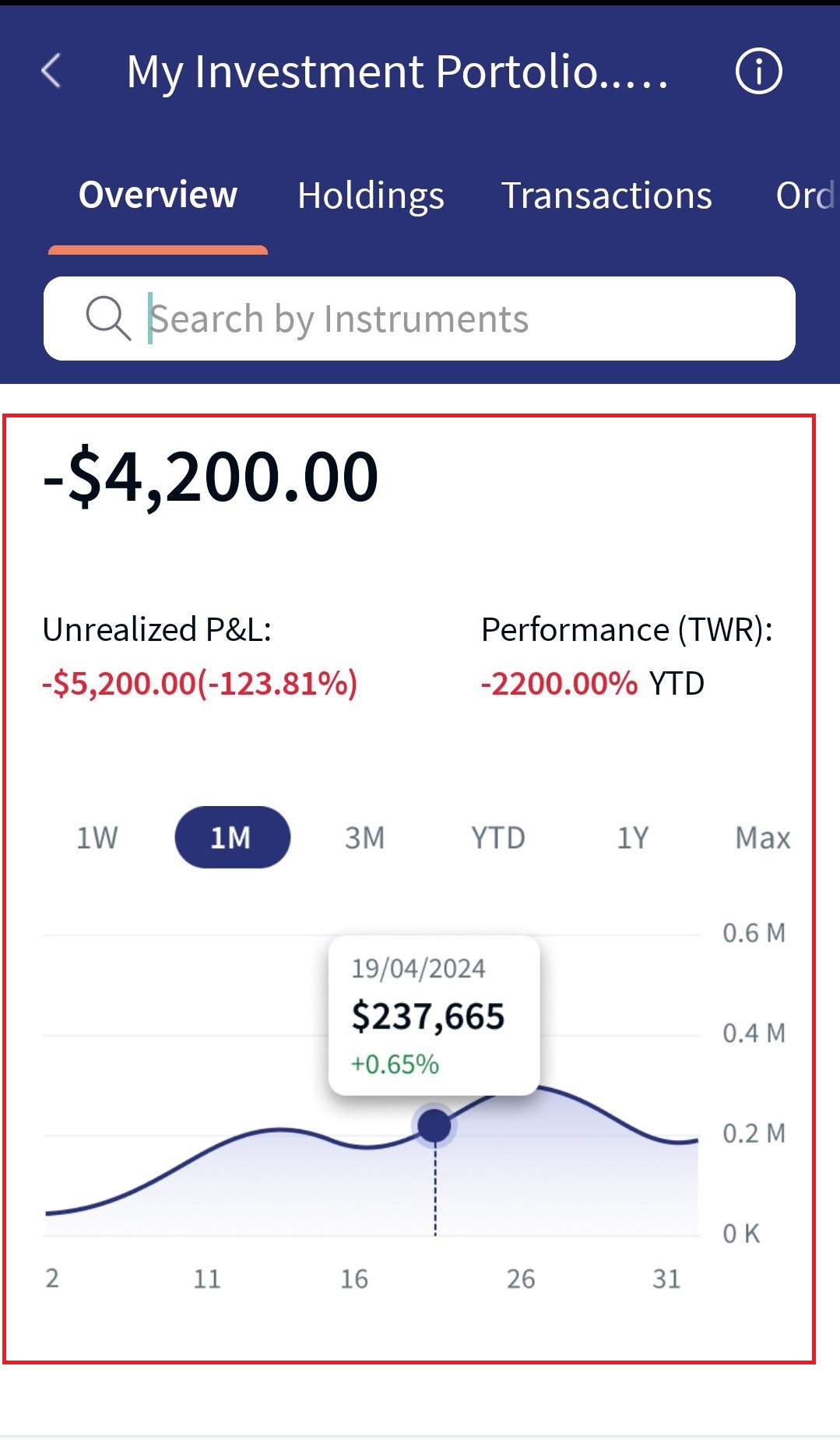
- Total Value: Specifies the total market value of the portfolio. It is displayed across all the asset classes.
- Unrealized P&L: Specifies the current profit or loss on an open position. It is displayed in the reference currency of the portfolio and is also displayed in terms of percentage.
- Performance: Specifies the consolidated performance percentage value of your portfolio investments. Profit is displayed in Green and the loss is displayed in Red.
The Portfolio Summary also displays your investments over a period of time in the form of a graph.
- 1M: The graph displays the information about the total market value for the last one month from the current day.
- 1Y: The graph displays the information about the total market value for the last year from the current day.
- 5Y: The graph displays the information about the total market value for the last five years from the current day.
- YTD (Year to Date): The graph displays the information about the total market value from the day from which the total value is available.
You can view a specific market value by hovering the cursor over a specific location on the graph.
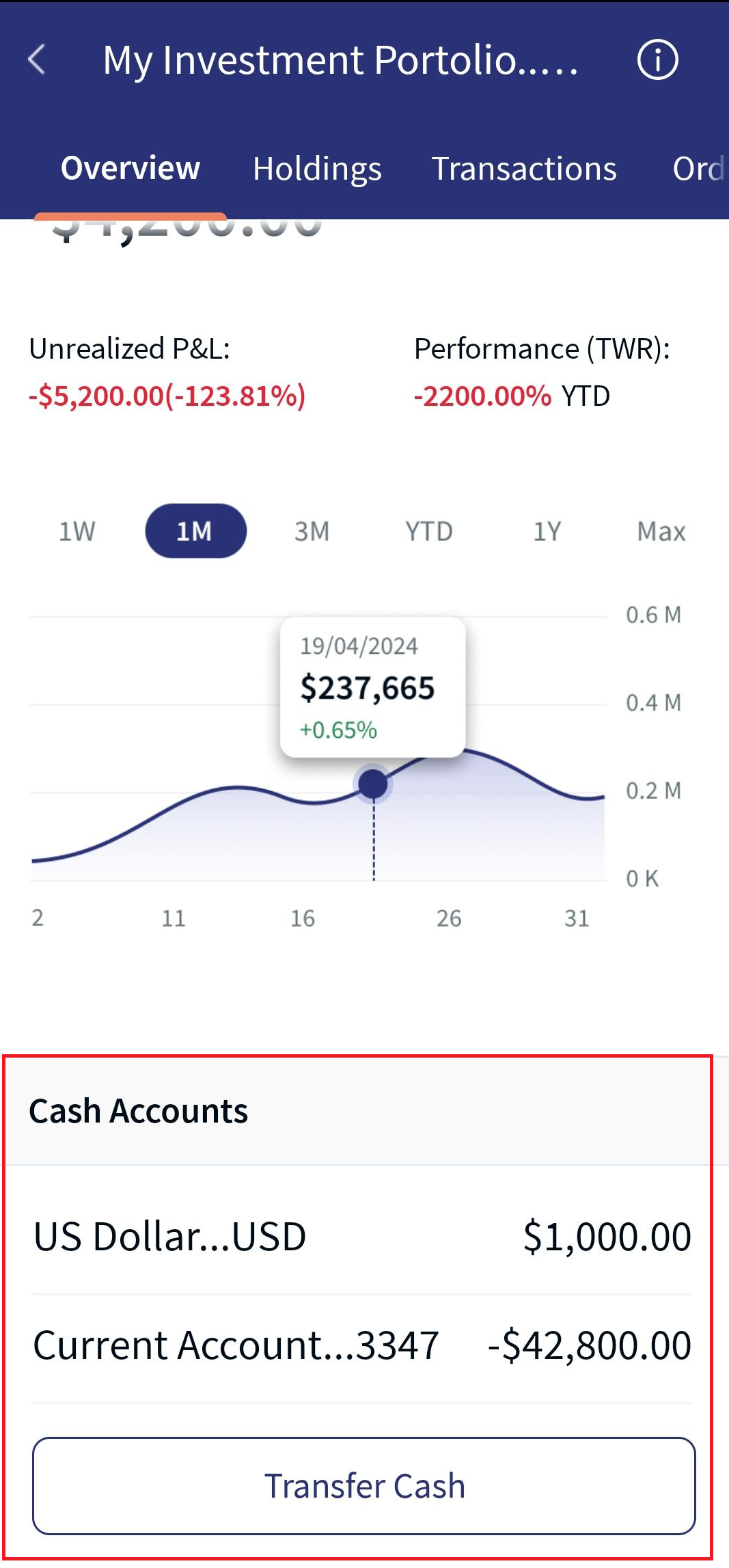
Mobile Native App: You can find Portfolio Summary details in the Overview header tab of the Portfolio. When selecting a portfolio in the My Accounts section, the system navigates you to the Overview tab, which displays the Portfolio Summary information is displayed. The details include Total Value, Unrealized P&L, Performance, and the time period in the form of a graph. For a detailed description, refer to the above Online Banking section.
Account Info
Online Banking: The Account Info module provides account information such as the account number, customer name, and the joint holder names, if any.
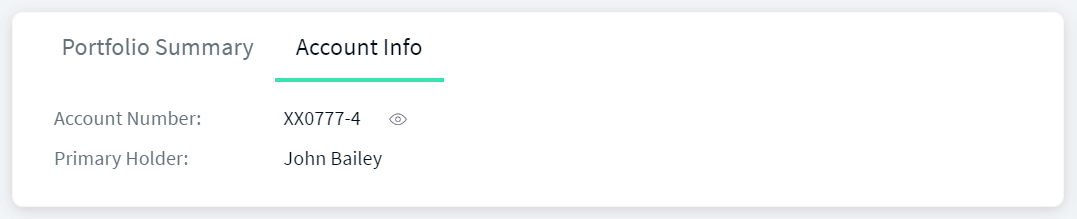
The account number is masked. To view the entire account number, click the show icon.
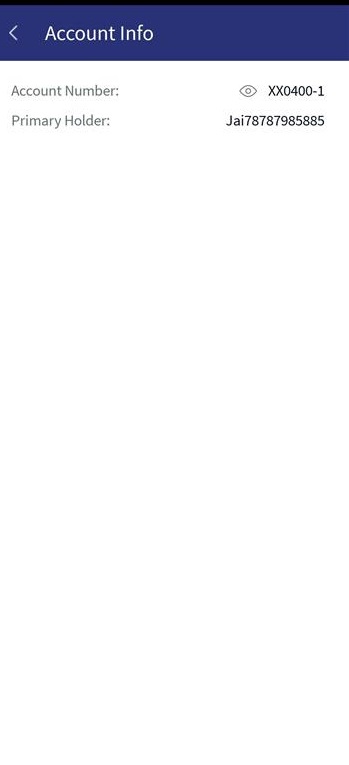
Mobile Native App: After selecting a portfolio, you can find the Account Info icon at the top-right corner of the header tabs (Overview, Advisory, Holdings, Transactions, Orders, Performance, Accounts Activity, and Reports). When you click on icon, the below screen appears, along with the account number (which is masked), customer name, and the joint holder names, if any.
Asset Allocation
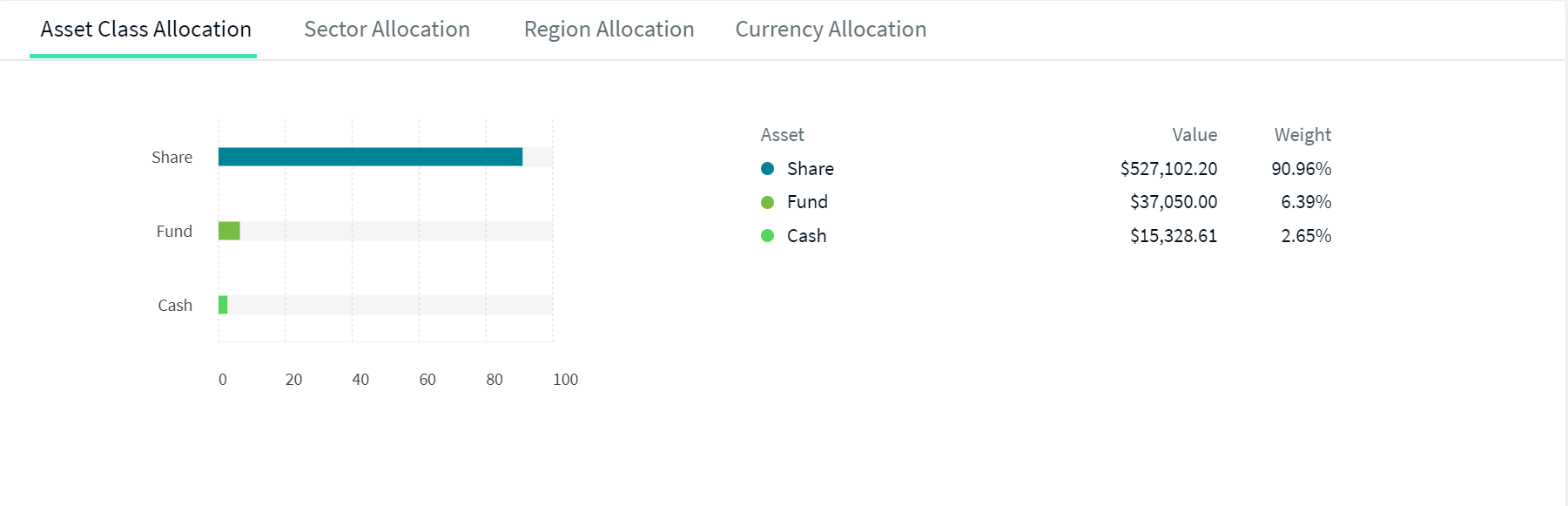
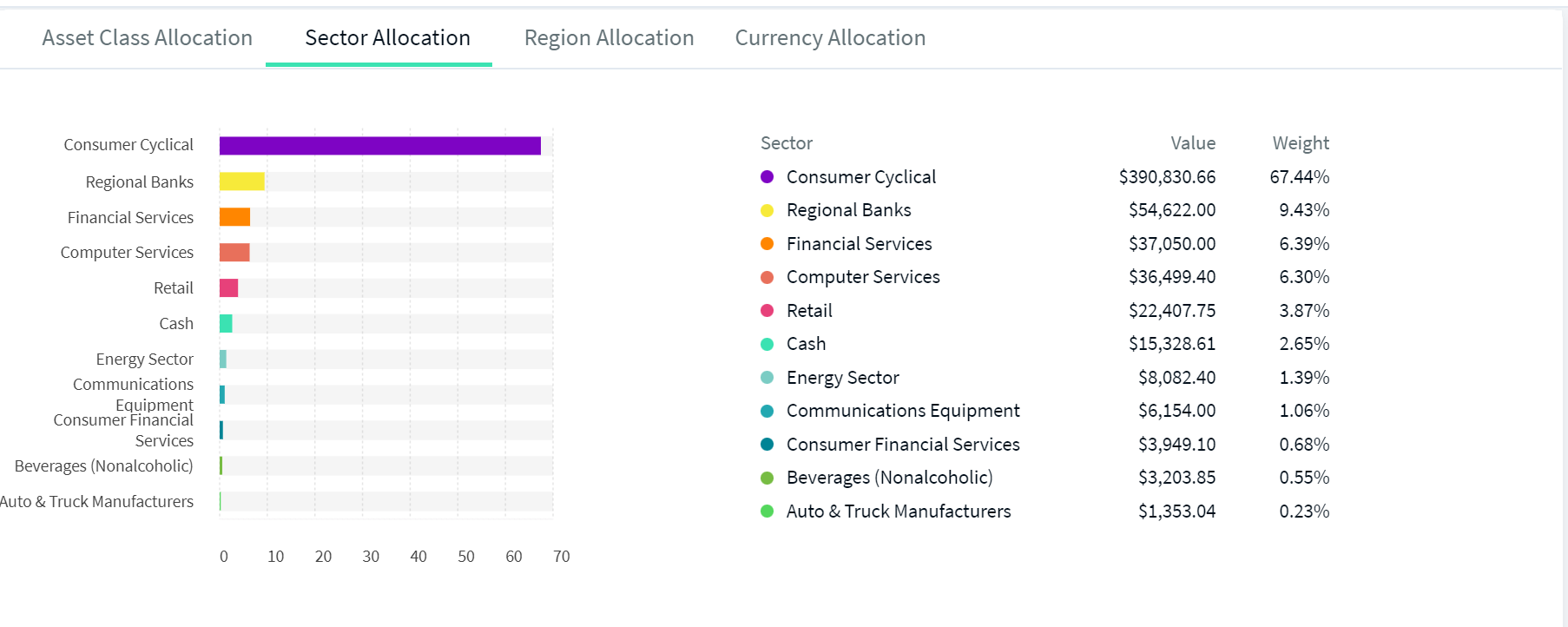
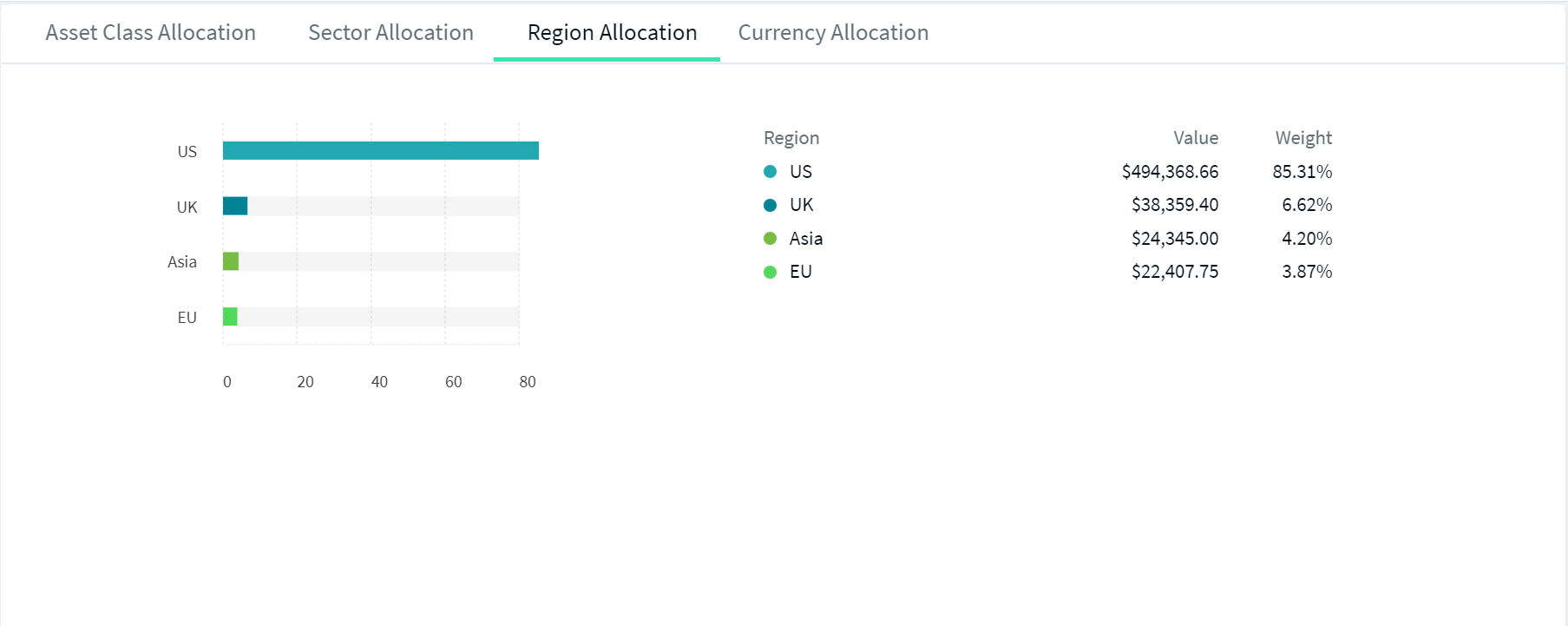
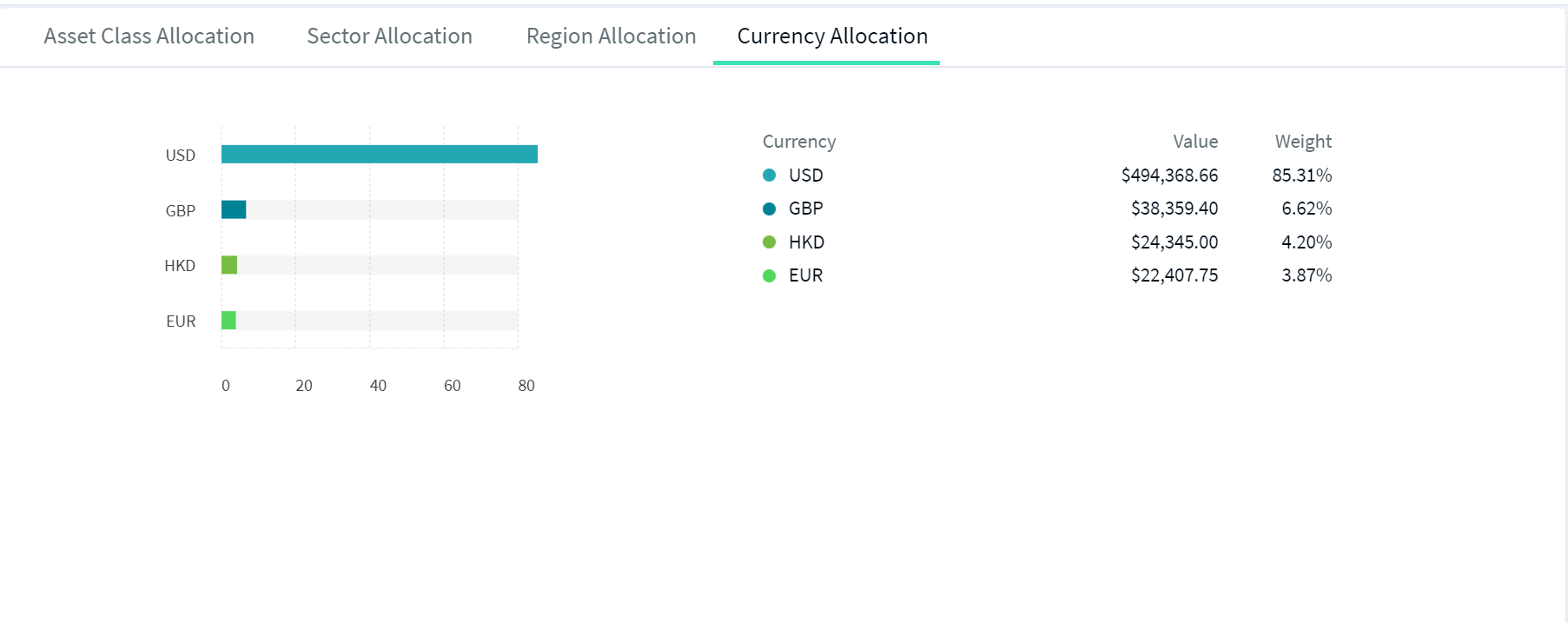
Online Banking: The Asset Allocation card displays the allocated assets based on different parameters, viz., Asset-wise allocation, Sector-wise allocation, Region-wise allocation, and Currency-wise allocation.
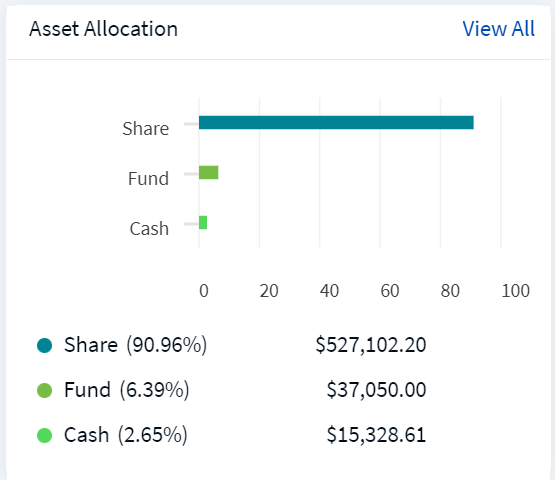
On hovering over the graph, the corresponding asset class is highlighted.
When you click View All, the following categories appear.
- Asset Class Allocation - The Asset Class Allocation displays the chart with the value and weightage of the assets based on the investments done in the different asset classes in the portfolio.
- Sector Allocation - The Sector Allocation displays the chart with the value and weightage of the assets based on the investments done in different sectors in the portfolio.
- Region Allocation - The Region Allocation displays the chart with the value and weightage based on the investments in different regions in the portfolio.
- Currency Allocation - The Currency Allocation displays the chart with the value and weightage based on the Investment done in different currencies in the portfolio.
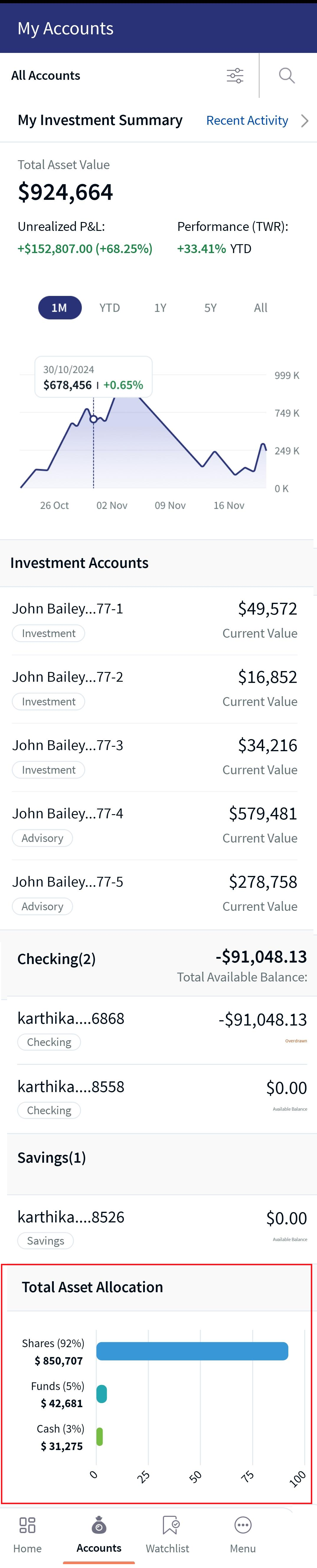
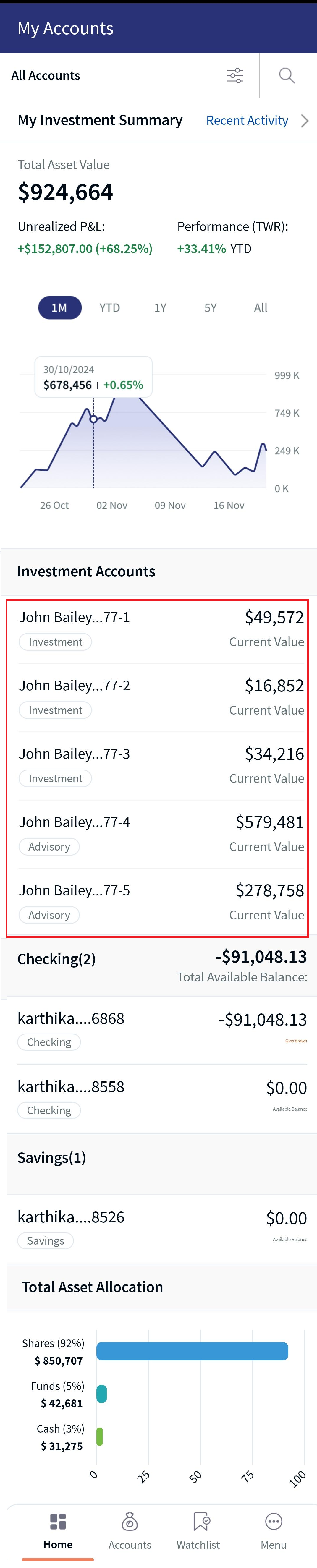
Mobile Native App: The Asset Allocation feature appears at the bottom of the Accounts screen. In addition, the same feature is available after you select a portfolio, displaying the asset allocations of the respective portfolio.
When selecting a portfolio, the system navigates you to the Overview header tab of the Portfolio, where the Asset Allocation feature appears in the form of a bar chart. When clicking the View All link, this feature allows you to view the allocated assets based on Asset-wise allocation, Sector-wise allocation, Region-wise allocation, and Currency-wise allocation parameters.
The below screenshot of the Asset Allocation feature is available at the bottom of the Accounts screen.
Below are the screenshots of the Asset Allocation feature displayed after selecting a Portfolio from the Accounts icon.
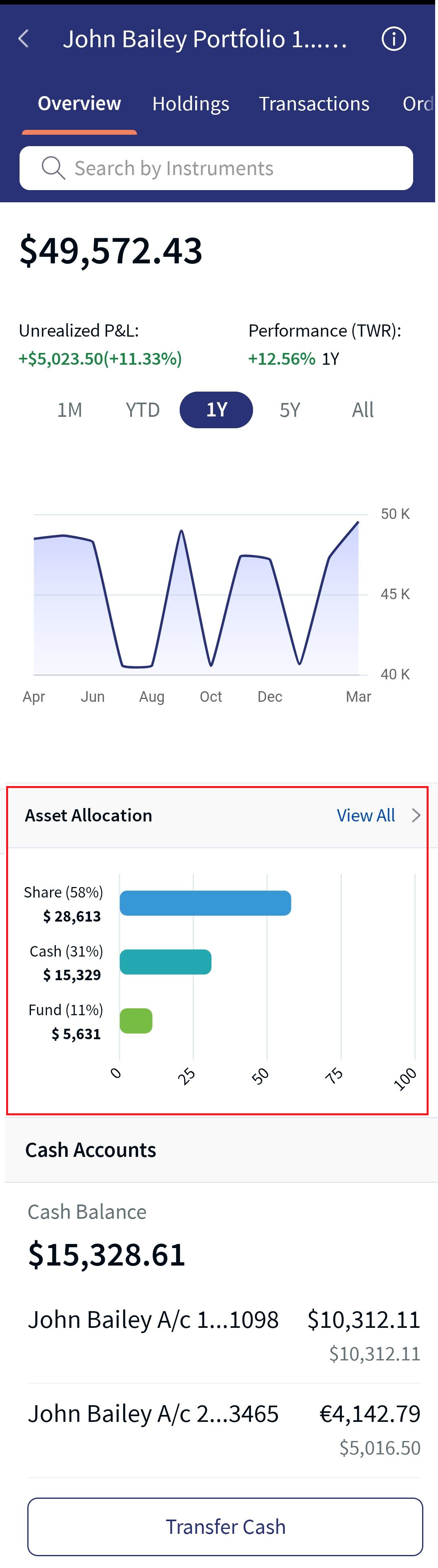
Asset Allocation after Portfolio Selection
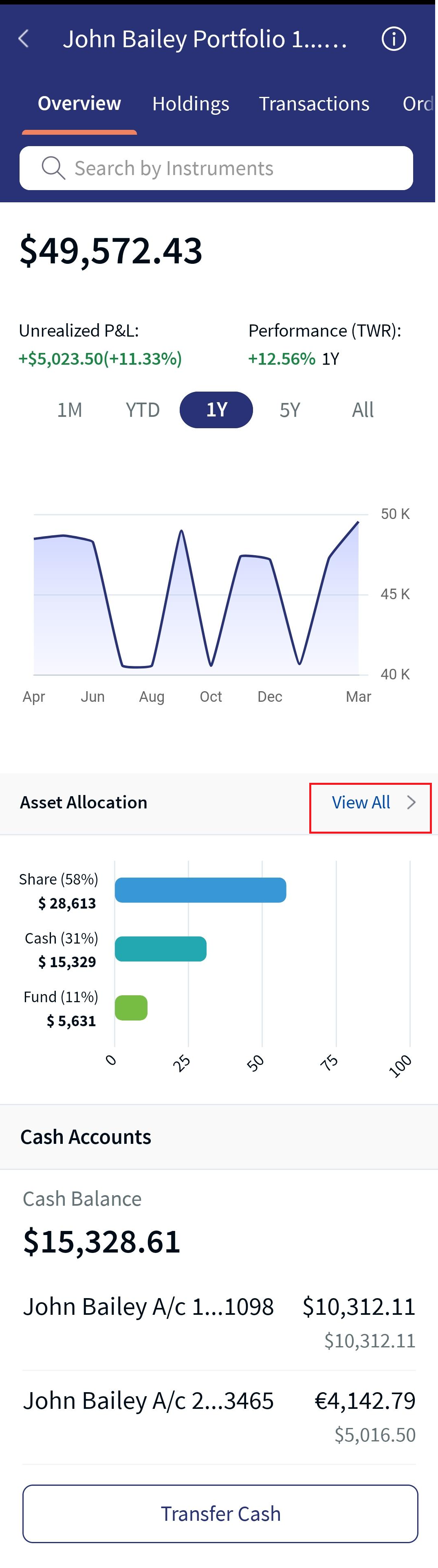
Asset Allocation - View All
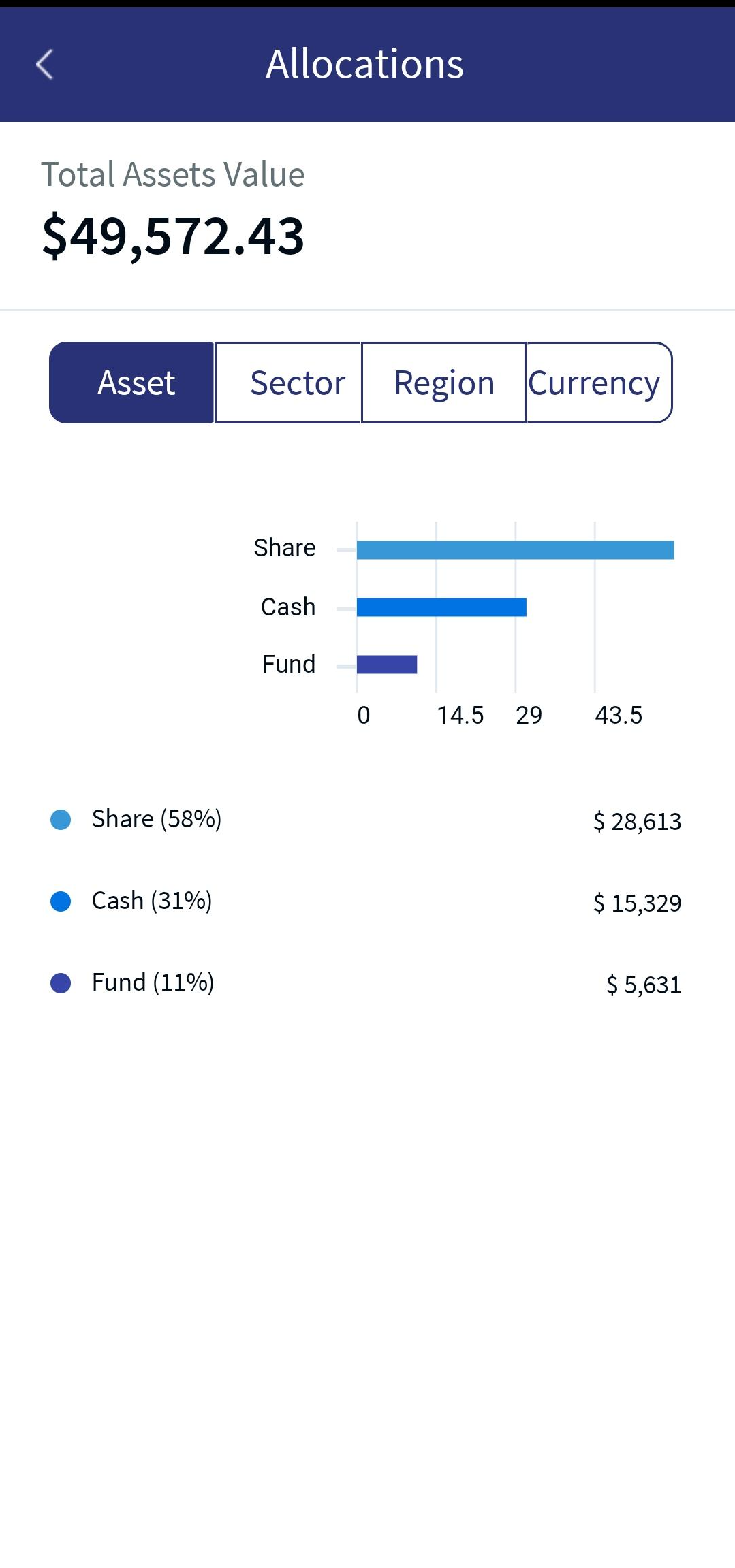
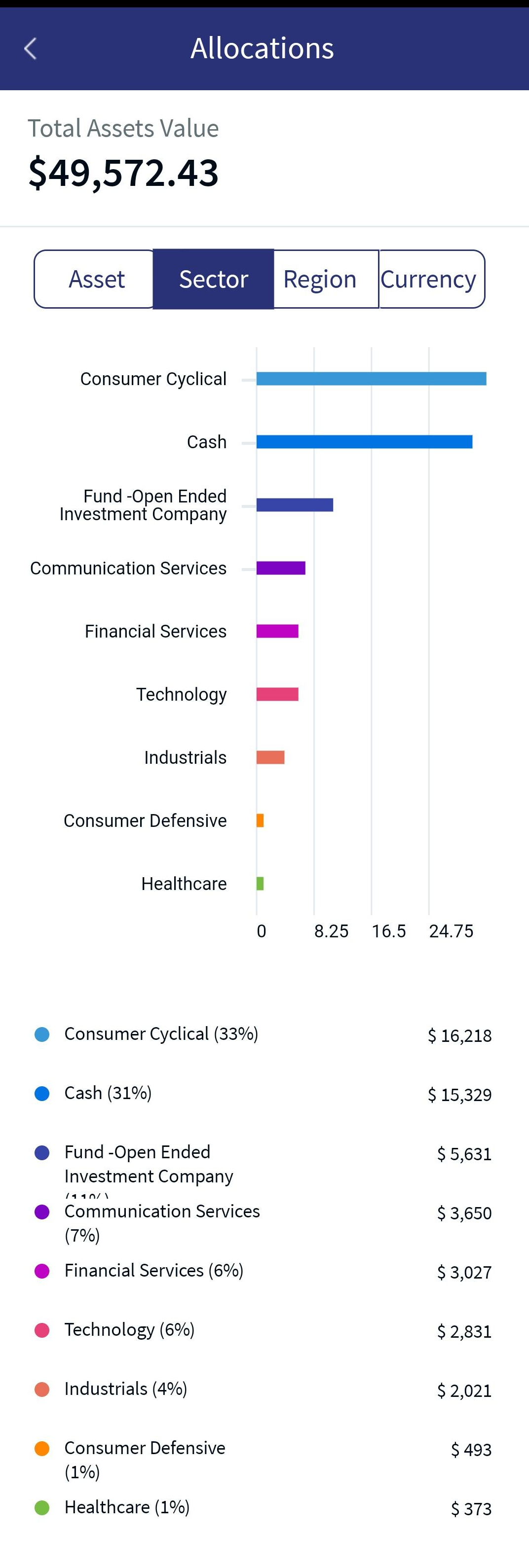
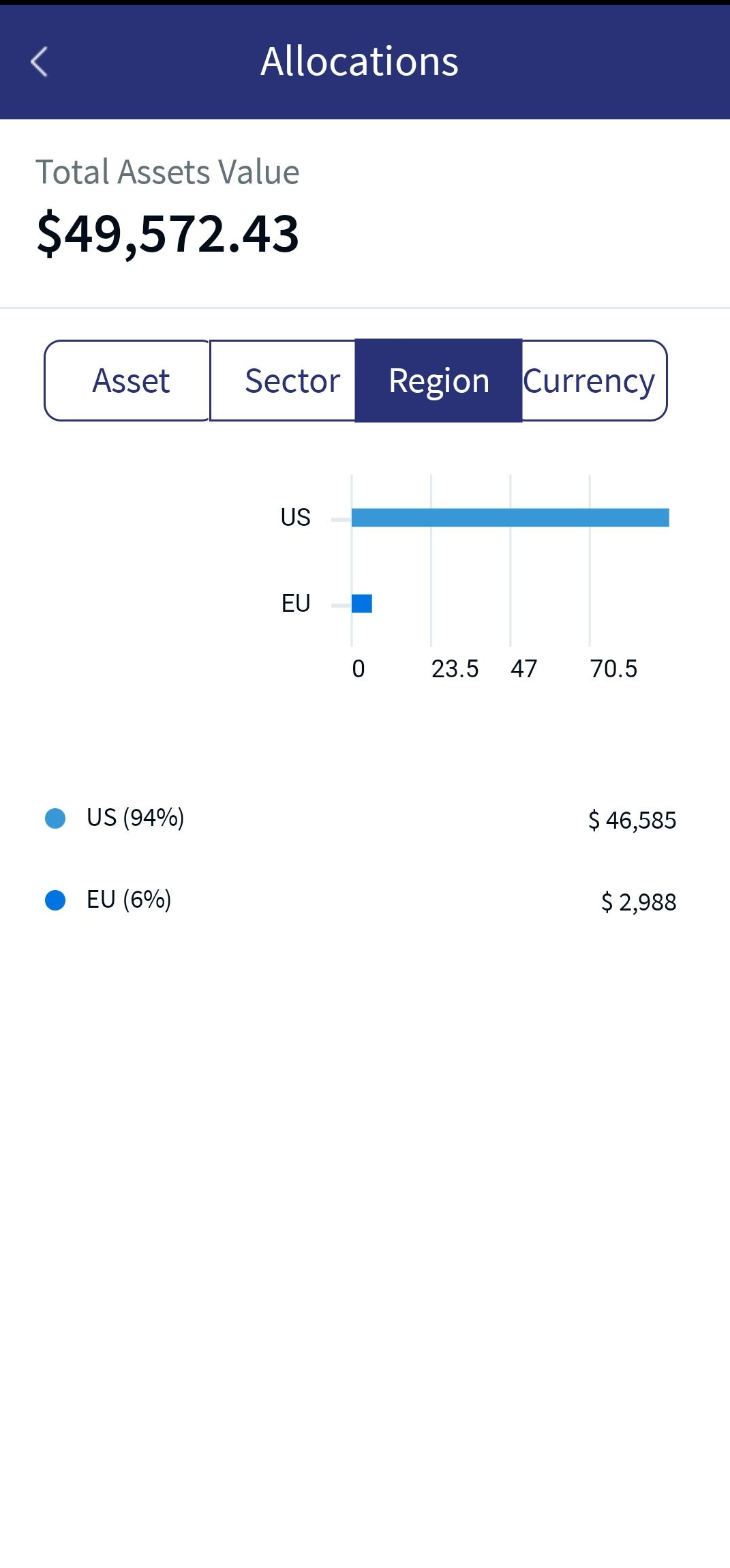
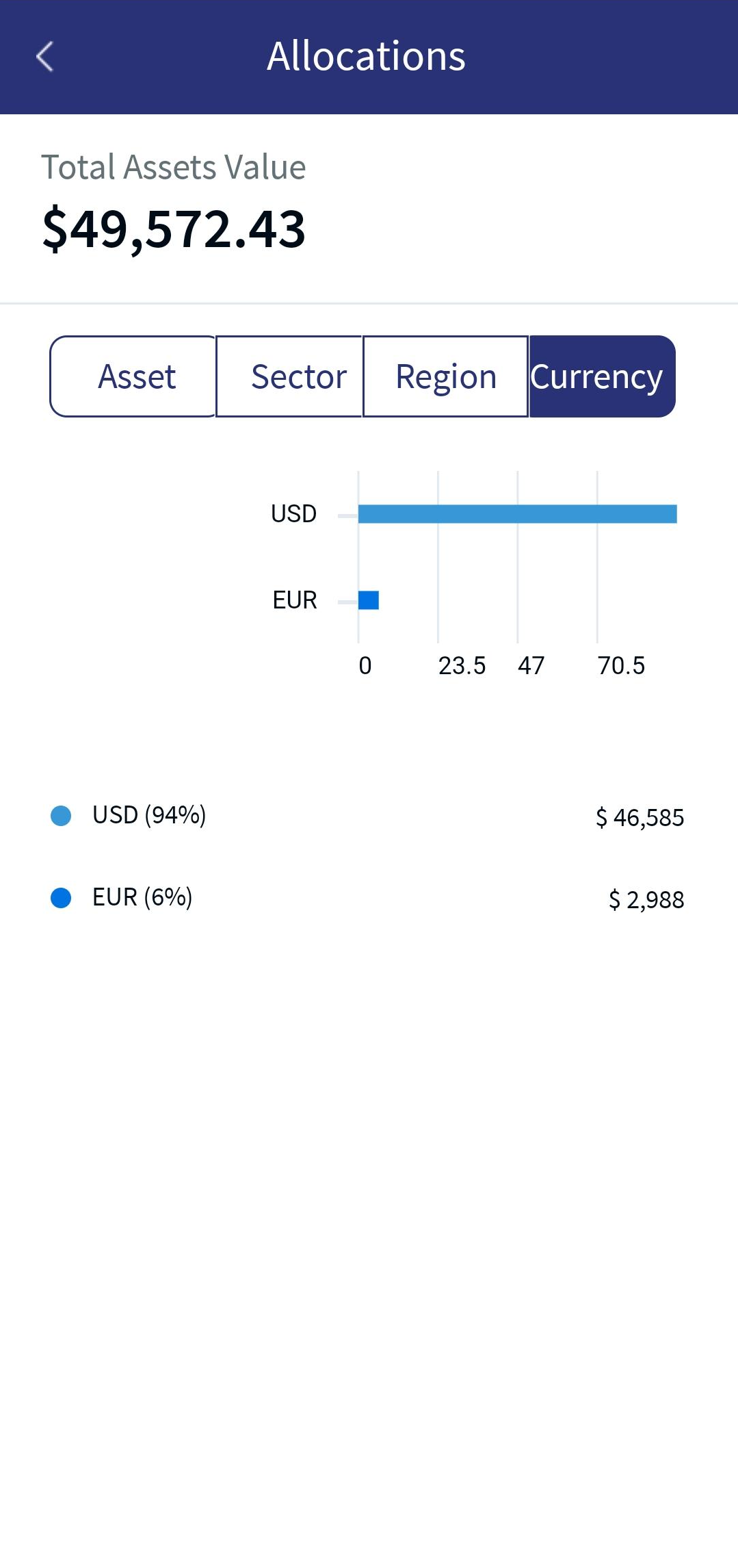
For more information on the categories functionality, refer to the above description in the online banking section.
Cash Accounts
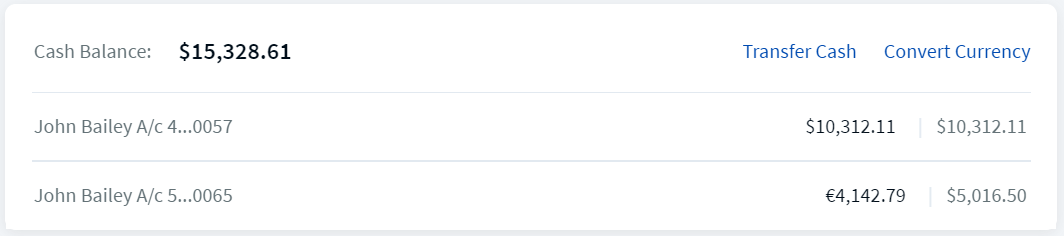
Online Banking: The Cash Accounts section displays a list of your cash accounts along with the available account balance in the account currency and the portfolio reference currency. You can perform the following actions from this section:
Business Process Diagram - Transfer Cash
Mobile Native App:You can find the Cash Accounts feature in the Overview header tab of the Portfolio. When selecting a portfolio in the My Accounts section, the system navigates you to the Overview tab, displaying the Cash Accounts section.
Click here to find the information related to Transfer Cash functionality.
Advisory Portfolios
Online Banking: The Advisory Portfolios help you align with the financial goals and risk tolerance, thus leveraging strategic asset allocation and rebalancing. These customized portfolios include asset classes such as equities, fixed income, investments, and cash accounts, ensuring a tailored approach to wealth management. The advisory portfolios can optimize performance to achieve long-term financial objectives while minimizing risk.
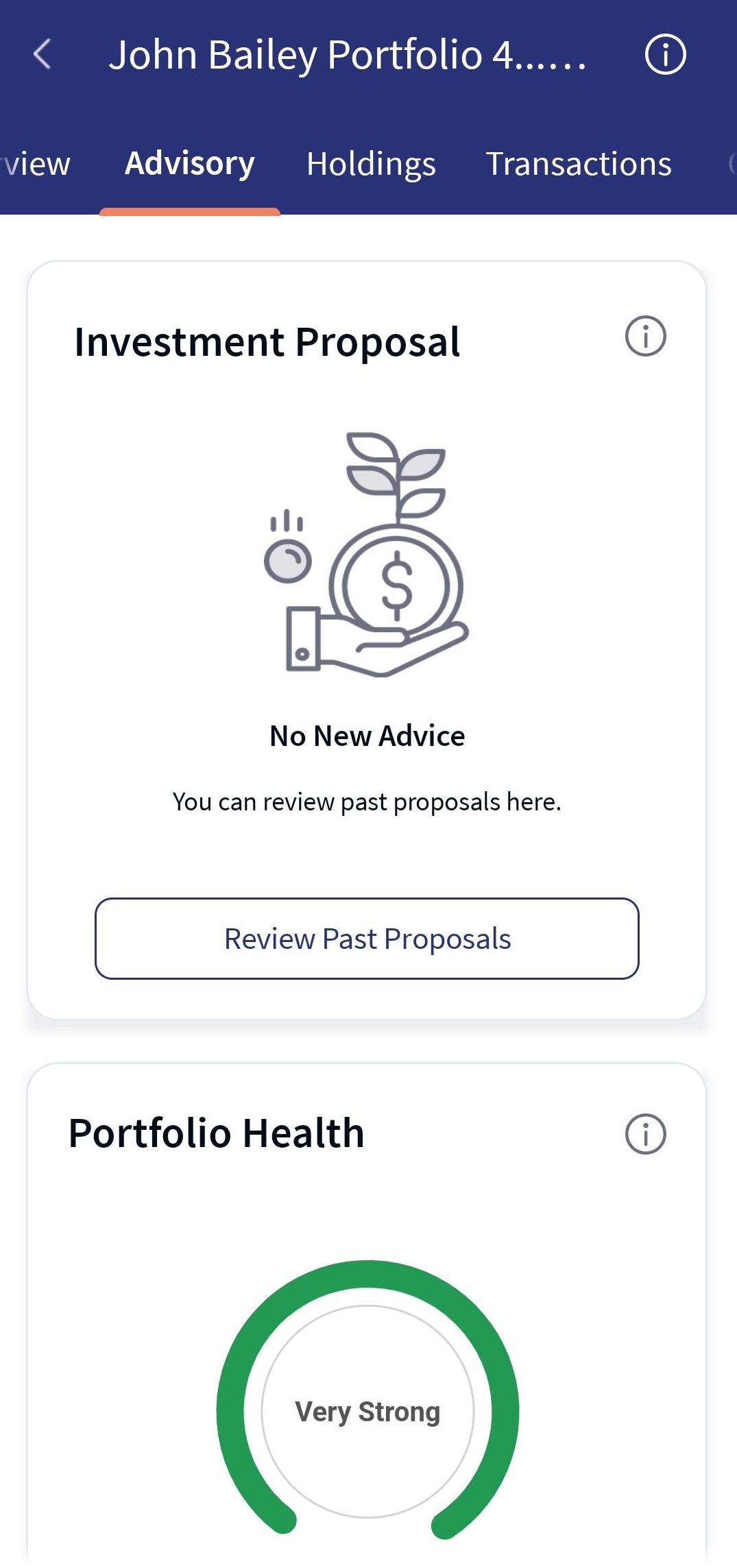
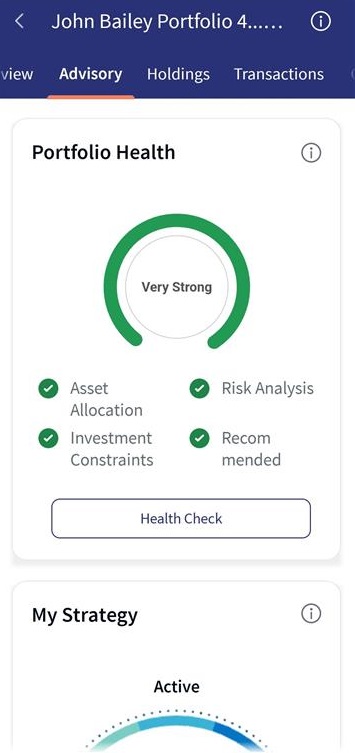
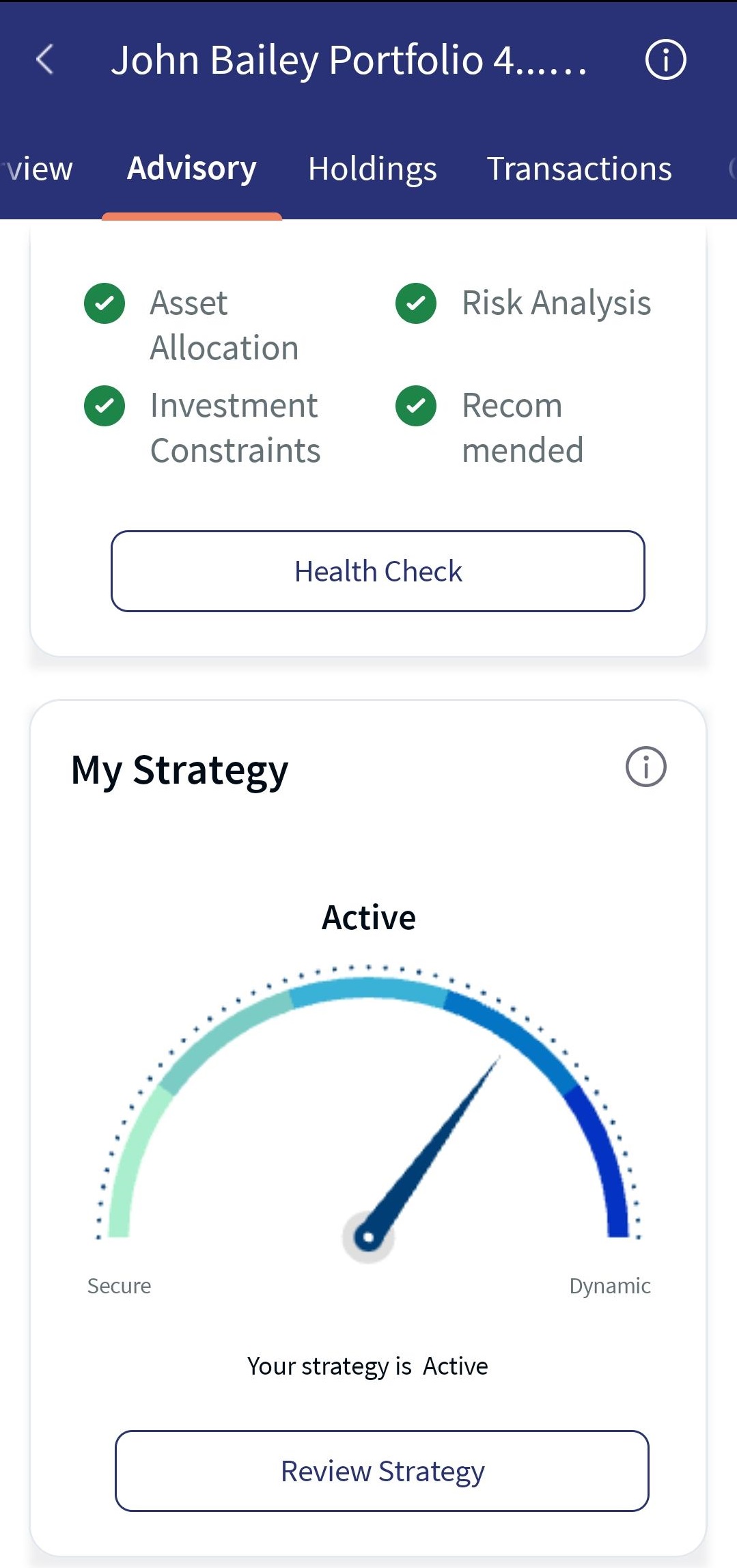
Mobile Native App: The Advisory tab includes Portfolio Health Check, My Strategy, and Investment Proposal features.
Advisory Portfolio - Screen 1
Advisory Portfolio - Screen 2
Advisory Portfolio - Screen 3
Portfolio Health
Online Banking: The Portfolio Health section displays the overall portfolio health status by considering the factors such as Asset Allocation, Risk Analysis, Investment Constraints, and Recommended Instruments. Based on the factors, the portfolio health check might vary from Very Strong, Strong, Moderate, or Weak.
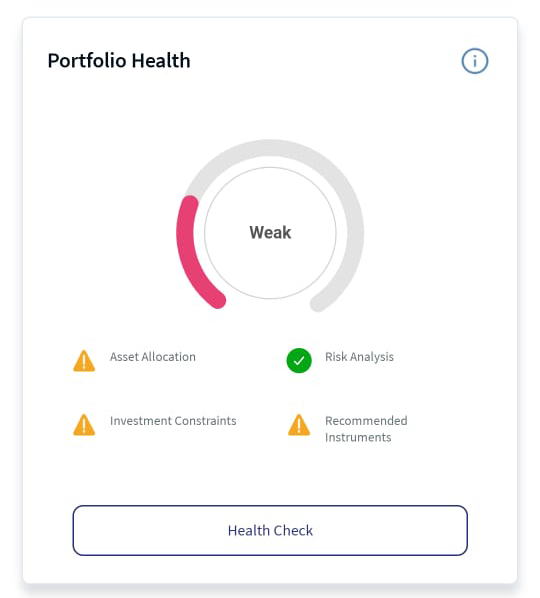
The portfolio investments represent in the form of a meter gauge based on the below criteria:
- Asset Allocation
- Risk Analysis
- Investments constraints
- Recommended Instruments
Mobile Native App:The Portfolio Health card feature is displayed for advisory portfolios. Based on Asset Allocation, Risk Analysis, Investments constraints and Recommended Instruments, you can view the overall health of your investment.
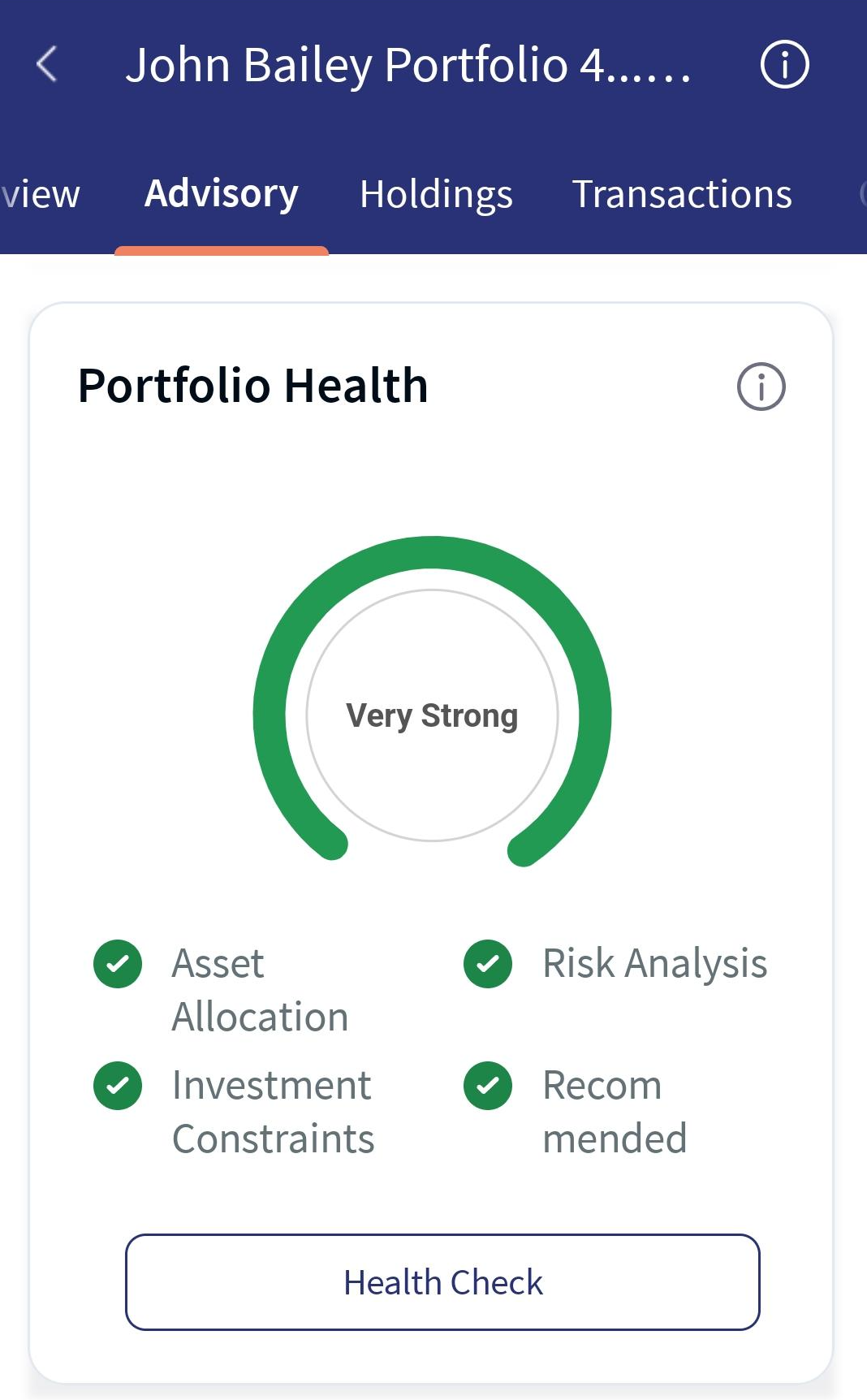
The customer can view the Portfolio updates and then contact an Advisor for the necessary steps if required. For more details on the feature description for the mobile native app, click here.
My Strategy
Online Banking: My Strategy section displays the current investment strategy. You can review your strategy, choose any available alternative strategies or personalize your strategy based on your investment objective and risk tolerance. For more details on the feature description, click here.
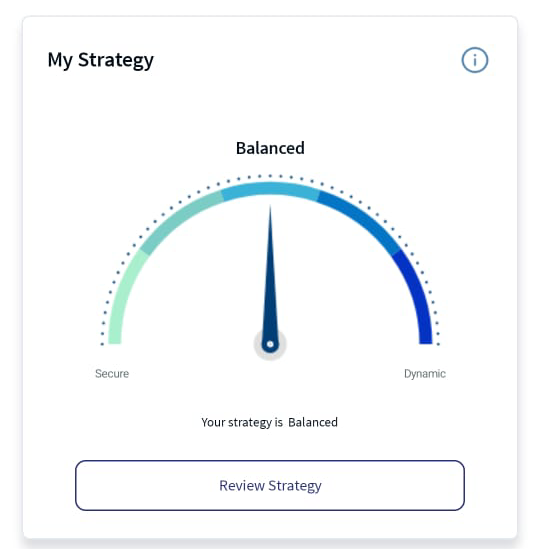
The investment strategy represents in the form of a meter gauge. On clicking Review Strategy, the following categories appear.
Mobile Native App:My Strategy card briefs about the user's investment strategy within an Advisory portfolio. This feature allows regular users to select a strategy type to help them achieve their investment objectives.
No strategy is set initially for first-time users, and the card is displayed as a horse symbol. You need to complete a questionnaire to define your strategy.
In addition, '‘i'’ icon appears on the right side corner of the card. By clicking the icon, you can view your current investment strategy.
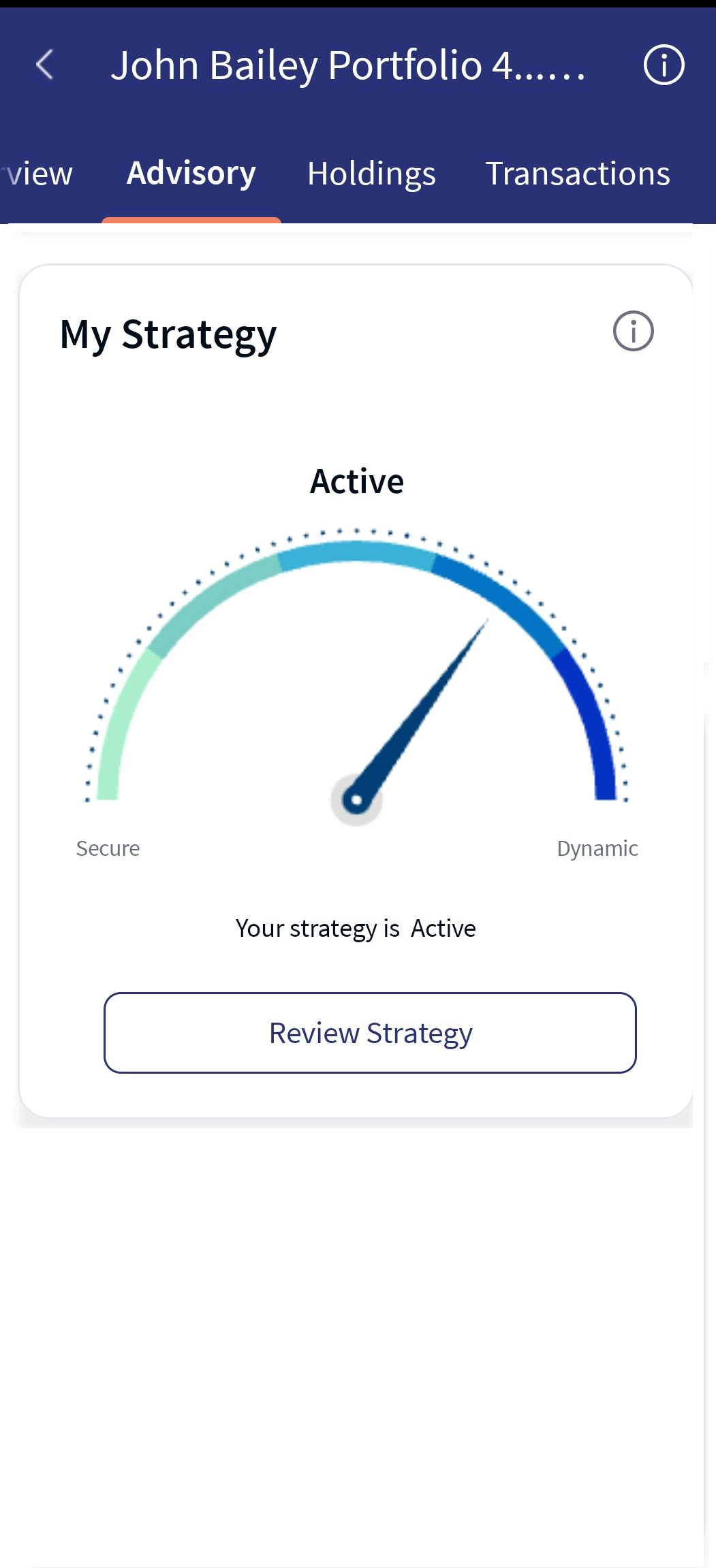
For more information on various categories for My Strategy card, click the links in the Online Banking section and view the respective feature descriptions.
Investment Proposal
Online Banking: The Investment Proposal section displays the orders proposed along with the Risk Analysis, Segment-Wise details (if the proposed orders are accepted), Investment Constraints, and Recommended Instruments for the Advisory Portfolio. You can review new or past investment proposals by clicking on the respective buttons. An indicator appears if new investment proposals are available for an advisory portfolio.
A New Advice indicator shows the user that a new investment proposal is available for the Advisory Portfolio.
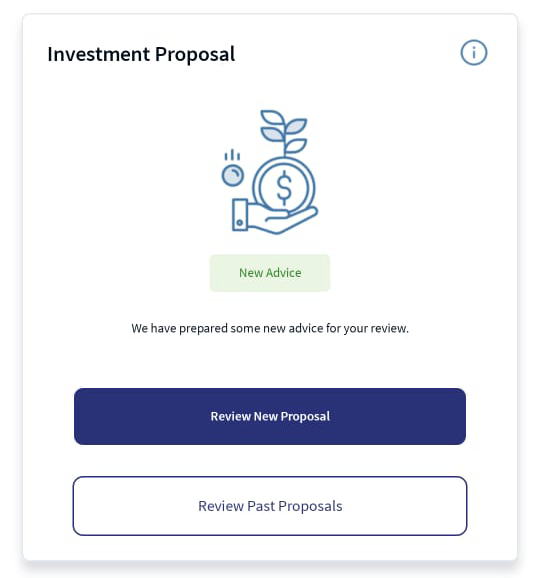
You can perform the following actions from this section:
Mobile Native App:The Investment Proposal feature is the first card displayed for the advisory portfolios. For a detailed description, refer to the above Online Banking section.
In addition, '‘i'’ icon appears on the right side corner of the card. By clicking the icon, a pop-up message appears as "Current and Past Investment proposals for your review".
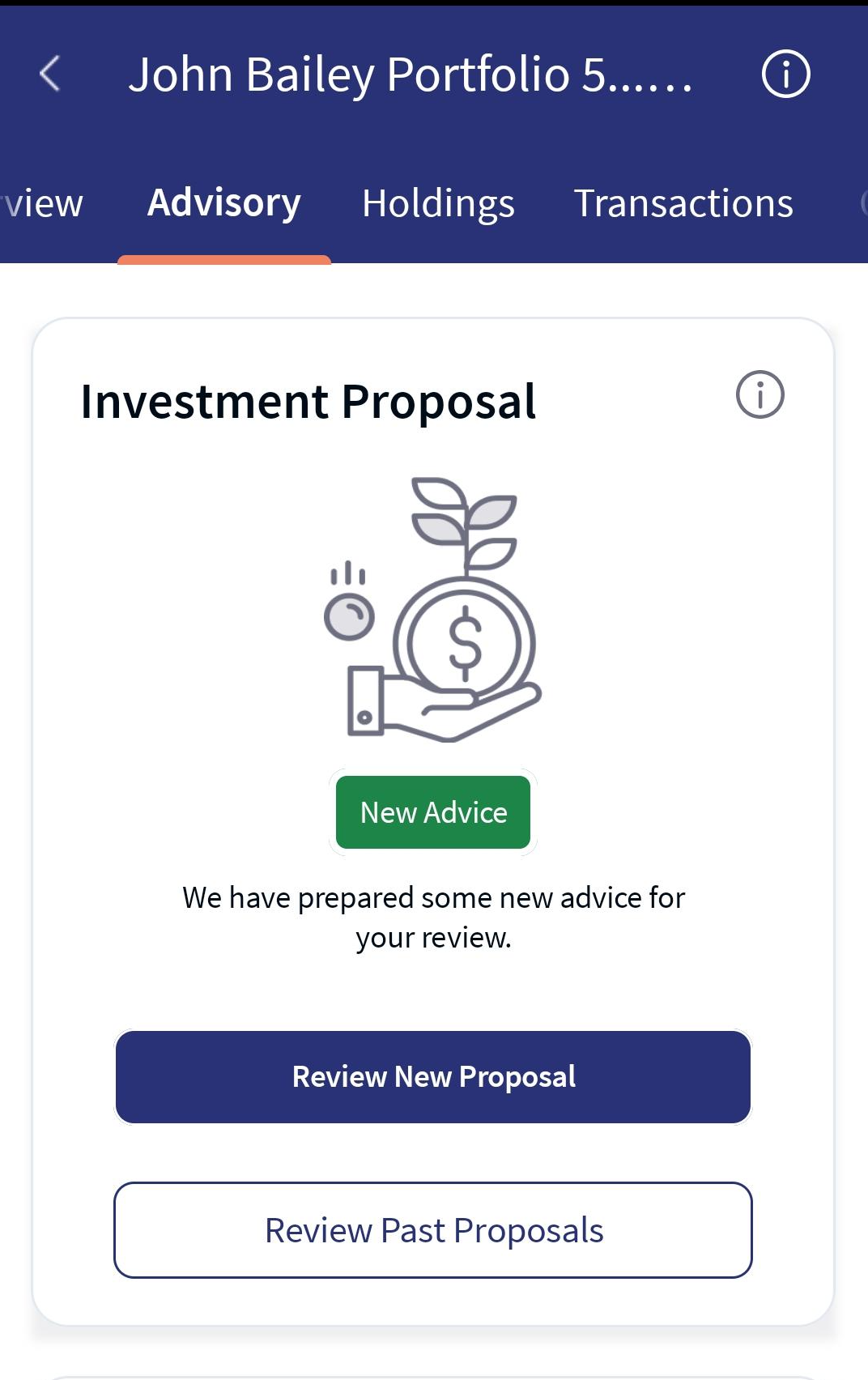
For more information on New or Past Investment Proposal, click the links in the Online Banking section and view the respective feature descriptions.
Portfolio Details
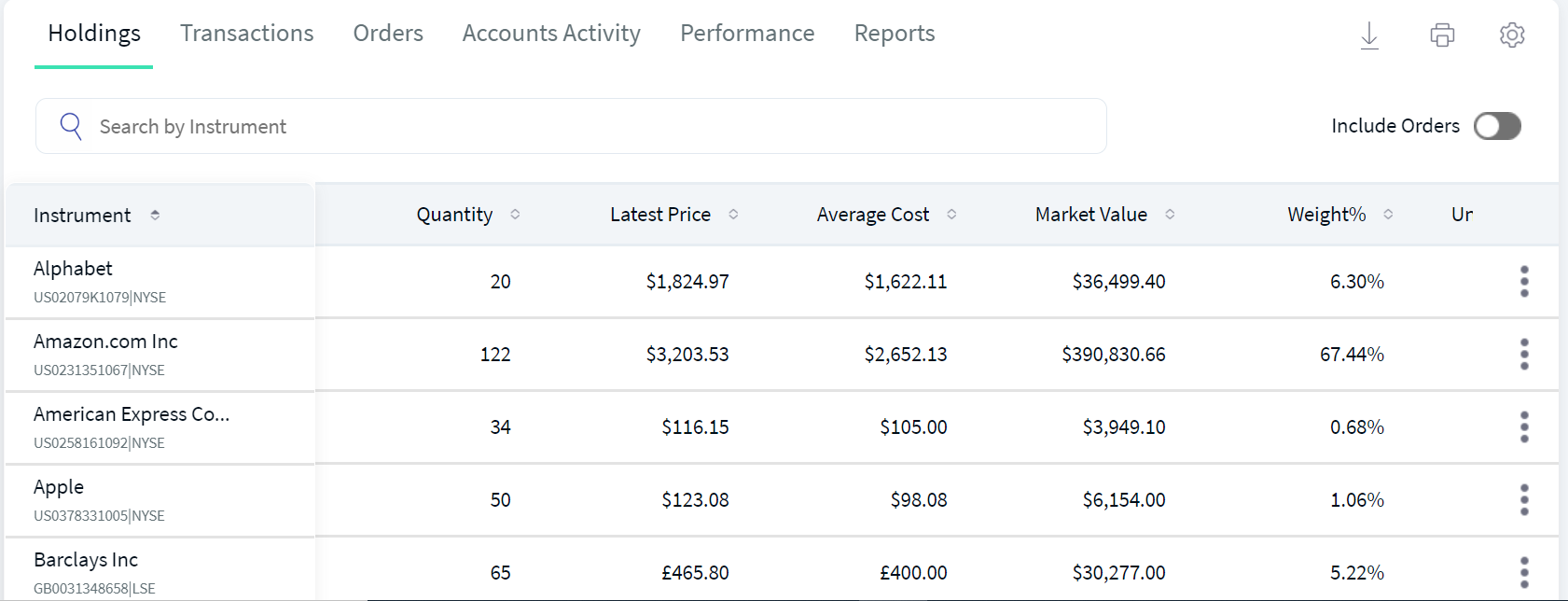
Online Banking: The Portfolio Details section provides information about the following features of your investment account:
In addition, this section also allows you to download the data in various formats such as PDF, Excel, or CSV, and the downloaded file is password protected. For more details on downloading each attribute's data, refer to the respective sections.
Mobile Native App: On selecting a Portfolio in the My Accounts screen, you are navigated to the Portfolio Details, where the Overview, Holdings, Transactions, Orders, Account Activity, Performance, Reports, and Advisory are available in the header tabs.
The Advisory tab is displayed only based on the portfolio type (e.g., Advisory or Execution)
These new header tabs are swipeable and make it easy to navigate between the sections. You can click on the tabs to view and access the features. In addition, for each tab, you can view the customer's portfolio name at the top of the screen.
In this topic